---
layout: post
title: Timeline Views in WPF Scheduler control | Syncfusion
description: Learn here all about Timeline Views support in Syncfusion WPF Scheduler (SfScheduler) control and more.
platform: scheduler-sdk
control: SfScheduler
documentation: ug
---
# Timeline Views in WPF Scheduler (SfScheduler)
The `TimelineView` displays the dates on a horizontal time axis with the desired day’s count. Scheduler supports displaying the `TimelineDay,` `TimelineWeek,` `TimelineWorkWeek,` and `TimelineMonth` views. View the past or future dates by scrolling to the right or left. Each view displays the events accurately across the time slots with an intuitive drag-and-drop feature. It provides support for highlighting the selected region of time slots and handling the interaction.
## Change time interval
Customize the interval of timeslots in the timeline views by using the [TimeInterval](https://help.syncfusion.com/cr/wpf/Syncfusion.UI.Xaml.Scheduler.TimeSlotViewSettings.html#Syncfusion_UI_Xaml_Scheduler_TimeSlotViewSettings_TimeInterval) property of [TimelineViewSettings](https://help.syncfusion.com/cr/wpf/Syncfusion.UI.Xaml.Scheduler.TimelineViewSettings.html). This property will be applicable to `TimelineDay`, `TimelineWeek,` and `TimelineWorkWeek` views.
{% tabs %}
{% highlight c# %}
using Syncfusion.UI.Xaml.Scheduler;
Schedule.ViewType = SchedulerViewType.TimelineWeek;
Schedule.TimelineViewSettings.TimeInterval = new System.TimeSpan(0, 120, 0);
{% endhighlight %}
{% endtabs %}
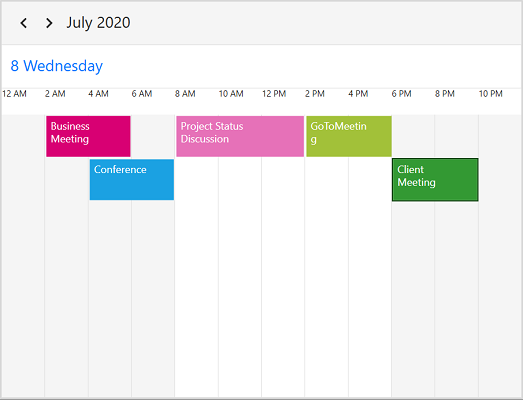
N> If the timeInterval value (in minutes) is modified, change the time labels format by setting the timeFormat value to hh:mm.
## Change time interval width
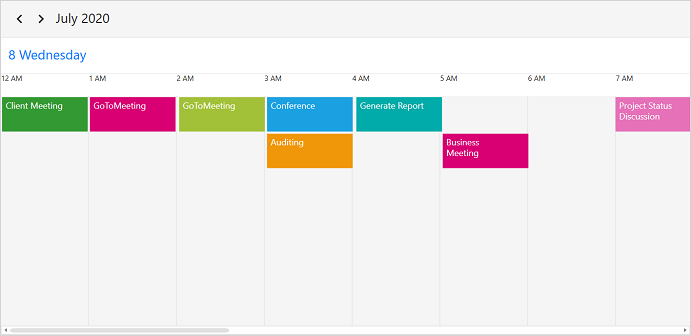
Customize the interval width of timeslots in the Timeline views by setting the [TimeIntervalSize](https://help.syncfusion.com/cr/wpf/Syncfusion.UI.Xaml.Scheduler.TimeSlotViewSettings.html#Syncfusion_UI_Xaml_Scheduler_TimeSlotViewSettings_TimeIntervalSize) property of `TimelineViewSettings.` This property will be applicable to all timeline views. By default, its value is fifty for the `TimelineDay,` `TimelineWeek,` and `TimelineWorkWeek` views and 150 for `TimelineMonth` view.
{% tabs %}
{% highlight xaml %}
{% endhighlight %}
{% highlight c# %}
using Syncfusion.UI.Xaml.Scheduler;
Schedule.ViewType = SchedulerViewType.TimelineWeek;
Schedule.TimelineViewSettings.TimeIntervalSize = 120;
{% endhighlight %}
{% endtabs %}
## Flexible working days and working hours
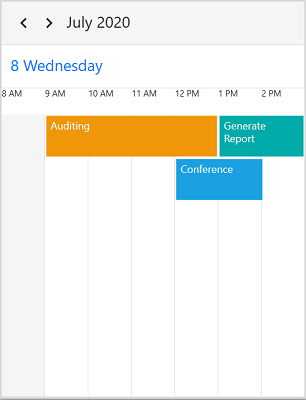
The default values for the [StartHour](https://help.syncfusion.com/cr/wpf/Syncfusion.UI.Xaml.Scheduler.TimeSlotViewSettings.html#Syncfusion_UI_Xaml_Scheduler_TimeSlotViewSettings_StartHour) and [EndHour](https://help.syncfusion.com/cr/wpf/Syncfusion.UI.Xaml.Scheduler.TimeSlotViewSettings.html#Syncfusion_UI_Xaml_Scheduler_TimeSlotViewSettings_EndHour) are 0 and 24 to show all the time slots in a timeline view. Set the `StartHour` and `EndHour` properties of `TimelineViewSettings` to show only the required time duration for users. Set the `StartHour` and `EndHour` in time duration to show the required time duration in minutes. The `StartHour` and `EndHour` properties are not applicable to the `TimelineMonth` view.
{% tabs %}
{% highlight xaml %}
{% endhighlight %}
{% highlight c# %}
using Syncfusion.UI.Xaml.Scheduler;
Schedule.ViewType = SchedulerViewType.TimelineWeek;
Schedule.TimelineViewSettings.StartHour = 8;
Schedule.TimelineViewSettings.EndHour = 15;
{% endhighlight %}
{% endtabs %}
N>
* The [NonWorkingDays](https://help.syncfusion.com/cr/wpf/Syncfusion.UI.Xaml.Scheduler.TimeSlotViewSettings.html#Syncfusion_UI_Xaml_Scheduler_TimeSlotViewSettings_NonWorkingDays) property will be applicable only for `workWeek` and `TimelineWorkWeek` views only, and not applicable for the remaining views.
* Scheduler Appointments UI, which does not fall within the `StartHour` and `EndHour` will not be visible and if it falls partially, it will be clipped.
* No need to specify the decimal point values for `StartHour` and `EndHour`, if you don’t want to set the minutes.
* The number of time slots will be calculated based on the total minutes of a day and time interval (total minutes of a day ((start hour - end hour) * 60) / time interval).
* If the custom timeInterval is given, then the number of time slots calculated based on the given `TimeInterval` should result in integer value (total minutes % timeInterval = 0), otherwise next immediate time interval that result in the integer value divided by the total minutes of a day will be considered. For example, if TimeInterval = 2 Hours 15 minutes and total minutes = 1440 (24 Hours per day), then `TimeInterval` will be changed to ‘144’ (1440%144=0) by considering (total minutes % TimeInterval = 0), it will return integer value for time slots rendering.
* If the custom `StartHour` and `EndHour` are given, then the number of time slots calculated based on given `StartHour` and `EndHour` should result in the integer value, otherwise next immediate `TimeInterval` will be considered until the result is the integer value. For example, if `StartHour` is 9 (09:00AM), `EndHour` is 18.25 (06:15 PM), `TimeInterval` is 30 minutes, and total minutes = 555 ((18.25-9)*60), then the `TimeInterval` will be changed to ’37 minutes’ (555%37=0) by considering (total minutes % timeInterval = 0). It will return the integer value for time slots rendering.
## Change days count
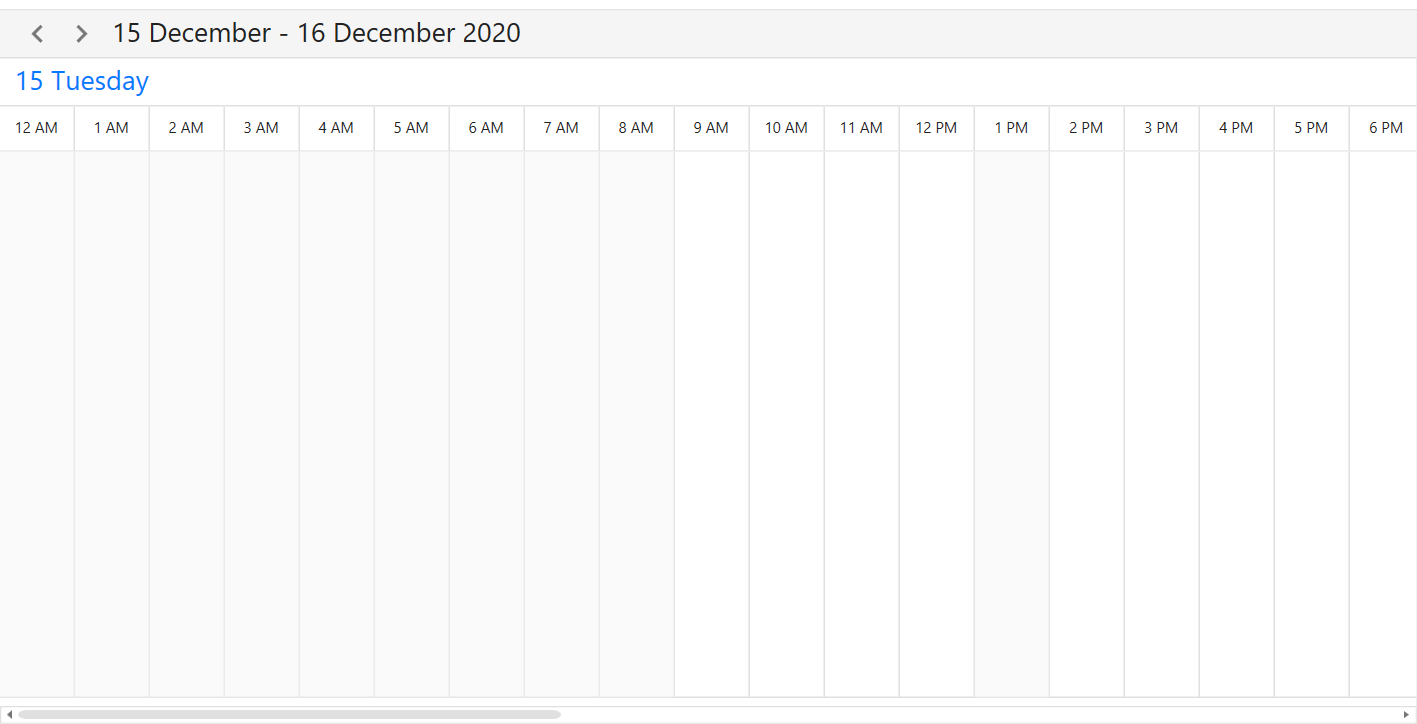
Change the day's count of timeslots in the timeline view by setting the [DaysCount](https://help.syncfusion.com/cr/wpf/Syncfusion.UI.Xaml.Scheduler.TimeSlotViewSettings.html#Syncfusion_UI_Xaml_Scheduler_TimeSlotViewSettings_DaysCount) property of `TimelineViewSettings.` This property is only applicable for the `TimelineDay` view. By default, its value is set to 1.
{% tabs %}
{% highlight xaml %}
{% endhighlight %}
{% highlight c# %}
using Syncfusion.UI.Xaml.Scheduler;
Schedule.ViewType = SchedulerViewType.TimelineDay;
Schedule.TimelineViewSettings.DaysCount = 2;
{% endhighlight %}
{% endtabs %}
## Blackout dates
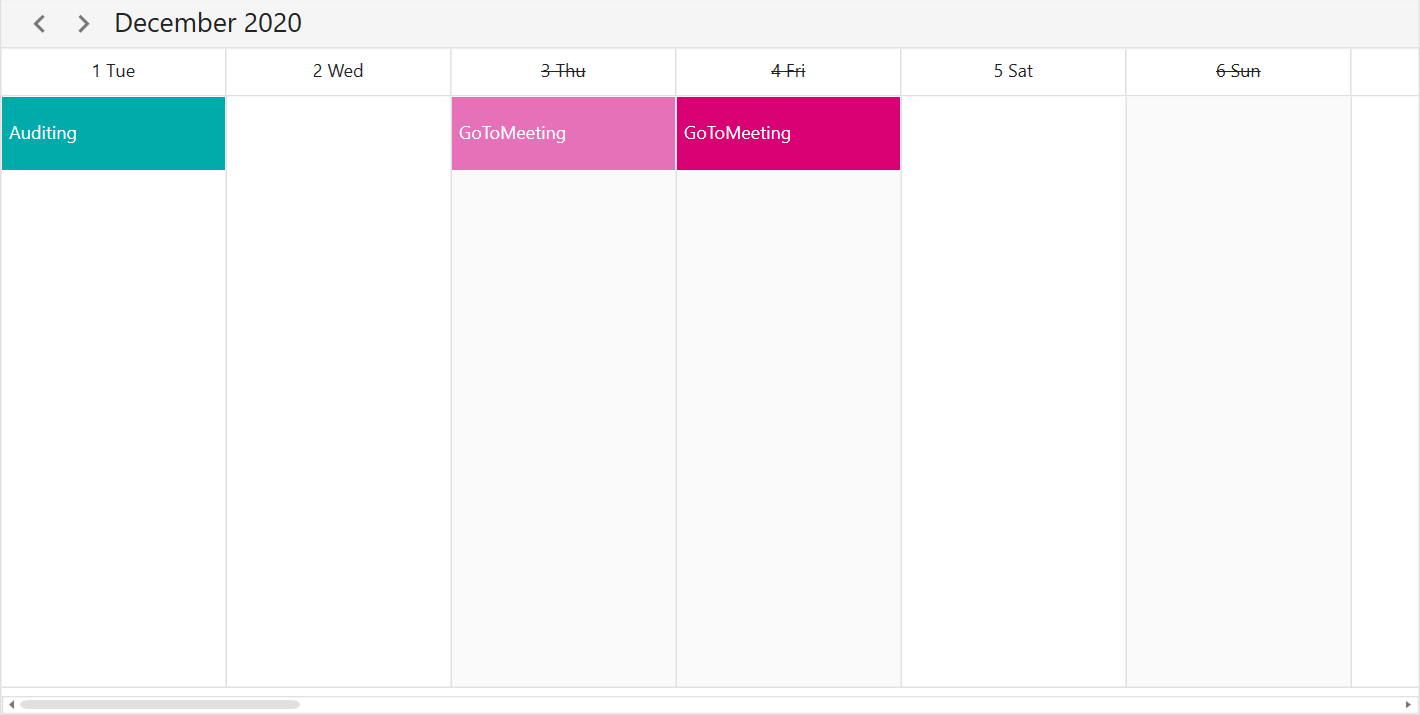
Disable the interaction for certain dates in the scheduler `TimelineMonth` view by adding those specific dates to the [BlackoutDates](https://help.syncfusion.com/cr/wpf/Syncfusion.UI.Xaml.Scheduler.SfScheduler.html#Syncfusion_UI_Xaml_Scheduler_SfScheduler_BlackoutDates) collection property of `SfScheduler`. Using this, allocate or restrict the specific dates for predefined events. This property is not applicable to the `TimelineDay,` `TimelineWeek,` and `TimelineWorkWeek` views.
{% tabs %}
{% highlight c#%}
using Syncfusion.UI.Xaml.Scheduler;
this.Schedule.ViewType = SchedulerViewType.Month;
this.Schedule.BlackoutDates = GetBlackoutDates();
private ObservableCollection GetBlackoutDates()
{
var blackoutDateCollection = new ObservableCollection()
{
DateTime.Now.Date.AddDays(1),
DateTime.Now.Date.AddDays(3),
DateTime.Now.Date.AddDays(5),
DateTime.Now.Date.AddDays(7),
DateTime.Now.Date.AddDays(9)
};
return blackoutDateCollection;
}
{% endhighlight %}
{% endtabs %}
## Special time regions
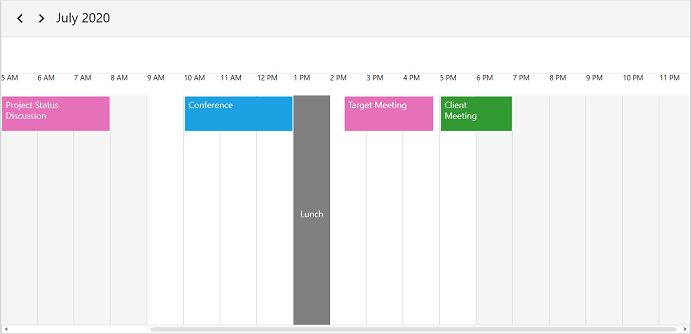
Restrict the user interaction such as selection and highlights specific regions of time in the timeline views by adding the [SpecialTimeRegions](https://help.syncfusion.com/cr/wpf/Syncfusion.UI.Xaml.Scheduler.TimeSlotViewSettings.html#Syncfusion_UI_Xaml_Scheduler_TimeSlotViewSettings_SpecialTimeRegions) property of [SfScheduler](https://help.syncfusion.com/cr/wpf/Syncfusion.UI.Xaml.Scheduler.html). Set the [StartTime](https://help.syncfusion.com/cr/wpf/Syncfusion.UI.Xaml.Scheduler.SpecialTimeRegion.html#Syncfusion_UI_Xaml_Scheduler_SpecialTimeRegion_StartTime) and [EndTime](https://help.syncfusion.com/cr/wpf/Syncfusion.UI.Xaml.Scheduler.SpecialTimeRegion.html#Syncfusion_UI_Xaml_Scheduler_SpecialTimeRegion_EndTime) properties of [SpecialTimeRegion](https://help.syncfusion.com/cr/wpf/Syncfusion.UI.Xaml.Scheduler.SpecialTimeRegion.html) to create a `SpecialTimeRegion,` use the timeZone property to set the specific timezone for the start and end time of the `SpecialTimeRegion.` The `SpecialTimeRegion` will display the text or image on it that is set to the text or icon property of `SpecialTimeRegion.` This property will be applicable to the `TimelineDay,` `TimelineWeek,` and `TimelineWorkWeek` views.
### Selection restriction in timeslots
Enable or disable the touch interaction of `SpecialTimeRegion` using the [CanEdit](https://help.syncfusion.com/cr/wpf/Syncfusion.UI.Xaml.Scheduler.SpecialTimeRegion.html#Syncfusion_UI_Xaml_Scheduler_SpecialTimeRegion_CanEdit) property of `SpecialTimeRegion`. By default, its value is true.
{% tabs %}
{% highlight xaml %}
{% endhighlight %}
{% highlight c# %}
using Syncfusion.UI.Xaml.Scheduler;
Schedule.ViewType = SchedulerViewType.TimelineWeek;
Schedule.TimelineViewSettings.SpecialTimeRegions.Add(new SpecialTimeRegion
{
StartTime = new System.DateTime(2020, 07, 08, 13, 0, 0),
EndTime = new System.DateTime(2020, 07, 08, 14, 0, 0),
Text = "Lunch",
CanEdit = false,
Background = Brushes.Black,
Foreground = Brushes.White
});
{% endhighlight %}
{% endtabs %}
N>
This property only restricts the interaction on region and it does not restrict the following:
* Programmatic selection (if the user updates the selected date value dynamically).
* Does not clear the selection when the user selects the region and dynamically change the `CanEdit` property to false.
* It does not restrict appointment interaction when the appointment is placed in the region.
* It does not restrict the appointment rendering on a region, when appointments are loaded from data services or adding programmatically.
### Recurring time region
The recurring time region on a daily, weekly, monthly, or yearly interval. The recurring special time regions can be created by setting the [RecurrenceRule](https://help.syncfusion.com/cr/wpf/Syncfusion.UI.Xaml.Scheduler.SpecialTimeRegion.html#Syncfusion_UI_Xaml_Scheduler_SpecialTimeRegion_RecurrenceRule) property in `SpecialTimeRegion`.
{% tabs %}
{% highlight xaml %}
{% endhighlight %}
{% highlight c# %}
using Syncfusion.UI.Xaml.Scheduler;
Schedule.ViewType = SchedulerViewType.TimelineWorkWeek;
Schedule.TimelineViewSettings.SpecialTimeRegions.Add(new SpecialTimeRegion
{
StartTime = new System.DateTime(2020, 07, 08, 13, 0, 0),
EndTime = new System.DateTime(2020, 07, 08, 14, 0, 0),
Text = "Lunch",
CanEdit = false,
Background = Brushes.Black,
Foreground = Brushes.White,
RecurrenceRule= "FREQ=DAILY;INTERVAL=1"
});
{% endhighlight %}
{% endtabs %}
### Recurrence exception dates
Delete any of occurrence that is an exception from the recurrence pattern time region by using the [RecurrenceExceptionDates](https://help.syncfusion.com/cr/wpf/Syncfusion.UI.Xaml.Scheduler.SpecialTimeRegion.html#Syncfusion_UI_Xaml_Scheduler_SpecialTimeRegion_RecurrenceExceptionDates) property of `SpecialTimeRegion`. The deleted occurrence date will be considered as a recurrence exception date.
{% tabs %}
{% highlight c# %}
using Syncfusion.UI.Xaml.Scheduler;
Schedule.ViewType = SchedulerViewType.TimelineWeek;
DateTime recurrenceExceptionDates = new DateTime(2020, 07, 06, 10, 0, 0);
DateTime recurrenceExceptionDates1 = new DateTime(2020, 07, 08, 10, 0, 0);
DateTime recurrenceExceptionDates2 = new DateTime(2020, 07, 10, 10, 0, 0);
Schedule.TimelineViewSettings.SpecialTimeRegions.Add(new SpecialTimeRegion
{
StartTime = new System.DateTime(2020, 05, 05, 12, 0, 0),
EndTime = new System.DateTime(2020, 05, 05, 13, 0, 0),
Text = "Lunch",
CanEdit = false,
Background = Brushes.Black,
Foreground = Brushes.White,
RecurrenceRule = "FREQ=DAILY;INTERVAL=1",
RecurrenceExceptionDates = new ObservableCollection()
{
recurrenceExceptionDates,
recurrenceExceptionDates1,
recurrenceExceptionDates2,
}
});
{% endhighlight %}
{% endtabs %}
### Special time region customization
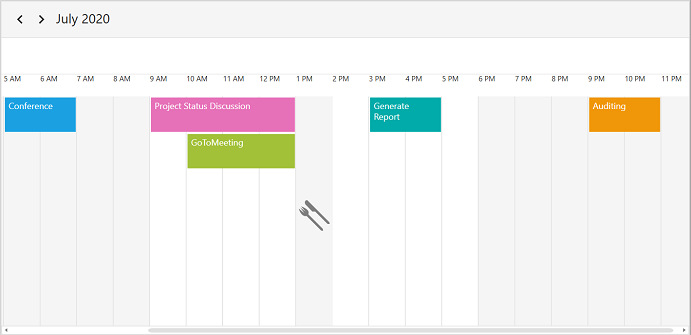
The `SpecialTimeRegion` background color can be customized by using the [Background](https://help.syncfusion.com/cr/wpf/Syncfusion.UI.Xaml.Scheduler.SpecialTimeRegion.html#Syncfusion_UI_Xaml_Scheduler_SpecialTimeRegion_Background) and [SpecialTimeRegionTemplate](https://help.syncfusion.com/cr/wpf/Syncfusion.UI.Xaml.Scheduler.TimeSlotViewSettings.html#Syncfusion_UI_Xaml_Scheduler_TimeSlotViewSettings_SpecialTimeRegionTemplate) properties of `SpecialTimeRegion` that is used to customize the text style for the image of the `SpecialTimeRegion`.
{% tabs %}
{% highlight xaml %}
{% endhighlight %}
{% endtabs %}
{% tabs %}
{% highlight xaml %}
{% endhighlight %}
{% endtabs %}
## Full screen scheduler
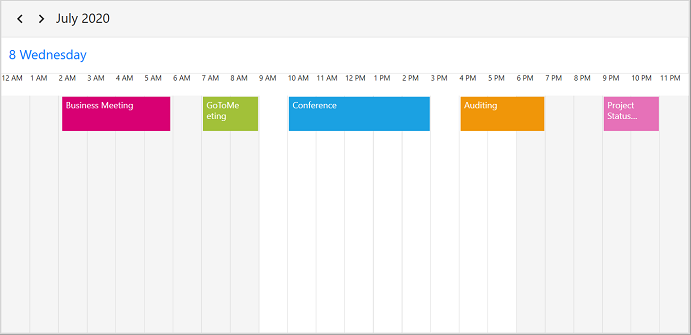
Scheduler time interval height can be adjusted based on screen height by changing the value of [TimeIntervalSize](https://help.syncfusion.com/cr/wpf/Syncfusion.UI.Xaml.Scheduler.TimeSlotViewSettings.html#Syncfusion_UI_Xaml_Scheduler_TimeSlotViewSettings_TimeIntervalSize) property to -1. It will auto-fit to the screen height and width.
{% tabs %}
{% highlight xaml %}
{% endhighlight %}
{% highlight c# %}
using Syncfusion.UI.Xaml.Scheduler;
Schedule.ViewType = SchedulerViewType.TimelineWeek;
Schedule.TimelineViewSettings.TimeIntervalSize = -1;
{% endhighlight %}
{% endtabs %}
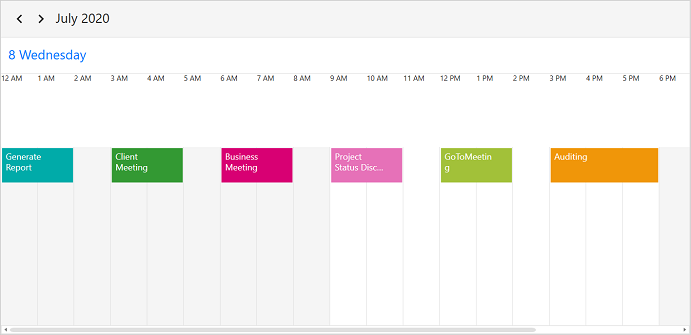
## Change time ruler size
Customize the size of the time ruler view where the labels mentioning the time are placed by using the [TimeRulerSize](https://help.syncfusion.com/cr/wpf/Syncfusion.UI.Xaml.Scheduler.TimeSlotViewSettings.html#Syncfusion_UI_Xaml_Scheduler_TimeSlotViewSettings_TimeRulerSize) property of `TimelineViewSettings.` This property will be applicable to `TimelineDay,` `TimelineWeek,` and `TimelineWorkWeek` views.
{% tabs %}
{% highlight xaml %}
{% endhighlight %}
{% highlight c# %}
using Syncfusion.UI.Xaml.Scheduler;
Schedule.ViewType = SchedulerViewType.TimelineWeek;
Schedule.TimelineViewSettings.TimeRulerSize = 100;
{% endhighlight %}
{% endtabs %}
## Minimum appointment duration
The [MinimumAppointmentDuration](https://help.syncfusion.com/cr/wpf/Syncfusion.UI.Xaml.Scheduler.TimeSlotViewSettings.html#Syncfusion_UI_Xaml_Scheduler_TimeSlotViewSettings_MinimumAppointmentDuration) property in the `TimelineViewSettings` is to set an arbitrary height to appointments when it has a minimum duration in timeline view so that the subject can be readable. This property will not be applicable for the `TimelineMonth` view.
{% tabs %}
{% highlight c# %}
using Syncfusion.UI.Xaml.Scheduler;
Schedule.ViewType = SchedulerViewType.TimelineWeek;
Schedule.TimelineViewSettings.MinimumAppointmentDuration = new System.TimeSpan(0, 120, 0);
{% endhighlight %}
{% endtabs %}
N>
* The `MinimumAppointmentDuration` value will be set, when an appointment duration value is lesser than `MinimumAppointmentDuration`.
* Appointment duration value will be set, when the appointment duration value is greater than `MinimumAppointmentDuration`.
* `TimeInterval` value will be set, when `MinimumAppointmentDuration` is greater than `TimeInterval` with lesser appointment duration.
* All day Appointment does not support `MinimumAppointmentDuration`.
## Time text formatting
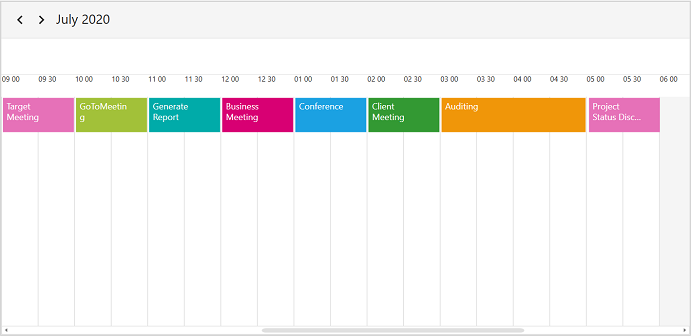
Customize the format for the labels mentioning the time, by setting the [TimeRulerFormat](https://help.syncfusion.com/cr/wpf/Syncfusion.UI.Xaml.Scheduler.TimeSlotViewSettings.html#Syncfusion_UI_Xaml_Scheduler_TimeSlotViewSettings_TimeRulerFormat) property of `TimelineViewSettings` in the `Scheduler`. This property will not be applicable for the `TimelineMonth` view.
{% tabs %}
{% highlight c# %}
using Syncfusion.UI.Xaml.Scheduler;
Schedule.ViewType = SchedulerViewType.TimelineWeek;
Schedule.TimelineViewSettings.TimeRulerFormat = "hh mm";
Schedule.TimelineViewSettings.TimeInterval = new System.TimeSpan(0, 30, 0);
{% endhighlight %}
{% endtabs %}
N>
* You can customize the appointment editor time format based on the scheduler time ruler format and culture.
* By default, the scheduler time ruler format is `h tt` and the appointment editor time picker format is `hh:mm tt.`
## View header
Customize the default appearance of view header in the timeline views by setting the [ViewHeaderDateFormat](https://help.syncfusion.com/cr/wpf/Syncfusion.UI.Xaml.Scheduler.TimeSlotViewSettings.html#Syncfusion_UI_Xaml_Scheduler_TimeSlotViewSettings_ViewHeaderDateFormat), [ViewHeaderHeight](https://help.syncfusion.com/cr/wpf/Syncfusion.UI.Xaml.Scheduler.ViewSettingsBase.html#Syncfusion_UI_Xaml_Scheduler_ViewSettingsBase_ViewHeaderHeight), [ViewHeaderDayFormat](https://help.syncfusion.com/cr/wpf/Syncfusion.UI.Xaml.Scheduler.ViewSettingsBase.html#Syncfusion_UI_Xaml_Scheduler_ViewSettingsBase_ViewHeaderDayFormat), and [ViewHeaderTemplate](https://help.syncfusion.com/cr/wpf/Syncfusion.UI.Xaml.Scheduler.ViewSettingsBase.html#Syncfusion_UI_Xaml_Scheduler_ViewSettingsBase_ViewHeaderTemplate) of `TimelineViewSettings.`
### View header text formatting
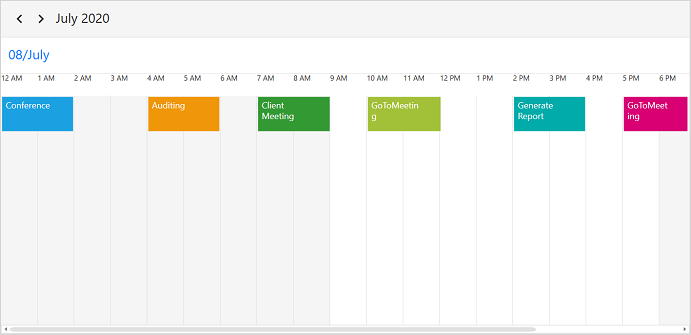
Customize the date and day format of ViewHeader by using the `ViewHeaderDateFormat` and `ViewHeaderDayFormat` properties of `TimelineViewSettings`.
{% tabs %}
{% highlight xaml %}
{% endhighlight %}
{% highlight c# %}
using Syncfusion.UI.Xaml.Scheduler;
Schedule.ViewType = SchedulerViewType.TimelineWeek;
Schedule.TimelineViewSettings.ViewHeaderDateFormat="dd/MMMM";
{% endhighlight %}
{% endtabs %}
### View header height
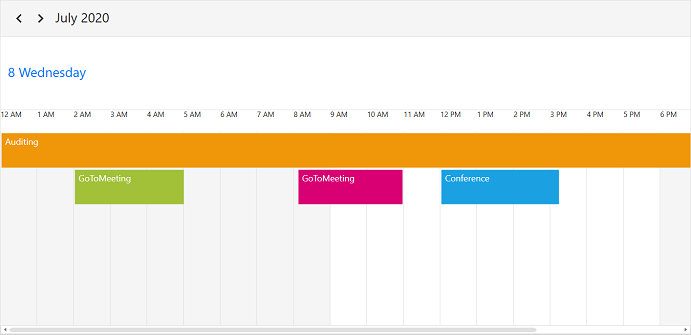
Customize the height of the ViewHeader in timeline views by setting `ViewHeaderHeight` property of `TimelineViewSettings` in `SfScheduler`.
{% tabs %}
{% highlight xaml %}
{% endhighlight %}
{% highlight c# %}
using Syncfusion.UI.Xaml.Scheduler;
Schedule.ViewType = SchedulerViewType.TimelineWeek;
Schedule.TimelineViewSettings.ViewHeaderHeight = 100;
{% endhighlight %}
{% endtabs %}
### View header appearance customization
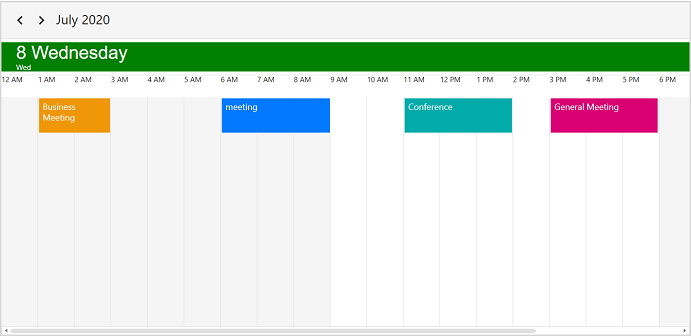
Customize the default appearance of view header by setting `ViewHeaderTemplate` property of `TimelineViewSettings` in `SfScheduler`.
{% tabs %}
{% highlight xaml %}
{% endhighlight %}
{% endtabs %}
{% tabs %}
{% highlight xaml %}
{% endhighlight %}
{% endtabs %}
## Appointment height
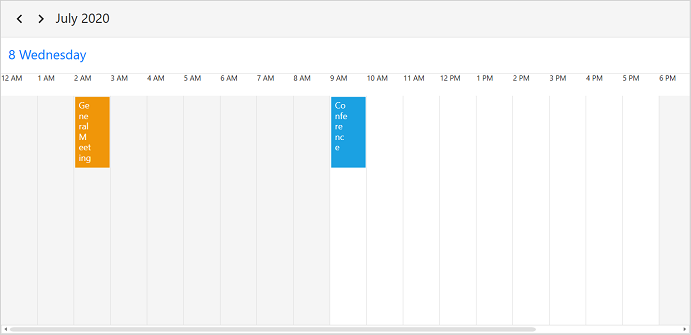
Customize the height of the appointment in `TimelineView` using the [TimelineAppointmentHeight](https://help.syncfusion.com/cr/wpf/Syncfusion.UI.Xaml.Scheduler.TimelineViewSettings.html#Syncfusion_UI_Xaml_Scheduler_TimelineViewSettings_TimelineAppointmentHeight) property of the `TimelineViewSettings`. By default, it's value is fifty for the `TimelineWeek,` `TimelineWorkWeek,` and `TimelineDay` views and twenty for the `TimelineMonth` view.
{% tabs %}
{% highlight xaml %}
{% endhighlight %}
{% highlight c# %}
using Syncfusion.UI.Xaml.Scheduler;
Schedule.ViewType = SchedulerViewType.TimelineWeek;
Schedule.TimelineViewSettings.TimelineAppointmentHeight = 100;
{% endhighlight %}
{% endtabs %}
## Cell bottom padding
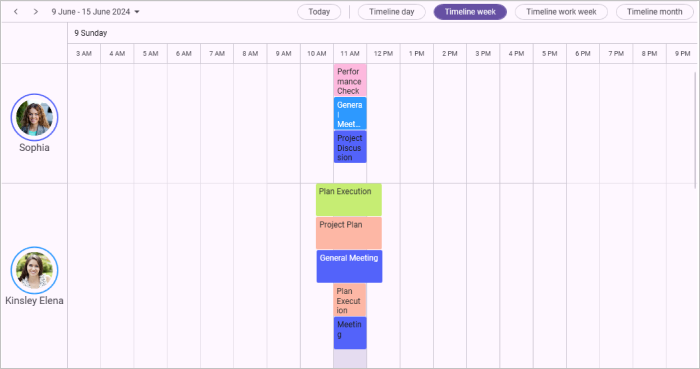
To enhance interaction with a scheduler's appointments, you can customize the spacing between appointments and the bottom border of their cells using the [CellBottomPadding](https://help.syncfusion.com/cr/wpf/Syncfusion.UI.Xaml.Scheduler.TimelineViewSettings.html#Syncfusion_UI_Xaml_Scheduler_TimelineViewSettings_CellBottomPadding) property of [TimelineViewSettings](https://help.syncfusion.com/cr/wpf/Syncfusion.UI.Xaml.Scheduler.TimelineViewSettings.html) in the [SfScheduler](https://help.syncfusion.com/cr/wpf/Syncfusion.UI.Xaml.Scheduler.SfScheduler.html).
{% tabs %}
{% highlight xaml hl_lines="8" %}
{% endhighlight %}
{% highlight c# hl_lines="4" %}
using Syncfusion.UI.Xaml.Scheduler;
this.Schedule.ViewType = SchedulerViewType.TimelineWeek;
this.Schedule.TimelineViewSettings.CellBottomPadding = 30;
{% endhighlight %}
{% endtabs %}
N>
* This customization will apply only when the scheduler has an appointment.
N> You can refer to our [WPF Scheduler](https://www.syncfusion.com/scheduler-sdk/wpf-scheduler) feature tour page for its groundbreaking feature representations. You can also explore our [WPF Scheduler example](https://github.com/syncfusion/wpf-demos) to knows how to schedule and manage appointments through an intuitive user interface, similar to the Outlook calendar.