---
layout: post
title: Getting Started with WPF Scheduler control | Syncfusion
canonical_url: "https://www.syncfusion.com/scheduler-sdk/wpf-scheduler"
description: Learn here about getting started with Syncfusion WPF Scheduler (SfScheduler) control, its elements and more.
platform: wpf
control: SfScheduler
documentation: ug
---
# Getting Started with WPF Scheduler (SfScheduler)
This section provides an overview for working with SfScheduler for WPF and also provides a walkthrough to configure the [WPF Scheduler](https://www.syncfusion.com/scheduler-sdk/wpf-scheduler) (SfScheduler) control in a real-time scenario.
## Assembly deployment
Refer to the section on [control dependencies](https://help.syncfusion.com/wpf/control-dependencies#sfscheduler) for a list of assemblies or NuGet Packages to be used as a guide for using control in any application. Further information on installing the NuGet package can be found in the following link in a WPF application: [How to install nuget packages](https://help.syncfusion.com/extension/syncfusion-nuget-packages/nuget-packages) . Use [Syncfusion Reference Manager](https://help.syncfusion.com/wpf/visual-studio-integration/visual-studio-extensions/add-references) to refer the scheduler's dependent assemblies.
N> The `SfScheduler` control is available from Syncfusion WPF package version **18.2.0.45** onward. It is supported on **.NET Framework 4.5.1+**, **.NET Core 3.1**, and **.NET 5/6**. The `SfScheduler` replaces the deprecated `SfSchedule` control; new features and enhancements are added only to `SfScheduler`.
## Create simple application with SfScheduler
In this section, create a WPF application with the WPF Scheduler (SfScheduler) control.
* [Creating project](#creating-project)
* [Adding control via Designer](#adding-control-via-designer)
* [Adding control manually in XAML](#adding-control-manually-in-xaml)
* [Adding control manually in C#](#adding-control-manually-in-c)
#### Creating project
In Visual Studio, create a new WPF project to show the features of the WPF Scheduler (SfScheduler) control and add the following namespace to the added assemblies.
Assembly: `Syncfusion.SfScheduler.WPF`
Namespace: `Syncfusion.UI.Xaml.Scheduler`
#### Adding control via Designer
[SfScheduler](https://help.syncfusion.com/cr/wpf/Syncfusion.UI.Xaml.Scheduler.html) control can be added to the application by dragging it from Toolbox and dropping it in a Designer view. The required assembly references will be added automatically.
#### Adding control manually in XAML
To add the control manually in XAML page, follow the given steps:
1. Add the `Syncfusion.SfScheduler.WPF` assembly reference to the project.
2. Import WPF schema `http://schemas.syncfusion.com/wpf` in the XAML page.
3. Declare the `SfScheduler` control in XAML page.
{% capture codesnippet1 %}
{% tabs %}
{% highlight xaml %}
{% endhighlight %}
{% endtabs %}
{% endcapture %}
{{ codesnippet1 | OrderList_Indent_Level_1 }}
#### Adding control manually in C#
To add the control manually in C# page, add the `Syncfusion.SfScheduler.WPF` assembly reference to the project.
{% tabs %}
{% highlight c#%}
using Syncfusion.UI.Xaml.Scheduler;
namespace GettingStarted
{
public partial class MainWindow : Window
{
public MainWindow()
{
InitializeComponent();
SfScheduler schedule = new SfScheduler();
this.Content = schedule;
}
}
}
{% endhighlight %}
{% endtabs %}
## Change SfScheduler Views
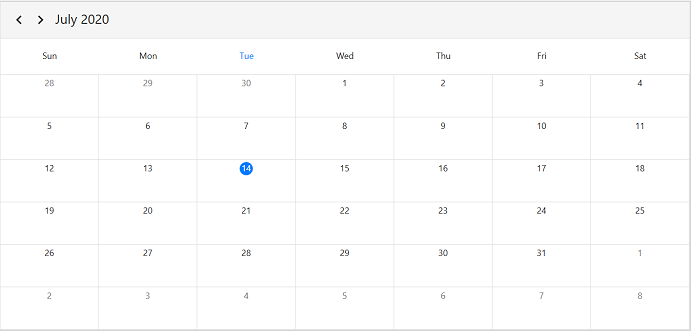
The [WPF Scheduler](https://help.syncfusion.com/cr/wpf/Syncfusion.UI.Xaml.Scheduler.html) (SfScheduler) control provides five different types of views to display dates, and the view can be assigned to the control by using the [ViewType](https://help.syncfusion.com/cr/wpf/Syncfusion.UI.Xaml.Scheduler.SfScheduler.html#Syncfusion_UI_Xaml_Scheduler_SfScheduler_ViewType) property. The supported view types are `Day`, `Week`, `WorkWeek`, `Month`, and `Timeline`. By default, the control is assigned with `MonthView`. The current date will be displayed initially for all the Schedule views.
{% tabs %}
{% highlight xaml %}
{% endhighlight %}
{% highlight c# %}
using Syncfusion.UI.Xaml.Scheduler;
Schedule.ViewType =SchedulerViewType.Month;
{% endhighlight %}
{% endtabs %}
## Appointments
[SfScheduler](https://help.syncfusion.com/cr/wpf/Syncfusion.UI.Xaml.Scheduler.html) has a built-in capability to handle the appointment arrangement internally based on the [ScheduleAppointment](https://help.syncfusion.com/cr/wpf/Syncfusion.UI.Xaml.Scheduler.ScheduleAppointment.html) collections. Assign the generated collection to the [ItemsSource](https://help.syncfusion.com/cr/wpf/Syncfusion.UI.Xaml.Scheduler.SfScheduler.html#Syncfusion_UI_Xaml_Scheduler_SfScheduler_ItemsSource) property of `SfScheduler`.
### Creating the schedule appointments
The [ScheduleAppointment](https://help.syncfusion.com/cr/wpf/Syncfusion.UI.Xaml.Scheduler.ScheduleAppointment.html) is a class that includes the specific scheduled appointment. It has some basic properties such as [StartTime](https://help.syncfusion.com/cr/wpf/Syncfusion.UI.Xaml.Scheduler.ScheduleAppointment.html#Syncfusion_UI_Xaml_Scheduler_ScheduleAppointment_StartTime), [EndTime](https://help.syncfusion.com/cr/wpf/Syncfusion.UI.Xaml.Scheduler.ScheduleAppointment.html#Syncfusion_UI_Xaml_Scheduler_ScheduleAppointment_EndTime), [Subject](https://help.syncfusion.com/cr/wpf/Syncfusion.UI.Xaml.Scheduler.ScheduleAppointment.html#Syncfusion_UI_Xaml_Scheduler_ScheduleAppointment_Subject), and some additional information about the appointment can be added with [Notes](https://help.syncfusion.com/cr/wpf/Syncfusion.UI.Xaml.Scheduler.ScheduleAppointment.html#Syncfusion_UI_Xaml_Scheduler_ScheduleAppointment_Notes), [Location](https://help.syncfusion.com/cr/wpf/Syncfusion.UI.Xaml.Scheduler.ScheduleAppointment.html#Syncfusion_UI_Xaml_Scheduler_ScheduleAppointment_Location), and [IsAllDay](https://help.syncfusion.com/cr/wpf/Syncfusion.UI.Xaml.Scheduler.ScheduleAppointment.html#Syncfusion_UI_Xaml_Scheduler_ScheduleAppointment_IsAllDay) properties.
{% tabs %}
{% highlight xaml %}
{% endhighlight %}
{% highlight c# %}
using Syncfusion.UI.Xaml.Scheduler;
//Creating a new event
ScheduleAppointmentCollection appointmentCollection = new ScheduleAppointmentCollection();
//Creating a new appointment
ScheduleAppointment clientMeeting = new ScheduleAppointment();
DateTime currentDate = DateTime.Now;
DateTime startTime = new DateTime(currentDate.Year, currentDate.Month, currentDate.Day, 10, 0, 0);
DateTime endTime = new DateTime(currentDate.Year, currentDate.Month, currentDate.Day, 12, 0, 0);
clientMeeting.StartTime = startTime;
clientMeeting.EndTime = endTime;
clientMeeting.Subject = "ClientMeeting";
appointmentCollection.Add(clientMeeting);
Schedule.ItemsSource = appointmentCollection;
{% endhighlight %}
{% endtabs %}
Download the entire source code of this demo for WPF from
here [SchedulerGettingStarted](https://github.com/SyncfusionExamples/wpf-scheduler-getting-started-demo)
### Creating the custom Events/Appointments with data mapping
Map the custom appointments data to the scheduler.
Here are the steps to render meetings using [SfScheduler](https://help.syncfusion.com/cr/wpf/Syncfusion.UI.Xaml.Scheduler.html) control with respective custom data properties created in a class `Meeting`.
* [Create an event Data Model](#create-an-event-data-model)
* [Create view model](#create-view-model)
* [Bind to SfScheduler appointment](#bind-to-sfscheduler-appointment)
* [Bind item source for Scheduler](#bind-item-source-for-sfscheduler)
#### Create an event data model
Create a custom class `Meeting` with mandatory fields `From`, `To` and `EventName` that is used to map the information of the appointment.
{% highlight c# %}
using System;
using System.ComponentModel;
using System.Windows.Media;
public class Meeting : INotifyPropertyChanged
{
DateTime from, to;
string eventName;
bool isAllDay;
string startTimeZone, endTimeZone;
Brush color;
public Meeting()
{
}
public DateTime From
{
get { return from; }
set
{
from = value;
RaisePropertyChanged("From");
}
}
public DateTime To
{
get { return to; }
set
{
to = value;
RaisePropertyChanged("To");
}
}
public bool IsAllDay
{
get { return isAllDay; }
set
{
isAllDay = value;
RaisePropertyChanged("IsAllDay");
}
}
public string EventName
{
get { return eventName; }
set
{
eventName = value;
RaisePropertyChanged("EventName");
}
}
public string StartTimeZone
{
get { return startTimeZone; }
set
{
startTimeZone = value;
RaisePropertyChanged("StartTimeZone");
}
}
public string EndTimeZone
{
get { return endTimeZone; }
set
{
endTimeZone = value;
RaisePropertyChanged("EndTimeZone");
}
}
public Brush Color
{
get { return color; }
set
{
color = value;
RaisePropertyChanged("Color");
}
}
public event PropertyChangedEventHandler PropertyChanged;
protected virtual void RaisePropertyChanged(string propertyName, object oldValue = null)
{
this.PropertyChanged?.Invoke(this, new PropertyChangedEventArgs(propertyName));
}
}
{% endhighlight %}
#### Create view model
By setting `From` and `To` of the `Meeting` class, schedule the meetings for a specific day. You can change the subject and color of the appointment using the `EventName` and `Color` properties. Define the list of custom appointments in a separate `ViewModel` class.
{% tabs %}
{% highlight c# %}
using Syncfusion.UI.Xaml.Scheduler;
. . .
public class ScheduleViewModel
{
private List currentDayMeetings;
private List minTimeMeetings;
private List colorCollection;
public ScheduleViewModel()
{
this.Events = new ObservableCollection();
this.InitializeDataForBookings();
this.InitializeAppointments();
}
public ObservableCollection Events
{
get;
set;
}
private List GettingTimeRanges()
{
List randomTimeCollection = new List();
randomTimeCollection.Add(new Point(9, 11));
randomTimeCollection.Add(new Point(12, 14));
randomTimeCollection.Add(new Point(15, 17));
return randomTimeCollection;
}
private void InitializeDataForBookings()
{
this.currentDayMeetings = new List();
this.currentDayMeetings.Add("General Meeting");
this.currentDayMeetings.Add("Plan Execution");
this.minTimeMeetings = new List();
this.minTimeMeetings.Add("Client Meeting");
this.minTimeMeetings.Add("Birthday wish alert");
this.colorCollection = new List();
this.colorCollection.Add(new SolidColorBrush((Color)ColorConverter.ConvertFromString("#FF339933")));
this.colorCollection.Add(new SolidColorBrush((Color)ColorConverter.ConvertFromString("#FF00ABA9")));
this.colorCollection.Add(new SolidColorBrush((Color)ColorConverter.ConvertFromString("#FFE671B8")));
this.colorCollection.Add(new SolidColorBrush((Color)ColorConverter.ConvertFromString("#FF1BA1E2")));
this.colorCollection.Add(new SolidColorBrush((Color)ColorConverter.ConvertFromString("#FFD80073")));
}
private void InitializeAppointments()
{
Random randomTime = new Random();
List randomTimeCollection = this.GettingTimeRanges();
DateTime date;
DateTime dateFrom = DateTime.Now.AddDays(-100);
DateTime dateTo = DateTime.Now.AddDays(100);
var random = new Random();
var dateCount = random.Next(4);
DateTime dateRangeStart = DateTime.Now.AddDays(0);
DateTime dateRangeEnd = DateTime.Now.AddDays(1);
for (date = dateFrom; date < dateTo; date = date.AddDays(1))
{
if (date.Day % 7 != 0)
{
for (int additionalAppointmentIndex = 0; additionalAppointmentIndex < 1; additionalAppointmentIndex++)
{
Meeting meeting = new Meeting();
int hour = randomTime.Next((int)randomTimeCollection[additionalAppointmentIndex].X, (int)randomTimeCollection[additionalAppointmentIndex].Y);
meeting.From = new DateTime(date.Year, date.Month, date.Day, hour, 0, 0);
meeting.To = meeting.From.AddHours(1);
meeting.EventName = this.currentDayMeetings[randomTime.Next(2)];
meeting.Color = this.colorCollection[randomTime.Next(2)];
meeting.IsAllDay = false;
meeting.StartTimeZone = string.Empty;
meeting.EndTimeZone = string.Empty;
this.Events.Add(meeting);
}
}
else
{
Meeting meeting = new Meeting();
meeting.From = new DateTime(date.Year, date.Month, date.Day, randomTime.Next(9, 11), 0, 0);
meeting.To = meeting.From.AddDays(2).AddHours(1);
meeting.EventName = this.currentDayMeetings[randomTime.Next(2)];
meeting.Color = this.colorCollection[randomTime.Next(2)];
meeting.IsAllDay = true;
meeting.StartTimeZone = string.Empty;
meeting.EndTimeZone = string.Empty;
this.Events.Add(meeting);
}
}
DateTime minDate;
DateTime minDateFrom = DateTime.Now.AddDays(-2);
DateTime minDateTo = DateTime.Now.AddDays(2);
for (minDate = minDateFrom; minDate < minDateTo; minDate = minDate.AddDays(1))
{
Meeting meeting = new Meeting();
meeting.From = new DateTime(minDate.Year, minDate.Month, minDate.Day, randomTime.Next(9, 18), 30, 0);
meeting.To = meeting.From;
meeting.EventName = this.minTimeMeetings[randomTime.Next(0, 1)];
meeting.Color = this.colorCollection[randomTime.Next(0, 2)];
meeting.StartTimeZone = string.Empty;
meeting.EndTimeZone = string.Empty;
this.Events.Add(meeting);
}
}
}
{% endhighlight %}
{% endtabs %}
#### Bind to SfScheduler appointments
Map the properties of the `Meeting` class with the WPF Scheduler (SfScheduler) control by using the [AppointmentMapping](https://help.syncfusion.com/cr/wpf/Syncfusion.UI.Xaml.Scheduler.SfScheduler.html#Syncfusion_UI_Xaml_Scheduler_SfScheduler_AppointmentMappingProperty) property.
{% tabs %}
{% highlight xaml %}
{% endhighlight %}
{% highlight c# %}
using Syncfusion.UI.Xaml.Scheduler;
AppointmentMapping appointmentMapping = new AppointmentMapping();
appointmentMapping.IsAllDay = "AllDay";
appointmentMapping.StartTime = "From";
appointmentMapping.EndTime = "To";
appointmentMapping.Subject = "Event name";
appointmentMapping.AppointmentBackground = "color";
appointmentMapping.StartTimeZone = "StartTimeZone";
appointmentMapping.EndTimeZone = "EndTimeZone";
Schedule.AppointmentMapping = appointmentMapping;
{% endhighlight %}
{% endtabs %}
#### Bind Item Source for SfScheduler
Create meetings of type `ObservableCollection` and assign the appointments collection [Events](https://help.syncfusion.com/cr/wpf/Syncfusion.UI.Xaml.Scheduler.SfScheduler.html#events) to the [ItemsSource](https://help.syncfusion.com/cr/wpf/Syncfusion.UI.Xaml.Scheduler.SfScheduler.html#Syncfusion_UI_Xaml_Scheduler_SfScheduler_ItemsSource) property of SfScheduler.
{% tabs %}
{% highlight xaml %}
{% endhighlight %}
{% highlight c# %}
using Syncfusion.UI.Xaml.Scheduler;
ScheduleViewModel viewModel = new ScheduleViewModel();
Schedule.ItemsSource = viewModel.Events;
{% endhighlight %}
{% endtabs %}
N> [View sample in GitHub](https://github.com/SyncfusionExamples/wpf-scheduler-data-binding-demo)
## Change first day of week
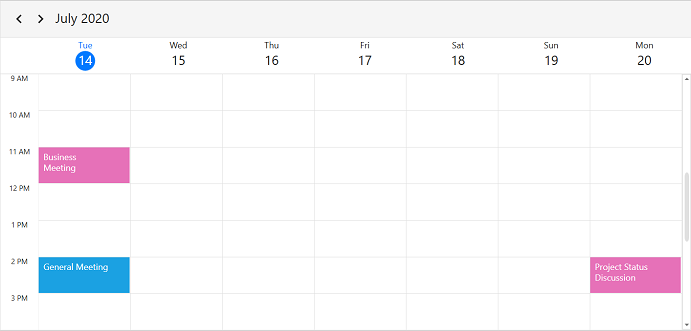
WPF Scheduler (SfScheduler) control will be rendered with `Sunday` as the first day of the week, but it can be customized to any day by using the [FirstDayOfWeek](https://help.syncfusion.com/cr/wpf/Syncfusion.UI.Xaml.Scheduler.SfScheduler.html#Syncfusion_UI_Xaml_Scheduler_SfScheduler_FirstDayOfWeek) property of `SfScheduler`.
{% tabs %}
{% highlight xaml %}
{% endhighlight %}
{% highlight c# %}
using Syncfusion.UI.Xaml.Scheduler;
//setting first day of the week
Schedule.FirstDayOfWeek = DayOfWeek.Tuesday;
{% endhighlight %}
{% endtabs %}
## Show busy indicator
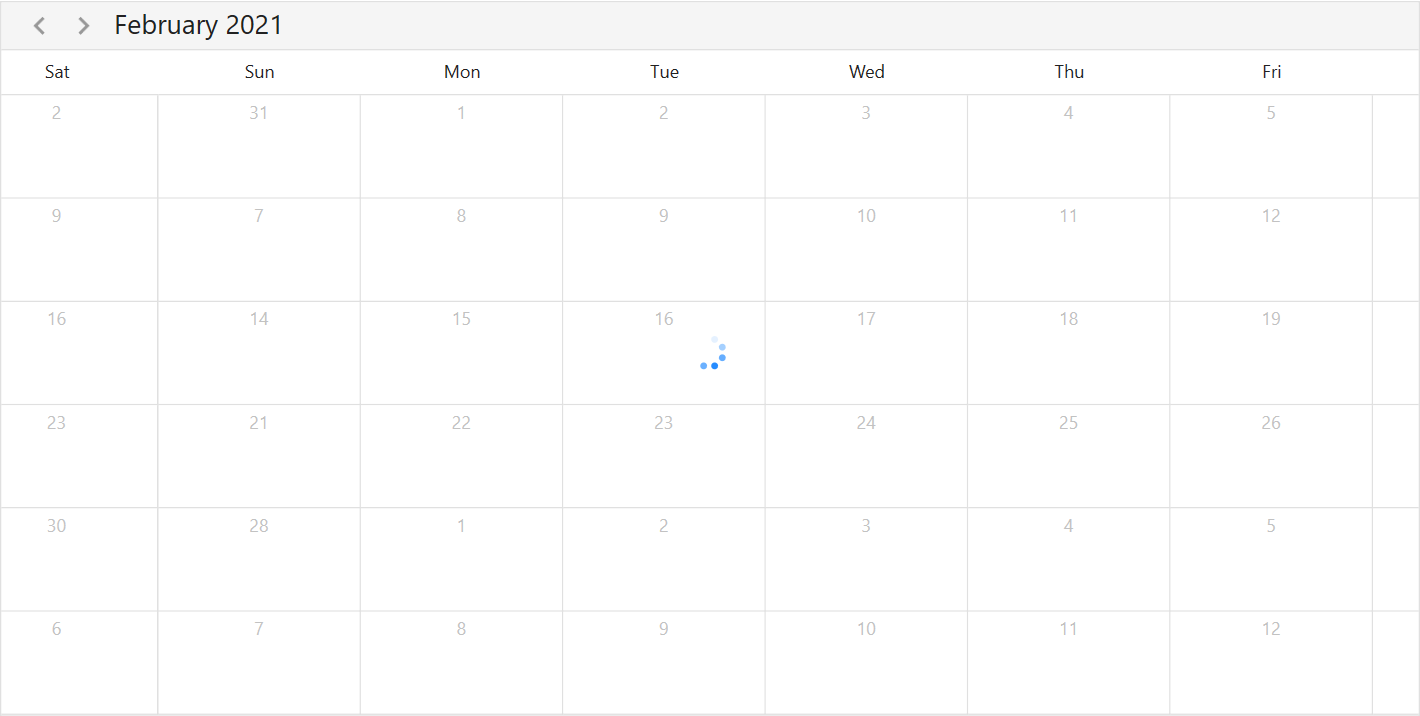
The Scheduler supports showing the busy indicator by using the [ShowBusyIndicator](https://help.syncfusion.com/cr/wpf/Syncfusion.UI.Xaml.Scheduler.SfScheduler.html#Syncfusion_UI_Xaml_Scheduler_SfScheduler_ShowBusyIndicator) property. The default value is set to `false`. When the value is set to `true`, the busy indicator will be loaded on view or visible date changed.
{% tabs %}
{% highlight xaml %}
{% endhighlight %}
{% endtabs %}
## Troubleshooting
If appointments do not appear in the Scheduler, verify the following:
* The `ItemsSource` is bound to a non-empty collection implementing `IEnumerable`, and the bound data raises `INotifyPropertyChanged` for live updates.
* The `AppointmentMapping` values exactly match the property names of the custom business object (case-sensitive).
* The appointment `StartTime` is earlier than its `EndTime`; otherwise the appointment will not render.
* When binding a `ScheduleAppointmentCollection` directly, no `AppointmentMapping` is required; mapping is only needed for custom data objects.
* For more diagnostic steps, refer to the [Appointments](https://help.syncfusion.com/wpf/scheduler/appointments) documentation.
## Theme
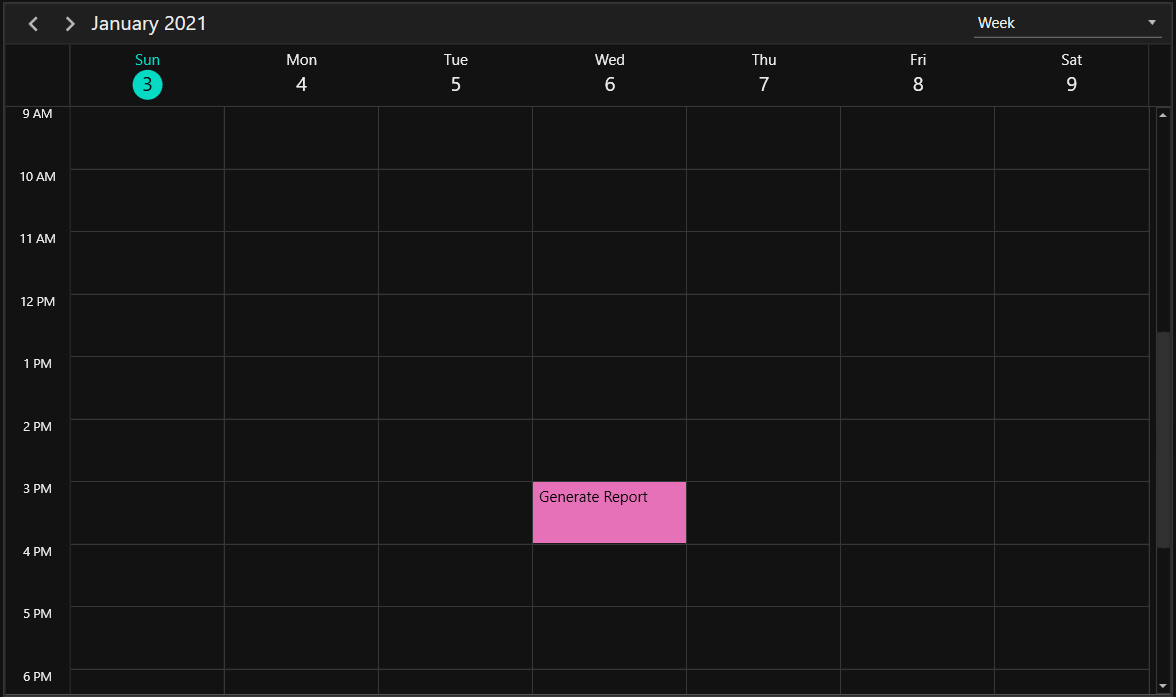
WPF Scheduler (SfScheduler) supports various built-in themes. Refer to the links below to apply themes for the SfScheduler:
* [Apply theme using SfSkinManager](https://help.syncfusion.com/wpf/themes/skin-manager)
* [Create a custom theme using ThemeStudio](https://help.syncfusion.com/wpf/themes/theme-studio#creating-custom-theme)
## See also
* [Overview](overview.md) — Introduction to the WPF Scheduler features.
* [Appointments](appointments.md) — Detailed information on appointments, mapping, spanned, all-day, and recurrence appointments.
* [Appointment editing](appointment-editing.md) — Add, edit, and delete appointments using the built-in appointment editor.
* [Appointment drag and drop](appointment-drag-and-drop.md) — Reschedule appointments by drag-and-drop.
* [Day and Week views](daysview.md) — Customize day, week, and work week views.
* [Timeline views](timelineview.md) — Customize timeline day, week, work week, and month views.
* [Month view](month-view.md) — Customize the month view, agenda view, and blackout dates.
* [Date navigation](date-navigations.md) — Configure minimum/maximum dates, programmatic date selection, and view navigation.
* [Header](header.md) — Customize the scheduler header height, date format, and appearance.
* [Events](events.md) — Handle cell tapped, selection changed, and view changed events.
* [Context menu and commands](contextmenu-commands.md) — Add context menus for appointments and time slots.
* [Time zone](time-zone.md) — Create and display appointments across time zones.
* [Resource grouping](resource-grouping.md) — Group appointments by resources or dates.
* [Reminder](reminder.md) — Enable reminder alerts for appointments.
* [Load on demand](loadondemand.md) — Load appointments on demand for large date ranges.
* [Calendar types](calendar-types.md) — Use Gregorian, Hebrew, Hijri, and other calendar types.
* [Localization](localization.md) — Localize scheduler text using resource files.
* [Migrating from SfSchedule to SfScheduler](migrating-from-sfschedule-to-sfscheduler.md) — API mapping for migration from the deprecated SfSchedule control.
N> You can refer to our [WPF Scheduler](https://www.syncfusion.com/scheduler-sdk/wpf-scheduler) feature tour page for its groundbreaking feature representations. You can also explore our [WPF Scheduler example](https://github.com/syncfusion/wpf-demos) to know how to schedule and manage appointments through an intuitive user interface, similar to the Outlook calendar.