---
layout: post
title: Date Navigations in WPF Scheduler control | Syncfusion
description: Learn here all about Date Navigations support in Syncfusion WPF Scheduler (SfScheduler) control and more.
platform: scheduler-sdk
control: SfScheduler
documentation: ug
---
# Date Navigations in WPF Scheduler (SfScheduler)
## Range for visible dates
Visible dates can be restricted between a certain range of dates, using [MaximumDate](https://help.syncfusion.com/cr/wpf/Syncfusion.UI.Xaml.Scheduler.SfScheduler.html#Syncfusion_UI_Xaml_Scheduler_SfScheduler_MaximumDate) and [MinimumDate](https://help.syncfusion.com/cr/wpf/Syncfusion.UI.Xaml.Scheduler.SfScheduler.html#Syncfusion_UI_Xaml_Scheduler_SfScheduler_MinimumDate) properties in [SfScheduler](https://help.syncfusion.com/cr/wpf/Syncfusion.UI.Xaml.Scheduler.SfScheduler.html). It is applicable in all the schedule views.
### Minimum display date
`MinimumDate` will restrict backward date navigation features, and also it doesn't allow swiping the control using touch gesture beyond the minimum date range. The dates before the minimum date will be disabled in the schedule.
{% tabs %}
{% highlight xaml %}
{% endhighlight %}
{% highlight c#%}
using Syncfusion.UI.Xaml.Scheduler;
this.Schedule.MinimumDate = new DateTime(2020, 05, 05, 10, 0, 0);
{% endhighlight %}
{% endtabs %}
### Maximum display date
`MaximumDate` will restrict forward date navigation features, and also it doesn't allow swiping the control using touch gesture beyond the maximum date range. The dates beyond the maximum date will be disabled in the schedule.
{% tabs %}
{% highlight xaml %}
{% endhighlight %}
{% highlight c#%}
using Syncfusion.UI.Xaml.Scheduler;
this.Schedule.MaximumDate = new DateTime(2020, 10, 05, 10, 0, 0);
{% endhighlight %}
{% endtabs %}
## Programmatic date navigation
Programmatically navigate the dates in scheduler by using the [DisplayDate](https://help.syncfusion.com/cr/wpf/Syncfusion.UI.Xaml.Scheduler.SfScheduler.html#Syncfusion_UI_Xaml_Scheduler_SfScheduler_DisplayDate) property of SfScheduler.
{% tabs %}
{% highlight xaml %}
{% endhighlight %}
{% highlight c#%}
using Syncfusion.UI.Xaml.Scheduler;
this.Schedule.DisplayDate = new DateTime(2020, 07, 05, 10, 0, 0);
{% endhighlight %}
{% endtabs %}
N> Date navigation before the minimum date will be reset to the scheduler minimum date and date navigation beyond the maximum date will be reset to the scheduler maximum date.
## Programmatic date selection
Programmatically select the dates in scheduler by using the [SelectedDate](https://help.syncfusion.com/cr/wpf/Syncfusion.UI.Xaml.Scheduler.SfScheduler.html#Syncfusion_UI_Xaml_Scheduler_SfScheduler_SelectedDate) property of SfScheduler.
{% tabs %}
{% highlight xaml %}
{% endhighlight %}
{% highlight c#%}
using Syncfusion.UI.Xaml.Scheduler;
this.Schedule.SelectedDate = new DateTime(2020, 07, 10, 10, 0, 0);
{% endhighlight %}
{% endtabs %}
N> Selection before minimum dates and beyond maximum dates using the `SelectedDate` is not possible.
## Programmatically change to adjacent dates
By default, the date can be navigated to the next and previous views using touch gesture, by swiping the control from right to left and left to right direction. The view can also be changed programmatically using the [Forward](https://help.syncfusion.com/cr/wpf/Syncfusion.UI.Xaml.Scheduler.SfScheduler.html#Syncfusion_UI_Xaml_Scheduler_SfScheduler_Forward) and [Backward](https://help.syncfusion.com/cr/wpf/Syncfusion.UI.Xaml.Scheduler.SfScheduler.html#Syncfusion_UI_Xaml_Scheduler_SfScheduler_Backward) methods available in SfScheduler.
#### Forward
Use the `Forward` method of SfScheduler for viewing the next immediate visible dates in the scheduler. It will move to the next month if the scheduler view is month, similarly it will move to the next week for week view and the next day for day view.
{% tabs %}
{% highlight xaml %}
{% endhighlight %}
{% highlight c#%}
using Syncfusion.UI.Xaml.Scheduler;
private void Forward_Click(object sender, RoutedEventArgs e)
{
Schedule.Forward();
}
{% endhighlight %}
{% endtabs %}
#### Backward
Use the `Backward` method of SfScheduler for viewing the previous immediate visible dates in the scheduler. It will move to the previous month if the scheduler view is month, similarly it will move to the previous week for week view and previous day for day view.
{% tabs %}
{% highlight xaml %}
{% endhighlight %}
{% highlight c#%}
using Syncfusion.UI.Xaml.Scheduler;
private void Backward_Click(object sender, RoutedEventArgs e)
{
Schedule.Backward();
}
{% endhighlight %}
{% endtabs %}
## Allow view navigation
You can quickly navigate to the respective day or timeline day view by single-clicking on the date in month cell or view header of the following scheduler views such as week, work week, month, timeline week, timeline work week, and timeline month views by using the [AllowViewNavigation](https://help.syncfusion.com/cr/wpf/Syncfusion.UI.Xaml.Scheduler.SfScheduler.html#Syncfusion_UI_Xaml_Scheduler_SfScheduler_AllowViewNavigation) property of the scheduler.
{% tabs %}
{% highlight xaml %}
{% endhighlight %}
{% highlight c#%}
using Syncfusion.UI.Xaml.Scheduler;
this.Schedule.ViewType = SchedulerViewType.Week;
this.Schedule.AllowViewNavigation = true;
{% endhighlight %}
{% endtabs %}
N>
* The `AllowViewNavigation` is not applicable for day and timeline day views.
* If the [ShowAgendaView](https://help.syncfusion.com/wpf/scheduler/month-view#month-agenda-view) is true in a month view, the month view should navigate to the day view by single-clicking on the agenda date view header, otherwise, the month view should navigate to the day view by single-clicking on the date in a month cell.
## Show date picker
You can enable the date picker for the scheduler by using the [ShowDatePickerButton](https://help.syncfusion.com/cr/wpf/Syncfusion.UI.Xaml.Scheduler.SfScheduler.html#Syncfusion_UI_Xaml_Scheduler_SfScheduler_ShowDatePickerButton) property in the [SfScheduler,](https://help.syncfusion.com/cr/wpf/Syncfusion.UI.Xaml.Scheduler.SfScheduler.html) which displays the date picker, the `Today` button, and quick navigation to today and different scheduler views.
{% tabs %}
{% highlight xaml %}
{% endhighlight %}
{% highlight c#%}
using Syncfusion.UI.Xaml.Scheduler;
this.Schedule.ViewType = SchedulerViewType.Week;
this.Schedule.ShowDatePickerButton = true;
{% endhighlight %}
{% endtabs %}
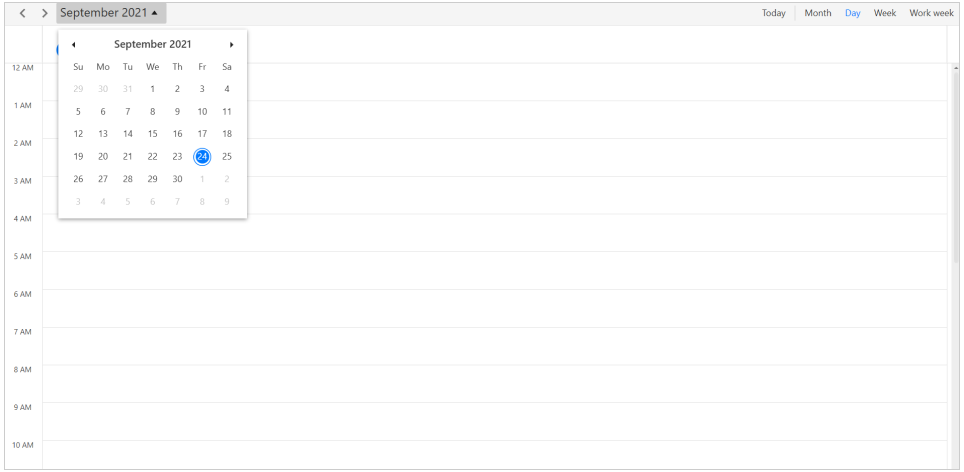
N> The header DatePicker will not be shown if [CalendarIdentifier](https://help.syncfusion.com/cr/wpf/Syncfusion.UI.Xaml.Scheduler.SfScheduler.html#Syncfusion_UI_Xaml_Scheduler_SfScheduler_CalendarIdentifier) is specified other than [GregorianCalendar.](https://docs.microsoft.com/en-us/dotnet/api/system.globalization.gregoriancalendar?view=net-5.0)
## Allowed views
You can quickly navigate to the different scheduler views by using the [AllowedViewTypes](https://help.syncfusion.com/cr/wpf/Syncfusion.UI.Xaml.Scheduler.SfScheduler.html#Syncfusion_UI_Xaml_Scheduler_SfScheduler_AllowedViewTypes) property in the [SfScheduler.](https://help.syncfusion.com/cr/wpf/Syncfusion.UI.Xaml.Scheduler.SfScheduler.html) The views set to this property will display as a view button in the scheduler header view. This UI will be responsive as showing more icons and will be updated based on the window size change.
{% tabs %}
{% highlight xaml %}
{% endhighlight %}
{% highlight c#%}
using Syncfusion.UI.Xaml.Scheduler;
this.Schedule.ViewType = SchedulerViewType.Week;
this.Schedule.AllowedViewTypes = AllowedSchedulerViewTypes.Week | AllowedSchedulerViewTypes.WorkWeek | AllowedSchedulerViewTypes.Day | AllowedSchedulerViewTypes.Month | AllowedSchedulerViewTypes.TimelineDay | AllowedSchedulerViewTypes.TimelineMonth | AllowedSchedulerViewTypes.TimelineWeek | AllowedSchedulerViewTypes.TimelineWorkWeek;
{% endhighlight %}
{% endtabs %}
N> [View sample in GitHub](https://github.com/SyncfusionExamples/WPF-Scheduler-Examples/tree/main/AllowedViews). For week number configuration, see [Month view](month-view.md).