---
layout: post
title: Appointment Editing in WPF Scheduler control | Syncfusion
description: Learn here all about Appointment Editing support in Syncfusion WPF Scheduler (SfScheduler) control and more.
platform: scheduler-sdk
control: SfScheduler
documentation: ug
---
# Appointment Editing in WPF Scheduler (SfScheduler)
This section explains how to handle appointment editing in [WPF scheduler](https://www.syncfusion.com/scheduler-sdk/wpf-scheduler) and also explains about the appointment resizing.
## Adding appointments
Scheduler supports adding a new appointment by using the [Appointment Editor](https://help.syncfusion.com/cr/wpf/Syncfusion.UI.Xaml.Scheduler.SchedulerAppointmentEditorWindow.html) UI window. Open this window by double-clicking on a time cell or month cell or view header.
N>
* If [AllowViewNavigation](https://help.syncfusion.com/wpf/scheduler/date-navigations#allow-view-navigation) is true, the current view should be navigated to the respective day or timeline day views by single-clicking on the date in the view header. Other than the date by double-clicking on the view header cell, the appointment editor window will be opened, and by default, the `AllDay` checkbox will be checked in the appointment editor window.
* All-day appointments can be created by double-clicking on the view header and not applicable for the month view header.
## Editing appointment
Scheduler supports editing the appointment by using the `Appointment Editor` UI window. Open this window by double-clicking on the appointment.
Appointment editor window
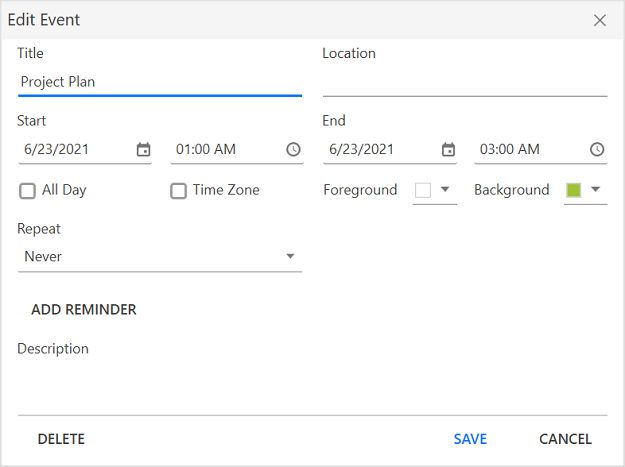
Edit the appointments in appointment editor window. This changes will be saved back in appointment and mapped data object when using data binding.
#### Edit recurring appointment
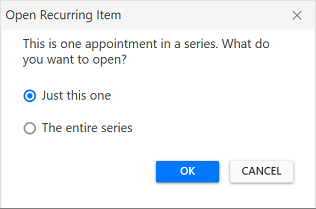
Scheduler supports editing the recurrence appointment. The following window will appear when the recurrence appointment is edited to select, whether to edit only the particular occurrence or appointment series.
#### RecurringAppointmentBeginningEdit Event
The opening of the recurrence popup editor dialog can be handled using the `EditMode` property in the `RecurringAppointmentBeginningEditEventArgs` by handling the `RecurringAppointmentBeginningEdit` event.
`EditMode:` Gets or Sets the edit mode to perform the edit option to edit the occurrence or series for the recurrence appointment. The default value of the `EditMode` is `User.`
* User: The default editor content dialog will appear when editing a recurrence appointment to select the edit option from the end-user itself.
* Occurrence: Edit the particular occurrence alone in a recurrence appointment. The default editor content dialog will not appear.
* Series: Edit the entire series in a recurrence appointment. The default editor content dialog will not appear.
{% tabs %}
{% highlight c# tabtitle="MainWindow.xaml.cs" hl_lines="3" %}
using Syncfusion.UI.Xaml.Scheduler;
this.scheduler.RecurringAppointmentBeginningEdit += scheduler_RecurringAppointmentBeginningEdit;
private void scheduler_RecurringAppointmentBeginningEdit(object sender, RecurringAppointmentBeginningEditEventArgs e)
{
// Get or set the edit mode to perform the edit option.
e.EditMode = RecurringAppointmentEditMode.Occurrence;
}
{% endhighlight %}
{% endtabs%}
#### AppointmentEditorOpening event
When the appointment editor UI window is opened to add or update an appointment, then Scheduler notifies by the [AppointmentEditorOpening](https://help.syncfusion.com/cr/wpf/Syncfusion.UI.Xaml.Scheduler.SfScheduler.html) event.
[AppointmentEditorOpeningEventArgs](https://help.syncfusion.com/cr/wpf/Syncfusion.UI.Xaml.Scheduler.AppointmentEditorOpeningEventArgs.html) has following members which provides the information for [AppointmentEditorOpening](https://help.syncfusion.com/cr/wpf/Syncfusion.UI.Xaml.Scheduler.SfScheduler.html) event.
[Appointment](https://help.syncfusion.com/cr/wpf/Syncfusion.UI.Xaml.Scheduler.AppointmentEditorOpeningEventArgs.html#Syncfusion_UI_Xaml_Scheduler_AppointmentEditorOpeningEventArgs_Appointment) - Gets the selected appointment details which is being updated. It will be null when adding new appointment through appointment editor.
[DateTime](https://help.syncfusion.com/cr/wpf/Syncfusion.UI.Xaml.Scheduler.AppointmentEditorOpeningEventArgs.html#Syncfusion_UI_Xaml_Scheduler_AppointmentEditorOpeningEventArgs_DateTime) - Get the DateTime of time slot or month cell where user double clicked.
[Cancel](https://docs.microsoft.com/en-us/dotnet/api/system.componentmodel.canceleventargs.cancel?view=netcore-3.1) - To avoid the default appointment editor showing by enabling this property.
For example, to use a custom appointment editor window instead of the default appointment editor window, handle the `AppointmentEditorOpening` event.
{% tabs %}
{% highlight c# %}
using Syncfusion.UI.Xaml.Scheduler;
this.Schedule.AppointmentEditorOpening += Schedule_AppointmentEditorOpening;
private void Schedule_AppointmentEditorOpening(object sender, AppointmentEditorOpeningEventArgs e)
{
//To handle the default appointment editor window by setting the e.Cancel value as true.
e.Cancel = true;
if (e.Appointment != null)
{
//Display the custom appointment editor window to edit the appointment
}
else
{
//Display the custom appointment editor window to add new appointment
}
}
{% endhighlight %}
{% endtabs %}
* `Resource` - gets the resource of an appointment under which the appointment is located.
## Visible/Collapse the built-in editors in appointment editor window
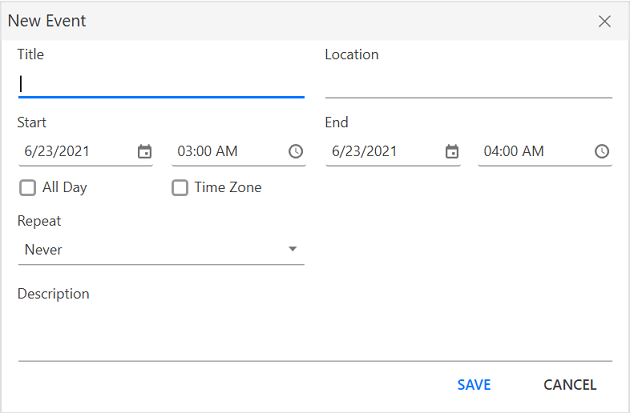
Programmatically visible or collapse the editors by setting the [AppointmentEditorOptions](https://help.syncfusion.com/cr/wpf/Syncfusion.UI.Xaml.Scheduler.AppointmentEditorOptions.html) property in [SchedulerAppointmentEditorWindow](https://help.syncfusion.com/cr/wpf/Syncfusion.UI.Xaml.Scheduler.SchedulerAppointmentEditorWindow.html). By default, the value of [AppointmentEditorOptions](https://help.syncfusion.com/cr/wpf/Syncfusion.UI.Xaml.Scheduler.AppointmentEditorOptions.html) is set to `AppointmentEditorOptions.All` in the [SchedulerAppointmentEditorWindow](https://help.syncfusion.com/cr/wpf/Syncfusion.UI.Xaml.Scheduler.SchedulerAppointmentEditorWindow.html) that displays all the appointment editors. The following code shows how to collapse the `Reminder` and `Resource` editors by handling the[AppointmentEditorOpening](https://help.syncfusion.com/cr/wpf/Syncfusion.UI.Xaml.Scheduler.AppointmentEditorOpeningEventArgs.html) event.
{% tabs %}
{% highlight c# %}
using Syncfusion.UI.Xaml.Scheduler;
this.Schedule.AppointmentEditorOpening += Schedule_AppointmentEditorOpening;
private void Schedule_AppointmentEditorOpening(object sender, AppointmentEditorOpeningEventArgs e)
{
e.AppointmentEditorOptions = AppointmentEditorOptions.All | (~AppointmentEditorOptions.Background & ~AppointmentEditorOptions.Foreground & ~AppointmentEditorOptions.Reminder & ~AppointmentEditorOptions.Resource);
}
{% endhighlight %}
{% endtabs %}
N>
* The basic editors such that `Subject`, `Location`, `Start Hour` and `End Hour` of the scheduler appointment editor will not be collapsed.
#### AppointmentEditorClosing event
When the appointment editor window is closed after adding or editing the schedule appointment, Scheduler notifies by [AppointmentEditorClosing](https://help.syncfusion.com/cr/wpf/Syncfusion.UI.Xaml.Scheduler.SfScheduler.html) event.
[AppointmentEditorClosingEventArgs](https://help.syncfusion.com/cr/wpf/Syncfusion.UI.Xaml.Scheduler.AppointmentEditorClosingEventArgs.html) has the following members which provides the information for [AppointmentEditorClosing](https://help.syncfusion.com/cr/wpf/Syncfusion.UI.Xaml.Scheduler.SfScheduler.html) event.
[Handled](https://help.syncfusion.com/cr/wpf/Syncfusion.UI.Xaml.Scheduler.AppointmentEditorClosingEventArgs.html#Syncfusion_UI_Xaml_Scheduler_AppointmentEditorClosingEventArgs_Handled) - Gets or sets a value that indicates whether the scheduler can update the underlying appointments collection or appointment based on the action performed in the appointment editor. If the value is true, scheduler does not perform the action so the code has to be written in the handler and perform the action. The default value of Handled is `false`.
[Appointment](https://help.syncfusion.com/cr/wpf/Syncfusion.UI.Xaml.Scheduler.AppointmentEditorClosingEventArgs.html#Syncfusion_UI_Xaml_Scheduler_AppointmentEditorClosingEventArgs_Appointment) - Gets the details of updated or newly added appointment.
[Cancel](https://docs.microsoft.com/en-us/dotnet/api/system.componentmodel.canceleventargs.cancel?view=netcore-3.1) - To avoid the default appointment editor closing by enabling this property.
[Action](https://help.syncfusion.com/cr/wpf/Syncfusion.UI.Xaml.Scheduler.AppointmentEditorClosingEventArgs.html#Syncfusion_UI_Xaml_Scheduler_AppointmentEditorClosingEventArgs_Action) - Gets the action of appointment which is Add, Edit, Delete or Cancel.
* Add - Specifies that the appointment is newly added through appointment editor.
* Edit - Specifies that the appointment is edited through appointment editor.
* Delete - Specifies that the appointment is deleted through appointment editor.
* Cancel - Specifies that the appointment editing is canceled through appointment editor.
For example, to handle the appointment adding for today's date, user can handle the `AppointmentEditorClosing` event.
{% tabs %}
{% highlight c# %}
using Syncfusion.UI.Xaml.Scheduler;
this.Schedule.AppointmentEditorClosing += Schedule_AppointmentEditorClosing;
private void Schedule_AppointmentEditorClosing(object sender, AppointmentEditorClosingEventArgs e)
{
var appointment = e.Appointment as ScheduleAppointment;
if (appointment != null)
{
if (appointment.StartTime.Day == DateTime.Now.Day)
e.Handled = true;
}
}
{% endhighlight %}
{% endtabs %}
* `Resource` - gets the resource collection of edited appointment.
## Disable appointment editing
To disable appointment editing functionality, set [AppointmentEditFlag](https://help.syncfusion.com/cr/wpf/Syncfusion.UI.Xaml.Scheduler.SfScheduler.html#Syncfusion_UI_Xaml_Scheduler_SfScheduler_AppointmentEditFlag) property to `None`. In this case, add, edit, resize and drag & drop the appointments cannot be able performed.
{% tabs %}
{% highlight XAML %}
{% endhighlight %}
{% endtabs %}
## Delete appointments
Scheduler supports two ways to remove an appointment.
1. Pressing delete key.
2. Using appointment editor window.
#### Delete recurring appointment
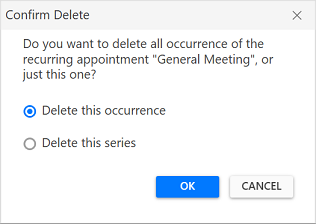
Scheduler supports deleting the recurrence appointment. The following window will appear when the user deletes the recurrence appointment. Select the delete option to make the changes for occurrence or appointment series.
#### AppointmentDeleting event
Scheduler notifies by [AppointmentDeleting](https://help.syncfusion.com/cr/wpf/Syncfusion.UI.Xaml.Scheduler.SfScheduler.html) event, when user deletes the appointment.
[AppointmentDeletingEventArgs](https://help.syncfusion.com/cr/wpf/Syncfusion.UI.Xaml.Scheduler.AppointmentDeletingEventArgs.html) has following members which provides information for [AppointmentDeleting](https://help.syncfusion.com/cr/wpf/Syncfusion.UI.Xaml.Scheduler.SfScheduler.html) event.
[Appointment](https://help.syncfusion.com/cr/wpf/Syncfusion.UI.Xaml.Scheduler.AppointmentDeletingEventArgs.html#Syncfusion_UI_Xaml_Scheduler_AppointmentDeletingEventArgs_Appointment) - Gets the selected appointment to delete.
[Cancel](https://docs.microsoft.com/en-us/dotnet/api/system.componentmodel.canceleventargs.cancel?view=netcore-3.1) - To avoid appointment deleting by enabling this property.
{% tabs %}
{% highlight c# %}
using Syncfusion.UI.Xaml.Scheduler;
Schedule.AppointmentDeleting += Schedule_AppointmentDeleting;
private void Schedule_AppointmentDeleting(object sender, AppointmentDeletingEventArgs e)
{
//To notify when restrict appointment delete
e.Cancel = true;
}
{% endhighlight %}
{% endtabs %}
## Appointment Resizing
Scheduler supports resizing the selected appointment. This support is available for all views except the 'Month' view.
#### Disable appointment resize
Scheduler supports disabling the appointment resizing by setting [AppointmentEditFlag](https://help.syncfusion.com/cr/wpf/Syncfusion.UI.Xaml.Scheduler.SfScheduler.html#Syncfusion_UI_Xaml_Scheduler_SfScheduler_AppointmentEditFlag) property except `Resize`. In this case, appointment resizing cannot be performed.
{% tabs %}
{% highlight xaml %}
{% endhighlight %}
{% highlight c# %}
using Syncfusion.UI.Xaml.Scheduler;
this.Schedule.AppointmentEditFlag = AppointmentEditFlag.Add | AppointmentEditFlag.DragDrop | AppointmentEditFlag.Edit;
{% endhighlight %}
{% endtabs %}
#### AppointmentResizing event
Scheduler notifies by [AppointmentResizing](https://help.syncfusion.com/cr/wpf/Syncfusion.UI.Xaml.Scheduler.SfScheduler.html) event when user resize an appointment.
[AppointmentResizingEventArgs](https://help.syncfusion.com/cr/wpf/Syncfusion.UI.Xaml.Scheduler.AppointmentResizingEventArgs.html) has following members which provides information for [AppointmentResizing](https://help.syncfusion.com/cr/wpf/Syncfusion.UI.Xaml.Scheduler.SfScheduler.html) event.
[Appointment](https://help.syncfusion.com/cr/wpf/Syncfusion.UI.Xaml.Scheduler.AppointmentResizingEventArgs.html#Syncfusion_UI_Xaml_Scheduler_AppointmentResizingEventArgs_Appointment) - Gets the appointment being resized.
[Action](https://help.syncfusion.com/cr/wpf/Syncfusion.UI.Xaml.Scheduler.AppointmentResizingEventArgs.html#Syncfusion_UI_Xaml_Scheduler_AppointmentResizingEventArgs_Action) - Gets the current action being performed while resizing an appointment.
* Starting - Denotes the event occurred when the user mouse over the appointment to resize an appointment (before showing resize cursor).
* Progressing - Denotes the event occurred when the user resizing an appointment.
* Committing - Denotes the event occurred when the user ends the resizing by releasing pointer to commit the changed to underlying appointment.
* Canceling - Denotes the event occurred before canceling the resize operation, when the user press Esc key when resizing operation in progress.
[StartTime](https://help.syncfusion.com/cr/wpf/Syncfusion.UI.Xaml.Scheduler.AppointmentResizingEventArgs.html#Syncfusion_UI_Xaml_Scheduler_AppointmentResizingEventArgs_StartTime) - Gets the updated start time of the appointment in resizing operation.
[EndTime](https://help.syncfusion.com/cr/wpf/Syncfusion.UI.Xaml.Scheduler.AppointmentResizingEventArgs.html#Syncfusion_UI_Xaml_Scheduler_AppointmentResizingEventArgs_EndTime) - Gets the updated end time of the appointment in resizing operation.
[CanContinueResize](https://help.syncfusion.com/cr/wpf/Syncfusion.UI.Xaml.Scheduler.AppointmentResizingEventArgs.html#Syncfusion_UI_Xaml_Scheduler_AppointmentResizingEventArgs_CanContinueResize) - Gets or sets a value indicating whether resizing the operation should be continued or canceled. Set this property when Action is Starting, Progressing, Canceling.This property won’t have any effect for when Action is Committing.
[CanCommit](https://help.syncfusion.com/cr/wpf/Syncfusion.UI.Xaml.Scheduler.AppointmentResizingEventArgs.html#Syncfusion_UI_Xaml_Scheduler_AppointmentResizingEventArgs_CanCommit) - Gets or sets a value indicating whether to update underlying appointment when resizing operation is completed. Set this property when Action is Canceling and Committing. This property won’t have any effect for when Action is Starting and Progressing.
{% tabs %}
{% highlight c# %}
using Syncfusion.UI.Xaml.Scheduler;
this.Schedule.AppointmentResizing += Schedule_AppointmentResizing;
private void Schedule_AppointmentResizing(object sender, AppointmentResizingEventArgs e)
{
//To notify when resizing the appointment.
}
{% endhighlight %}
{% endtabs %}
* `Resource` - gets the resource of an appointment under which the appointment is located.
N> You can also explore our [WPF Scheduler example](https://github.com/syncfusion/wpf-demos) to know how to schedule and manage appointments through an intuitive user interface, similar to the Outlook calendar. For details on the appointment editor window, see [Appointments](appointments.md).