# Getting Started with Vue Block Editor in Vue 3
This article provides a step-by-step guide for setting up a [Vite](https://vitejs.dev/) project with a JavaScript environment and integrating the Syncfusion® Vue Block Editor component using the [Composition API](https://vuejs.org/guide/introduction.html#composition-api) / [Options API](https://vuejs.org/guide/introduction.html#options-api).
The `Composition API` is a new feature introduced in Vue.js 3 that provides an alternative way to organize and reuse component logic. It allows developers to write components as functions that use smaller, reusable functions called composition functions to manage their properties and behavior.
The `Options API` is the traditional way of writing Vue.js components, where the component logic is organized into a series of options that define the component's properties and behavior. These options include data, methods, computed properties, watchers, life cycle hooks, and more.
## Prerequisites
This guide uses Vite as the bundler and development environment. Install Node.js 18 or higher before proceeding (check the [Vite documentation](https://vitejs.dev/) for the current minimum supported version). For detailed information about Vite's capabilities and configuration options, refer to the [Vite documentation](https://vitejs.dev/).
## Create a Vue Application
To set up a Vue application, run the following command.
```bash
npm create vite@latest my-app -- --template vue
```
This command prompts you to select project configuration options and scaffolds the project. Select the options shown in the prompt, and confirm that the `my-app` folder is created before continuing.
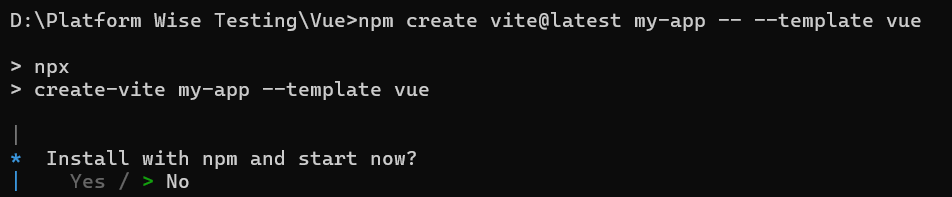
As Syncfusion packages are not installed yet, the `No` option is selected by default. Then, navigate to the project directory and install the dependencies using the following commands:
```bash
cd my-app
npm install
```
After installation completes, confirm that the dependencies were installed successfully before moving to the next step.
## Adding Syncfusion® Vue packages
All available Essential JS 2 packages are published in the [npmjs.com](https://www.npmjs.com/search?q=ej2-vue) registry. Install the Vue Block Editor component with the following command:
```bash
npm install @syncfusion/ej2-vue-blockeditor --save
```
## Adding CSS reference
Syncfusion provides multiple themes for the Block Editor component. For a complete list of available themes, refer to the [themes topic](https://ej2.syncfusion.com/vue/documentation/appearance/theme#theme-packages).
To apply the [Tailwind 3](https://www.npmjs.com/package/@syncfusion/ej2-tailwind3-theme) theme, install the corresponding theme package by using the following command:
```bash
npm install @syncfusion/ej2-tailwind3-theme --save
```
Then add the following CSS reference to the **src/App.vue** file:
```css
@import "../node_modules/@syncfusion/ej2-tailwind3-theme/styles/blockeditor/index.css";
```
## Adding Block Editor component
Now, add the Vue Block Editor component to the **src/App.vue** file using the following sample.
{% tabs %}
{% highlight html tabtitle="Composition API (~/src/App.vue)" %}
{% endhighlight %}
{% highlight html tabtitle="Options API (~/src/App.vue)" %}
{% endhighlight %}
{% endtabs %}
## Run the application
Use the following command to run the application in the browser. The app starts on `http://localhost:5173` by default; if that port is in use, Vite will pick the next free port and print it in the console.
```bash
npm run dev
```
## See also
For additional Vue 3 examples and related topics, see the following resources:
* [Getting Started with Vue UI Components using Composition API and TypeScript](https://ej2.syncfusion.com/vue/documentation/getting-started/vue-3-ts-composition)
* [Getting Started with Vue UI Components using Options API and TypeScript](https://ej2.syncfusion.com/vue/documentation/getting-started/vue-3-ts-options)
For migrating from Vue 2 to Vue 3, refer to the [`migration`](https://ej2.syncfusion.com/vue/documentation/getting-started/vue-3-vue-cli#migration-from-vue-2-to-vue-3) documentation.