Getting Started with TypeScript Block Editor
This section explains the steps to create a simple Block Editor and demonstrates the basic usage of the Block Editor control using a Vite-based TypeScript project scaffolded with latest vite version.
Prerequisites
This guide uses Vite as the bundler and development environment. Install Node.js 24.13.0 or higher before proceeding. For detailed information about Vite’s capabilities and configuration options, refer to the Vite documentation.
Create a TypeScript application
To set up a TypeScript project with Vite, run the following command:
npm create vite@latest my-app -- --template vanilla-tsThis command will prompt you to install the required packages and start the application. Select the options as shown below.
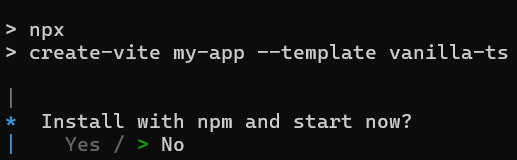
As Syncfusion packages are not installed yet, currently, the No option will be selected. Then, navigate to the project directory and install the dependencies using the following commands:
cd my-app
npm install
Adding Syncfusion® Block Editor packages
All the available Essential® JS 2 packages are published in npmjs.com public registry.
To install Block Editor component, use the following command
npm install @syncfusion/ej2-blockeditorAdding CSS reference
Syncfusion provides multiple themes for the Block Editor control. For a complete list of available themes, refer to the themes packages.
To apply the Tailwind 3 theme, install the corresponding theme package by using the following command:
npm install @syncfusion/ej2-tailwind3-theme --saveThen add the following CSS reference to the src/style.css file:
@import "../node_modules/@syncfusion/ej2-tailwind3-theme/styles/blockeditor/index.css";To apply the application-specific styles correctly, import
./style.cssinto src/main.ts, remove the default Vite styles from src/style.css, and keep the Block Editor styles shown above. You can also refer to the themes section for details about built-in themes and CSS references for individual controls.
Adding Block Editor control
To get started, add the Block Editor control in main.ts and index.html files. Block Editor can be initialized through a div element.
import './style.css';
import { BlockEditor } from '@syncfusion/ej2-blockeditor';

const blockEditor: BlockEditor = new BlockEditor({});
blockEditor.appendTo('#blockeditor_default');@import "../node_modules/@syncfusion/ej2-tailwind3-theme/styles/blockeditor/index.css";<!DOCTYPE html>
<html lang="en">
<head>
<meta charset="UTF-8" />
<link rel="icon" type="image/svg+xml" href="/vite.svg" />
<meta name="viewport" content="width=device-width, initial-scale=1.0" />
<title>Syncfusion Typescript Block Editor</title>
</head>
<body>
<div id="blockeditor_default"></div>
<script type="module" src="/src/main.ts"></script>
</body>
</html>Run the application
Use the following command to run the application in the browser.
npm run dev