Appearance in .NET MAUI Funnel Chart
The appearance of the SfFunnelChart can be customized by using the custom palettes and gradients that enhance the visual appeal of the application.
Prerequisite: Ensure that the required NuGet package is installed, the necessary namespaces are imported, and the Funnel Chart control is properly configured in your application. For detailed setup and configuration instructions, refer to the Getting Started guide.
Add a title
The chart title provides quick information to the user about the data being plotted in the chart. You can set the title using the Title property of the funnel chart as follows.
<chart:SfFunnelChart ItemsSource="{Binding Data}"
                     XBindingPath="XValue"
                     YBindingPath="YValue">
    <chart:SfFunnelChart.Title>
        <Label Text="School Admission"/>
    </chart:SfFunnelChart.Title>
</chart:SfFunnelChart>
SfFunnelChart chart = new SfFunnelChart()
{
ItemsSource = new ViewModel().Data,
XBindingPath = "XValue",
YBindingPath = "YValue",
Title = new Label()
{
Text = "School Admission"
}
};
this.Content = chart;Custom PaletteBrushes
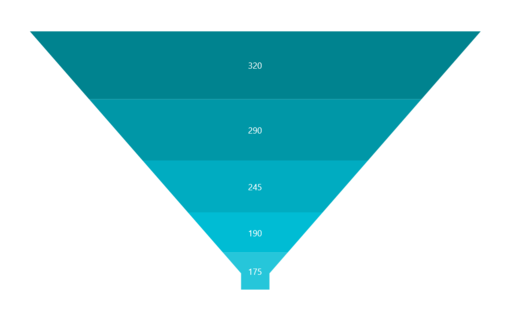
The SfFunnelChart allows you to define your own brushes with preferred order by using the PaletteBrushes property, as shown in the code below.
<chart:SfFunnelChart ItemsSource="{Binding Data}"
                     XBindingPath="XValue"
                     YBindingPath="YValue"
                     PaletteBrushes="{Binding CustomBrushes}">
</chart:SfFunnelChart>
public class ViewModel
{
public ObservableCollection<Model> Data { get; set; }
public List<Brush> CustomBrushes { get; set; }
public ViewModel()
{
CustomBrushes = new List<Brush>();
CustomBrushes.Add(new SolidColorBrush(Color.FromRgb(38, 198, 218)));
CustomBrushes.Add(new SolidColorBrush(Color.FromRgb(0, 188, 212)));
CustomBrushes.Add(new SolidColorBrush(Color.FromRgb(0, 172, 193)));
CustomBrushes.Add(new SolidColorBrush(Color.FromRgb(0, 151, 167)));
CustomBrushes.Add(new SolidColorBrush(Color.FromRgb(0, 131, 143)));
}
}
Apply gradient
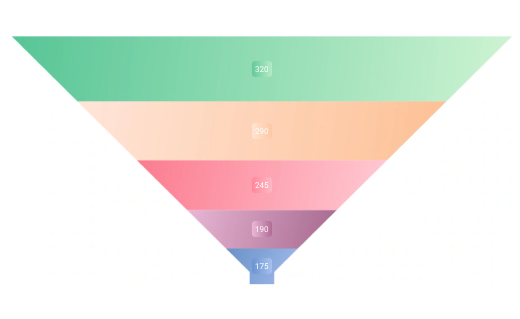
The gradient for the funnel chart can be set by using the PaletteBrushes property of the chart with the help of the LinearGradientBrush or RadialGradientBrush.
<chart:SfFunnelChart ItemsSource="{Binding Data}"
                     XBindingPath="XValue"
                     YBindingPath="YValue"
                     PaletteBrushes="{Binding CustomBrushes}">
</chart:SfFunnelChart>
public class ViewModel
{
public ObservableCollection<Model> Data { get; set; }
public List<Brush> CustomBrushes { get; set; }
public ViewModel()
{
CustomBrushes = new List<Brush>();
LinearGradientBrush gradientColor1 = new LinearGradientBrush();
gradientColor1.GradientStops = new GradientStopCollection()
{
new GradientStop() { Offset = 1, Color = Color.FromArgb("#a3bded") },
new GradientStop() { Offset = 0, Color = Color.FromArgb("#6991c7") }
};
LinearGradientBrush gradientColor2 = new LinearGradientBrush();
gradientColor2.GradientStops = new GradientStopCollection()
{
new GradientStop() { Offset = 1, Color = Color.FromArgb("#A5678E") },
new GradientStop() { Offset = 0, Color = Color.FromArgb("#E8B7D4") }
};
LinearGradientBrush gradientColor3 = new LinearGradientBrush();
gradientColor3.GradientStops = new GradientStopCollection()
{
new GradientStop() { Offset = 1, Color = Color.FromArgb("#FFCAD4") },
new GradientStop() { Offset = 0, Color = Color.FromArgb("#FB7B8E") }
};
LinearGradientBrush gradientColor4 = new LinearGradientBrush();
gradientColor4.GradientStops = new GradientStopCollection()
{
new GradientStop() { Offset = 1, Color = Color.FromArgb("#FDC094") },
new GradientStop() { Offset = 0, Color = Color.FromArgb("#FFE5D8") }
};
LinearGradientBrush gradientColor5 = new LinearGradientBrush();
gradientColor5.GradientStops = new GradientStopCollection()
{
new GradientStop() { Offset = 1, Color = Color.FromArgb("#CFF4D2") },
new GradientStop() { Offset = 0, Color = Color.FromArgb("#56C596") }
};
CustomBrushes.Add(gradientColor1);
CustomBrushes.Add(gradientColor2);
CustomBrushes.Add(gradientColor3);
CustomBrushes.Add(gradientColor4);
CustomBrushes.Add(gradientColor5);
}
}
Point Color Path
The SfFunnelChart supports using the PointColorPath property to assign different colors to each data point. By binding this property to a color field in the data source, each segment can be dynamically styled with its own color.
The following code example demonstrates how to define a data model with a PointColor property and bind it to the chart series.
public class PointColorViewModel
{
    public ObservableCollection<Model> Data { get; set; }

    public PointColorViewModel()
    {
        Data = new ObservableCollection<Model>()
        {
            new() { XValue = "Stage A", YValue = 1000, PointColor = Color.FromArgb("#cbb4e0") },
            new() { XValue = "Stage B", YValue = 1300, PointColor = Color.FromArgb("#a678d6") },
            new() { XValue = "Stage C", YValue = 2000, PointColor = Color.FromArgb("#5a189a") },
            new() { XValue = "Stage D", YValue = 1700, PointColor = Color.FromArgb("#7b2cbf") },
            new() { XValue = "Stage E", YValue = 1100, PointColor = Color.FromArgb("#cbb4e0") },
        };
    }
}

public class Model
{
    public string? XValue { get; set; }
    public double YValue { get; set; }
    public Color? PointColor { get; set; }
}
Set ItemsSource to your data collection and map XBindingPath, YBindingPath, and PointColorPath to the corresponding model properties.
<chart:SfFunnelChart ItemsSource = "{Binding Data}"
                     XBindingPath = "XValue"
                     YBindingPath = "YValue"
                     PointColorPath = "PointColor">
</chart:SfFunnelChart>
SfFunnelChart chart = new SfFunnelChart()
{
ItemsSource = new PointColorViewModel().Data,
XBindingPath = "XValue",
YBindingPath = "YValue",
PointColorPath = "PointColor"
};
this.Content = chart;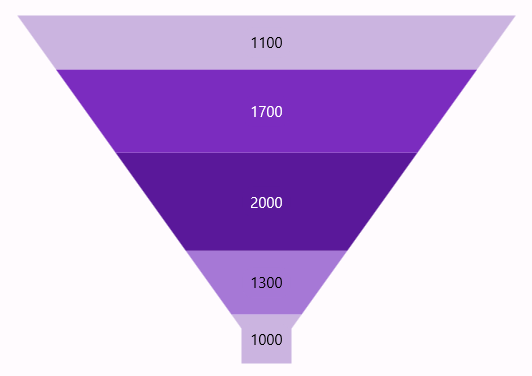
The priority for color assignment is as follows:
Fill>PointColorPath>PaletteBrushes.