# Getting started with Flutter DataGrid (SfDataGrid)
This section explains the steps required to add the DataGrid widget and its features. This section covers only the basic features needed to get started with the Syncfusion® Flutter DataGrid widget.
To get started quickly with Flutter DataGrid, check out this video:
## Add Flutter DataGrid to an application
Create a simple project using the instruction given in the [Getting Started with your first Flutter app](https://docs.flutter.dev/get-started/test-drive#choose-your-ide) documentation.
**Add dependency**
Add the Syncfusion® Flutter DataGrid dependency to your `pubspec.yaml` file.
{% highlight dart %}
dependencies:
syncfusion_flutter_datagrid: ^xx.x.xx
{% endhighlight %}
N> Here **xx.x.xx** denotes the current version of the [`Syncfusion® Flutter DataGrid`](https://pub.dev/packages/syncfusion_flutter_datagrid/versions) package.
**Get packages**
Run the following command to get the required packages.
{% highlight dart %}
$ flutter pub get
{% endhighlight %}
**Import package**
Import the following package in your Dart code.
{% tabs %}
{% highlight Dart %}
import 'package:syncfusion_flutter_datagrid/datagrid.dart';
{% endhighlight %}
{% endtabs %}
## Initialize DataGrid
Add the SfDataGrid widget as a child of any widget. The [SfDataGrid](https://pub.dev/documentation/syncfusion_flutter_datagrid/latest/datagrid/SfDataGrid-class.html) requires the [source](https://pub.dev/documentation/syncfusion_flutter_datagrid/latest/datagrid/SfDataGrid/source.html) and [columns](https://pub.dev/documentation/syncfusion_flutter_datagrid/latest/datagrid/SfDataGrid/columns.html) properties. Find more details on these properties in further topics.
{% tabs %}
{% highlight Dart %}
@override
Widget build(BuildContext context) {
return Scaffold(
body: SfDataGrid(
source: _employeeDataSource,
columns: [
GridColumn(
columnName: 'id',
label: Container(
padding: EdgeInsets.symmetric(horizontal: 16.0),
alignment: Alignment.centerRight,
child: Text(
'ID',
overflow: TextOverflow.ellipsis,
)
)
),
GridColumn(
columnName: 'name',
label: Container(
padding: EdgeInsets.symmetric(horizontal: 16.0),
alignment: Alignment.centerLeft,
child: Text(
'Name',
overflow: TextOverflow.ellipsis,
)
)
),
GridColumn(
columnName: 'designation',
label: Container(
padding: EdgeInsets.symmetric(horizontal: 16.0),
alignment: Alignment.centerLeft,
child: Text(
'Designation',
overflow: TextOverflow.ellipsis,
)
)
),
GridColumn(
columnName: 'salary',
label: Container(
padding: EdgeInsets.symmetric(horizontal: 16.0),
alignment: Alignment.centerRight,
child: Text(
'Salary',
overflow: TextOverflow.ellipsis,
)
)
),
],
),
);
}
{% endhighlight %}
{% endtabs %}
## Creating Data for an Application
The `SfDataGrid` requires data to display. Create a simple data source for the `SfDataGrid` as shown in the following code example.
{% tabs %}
{% highlight Dart %}
class Employee {
Employee(this.id, this.name, this.designation, this.salary);
final int id;
final String name;
final String designation;
final int salary;
}
{% endhighlight %}
{% endtabs %}
Create the collection of Employee data with the required number of data objects. Here, the `getEmployeeData` method which is used to populate the data objects is initialized in `initState()`.
{% tabs %}
{% highlight Dart %}
late EmployeeDataSource _employeeDataSource;
List _employees = [];
@override
void initState() {
super.initState();
_employees = getEmployeeData();
_employeeDataSource = EmployeeDataSource(employees: _employees);
}
List getEmployeeData() {
return [
Employee(10001, 'James', 'Project Lead', 20000),
Employee(10002, 'Kathryn', 'Manager', 30000),
Employee(10003, 'Lara', 'Developer', 15000),
Employee(10004, 'Michael', 'Designer', 15000),
Employee(10005, 'Martin', 'Developer', 15000),
Employee(10006, 'Newberry', 'Developer', 15000),
Employee(10007, 'Balnc', 'Developer', 15000),
Employee(10008, 'Perry', 'Developer', 15000),
Employee(10009, 'Gable', 'Developer', 15000),
Employee(10010, 'Grimes', 'Developer', 15000)
];
}
{% endhighlight %}
{% endtabs %}
## Creating DataSource for DataGrid
[DataGridSource](https://pub.dev/documentation/syncfusion_flutter_datagrid/latest/datagrid/DataGridSource-class.html) is used to obtain the row data for the `SfDataGrid`. So, create the DataSource from the DataGridSource and override the following APIs in it,
* **`rows`** - Fetches the rows available for data population. Also, it is used to fetch the corresponding data object to process the selection. This contains the collection of the `DataGridRow` where each row contains the collection of the `DataGridCell`. Each cell should have the cell value in the `value` property. The `value` is used to perform the sorting for columns.
* **`buildRow`** - Fetches the widget for each cell with `DataGridRowAdapter`.
`DataGridSource` objects are expected to be long-lived, not recreated with each build.
{% tabs %}
{% highlight Dart %}
class EmployeeDataSource extends DataGridSource {
EmployeeDataSource({required List employees}) {
dataGridRows = employees
.map((dataGridRow) => DataGridRow(cells: [
DataGridCell(columnName: 'id', value: dataGridRow.id),
DataGridCell(columnName: 'name', value: dataGridRow.name),
DataGridCell(
columnName: 'designation', value: dataGridRow.designation),
DataGridCell(
columnName: 'salary', value: dataGridRow.salary),
]))
.toList();
}
List dataGridRows = [];
@override
List get rows => dataGridRows;
@override
DataGridRowAdapter? buildRow(DataGridRow row) {
return DataGridRowAdapter(
cells: row.getCells().map((dataGridCell) {
return Container(
alignment: (dataGridCell.columnName == 'id' ||
dataGridCell.columnName == 'salary')
? Alignment.centerRight
: Alignment.centerLeft,
padding: EdgeInsets.symmetric(horizontal: 16.0),
child: Text(
dataGridCell.value.toString(),
overflow: TextOverflow.ellipsis,
));
}).toList());
}
}
{% endhighlight %}
{% endtabs %}
Create an instance of the `DataGridSource` and set this object to the `source` property of the `SfDataGrid`.
{% tabs %}
{% highlight Dart %}
late EmployeeDataSource _employeeDataSource;
@override
Widget build(BuildContext context) {
return Scaffold(
body: SfDataGrid(
source: _employeeDataSource,
));
}
{% endhighlight %}
{% endtabs %}
>**NOTE**
You can download the demo application from [GitHub](https://github.com/SyncfusionExamples/getting-started-with-flutter-datagrid).
## Defining columns
The `SfDataGrid` supports adding any widget in a column using the `GridColumn` property. Add the column collection to the `columns` property.
{% tabs %}
{% highlight Dart %}
@override
Widget build(BuildContext context) {
return Scaffold(
body: SfDataGrid(source: _employeeDataSource, columns: [
GridColumn(
columnName: 'id',
label: Container(
padding: EdgeInsets.symmetric(horizontal: 16.0),
alignment: Alignment.centerRight,
child: Text(
'ID',
overflow: TextOverflow.ellipsis,
))),
GridColumn(
columnName: 'name',
label: Container(
padding: EdgeInsets.symmetric(horizontal: 16.0),
alignment: Alignment.centerLeft,
child: Text(
'Name',
overflow: TextOverflow.ellipsis,
))),
GridColumn(
columnName: 'designation',
label: Container(
padding: EdgeInsets.symmetric(horizontal: 16.0),
alignment: Alignment.centerLeft,
child: Text(
'Designation',
overflow: TextOverflow.ellipsis,
))),
GridColumn(
columnName: 'salary',
label: Container(
padding: EdgeInsets.symmetric(horizontal: 16.0),
alignment: Alignment.centerRight,
child: Text(
'Salary',
overflow: TextOverflow.ellipsis,
)))
]));
}
{% endhighlight %}
{% endtabs %}
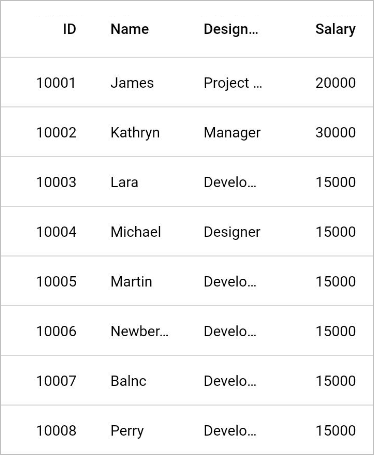
## Selection
The `SfDataGrid` allows you to select one or more rows. The [selectionMode](https://pub.dev/documentation/syncfusion_flutter_datagrid/latest/datagrid/SfDataGrid/selectionMode.html) property can be set to specify whether the user can select a single row or multiple rows.
{% tabs %}
{% highlight Dart %}
@override
Widget build(BuildContext context) {
return Scaffold(
body: SfDataGrid(
source: _employeeDataSource,
columns: [
GridColumn(
columnName: 'id',
label: Container(
padding: EdgeInsets.symmetric(horizontal: 16.0),
alignment: Alignment.centerRight,
child: Text(
'ID',
overflow: TextOverflow.ellipsis,
)
)
),
GridColumn(
columnName: 'name',
label: Container(
padding: EdgeInsets.symmetric(horizontal: 16.0),
alignment: Alignment.centerLeft,
child: Text(
'Name',
overflow: TextOverflow.ellipsis,
)
)
),
GridColumn(
columnName: 'designation',
label: Container(
padding: EdgeInsets.symmetric(horizontal: 16.0),
alignment: Alignment.centerLeft,
child: Text(
'Designation',
overflow: TextOverflow.ellipsis,
)
)
),
GridColumn(
columnName: 'salary',
label: Container(
padding: EdgeInsets.symmetric(horizontal: 16.0),
alignment: Alignment.centerRight,
child: Text(
'Salary',
overflow: TextOverflow.ellipsis,
)
)
),
],
selectionMode: SelectionMode.multiple,
)
);
}
{% endhighlight %}
{% endtabs %}
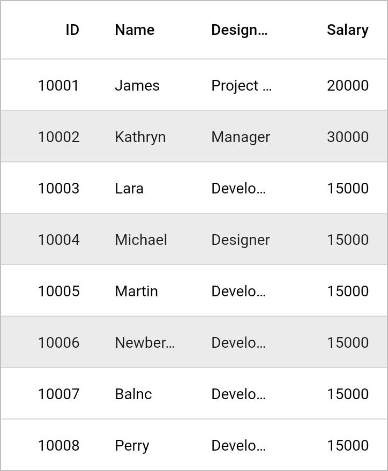
The information about the rows that are selected can be retrieved using the [selectedIndex](https://pub.dev/documentation/syncfusion_flutter_datagrid/latest/datagrid/DataGridController/selectedIndex.html), [selectedRow](https://pub.dev/documentation/syncfusion_flutter_datagrid/latest/datagrid/DataGridController/selectedRow.html) and [selectedRows](https://pub.dev/documentation/syncfusion_flutter_datagrid/latest/datagrid/DataGridController/selectedRows.html) properties in [DataGridController](https://pub.dev/documentation/syncfusion_flutter_datagrid/latest/datagrid/DataGridController-class.html). You need to initialize the `DataGridController` object to the [controller](https://pub.dev/documentation/syncfusion_flutter_datagrid/latest/datagrid/SfDataGrid/controller.html) property of `SfDataGrid.`
`DataGridController` objects are expected to be long-lived, not recreated with each build.
{% tabs %}
{% highlight Dart %}
final DataGridController _controller = DataGridController();
@override
Widget build(BuildContext context) {
return Scaffold(
body: Column(children: [
TextButton(
child: Text('Get Selection Information'),
onPressed: () {
int selectedIndex = _controller.selectedIndex;
DataGridRow selectedRow = _controller.selectedRow!;
List selectedRows = _controller.selectedRows;
print(selectedIndex);
print(selectedRow);
print(selectedRows);
}),
Expanded(
child: SfDataGrid(
source: _employeeDataSource,
columns: [
GridColumn(
columnName: 'id',
label: Container(
padding: EdgeInsets.symmetric(horizontal: 16.0),
alignment: Alignment.centerRight,
child: Text(
'ID',
overflow: TextOverflow.ellipsis,
))),
GridColumn(
columnName: 'name',
label: Container(
padding: EdgeInsets.symmetric(horizontal: 16.0),
alignment: Alignment.centerLeft,
child: Text(
'Name',
overflow: TextOverflow.ellipsis,
))),
GridColumn(
columnName: 'designation',
label: Container(
padding: EdgeInsets.symmetric(horizontal: 16.0),
alignment: Alignment.centerLeft,
child: Text(
'Designation',
overflow: TextOverflow.ellipsis,
))),
GridColumn(
columnName: 'salary',
label: Container(
padding: EdgeInsets.symmetric(horizontal: 16.0),
alignment: Alignment.centerRight,
child: Text(
'Salary',
overflow: TextOverflow.ellipsis,
))),
],
controller: _controller,
selectionMode: SelectionMode.multiple,
))
]));
}
{% endhighlight %}
{% endtabs %}
>**NOTE**
`SfDataGrid` supports selection via keyboard interaction for the Web and Desktop platform when `selectionMode` is not `none`.