Creating a Syncfusion® Blazor WebAssembly App
18 Nov 20183 minutes to read
Syncfusion® provides the Blazor WebAssembly App Template in Visual Studio Code, which allows you to create a Syncfusion® Blazor application with Syncfusion® components. The Syncfusion® Blazor app is created with the required component Syncfusion® NuGet references, namespaces, styles, and component render code. The Template provides an easy-to-use project wizard that walks you through the process of creating an application with Syncfusion® components.
Blazor project templates from
v17.4.0.39are supported by the Syncfusion® Visual Studio Code project template.
The instructions below assist you in creating Syncfusion Blazor Applications using Visual Studio Code:
-
Open the Command Palette (press Ctrl+Shift+P), type New project, and choose the New project command to view available templates.

-
In the palette search box type Syncfusion, then select the Syncfusion templates from the results.

-
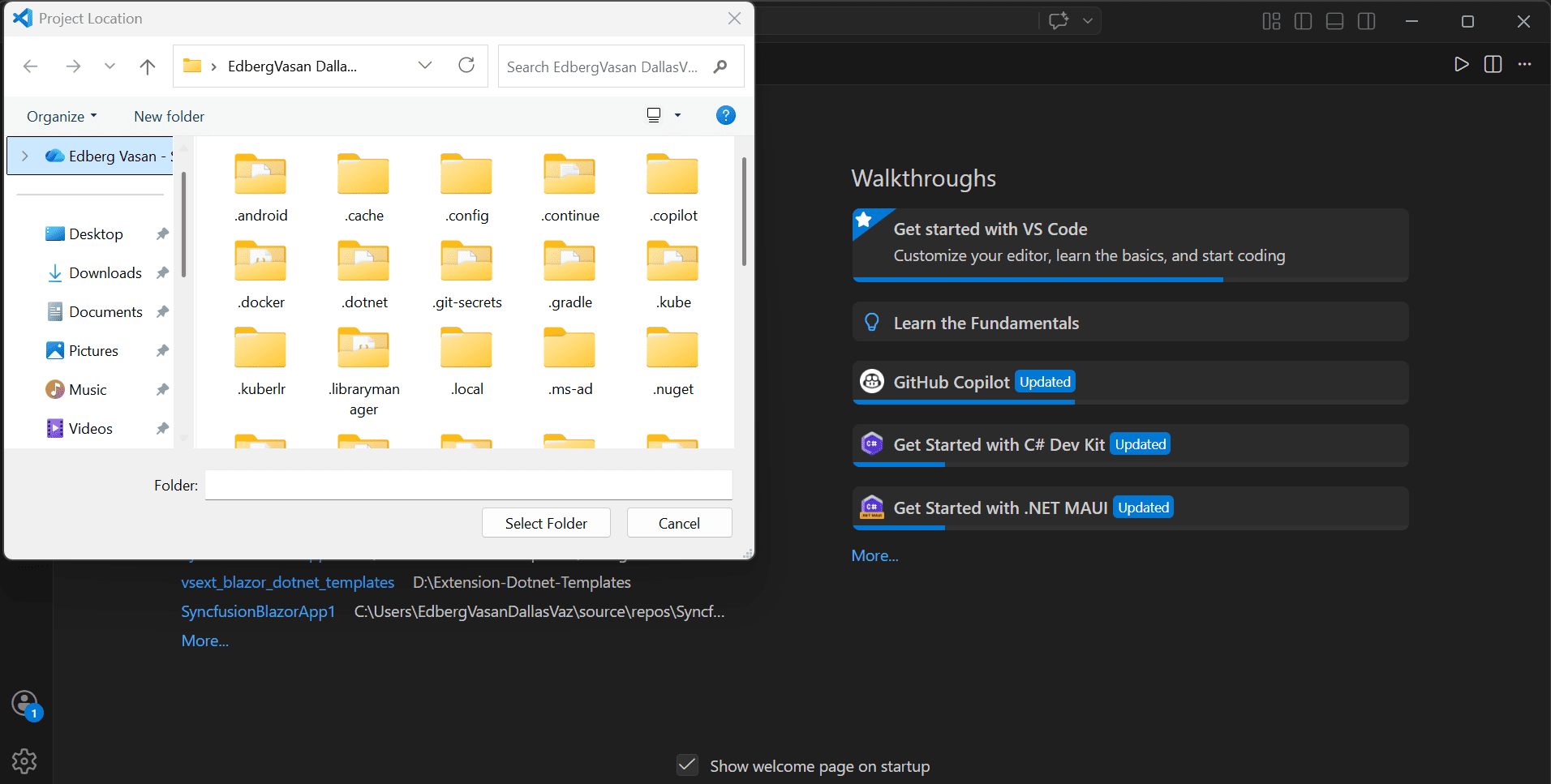
Choose Syncfusion Blazor WebAssembly App and press Enter. When prompted, pick the folder where you want the new project created.
-
In the project dialog confirm the Project name and the Solution (.sln) file format, then press Enter to generate the project.


Refer to the .NET SDK support for Syncfusion® Blazor Components here.
-
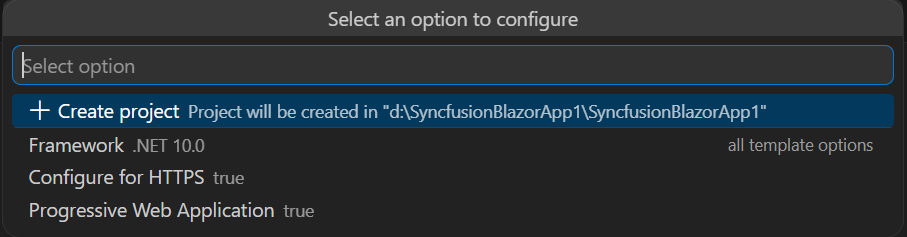
Select either Create a project or the Show all template options.

-
In template options, you can customize the project type, progressive web application support, and https configuration based on the version of the .NET SDK you are using.
.NET SDK version Supported Syncfusion Blazor Application Type .NET 10.0, .NET 9.0, .NET 8.0 Syncfusion Blazor WebAssembly App In the Syncfusion Blazor WebAssembly App application type, you can choose Progressive Web Application.
-
Click Create project button. The Syncfusion® Blazor application has been created. The created Syncfusion® Blazor app has the Syncfusion NuGet packages, styles, and the render code for the selected Syncfusion® component.
-
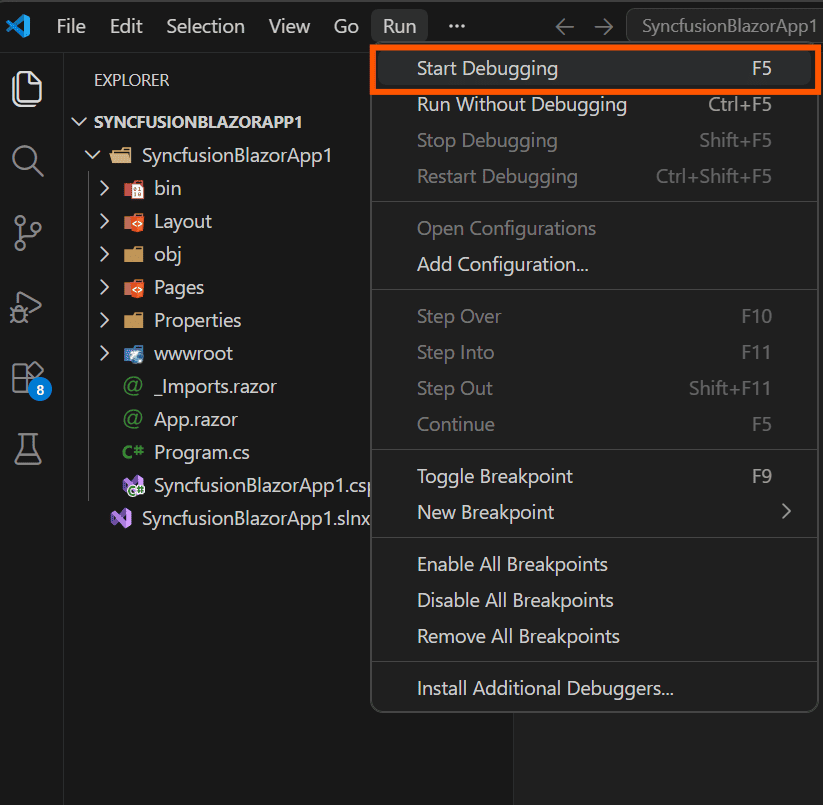
You can run the application to see the Syncfusion® components. Click F5 or go to Run>Start Debugging.
-
The Syncfusion® Blazor application configures with most recent Syncfusion® Blazor NuGet packages version, selected style, namespaces, selected authentication, and component render code for Syncfusion® components.
-
If you installed the trial setup or NuGet packages from nuget.org you must register the Syncfusion® license key to your application since Syncfusion® introduced the licensing system from 2018 Volume 2 (v16.2.0.41) Essential Studio® release. Navigate to the help topic to generate and register the Syncfusion® license key to your application. Refer to this UG topic for understanding the licensing details in Essential Studio® for Blazor.