Download and Installation - Document SDK Extension
1 Dec 20252 minutes to read
Syncfusion® publishes the Visual Studio extension in the below Visual Studio marketplace link. You can either install it directly from Visual Studio or download and install it from the Visual Studio marketplace.
Prerequisites
The following software prerequisites must be installed to install the Syncfusion® Document SDK extension, as well as to create and add snippet in Syncfusion® Document SDK applications.
Install through the Visual Studio Manage Extensions
The steps below assist you to how to install the Syncfusion® Document SDK extensions from Visual Studio Manage Extensions.
-
Open the Visual Studio 2022 or later.
-
Navigate to Extension ->Manage Extensions and open the Manage Extensions.
-
On the left, click the Online tab and type “Document SDK - Syncfusion®” in the search box.

-
Click the Download button in the “Syncfusion® Document SDK” extensions.
-
Close all Visual Studio instances after downloading the extensions to begin the installation process. You will see the following VSIX installation prompt.

-
Click the Modify button.
-
After the installation is complete, open Visual Studio.
-
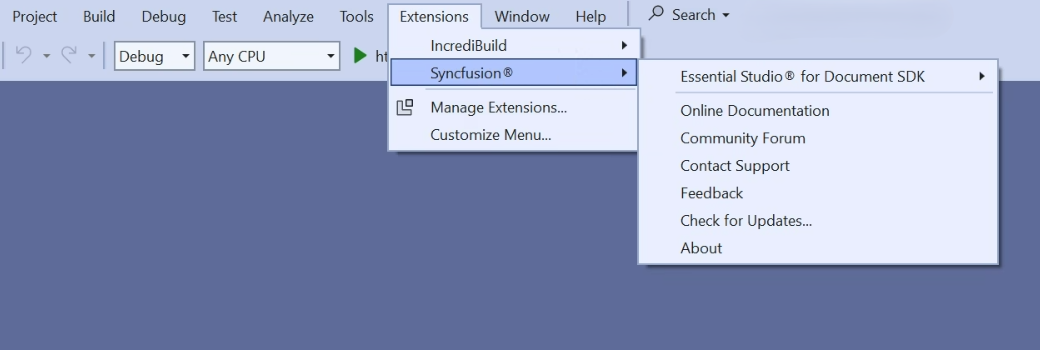
Now, under the menu Extensions, you can use the Syncfusion® extensions from the Visual Studio.
Install from the Visual Studio Marketplace
The steps below illustrate how to download and install the Syncfusion® Document SDK extension from the Visual Studio Marketplace.
-
Download the Syncfusion® Document SDK Extensions from the below Visual Studio Marketplace.
-
Close all Visual Studio instances running, if any.
-
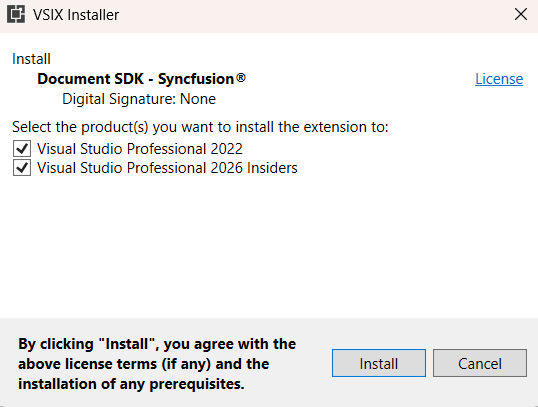
Double-click to install the downloaded VSIX file. You will see the VSIX installation prompts with the corresponding installed Visual Studio version checkbox for select the Visual Studio to install extension.
-
Click the Install button.
-
After the installation is complete, open Visual Studio. You can now use Syncfusion® extensions from the Visual Studio under the Extensions menu.