Mini Toolbar in WPF DOCX Editor
30 Aug 20261 minute to read
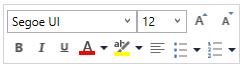
The WPF DOCX Editor (SfRichTextBoxAdv) supports a built-in mini toolbar to provide rich text formatting options such as Bold, Italic, etc. The mini toolbar can be enabled or disabled through the EnableMiniToolBar property.
The following screenshot shows the built-in mini toolbar of the SfRichTextBoxAdv control.
Enable/Disable mini toolbar
In SfRichTextBoxAdv, the built-in mini toolbar is enabled by default (the default value of EnableMiniToolBar is true). You can enable or disable the built-in mini toolbar as needed. Set EnableMiniToolBar to true to explicitly enable it, or to false to disable it.
The following code example demonstrates how to disable the built-in mini toolbar in the SfRichTextBoxAdv control.
<RichTextBoxAdv:SfRichTextBoxAdv x:Name="richTextBoxAdv" EnableMiniToolBar="False"/>// Initializes a new instance of RichTextBoxAdv.
SfRichTextBoxAdv richTextBoxAdv = new SfRichTextBoxAdv();
// Disables the built-in mini toolbar in the SfRichTextBoxAdv.
richTextBoxAdv.EnableMiniToolBar = false;' Initializes a new instance of RichTextBoxAdv.
Dim richTextBoxAdv As New SfRichTextBoxAdv()
' Disables the built-in mini toolbar in the SfRichTextBoxAdv.
richTextBoxAdv.EnableMiniToolBar = FalseYou can refer to our WPF DOCX Editor feature tour page for its groundbreaking feature representations. You can also explore our WPF DOCX Editor example to know how to render and configure the editing tool.