Localization in WPF DOCX Editor
30 Aug 20262 minutes to read
Localization is the process of adapting the application to a specific language. WPF DOCX Editor (SfRichTextBoxAdv) provides support to localize all the static text in the ribbon and its dialogs, including button labels, dialog titles, command tooltips, and menu items. Localization can be done by adding a resource file (Resx) and setting the desired culture in the application. The default culture is en-US.
The default English (en-US) resource files (Syncfusion.SfRichTextBoxAdv.WPF.resx and Syncfusion.SfRichTextRibbon.WPF.resx) are embedded inside the Syncfusion.SfRichTextBoxAdv.WPF and Syncfusion.SfRichTextRibbon.WPF assemblies, so they are available without any additional setup.
To localize the controls to a different culture, add a culture-specific <assembly-name>.<culture>.resx file (for example, Syncfusion.SfRichTextBoxAdv.WPF.fr.resx) to your project with its Build Action set to Embedded Resource. The runtime resource manager will then pick up the localized strings for the current UI culture, falling back to the embedded default if no culture-specific match is found.
Setting current ui culture
For localizing your application to a specific culture, set the CurrentUICulture to the required culture before invoking the InitializeComponent() method.
The following code example demonstrates how to set the culture for localizing an application.
public MainWindow()
{
	System.Threading.Thread.CurrentThread.CurrentUICulture = new System.Globalization.CultureInfo("fr-FR");

	InitializeComponent();
}
Partial Public Class MainWindow
Public Sub New()
System.Threading.Thread.CurrentThread.CurrentUICulture = New System.Globalization.CultureInfo("fr-FR")
InitializeComponent()
End Sub
End ClassView the complete localization sample on GitHub
Adding resource file
Create the resources folder
Create a folder named Resources in your project root (alongside your .csproj file).
Add the default resx
The default English (en-US) Resx (resource) files for SfRichTextBoxAdv and SfRichTextRibbon are available in the GitHub sample. Copy Syncfusion.SfRichTextBoxAdv.WPF.resx and Syncfusion.SfRichTextRibbon.WPF.resx from the sample into the Resources folder of your application.
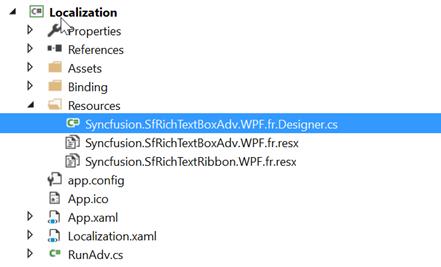
Create the localized resx
Create Resx (resource) files named Syncfusion.SfRichTextBoxAdv.WPF.<culture>.resx and Syncfusion.SfRichTextRibbon.WPF.<culture>.resx. For example, Syncfusion.SfRichTextBoxAdv.WPF.fr.resx and Syncfusion.SfRichTextRibbon.WPF.fr.resx for the French (fr) culture. For your reference, see the French (fr) Resx files.
Add resource keys
Add a resource key (such as the name of the string) and its corresponding localized value in the Resource Designer of the Syncfusion.SfRichTextBoxAdv.WPF.fr.resx and Syncfusion.SfRichTextRibbon.WPF.fr.resx files.
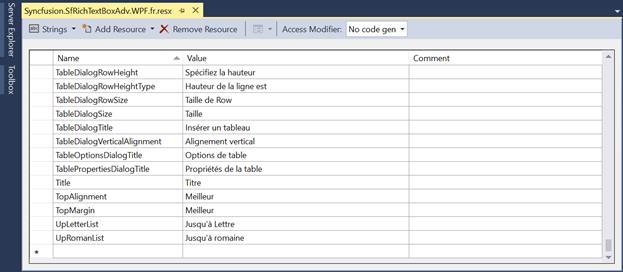
If you have not used
SfRichTextRibbonin your application, you can skip theSyncfusion.SfRichTextRibbon.WPF.<culture>.resxfiles mentioned above. After adding or modifying Resx files, rebuild the application so the new resources are picked up at runtime.
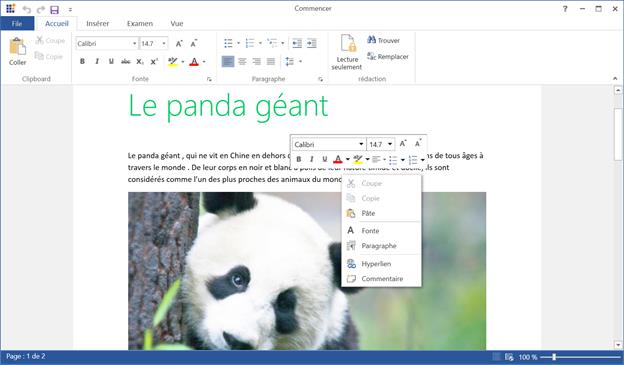
The following screenshot shows the localization in the SfRichTextBoxAdv and SfRichTextRibbon controls
You can refer to our WPF DOCX Editor feature tour page for its groundbreaking feature representations. You can also explore our WPF DOCX Editor example to know how to render and configure the editing tool.