Hyperlinks in WPF DOCX Editor
30 Aug 202611 minutes to read
The WPF DOCX Editor (SfRichTextBoxAdv) supports hyperlink fields similar to Microsoft Word. You can link part of the document content to the Internet, a file location, an email address, or any other text.
Insert hyperlink
The following code example illustrates how to insert a hyperlink field.
A HYPERLINK field consists of five parts: FieldBeginAdv, the field code text in a SpanAdv, FieldSeparatorAdv, the field result text in another SpanAdv, and FieldEndAdv.
<RichTextBoxAdv:ParagraphAdv>
<RichTextBoxAdv:FieldBeginAdv></RichTextBoxAdv:FieldBeginAdv>
<RichTextBoxAdv:SpanAdv Text=" HYPERLINK "http://www.syncfusion.com" "></RichTextBoxAdv:SpanAdv>
<RichTextBoxAdv:FieldSeparatorAdv></RichTextBoxAdv:FieldSeparatorAdv>
<RichTextBoxAdv:SpanAdv Text="Syncfusion">
<RichTextBoxAdv:SpanAdv.CharacterFormat>
<RichTextBoxAdv:CharacterFormat Underline="Single" FontColor="#ff0563c1"/>
</RichTextBoxAdv:SpanAdv.CharacterFormat>
</RichTextBoxAdv:SpanAdv>
<RichTextBoxAdv:FieldEndAdv></RichTextBoxAdv:FieldEndAdv>
</RichTextBoxAdv:ParagraphAdv>// Appends the field start.
paragraphAdv.Inlines.Add(new FieldBeginAdv());
// Appends the field code.
SpanAdv fieldCode = new SpanAdv();
string url = "www.syncfusion.com";
fieldCode.Text = " HYPERLINK \"" + url + "\" ";
paragraphAdv.Inlines.Add(fieldCode);
// Appends the field separator
paragraphAdv.Inlines.Add(new FieldSeparatorAdv());
// Appends the field result.
SpanAdv fieldResult = new SpanAdv();
fieldResult.Text = "Syncfusion";
fieldResult.CharacterFormat.Underline = Underline.Single;
fieldResult.CharacterFormat.FontColor = Color.FromArgb(0xff, 0x05, 0x63, 0xc1);
paragraphAdv.Inlines.Add(fieldResult);
// Appends the field end.
paragraphAdv.Inlines.Add(new FieldEndAdv());' Appends the field start.
paragraphAdv.Inlines.Add(New FieldBeginAdv())
' Appends the field code.
Dim fieldCode As New SpanAdv()
Dim url As String = "www.syncfusion.com"
fieldCode.Text = (Convert.ToString(" HYPERLINK """) & url) + """ "
paragraphAdv.Inlines.Add(fieldCode)
' Appends the field separator
paragraphAdv.Inlines.Add(New FieldSeparatorAdv())
' Appends the field result.
Dim fieldResult As New SpanAdv()
fieldResult.Text = "Syncfusion"
fieldResult.CharacterFormat.Underline = Underline.[Single]
fieldResult.CharacterFormat.FontColor = Color.FromArgb(&Hff, &H5, &H63, &Hc1)
paragraphAdv.Inlines.Add(fieldResult)
' Appends the field end.
paragraphAdv.Inlines.Add(New FieldEndAdv())The following code example illustrates how to insert hyperlink field into SfRichTextBoxAdv Document through the InsertHyperlinkCommand UI command. The CommandParameter accepts a URL string that the hyperlink will point to.
<Button Content="Insert Hyperlink" Command="RichTextBoxAdv:SfRichTextBoxAdv.InsertHyperlinkCommand" CommandTarget="{Binding ElementName=richTextBoxAdv}" CommandParameter="www.google.com"/>Hyperlink ScreenTip
In the SfRichTextBoxAdv control, a ToolTip (ScreenTip) shows additional information, such as the navigation link, when the mouse hovers over a hyperlink, and disappears when the mouse moves away. “ScreenTip” is the WPF RichTextBoxAdv term for the hyperlink tooltip; the underlying WPF ToolTip is used to display it. By default, it shows the navigation link of that hyperlink, and you can set the text you want to use for the ScreenTip.
In the HYPERLINK field code, the optional switch
\o "<text>"sets the ScreenTip text for the hyperlink.
| Without ScreenTipText | With ScreenTipText |
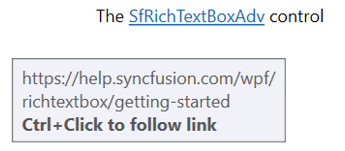 |
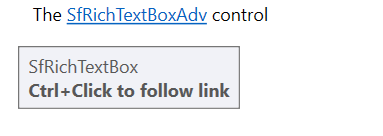 |
The following code example illustrates how to insert a hyperlink field with a ScreenTip.
<RichTextBoxAdv:ParagraphAdv>
<RichTextBoxAdv:FieldBeginAdv></RichTextBoxAdv:FieldBeginAdv>
<RichTextBoxAdv:SpanAdv Text=" HYPERLINK "\http://www.syncfusion.com" \o SfRichTextBox "></RichTextBoxAdv:SpanAdv>
<RichTextBoxAdv:FieldSeparatorAdv></RichTextBoxAdv:FieldSeparatorAdv>
<RichTextBoxAdv:SpanAdv Text="SfRichTextBoxAdv">
<RichTextBoxAdv:SpanAdv.CharacterFormat>
<RichTextBoxAdv:CharacterFormat Underline="Single" FontColor="#ff0563c1"/>
</RichTextBoxAdv:SpanAdv.CharacterFormat>
</RichTextBoxAdv:SpanAdv>
<RichTextBoxAdv:FieldEndAdv></RichTextBoxAdv:FieldEndAdv>
</RichTextBoxAdv:ParagraphAdv>ParagraphAdv paragraphAdv = new ParagraphAdv();
// Appends the field start.
paragraphAdv.Inlines.Add(new FieldBeginAdv());
// Appends the field code.
SpanAdv fieldCode = new SpanAdv();
string url = "www.syncfusion.com";
string screenTip = "SfRichTextBox";
fieldCode.Text = " HYPERLINK \"" + url + "\" \\o \"" + screenTip + "\" ";
paragraphAdv.Inlines.Add(fieldCode);
// Appends the field separator
paragraphAdv.Inlines.Add(new FieldSeparatorAdv());
// Appends the field result.
SpanAdv fieldResult = new SpanAdv();
fieldResult.Text = "SfRichTextBoxAdv";
fieldResult.CharacterFormat.Underline = Underline.Single;
fieldResult.CharacterFormat.FontColor = Color.FromArgb(0xff, 0x05, 0x63, 0xc1);
paragraphAdv.Inlines.Add(fieldResult);
// Appends the field end.
paragraphAdv.Inlines.Add(new FieldEndAdv());
richTextBoxAdv.Document.Sections[0].Blocks.Add(paragraphAdv);' Appends the field start.
paragraphAdv.Inlines.Add(New FieldBeginAdv())
' Appends the field code.
Dim fieldCode As New SpanAdv()
Dim url As String = "www.syncfusion.com"
Dim screenTip As String = "SfRichTextBox"
fieldCode.Text = (Convert.ToString(" HYPERLINK """) & url) + """ ""o """ + (screenTip) + """ "
paragraphAdv.Inlines.Add(fieldCode)
' Appends the field separator
paragraphAdv.Inlines.Add(New FieldSeparatorAdv())
' Appends the field result.
Dim fieldResult As New SpanAdv()
fieldResult.Text = "SfRichTextBoxAdv"
fieldResult.CharacterFormat.Underline = Underline.[Single]
fieldResult.CharacterFormat.FontColor = Color.FromArgb(&Hff, &H5, &H63, &Hc1)
paragraphAdv.Inlines.Add(fieldResult)
' Appends the field end.
paragraphAdv.Inlines.Add(New FieldEndAdv())The following code example illustrates how to insert hyperlink field with ScreenTip into WPF DOCX Editor Document through UI command.
Insert with ScreenTip via UI command
The string[3] parameter array contains the URL, the display text, and the ScreenTip text, in that order.
SfRichTextBoxAdv.InsertHyperlinkCommand.Execute(new string[3] { "www.syncfusion.com", "SfRichTextBoxAdv", "SfRichTextBox" }, richTextBoxAdv);The following section illustrates how to insert hyperlink field with ScreenTip in WPF DOCX Editor Document through built-in hyperlink dialog UI command like Microsoft Word application.
-
Open insert hyperlink dialog.
<!-- Binds button to the ShowHyperlinkDialogCommand --> <Button Content="Hyperlink" Command="RichTextBoxAdv:SfRichTextBoxAdv.ShowHyperlinkDialogCommand" CommandTarget="{Binding ElementName=richTextBoxAdv}" /> - Enter the display text, URL link and ScreenTip text.
- Click on OK to close the dialog box.
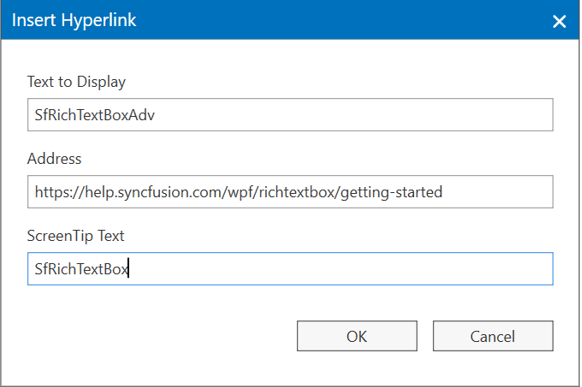
In the SfRichTextBoxAdv control, the ToolTip (ScreenTip) is shown by default when the mouse hovers over a hyperlink. You can disable the ToolTip by setting the DisplayScreenTips property of the EditorSettings class. Set it to false to disable the ScreenTip; the default is true.
The following code example illustrates how to disable the ToolTip of the hyperlink.
<RichTextBoxAdv:SfRichTextBoxAdv x:Name="richTextBoxAdv">
    <RichTextBoxAdv:SfRichTextBoxAdv.EditorSettings>
        <RichTextBoxAdv:EditorSettings DisplayScreenTips="False" />
    </RichTextBoxAdv:SfRichTextBoxAdv.EditorSettings>
</RichTextBoxAdv:SfRichTextBoxAdv>
SfRichTextBoxAdv richTextBoxAdv = new SfRichTextBoxAdv();
richTextBoxAdv.EditorSettings.DisplayScreenTips = false;Dim richTextBoxAdv As New SfRichTextBoxAdv()
richTextBoxAdv.EditorSettings.DisplayScreenTips = FalseScreenTip option is supported from V18.4.0.30
Hyperlink navigation
The SfRichTextBoxAdv supports an event that is raised when hyperlink navigation is requested. You can use this event to customize hyperlink navigation.
The RequestNavigate event provides the RequestNavigateEventArgs which exposes the Hyperlink being navigated to. The following example demonstrates how to handle this event.
The following code example demonstrates how to customize hyperlink navigation functionality for the SfRichTextBoxAdv instance.
// Hooks the event handler for RequestNavigate event.
richTextBoxAdv.RequestNavigate += RichTextBoxAdv_RequestNavigate;

/// <summary>
/// Handles the RequestNavigate event of the richTextBoxAdv control.
/// </summary>
/// <param name="obj">The source of the event.</param>
/// <param name="args">The <see cref="RequestNavigateEventArgs"/> instance containing the event data.</param>
private void RichTextBoxAdv_RequestNavigate(object obj, Syncfusion.Windows.Controls.RichTextBoxAdv.RequestNavigateEventArgs args)
{
    if (args.Hyperlink.LinkType == HyperlinkType.Webpage || args.Hyperlink.LinkType == HyperlinkType.Email)
        Process.Start(new ProcessStartInfo(new Uri(args.Hyperlink.NavigationLink).AbsoluteUri));
    else if (args.Hyperlink.LinkType == HyperlinkType.File && File.Exists(args.Hyperlink.NavigationLink))
         Process.Start(args.Hyperlink.NavigationLink);
}

// Unhooks the event handler for RequestNavigate event.
richTextBoxAdv.RequestNavigate -= RichTextBoxAdv_RequestNavigate;
' Hooks the event handler for RequestNavigate event.
AddHandler richTextBoxAdv.RequestNavigate, AddressOf RichTextBoxAdv_RequestNavigate
''' <summary>
''' Handles the RequestNavigate event of the richTextBoxAdv control.
''' </summary>
''' <param name="obj">The source of the event.</param>
''' <param name="args">The <see cref="RequestNavigateEventArgs"/> instance containing the event data.</param>
Private Sub RichTextBoxAdv_RequestNavigate(obj As Object, args As Syncfusion.Windows.Controls.RichTextBoxAdv.RequestNavigateEventArgs)
If args.Hyperlink.LinkType = HyperlinkType.Webpage OrElse args.Hyperlink.LinkType = HyperlinkType.Email Then
Process.Start(New ProcessStartInfo(New Uri(args.Hyperlink.NavigationLink).AbsoluteUri))
ElseIf args.Hyperlink.LinkType = HyperlinkType.File AndAlso File.Exists(args.Hyperlink.NavigationLink) Then
Process.Start(args.Hyperlink.NavigationLink)
End If
End Sub
' Unhooks the event handler for RequestNavigate event.
RemoveHandler richTextBoxAdv.RequestNavigate, AddressOf RichTextBoxAdv_RequestNavigateThe available HyperlinkType values are
Webpage,FileandBookmark. The NavigationLink property contains the destination of the hyperlink as a string.
You can refer to our WPF DOCX Editor feature tour page for its groundbreaking feature representations. You can also explore our WPF DOCX Editor example to know how to render and configure the editing tool.