Hyperlinks in UWP DOCX Editor
30 Aug 20268 minutes to read
The SfRichTextBoxAdv supports the hyperlink field, similar to Microsoft Word. You can link part of the document content to the internet, a file location, a mail address, or any text.
Inserting a hyperlink
The following code example illustrates how to insert a hyperlink field.
<RichTextBoxAdv:ParagraphAdv xmlns:RichTextBoxAdv="using:Syncfusion.UI.Xaml.RichTextBoxAdv">
<RichTextBoxAdv:FieldBeginAdv></RichTextBoxAdv:FieldBeginAdv>
<RichTextBoxAdv:SpanAdv Text=" HYPERLINK "http://www.syncfusion.com" "></RichTextBoxAdv:SpanAdv>
<RichTextBoxAdv:FieldSeparatorAdv></RichTextBoxAdv:FieldSeparatorAdv>
<RichTextBoxAdv:SpanAdv Text="Syncfusion">
<RichTextBoxAdv:SpanAdv.CharacterFormat>
<RichTextBoxAdv:CharacterFormat Underline="Single" FontColor="#ff0563c1"/>
</RichTextBoxAdv:SpanAdv.CharacterFormat>
</RichTextBoxAdv:SpanAdv>
<RichTextBoxAdv:FieldEndAdv></RichTextBoxAdv:FieldEndAdv>
</RichTextBoxAdv:ParagraphAdv>// Appends the field start.
paragraphAdv.Inlines.Add(new FieldBeginAdv());
// Appends the field code.
SpanAdv fieldCode = new SpanAdv();
string url = "http://www.syncfusion.com";
fieldCode.Text = " HYPERLINK \"" + url + "\" ";
paragraphAdv.Inlines.Add(fieldCode);
// Appends the field separator.
paragraphAdv.Inlines.Add(new FieldSeparatorAdv());
// Appends the field result.
SpanAdv fieldResult = new SpanAdv();
fieldResult.Text = "Syncfusion";
fieldResult.CharacterFormat.Underline = Underline.Single;
fieldResult.CharacterFormat.FontColor = Windows.UI.Color.FromArgb(0xff, 0x05, 0x63, 0xc1);
paragraphAdv.Inlines.Add(fieldResult);
// Appends the field end.
paragraphAdv.Inlines.Add(new FieldEndAdv());The following code example illustrates how to insert hyperlink field into SfRichTextBoxAdv Document through UI command.
<Button Content="Insert Hyperlink" Command="{Binding ElementName=richTextBoxAdv,Path=InsertHyperlinkCommand}"/>Hyperlink screen tip
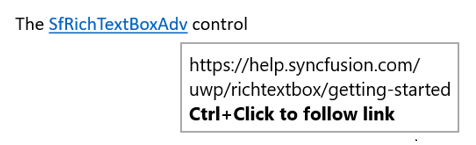
In the SfRichTextBoxAdv control, a ToolTip (ScreenTip) shows information or the navigation link when the mouse hovers over a hyperlink, and disappears when the mouse is moved away. By default, it shows the navigation link of the hyperlink; you can override this with custom ScreenTip text.
| Without ScreenTipText | With ScreenTipText |
 |
 |
The following code example illustrates how to insert a hyperlink field with ScreenTip.
<RichTextBoxAdv:ParagraphAdv>
<RichTextBoxAdv:FieldBeginAdv></RichTextBoxAdv:FieldBeginAdv>
<RichTextBoxAdv:SpanAdv Text=" HYPERLINK "\http://www.syncfusion.com" \o SfRichTextBox "></RichTextBoxAdv:SpanAdv>
<RichTextBoxAdv:FieldSeparatorAdv></RichTextBoxAdv:FieldSeparatorAdv>
<RichTextBoxAdv:SpanAdv Text="SfRichTextBoxAdv">
<RichTextBoxAdv:SpanAdv.CharacterFormat>
<RichTextBoxAdv:CharacterFormat Underline="Single" FontColor="#ff0563c1"/>
</RichTextBoxAdv:SpanAdv.CharacterFormat>
</RichTextBoxAdv:SpanAdv>
<RichTextBoxAdv:FieldEndAdv></RichTextBoxAdv:FieldEndAdv>
</RichTextBoxAdv:ParagraphAdv>ParagraphAdv paragraphAdv = new ParagraphAdv();
// Appends the field start.
paragraphAdv.Inlines.Add(new FieldBeginAdv());
// Appends the field code.
SpanAdv fieldCode = new SpanAdv();
string url = "http://www.syncfusion.com";
string screenTip = "SfRichTextBox";
fieldCode.Text = " HYPERLINK \"" + url + "\" \\o \"" + screenTip + "\" ";
paragraphAdv.Inlines.Add(fieldCode);
// Appends the field separator.
paragraphAdv.Inlines.Add(new FieldSeparatorAdv());
// Appends the field result.
SpanAdv fieldResult = new SpanAdv();
fieldResult.Text = "SfRichTextBoxAdv";
fieldResult.CharacterFormat.Underline = Underline.Single;
fieldResult.CharacterFormat.FontColor = Color.FromArgb(0xff, 0x05, 0x63, 0xc1);
paragraphAdv.Inlines.Add(fieldResult);
// Appends the field end.
paragraphAdv.Inlines.Add(new FieldEndAdv());
richTextBoxAdv.Document.Sections[0].Blocks.Add(paragraphAdv);' Appends the field start.
paragraphAdv.Inlines.Add(New FieldBeginAdv())
' Appends the field code.
Dim fieldCode As New SpanAdv()
Dim url As String = "http://www.syncfusion.com"
Dim screenTip As String = "SfRichTextBox"
fieldCode.Text = (Convert.ToString(" HYPERLINK """) & url) + """ ""o """ + (screenTip) + """ "
paragraphAdv.Inlines.Add(fieldCode)
' Appends the field separator.
paragraphAdv.Inlines.Add(New FieldSeparatorAdv())
' Appends the field result.
Dim fieldResult As New SpanAdv()
fieldResult.Text = "SfRichTextBoxAdv"
fieldResult.CharacterFormat.Underline = Underline.[Single]
fieldResult.CharacterFormat.FontColor = Color.FromArgb(&Hff, &H5, &H63, &Hc1)
paragraphAdv.Inlines.Add(fieldResult)
' Appends the field end.
paragraphAdv.Inlines.Add(New FieldEndAdv())The following code example illustrates how to insert hyperlink field with ScreenTip into UWP DOCX Editor Document through UI command.
// The string array parameters are: 0 = URL, 1 = display text, 2 = ScreenTip text.
richTextBoxAdv.InsertHyperlinkCommand.Execute(new string[3] { "http://www.syncfusion.com", "SfRichTextBoxAdv", "SfRichTextBox" });
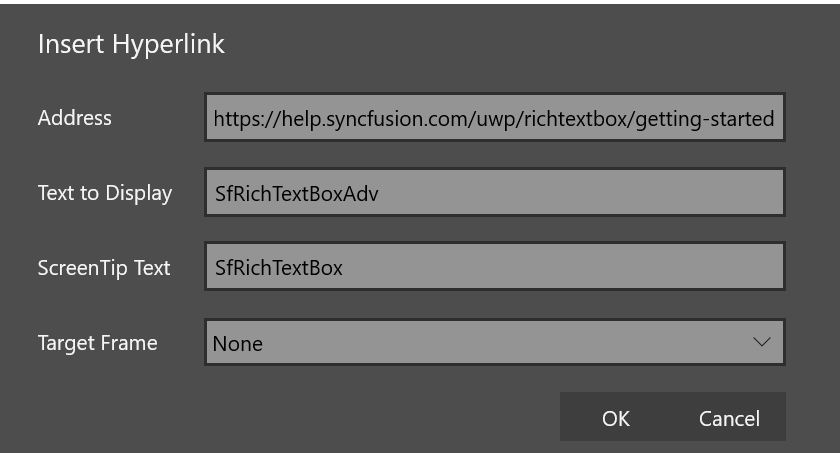
The following section illustrates how to insert hyperlink field with ScreenTip in UWP DOCX Editor Document through built-in hyperlink dialog UI command like Microsoft Word application.
-
Open insert hyperlink dialog.
<!-- Binds the button to the ShowHyperlinkDialogCommand --> <Button Content="Hyperlink" Command="{Binding ElementName=richTextBoxAdv, Path=ShowHyperlinkDialogCommand}"/> - Enter the display text, URL link and ScreenTip text.
- Click on OK to close the dialog box.
In the SfRichTextBoxAdv control, ToolTip (ScreenTip) will be shown by default when the mouse hovers over that hyperlink. You can disable ToolTip by using the DisplayScreenTips property of EditorSettings class.
The following code example illustrates how to disable the ToolTip of the hyperlink.
<RichTextBoxAdv:SfRichTextBoxAdv x:Name="richTextBoxAdv">
    <RichTextBoxAdv:SfRichTextBoxAdv.EditorSettings>
        <RichTextBoxAdv:EditorSettings DisplayScreenTips="False" />
    </RichTextBoxAdv:SfRichTextBoxAdv.EditorSettings>
</RichTextBoxAdv:SfRichTextBoxAdv>
SfRichTextBoxAdv richTextBoxAdv = new SfRichTextBoxAdv();
richTextBoxAdv.EditorSettings.DisplayScreenTips = false;Dim richTextBoxAdv As New SfRichTextBoxAdv()
richTextBoxAdv.EditorSettings.DisplayScreenTips = FalseThe
ScreenTipoption is supported starting from v20.4.0.38.
Hyperlink navigation
SfRichTextBoxAdv supports an event that fires when hyperlink navigation is requested. This allows you to easily customize the hyperlink navigation behavior.
The following code example demonstrates how to customize hyperlink navigation in SfRichTextBoxAdv.
// Hooks the event handler for the RequestNavigate event.
richTextBoxAdv.RequestNavigate += RichTextBoxAdv_RequestNavigate;


/// <summary>
/// Handles the RequestNavigate event of the richTextBoxAdv control.
/// </summary>
/// <param name="obj">The source of the event.</param>
/// <param name="args">The <see cref="RequestNavigateEventArgs"/> instance containing the event data.</param>
private async void RichTextBoxAdv_RequestNavigate(object obj, RequestNavigateEventArgs args)
{
    if (args.Hyperlink.LinkType == HyperlinkType.Webpage || args.Hyperlink.LinkType == HyperlinkType.Email)
    {
        Uri uri = new Uri(args.Hyperlink.NavigationLink);
        await Windows.System.Launcher.LaunchUriAsync(uri);
    }
}