Track Changes in React DOCX Editor
19 Oct 202617 minutes to read
React DOCX Editor (Document Editor) supports Track Changes functionality, which allows you to keep a record of changes or edits made to a document. You can then choose to accept or reject these modifications. It is a useful tool for managing changes made by several reviewers to the same document. When the Track Changes option is enabled, all editing operations are preserved as revisions.
Starting from v35.1.xx, the default value of table row insertion and deletion colors are changed based on author. To retain the previous static colors, add the following code.
container.documentEditorSettings.revisionSettings = {
        insertRevisionColor: 'byAuthor',
        deleteRevisionColor: 'byAuthor',
        insertedRowColor: '#0078D4',
        deletedRowColor: '#E3008C'
      };
Enable Track changes
Track Changes can be enabled using the enableTrackChanges property. When enabled, all editing operations are recorded and preserved as revisions in the DOCX Editor.
The following example demonstrates how to enable track changes.
import { createRoot } from 'react-dom/client';
import './index.css';
import * as React from 'react';

import { DocumentEditorContainerComponent, Toolbar } from '@syncfusion/ej2-react-documenteditor';

DocumentEditorContainerComponent.Inject(Toolbar);
let documenteditor;
function App() {
    return (
        <DocumentEditorContainerComponent
            id="container"
            height="590px"
            ref={(scope) => {
                documenteditor = scope;
            }}
            // Use the following service URL only for demo purposes
            serviceUrl="https://document.syncfusion.com/web-services/docx-editor/api/documenteditor/"
            enableToolbar={true}
            enableTrackChanges={true}
        />
    );
}
export default App;
createRoot(document.getElementById('sample')).render(<App />);
Track changes are document-level settings. When opening a document, if the document does not have track changes enabled, then
enableTrackChangeswill be disabled even if you setenableTrackChanges: truein the initial rendering. If you want to enable track changes for all documents, we recommend enabling track changes in thedocumentChangeevent.
The following example demonstrates how to enable track changes for the all the document while opening.
container.current.documentChange = () => {
      if (container.current !== null) {
        container.current.documentEditor.enableTrackChanges = true;
      }
    };
Show or hide revisions pane
The Show or Hide Revisions Pane option allows users to toggle the visibility of the revisions pane, providing flexibility in managing tracked changes within the document.
The following example code illustrates how to show or hide the revisions pane.
import { createRoot } from 'react-dom/client';
import * as React from 'react';
import {
    DocumentEditorContainerComponent,
    Toolbar,
} from '@syncfusion/ej2-react-documenteditor';

// Inject the required modules
DocumentEditorContainerComponent.Inject(Toolbar);

function App() {
    let container = null;

    React.useEffect(() => {
        if (container != null) {
            container.documentEditor.showRevisions = true; // To show revisions pane
            container.documentEditor.showRevisions = false; // To hide revisions pane
        }
    }, [container]); // Re-run the effect when the container is initialized

    return (
        <div>
            <DocumentEditorContainerComponent
                id="container"
                ref={(scope) => {
                    container = scope; // Assign the container ref
                }}
                height={'590px'}
                // Use the following service URL only for demo purposes
                serviceUrl="https://document.syncfusion.com/web-services/docx-editor/api/documenteditor/"
                enableToolbar={true}
                enableTrackChanges={true}
            />
        </div>
    );
}

export default App;

// Render the App component into the sample div
createRoot(document.getElementById('sample')).render(<App />);
The hosted Web API URL is for demo and evaluation purposes only. For production, host your own web service using the GitHub Web Service example or the Docker image.
Get all tracked revisions
Use the revisions collection on the DOCX Editor instance to retrieve all tracked revisions from the current document.
The following example demonstrates how to get all tracked revisions from the current document.
<DocumentEditorComponent id="container" ref={(scope) => { documenteditor = scope; }} enableTrackChanges={true}/>
/**
 * Get revisions from the current document
 */
let revisions : RevisionCollection = documentEditor.revisions;
Accept or reject all changes
Use acceptAll() or rejectAll() to apply or discard every tracked change at once, without reviewing each individually.
The following example demonstrates how to accept or reject all changes.
<DocumentEditorComponent id="container" ref={(scope) => { documenteditor = scope; }} enableTrackChanges={true} />
/**
 * Get revisions from the current document
 */
let revisions: RevisionCollection = documentEditor.revisions;
/**
 * Accept all tracked changes
 */
revisions.acceptAll();
/**
 * Reject all tracked changes
 */
revisions.rejectAll();
Accept or reject a specific revision
Use accept() or reject() on a specific revision to apply or discard that edit individually.
The following example demonstrates how to accept or reject a specific revision in the DOCX Editor.
/**
 * Get revisions from the current document
 */
let revisions: RevisionCollection = documentEditor.revisions;
/**
 * Accept specific changes
 */
revisions.get(0).accept();
/**
 * Reject specific changes
 */
revisions.get(1).reject();
Navigate between the tracked changes
Use navigateNextRevision() and navigatePreviousRevision() to move the selection to the next or previous tracked change.
The following example demonstrates how to navigate through tracked revisions programmatically.
/**
 * Navigate to next tracked change from the current selection.
 */
this.container.documentEditor.selection.navigateNextRevision();
/**
 * Navigate to previous tracked change from the current selection.
 */
this.container.documentEditor.selection.navigatePreviousRevision();
Custom metadata along with author
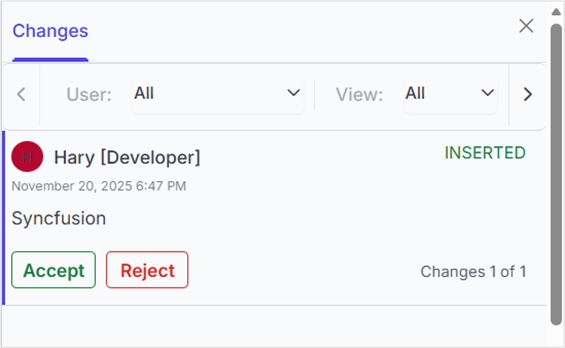
The DOCX Editor allows customizing revisions using revisionSettings. The customData property allows attaching additional metadata to tracked revisions. This metadata can represent roles, tags, or any custom identifier for a revision. To display this metadata along with the author name in the Track Changes pane, the showCustomDataWithAuthor property must be enabled.
The following example illustrates how to enable and update custom metadata for track changes revisions.
import * as ReactDOM from 'react-dom';
import * as React from 'react';
import {
    DocumentEditorContainerComponent,
    Toolbar,
} from '@syncfusion/ej2-react-documenteditor';

DocumentEditorContainerComponent.Inject(Toolbar);
function App() {
    let container;
    let settings = { revisionSettings: { customData: 'Developer', showCustomDataWithAuthor: true } };
    return (
        <DocumentEditorContainerComponent
            id="container"
            ref={(scope) => {
                container = scope;
            }}
            height={'590px'}
            serviceUrl="HostUrl"
            enableTrackChanges={true}
            documentEditorSettings={settings}
        />
    );
}
export default App;
ReactDOM.render(<App />, document.getElementById('sample'));
The Track Changes pane will display the author name along with the custom metadata, as shown in the screenshot below.
When the document is exported as SFDT, the
customDatavalue is stored in the revision collection. Upon reopening the SFDT, the custom data is automatically restored and displayed in the Track Changes pane. In formats other than SFDT (such as DOCX and others), thecustomDatais not preserved, as it is specific to the DOCX Editor component.
Restrict accept or reject by author
Restrict accepting or rejecting changes by author name.
The following example demonstrates how to restrict an author from accepting or rejecting changes.
import { createRoot } from 'react-dom/client';
import * as React from 'react';
import {
    DocumentEditorContainerComponent,
    Toolbar,
} from '@syncfusion/ej2-react-documenteditor';
DocumentEditorContainerComponent.Inject(Toolbar);
function App() {
    let container = DocumentEditorContainerComponent;
    // Event gets triggered before accepting/rejecting changes
    const beforeAcceptRejectChanges = (args) => {
        // Check the author of the revision
        if (args.author !== 'Hary') {
            // Cancel the accept/reject action
            args.cancel = true;
        }
    };
    return (
        <div>
            <DocumentEditorContainerComponent
                id="container"
                ref={(scope) => {
                    container = scope;
                }}
                height={'590px'}
                serviceUrl="https://document.syncfusion.com/web-services/docx-editor/api/documenteditor/"
                enableToolbar={true}
                enableTrackChanges={true}
                beforeAcceptRejectChanges={beforeAcceptRejectChanges}
            />
        </div>
    );
}
export default App;
createRoot(document.getElementById('sample')).render(<App />);
Custom Colors for Track Changes
You can set an array of colors to show track changes such as insertions and deletions in the DOCX editor by configuring the revisionColors property in RevisionSettings. Each author is assigned a color in order: the first author gets the first color, the second author gets the next, and so on. If there are more authors than colors, the assignment starts again from the beginning of the array.
The following example illustrates how to set the color order for track changes in the DOCX Editor
import { useRef, useEffect } from 'react';
import {
  DocumentEditorContainerComponent,
  Toolbar,
  Inject
} from '@syncfusion/ej2-react-documenteditor';

function App() {
  const containerRef = useRef(null);

  useEffect(() => {
    if (containerRef.current) {
      // Access the underlying DocumentEditor instance
      const editorSettings = containerRef.current.documentEditorSettings;

      // Update revision colors dynamically
      editorSettings.revisionSettings.revisionColors = [
        '#0000ff',
        '#bb00ff',
        '#c14f16'
      ];
    }
  }, []);

  return (
    <DocumentEditorContainerComponent
      ref={containerRef}
      height={'590px'}
      enableToolbar={true}
      serviceUrl="https://document.syncfusion.com/web-services/docx-editor/api/documenteditor/"
    >
      <Inject services={[Toolbar]} />
    </DocumentEditorContainerComponent>
  );
}

export default App;
Set colors for revision types
By default, the DOCX Editor uses author-based colors for tracked changes. You can also customize colors for specific revision types, such as inserted content, deleted content, inserted table rows, and deleted table rows by configuring the corresponding properties in RevisionSettings:
-
insertRevisionColor: Sets the color for inserted content. -
deleteRevisionColor: Sets the color for deleted content. -
insertedRowColor: Sets the background color for inserted table rows. -
deletedRowColor: Sets the background color for deleted table rows.
The following example shows how to customize revision type colors instead of using the default author-based colors.
import {
  DocumentEditorContainerComponent,
  Toolbar
} from '@syncfusion/ej2-react-documenteditor';
import { useRef } from 'react';

function App() {
  const containerRef = useRef<DocumentEditorContainerComponent>(null);

  const onCreated = () => {
    const container = containerRef.current;

    if (container) {
      container.documentEditorSettings.revisionSettings = {
        insertRevisionColor: '#22C55E',
        deleteRevisionColor: '#EF4444',
        insertedRowColor: '#7C3AED',
        deletedRowColor: '#F97316'
      };
    }
  };

  return (
    <DocumentEditorContainerComponent
      id="container"
      ref={containerRef}
      enableToolbar={true}
      created={onCreated}
      serviceUrl="https://document.syncfusion.com/web-services/docx-editor/api/documenteditor/"
    />
  );
}

export default App;
- These settings only affect how revisions are displayed in the DOCX Editor and are not stored in the document.
- By default, all revision types use author-specific colors (‘byAuthor’).
Filter Changes by User
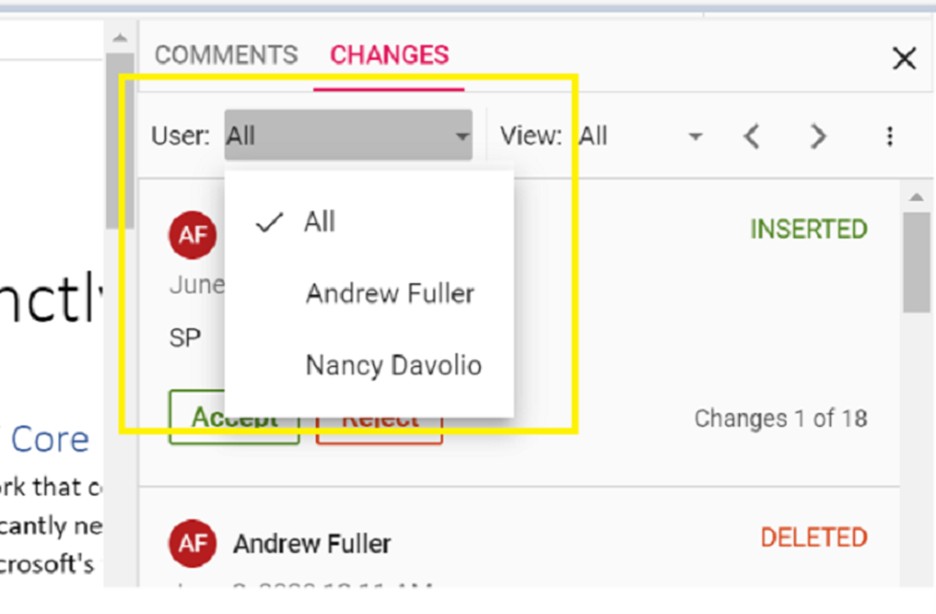
The built-in review panel in the DOCX Editor supports filtering changes based on the user.
Online Demo
Explore how to track and review changes in Word documents using the React DOCX Editor in this live demo here.
Video tutorial
To learn more about Track Changes in the DOCX Editor component, refer to the video below.