Hyperlink in JavaScript DOCX Editor
28 Aug 202611 minutes to read
JavaScript DOCX Editor (Document Editor) supports the hyperlink field. You can link a part of the document content to the Internet, a file location, a mail address, or any text within the document.
Navigate a hyperlink
DOCX Editor triggers the requestNavigate event whenever the user presses the Ctrl key or taps a hyperlink within the document. This event provides the necessary details about link type, navigation URL, and local URL (if any) as arguments, and allows you to easily customize the hyperlink navigation functionality.
Add the requestNavigate event for DocumentEditor
The following example illustrates how to add the requestNavigate event for the DocumentEditor.
var documenteditor = new ej.documenteditor.DocumentEditor({ enableSelection: true, enableEditor: true, isReadOnly: false, height: '370px' });

documenteditor.appendTo('#DocumentEditor');

documenteditor.requestNavigate = (args) => {
  if (args.linkType !== 'Bookmark') {
    var link = args.navigationLink;
    if (args.localReference.length > 0) {
      link += '#' + args.localReference;
    }
    window.open(link);
    args.isHandled = true;
  }
};
<!DOCTYPE html><html lang="en"><head>
<title>EJ2 Animation</title>
<meta charset="utf-8">
<meta name="viewport" content="width=device-width, initial-scale=1.0">
<meta name="description" content="Typescript UI Controls">
<meta name="author" content="Syncfusion">
<link href="index.css" rel="stylesheet">
<link href="https://cdn.syncfusion.com/ej2/35.1.37/ej2-documenteditor/styles/fabric.css" rel="stylesheet">
<script src="https://cdn.syncfusion.com/ej2/35.1.37/dist/ej2.min.js" type="text/javascript"></script>
<script src="https://cdn.syncfusion.com/ej2/syncfusion-helper.js" type ="text/javascript"></script>
</head>
<body>
<div id="container">
<div id="DocumentEditor">
</div>
</div>
<script>
var ele = document.getElementById('container');
if(ele) {
ele.style.visibility = "visible";
}
</script>
<script src="index.js" type="text/javascript"></script>
</body></html>Add the requestNavigate event for DocumentEditorContainer component
The following example illustrates how to add the requestNavigate event for the DocumentEditorContainer component.
var hostUrl = 'https://document.syncfusion.com/web-services/word-editor/';

var container = new ej.documenteditor.DocumentEditorContainer({
    enableToolbar: true,
    height: '590px'
});

ej.documenteditor.DocumentEditorContainer.Inject(ej.documenteditor.Toolbar);

container.serviceUrl = hostUrl + 'api/documenteditor/';
container.appendTo('#container');

container.documentEditor.requestNavigate = function (args) {
    if (args.linkType !== 'Bookmark') {
        var link = args.navigationLink;
        if (args.localReference.length > 0) {
            link += '#' + args.localReference;
        }
        window.open(link);
        args.isHandled = true;
    }
};
If the selection is in a hyperlink, trigger this event by calling the navigateHyperlink method of the Selection instance. Refer to the following example.
documenteditor.selection.navigateHyperlink();Copy link
DOCX Editor copies the link text of a hyperlink field to the clipboard if the selection is in a hyperlink. Refer to the following example.
documenteditor.selection.copyHyperlink();Add hyperlink
To create a basic hyperlink in the document, press ENTER / SPACEBAR / SHIFT + ENTER / TAB key after typing the address, for instance http://www.google.com. DOCX Editor automatically converts this address to a hyperlink field. The text can be considered as a valid URL if it starts with any of the following.
<http://>
<https://>
file:///
www.
mailto:
Refer to the following example.
var documenteditor = new ej.documenteditor.DocumentEditor({ enableSelection: true, isReadOnly: false, enableEditor: true, height: '370px' });

documenteditor.appendTo('#DocumentEditor');

documenteditor.requestNavigate = (args) => {
  if (args.linkType !== 'Bookmark') {
    var link = args.navigationLink;
    if (args.localReference.length > 0) {
      link += '#' + args.localReference;
    }
    window.open(link);
    args.isHandled = true;
  }
};
<!DOCTYPE html><html lang="en"><head>
<title>EJ2 Animation</title>
<meta charset="utf-8">
<meta name="viewport" content="width=device-width, initial-scale=1.0">
<meta name="description" content="Typescript UI Controls">
<meta name="author" content="Syncfusion">
<link href="index.css" rel="stylesheet">
<link href="https://cdn.syncfusion.com/ej2/35.1.37/ej2-documenteditor/styles/fabric.css" rel="stylesheet">
<script src="https://cdn.syncfusion.com/ej2/35.1.37/dist/ej2.min.js" type="text/javascript"></script>
<script src="https://cdn.syncfusion.com/ej2/syncfusion-helper.js" type ="text/javascript"></script>
</head>
<body>
<div id="container">
<div id="DocumentEditor">
</div>
</div>
<script>
var ele = document.getElementById('container');
if(ele) {
ele.style.visibility = "visible";
}
</script>
<script src="index.js" type="text/javascript"></script>
</body></html>Also DOCX Editor exposes the insertHyperlink() API to insert a hyperlink.
Refer to the following sample code.
documenteditor.editor.insertHyperlink('https://www.google.com', 'Google');Customize screen tip
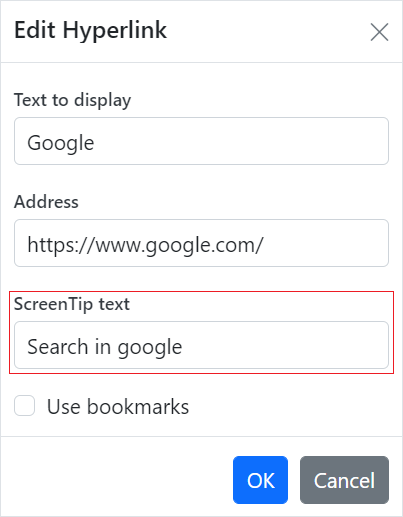
You can customize the screen tip text for the hyperlink by using the sample code below.
documenteditor.editor.insertHyperlink('https://www.google.com', 'Google', '<<Screen tip text>>');Screen tip text can be modified through the UI by using the Hyperlink dialog.
Remove hyperlink
To remove the link from a hyperlink in the document, press the Backspace key at the end of a hyperlink. By removing the link, it will be converted as plain text. You can use the removeHyperlink method of the Editor instance if the selection is in a hyperlink. Refer to the following example.
documenteditor.editor.removeHyperlink();Hyperlink dialog
DOCX Editor provides dialog support to insert or edit a hyperlink. Refer to the following example.
var documenteditor = new ej.documenteditor.DocumentEditor({ enableHyperlinkDialog: true, enableSelection: true, enableEditor: true, isReadOnly: false, enableEditorHistory: true, height: '370px' });

documenteditor.appendTo('#DocumentEditor');

document.getElementById('dialog').addEventListener('click', function () {
    documenteditor.showDialog('Hyperlink');
});
<!DOCTYPE html><html lang="en"><head>
<title>EJ2 Animation</title>
<meta charset="utf-8">
<meta name="viewport" content="width=device-width, initial-scale=1.0">
<meta name="description" content="Typescript UI Controls">
<meta name="author" content="Syncfusion">
<link href="index.css" rel="stylesheet">
<link href="https://cdn.syncfusion.com/ej2/35.1.37/ej2-documenteditor/styles/fabric.css" rel="stylesheet">
<link href="https://cdn.syncfusion.com/ej2/35.1.37/ej2-buttons/styles/fabric.css" rel="stylesheet">
<link href="https://cdn.syncfusion.com/ej2/35.1.37/ej2-base/styles/fabric.css" rel="stylesheet">
<link href="https://cdn.syncfusion.com/ej2/35.1.37/ej2-dropdowns/styles/fabric.css" rel="stylesheet">
<link href="https://cdn.syncfusion.com/ej2/35.1.37/ej2-inputs/styles/fabric.css" rel="stylesheet">
<link href="https://cdn.syncfusion.com/ej2/35.1.37/ej2-lists/styles/fabric.css" rel="stylesheet">
<link href="https://cdn.syncfusion.com/ej2/35.1.37/ej2-navigations/styles/fabric.css" rel="stylesheet">
<link href="https://cdn.syncfusion.com/ej2/35.1.37/ej2-popups/styles/fabric.css" rel="stylesheet">
<link href="https://cdn.syncfusion.com/ej2/35.1.37/ej2-splitbuttons/styles/fabric.css" rel="stylesheet">
<script src="https://cdn.syncfusion.com/ej2/35.1.37/dist/ej2.min.js" type="text/javascript"></script>
<script src="https://cdn.syncfusion.com/ej2/syncfusion-helper.js" type ="text/javascript"></script>
</head>
<body>
<div id="container">
<div id="toolbar">
<button id="dialog">Dialog</button>
</div>
<div style="width:100%;height: 100%">
<!--Element which will render as DocumentEditor -->
<div id="DocumentEditor"></div>
</div>
</div>
<script>
var ele = document.getElementById('container');
if(ele) {
ele.style.visibility = "visible";
}
</script>
<script src="index.js" type="text/javascript"></script>
</body></html>You can use the following keyboard shortcut to open the hyperlink dialog if the selection is in a hyperlink.
| Key Combination | Description |
|---|---|
| Ctrl + K | Open hyperlink dialog that allows you to create or edit a hyperlink |
Online demo
Explore how to insert and manage hyperlinks in Word documents using the JavaScript (ES5) DOCX Editor in this live demo.