Form Fields in Blazor DOCX Editor
28 Aug 20263 minutes to read
The Blazor DOCX Editor (Document Editor) component provides support for inserting Text, CheckBox, and DropDown form fields through the built-in toolbar.
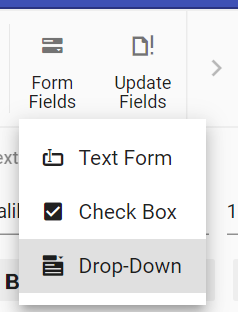
Insert form field
Form fields can be inserted using InsertFormFieldAsync method in editor module.
//Insert Text form field
await container.DocumentEditor.Editor.InsertFormFieldAsync(FormFieldType.Text);
//Insert Checkbox form field
await container.DocumentEditor.Editor.InsertFormFieldAsync(FormFieldType.CheckBox);
//Insert Drop down form field
await container.DocumentEditor.Editor.InsertFormFieldAsync(FormFieldType.DropDown);
Get form field names
All the form field names from the current document can be retrieved using GetFormFieldNamesAsync().
Task<List<string>> formFieldsNames = await container.DocumentEditor.GetFormFieldNamesAsync();Export form field data
Data of all the form fields in the document can be exported using ExportFormDataAsync.
Task<List<FormFieldData>> formFieldDatas = await container.DocumentEditor.ExportFormDataAsync();Import form field data
Form fields can be pre-filled with data using ImportFormDataAsync.
FormFieldData textformField = new FormFieldData();
textformField.FieldName = "Text1";
textformField.Value = "Hello World";
FormFieldData checkformField = new FormFieldData();
checkformField.FieldName = "Check1";
checkformField.Value = true;
FormFieldData dropdownformField = new FormFieldData();
dropdownformField.FieldName = "Drop1";
dropdownformField.Value = 1;

List<FormFieldData> formData = new List<FormFieldData>();
formData.Add(textformField);
formData.Add(checkformField);
formData.Add(dropdownformField);
//import form field data
await container.DocumentEditor.ImportFormDataAsync(formData);
Reset form fields
Reset all the form fields in the current document to their default value using ResetFormFieldsAsync.
await container.DocumentEditor.ResetFormFieldsAsync();Protect the document in form filling mode
DOCX Editor provides support for protecting the document with FormFieldsOnly protection. In this protection, the user can only fill form fields in the document.
The DOCX Editor provides an option to protect and unprotect a document using the EnforceProtectionAsync and StopProtectionAsync APIs.
The following example code illustrates how to enforce and stop protection in the Document Editor container.
@using Syncfusion.Blazor.DocumentEditor

<button @onclick="protectDocument">Protection</button>
<SfDocumentEditorContainer @ref="container" EnableToolbar=true></SfDocumentEditorContainer>

@code {
    SfDocumentEditorContainer container;
    protected async void protectDocument(object args)
    {
        //enforce protection
        await container.DocumentEditor.Editor.EnforceProtectionAsync("123", ProtectionType.FormFieldsOnly);
        //stop the document protection
        await container.DocumentEditor.Editor.StopProtectionAsync("123");
    }
}
In the
EnforceProtectionmethod, the first parameter denotes the password and the second parameter denotes the protection type. Possible values of protection type areNoProtection | ReadOnly | FormFieldsOnly | CommentsOnly. In theStopProtectionmethod, the parameter denotes the password.
Online Demo
Explore how to insert and manage form fields in Word documents using the Blazor DOCX Editor in this live demo here.