Text Format in ASP.NET MVC DOCX Editor
12 Sep 202621 minutes to read
DOCX Editor supports several formatting options for text like bold, italic, font color, highlight color, and more. This section describes how to modify the formatting for selected text in detail.
Bold
The bold formatting for selected text can be retrieved or set by using the following sample code.
//Gets the value for bold formatting of selected text.
let bold : boolean = documenteditor.selection.characterFormat.bold;
//Sets bold formatting for selected text.
documenteditor.selection.characterFormat.bold = true;
You can toggle the bold formatting based on the existing value at the selection.
documenteditor.editor.toggleBold();Italic
The Italic formatting for selected text can be retrieved or set by using the following sample code.
documenteditor.selection.characterFormat.italic = true | false;You can toggle the italic formatting based on the existing value at the selection.
documenteditor.editor.toggleItalic();Underline property
The underline style for selected text can be retrieved or set by using the following sample code.
documenteditor.selection.characterFormat.underline = 'Single' | 'None';You can toggle the underline style of selected text based on the existing value at the selection by specifying a value.
documenteditor.editor.toggleUnderline('Single');Strikethrough property
The strikethrough style for selected text can be retrieved or set by using the following sample code.
documenteditor.selection.characterFormat.strikethrough = 'Single' | 'Normal';You can toggle the strikethrough style of selected text based on the existing value at the selection by specifying a value.
documenteditor.editor.toggleStrikethrough();Superscript property
The selected text can be made superscript by using the following sample code.
documenteditor.selection.characterFormat.baselineAlignment='Superscript';Toggle the selected text as superscript or normal using the following sample code.
documenteditor.editor.toggleSuperscript();Subscript property
The selected text can be made subscript by using the following sample code.
documenteditor.selection.characterFormat.baselineAlignment='Subscript';Toggle the selected text as subscript or normal using the following sample code.
documenteditor.editor.toggleSubscript();You can make a subscript or superscript text as normal using the following code.
documenteditor.selection.characterFormat.baselineAlignment='Normal';Change case
You can apply different case formatting based on the selected text. Refer to the following sample code.
documenteditor.editor.changeCase('Uppercase'|'Lowercase'|'SentenceCase'|'ToggleCase'|'CapitalizeEachWord');Size
The size of selected text can be retrieved or set using the following code.
documenteditor.selection.characterFormat.fontSize = 32;Color
Change font color by UI option
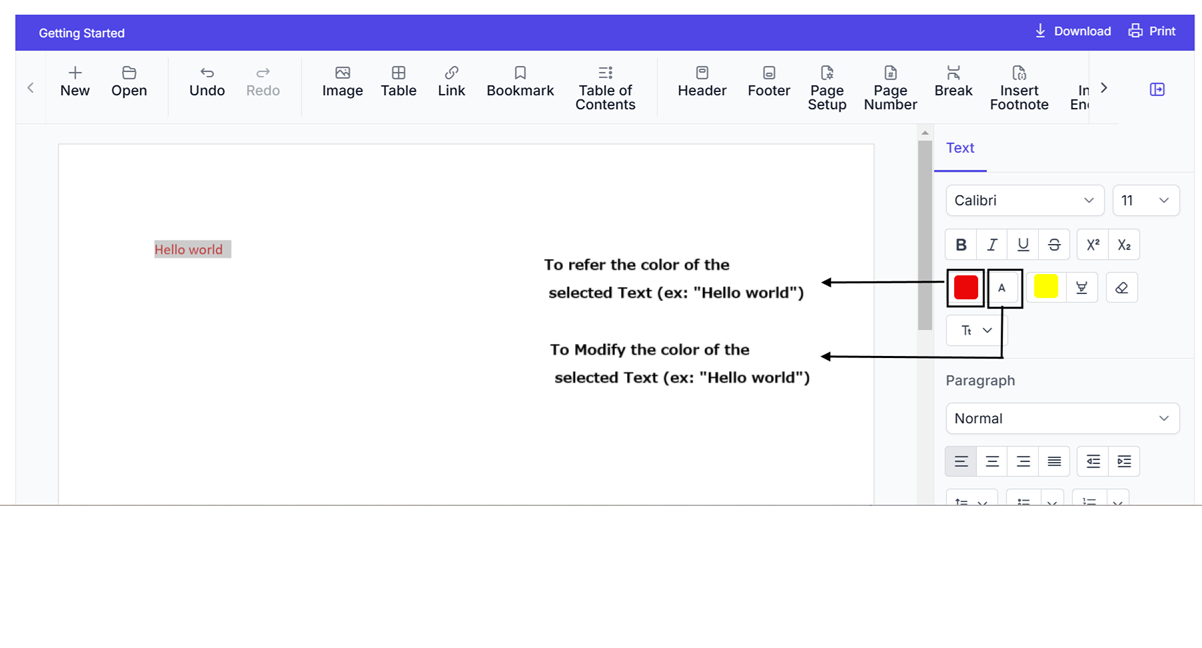
In the DOCX Editor, the Text Properties pane contains two icons for managing text color within the user interface (UI):
- Colored Box: This icon visually represents the current color applied to the selected text.
- Text (A) Icon: Clicking this icon allows users to change the color of the selected text using the color picker.
This Font Color option appears as follows.
Change font color by code
The color of selected text can be retrieved or set using the following code.
documenteditor.selection.characterFormat.fontColor = 'Pink';
documenteditor.selection.characterFormat.fontColor = '#FFC0CB';
Font
The font style of selected text can be retrieved or set using the following sample code.
documenteditor.selection.characterFormat.fontFamily = 'Arial';Highlight color
The highlight color of the selected text can be retrieved or set using the following sample code.
documenteditor.selection.characterFormat.highlightColor = 'Pink';Bidirectional
The bidi property controls whether selected text is displayed as right-to-left (RTL) or left-to-right (LTR) for proper multilingual formatting. You can get or set this property using the following code example.
// Get Bidi value of selected text
var bidi = documenteditor.selection.characterFormat.bidi;

// Set Bidi for selected text
documenteditor.selection.characterFormat.bidi = true;
Toolbar with options for text formatting
<div id="toolbar"></div>
<div id="documenteditor" style="width:100%;height:100%">
    @Html.EJS().DocumentEditor("container").IsReadOnly(false).EnableEditor(true).EnableSelection(true).EnableSfdtExport(true).EnableContextMenu(true).EnableEditorHistory(true).Render()
</div>

<script>
    var documenteditor;
    document.addEventListener('DOMContentLoaded', function () {
        documenteditor = document.getElementById("container").ej2_instances[0];
        documenteditor.resize();
        updateContainerSize();
        function toolbarButtonClick(arg) {
            switch (arg.item.id) {
                case 'bold':
                    //Toggles the bold of selected content
                    documenteditor.editor.toggleBold();
                    break;
                case 'italic':
                    //Toggles the Italic of selected content
                    documenteditor.editor.toggleItalic();
                    break;
                case 'underline':
                    //Toggles the underline of selected content
                    documenteditor.editor.toggleUnderline('Single');
                    break;
                case 'strikethrough':
                    //Toggles the strikethrough of selected content
                    documenteditor.editor.toggleStrikethrough();
                    break;
                case 'subscript':
                    //Toggles the subscript of selected content
                    documenteditor.editor.toggleSubscript();
                    break;
                case 'superscript':
                    //Toggles the superscript of selected content
                    documenteditor.editor.toggleSuperscript();
                    break;
            }
        }
        function updateContainerSize() {
            document.getElementById('container').style.height =
                window.innerHeight - document.getElementById('toolbar').offsetHeight + 'px';
        }
        //To change the font Style of selected content
        function changeFontFamily(args) {
            documenteditor.selection.characterFormat.fontFamily = args.value;
            documenteditor.focusIn();
        }
        //To Change the font Size of selected content
        function changeFontSize(args) {
            documenteditor.selection.characterFormat.fontSize = args.value;
            documenteditor.focusIn();
        }
        //To Change the font Color of selected content
        function changeFontColor(args) {
            documenteditor.selection.characterFormat.fontColor = args.currentValue.hex;
            documenteditor.focusIn();
        }
        documenteditor.selectionChange = function () {
            setTimeout(function () { onSelectionChange(); }, 20);
        };
        //Selection change to retrieve formatting
        function onSelectionChange() {
            if (documenteditor.selection) {
                enableDisableFontOptions();
                // #endregion
            }
        }
        function enableDisableFontOptions() {
            var characterformat = documenteditor.selection.characterFormat;
            var properties = [characterformat.bold, characterformat.italic, characterformat.underline, characterformat.strikeThrough];
            var toggleBtnId = ["bold", "italic", "underline", "strikethrough"];
            for (var i = 0; i < properties.length; i++) {
                changeActiveState(properties[i], toggleBtnId[i]);
            }
        }
        function changeActiveState(property, btnId) {
            var toggleBtn = document.getElementById(btnId);
            if ((typeof (property) == 'boolean' && property == true) || (typeof (property) == 'string' && property !== 'None'))
                toggleBtn.classList.add("e-btn-toggle");
            else {
                if (toggleBtn.classList.contains("e-btn-toggle"))
                    toggleBtn.classList.remove("e-btn-toggle");
            }
        }
        var fontStyle = ['Algerian', 'Arial', 'Calibri', 'Cambria', 'Cambria Math', 'Candara', 'Courier New', 'Georgia', 'Impact', 'Segoe Print', 'Segoe Script', 'Segoe UI', 'Symbol', 'Times New Roman', 'Verdana', 'Windings'
        ];
        var fontSize = ['8', '9', '10', '11', '12', '14', '16', '18',
            '20', '22', '24', '26', '28', '36', '48', '72', '96'];
        var toolBar = new ej.navigations.Toolbar({
            clicked: toolbarButtonClick,
            items: [
                {
                    prefixIcon: 'e-de-icon-Bold',
                    tooltipText: 'Bold',
                    id: 'bold',
                },
                {
                    prefixIcon: 'e-de-icon-Italic',
                    tooltipText: 'Italic',
                    id: 'italic',
                },
                {
                    prefixIcon: 'e-de-icon-Underline',
                    tooltipText: 'Underline',
                    id: 'underline',
                },
                {
                    prefixIcon: 'e-de-icon-Strikethrough',
                    tooltipText: 'Strikethrough',
                    id: 'strikethrough',
                },
                {
                    prefixIcon: 'e-de-icon-Subscript',
                    tooltipText: 'Subscript',
                    id: 'subscript',
                },
                {
                    prefixIcon: 'e-de-icon-Superscript',
                    tooltipText: 'Superscript',
                    id: 'superscript',
                },
                { type: 'Seperator' },
                {
                    type: 'Input',
                    template: new ColorPicker({
                        value: '#000000',
                        showButtons: true,
                        change: changeFontColor
                    }),
                },
                { type: 'Seperator' },
                {
                    type: 'Input',
                    template: new ComboBox({
                        dataSource: fontStyle,
                        width: 120,
                        index: 2,
                        allowCustom: true,
                        change: changeFontFamily,
                        showClearButton: false,
                    }),
                },
                {
                    type: 'Input',
                    template: new ComboBox({
                        dataSource: fontSize,
                        width: 80,
                        allowCustom: true,
                        index: 2,
                        change: changeFontSize,
                        showClearButton: false,
                    }),
                },
            ],
        });
        toolBar.appendTo('#toolbar');
    });
</script>

<style>
    #container {
        width: 100%;
        height: 100%
    }
</style>
public ActionResult Default()
{
return View();
}Online demo
Explore how to apply text formatting in Word documents using the ASP.NET MVC DOCX Editor in this live demo.