Spell Check in ASP.NET MVC DOCX Editor
27 Aug 20265 minutes to read
The DOCX Editor supports spell checking for input text. It provides suggestions for misspelled words through the spell-checker dialog and the context menu.
@Html.EJS().DocumentEditor("container").IsReadOnly(false).EnableEditor(true).EnableSelection(true).EnableSpellCheck(true).Render()

<script>
    var documenteditor;
    document.addEventListener('DOMContentLoaded', function () {
        documenteditor = document.getElementById("container").ej2_instances[0];
        documenteditor.spellChecker.languageID = 1033 //LCID of "en-us";
        documenteditor.spellChecker.removeUnderline = false;
        documenteditor.spellChecker.allowSpellCheckAndSuggestion = true;
    });
</script>
Features
- Supports context menu suggestions.
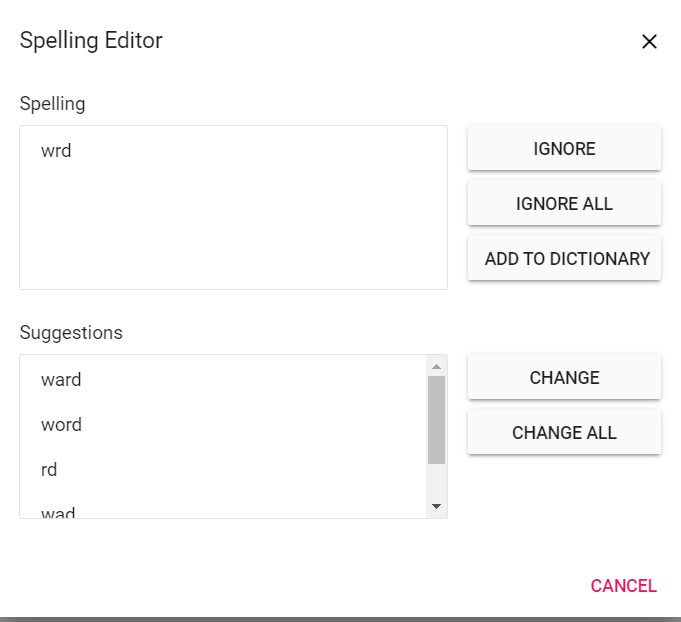
- Provides built-in options to Ignore, Ignore All, Change, and Change All for error words in the spell-checker dialog.
Enable Spell Check
To enable spell check in the DOCX Editor, set the enableSpellCheck property to true and then configure SpellCheckSettings. The default value of this property is false.
Disable Spell Check
To disable spell check in the DOCX Editor, set the enableSpellCheck property to false or remove the enableSpellCheck property initialization code.
Spell check settings
Remove Underline
By default, misspelled words are marked with a squiggly line. Set the removeUnderline API to false to prevent squiggly lines from being rendered for misspelled words.
this.container.documentEditor.spellChecker.removeUnderline = false;AllowSpellCheckAndSuggestion
By default, when a spell check is performed in the DOCX Editor, both the spelling check and suggestions for misspelled words are retrieved. The misspelled words can be corrected from the context menu suggestions. Set the allowSpellCheckAndSuggestion API to false to perform only spell checking without suggestions.
this.container.documentEditor.spellChecker.allowSpellCheckAndSuggestion = false;LanguageID
The DOCX Editor supports multi-language spell checking. Add the required language dictionaries on the server side, and use a matching languageID in the DOCX Editor to enable spell checking for that language.
this.container.documentEditor.spellChecker.languageID = 1033; //LCID of "en-us";EnableOptimizedSpellCheck
The DOCX Editor provides an option to spell check page by page when loading documents. The default value of this property is false, so when the document is opened, the spell-check web API is called for each word. Set this property to true to optimize the frequency of spell-check web API calls.
this.container.documentEditor.spellChecker.enableOptimizedSpellCheck = true;Spell check dictionary cache
Starting from v20.1.0.xx, the performance and memory usage of the spell checker have been optimized by adding a static method to initialize the dictionaries with a specified cache count.
By default, the spell checker holds only one language dictionary in memory. If you want to hold multiple dictionaries in memory, set the cache limit by using the InitializeDictionaries method as shown in the following example.
 List<DictionaryData> spellDictCollection = new List<DictionaryData>();
 string personalDictPath = string.Empty;
 int cacheCount = 2;
 // Initialize dictionaries
 SpellChecker.InitializeDictionaries(spellDictCollection, personalDictPath, cacheCount);
When dictionaries are initialized using the InitializeDictionaries method, use the default constructor of the SpellChecker to check spelling and get suggestions, as shown in the following example. This prevents reinitialization of already loaded dictionaries.
public string SpellCheck([FromBody] SpellCheckJsonData spellChecker)
{
      try
      {
            SpellChecker spellCheck = new SpellChecker();
            spellCheck.GetSuggestions(spellChecker.LanguageID, spellChecker.TexttoCheck, spellChecker.CheckSpelling, spellChecker.CheckSuggestion, spellChecker.AddWord);
            return Newtonsoft.Json.JsonConvert.SerializeObject(spellCheck);
      }
      catch
      {
            return "{\"SpellCollection\":[],\"HasSpellingError\":false,\"Suggestions\":null}";
      }
}
Previously, every call to SpellChecker.GetSuggestion() re-parsed the .aff and dictionary data to generate suggestions for misspelled words. Starting from v20.1.0.xx, the .aff and dictionary data are parsed only on the first call to SpellChecker.GetSuggestion().
Add new root word and possible words to dictionary
If a root word is missing from the dictionary file, add the new root word and the rule for forming its possible words using the AddNewWord API in the server-side Spell-check library.
- The rules are framed automatically using the root word, the possible words, and the affix file.
- If you pass
nullfor the parametersaffPathandpossibleWords, then it will add a single root word to the dictionary.- This API is included starting from
v20.2.0.xx.
The following code example demonstrates how to add a new root word to the dictionary along with the rule to form the possible words.
SpellChecker spellChecker = new SpellChecker();
// Adds the specified new root word to the dictionary along with the rule to form the possible words.
spellChecker.AddNewWord("en.dic","en.aff", "construct", new string[] { "constructs", "reconstruct", "constructed", "constructive" });
Context menu
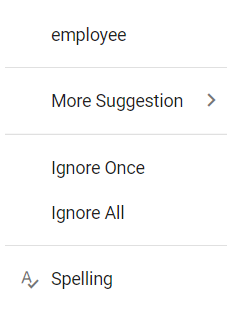
Right-click an error word to open the context menu with spell-check options.
Suggestions
The context menu shows suggestions for misspelled words. Clicking a suggestion replaces the error word automatically.
Add To Dictionary
Use this option to add the current word to the dictionary so that the spell checker does not consider it an error in the future.
Ignore Once and Ignore All
If you do not wish to add the word to the dictionary and do not want to show the error, use the Ignore Once or Ignore All options.
Ignore: ignores only the current occurrence of a word marked as an error.
Ignore All: ignores all occurrences of a word marked as an error in the entire document.
Spelling
Use this option to open the spell-check dialog.
- Refer to the Spell checker link for configuring the spell checker on the server side.