List Format in ASP.NET MVC DOCX Editor
27 Aug 20264 minutes to read
DOCX Editor supports both the single-level and multilevel lists. Lists are used to organize data as step-by-step instructions in documents for easy understanding of key points. You can apply lists to selected paragraphs using the supported APIs.
Create bullet list
Bullets are usually used for unordered lists. To apply bulleted list for selected paragraphs, use the following method of the Editor instance.
applyBullet(bullet, fontFamily);
| Parameter | Type | Description |
|---|---|---|
| Bullet | string | Bullet character. |
| fontFamily | string | Bullet font family. |
documenteditor.editor.applyBullet('\uf0b7', 'Symbol');Create numbered list
Numbered lists are usually used for ordered lists. To apply numbered list for selected paragraphs, use the following method of the Editor instance.
applyNumbering(numberFormat,listLevelPattern)
| Parameter | Type | Description |
|---|---|---|
| numberFormat | string | “%n” representations in numberFormat parameter will be replaced by respective list level’s value. “%1)” will be displayed as “1)”. |
| listLevelPattern(optional) | string | Default value is ‘Arabic’. |
documenteditor.editor.applyNumbering('%1)', 'UpRoman');Clear list
You can also clear the list formatting applied for selected paragraphs.
documenteditor.editor.clearList();Applying lists in a view
@Html.EJS().Toolbar("defaultToolbar").Items(new List<ToolbarItem> {
    new ToolbarItem { PrefixIcon = "e-de-icon-Bullets",Id="Bullets", TooltipText = "Bullets" },
    new ToolbarItem { PrefixIcon = "e-de-icon-Numbering",Id="Numbering", TooltipText = "Numbering" },
    new ToolbarItem { Text = "Clear",Id="clearlist", TooltipText = "Clear List" }}).Clicked("toolbarAction").Render()
<div id="documenteditor">
@Html.EJS().DocumentEditor("container").IsReadOnly(false).EnableEditor(true).EnableSelection(true).EnableSfdtExport(true).EnableEditorHistory(true).Render()
</div>

<script>
    var documenteditor;
    document.addEventListener('DOMContentLoaded', function () {
        documenteditor = document.getElementById("container").ej2_instances[0];
        documenteditor.resize();
        updateContainerSize();

        function toolbarAction(args) {
            switch (args.item.id) {
                case 'Bullets':
                    //To create bullet list
                    documenteditor.editor.applyBullet('\uf0b7', 'Symbol');
                    break;
                case 'Numbering':
                    //To create numbering list
                    documenteditor.editor.applyNumbering('%1)', 'UpRoman');
                    break;
                case 'clearlist':
                    //To clear list
                    documenteditor.editor.clearList();
                    break;
            }
        };
    });
</script>
public ActionResult Default()
{
return View();
}Editing numbered list
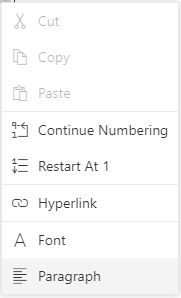
DOCX Editor restarts the numbering or continue numbering for a numbered list. These options are found in the built-in context menu, if the list value is selected.
Online Demo
Explore how to apply bullets and numbering in Word documents using the ASP.NET MVC DOCX Editor in this live demo here.