How to Insert Text or Image in Table in ASP.NET MVC DOCX Editor
19 Aug 20263 minutes to read
Using the ASP.NET MVC DOCX Editor (Document Editor) APIs, you can insert [text] or [image] in a [table] programmatically based on your requirement.
Use [selection] APIs to navigate between rows and cells.
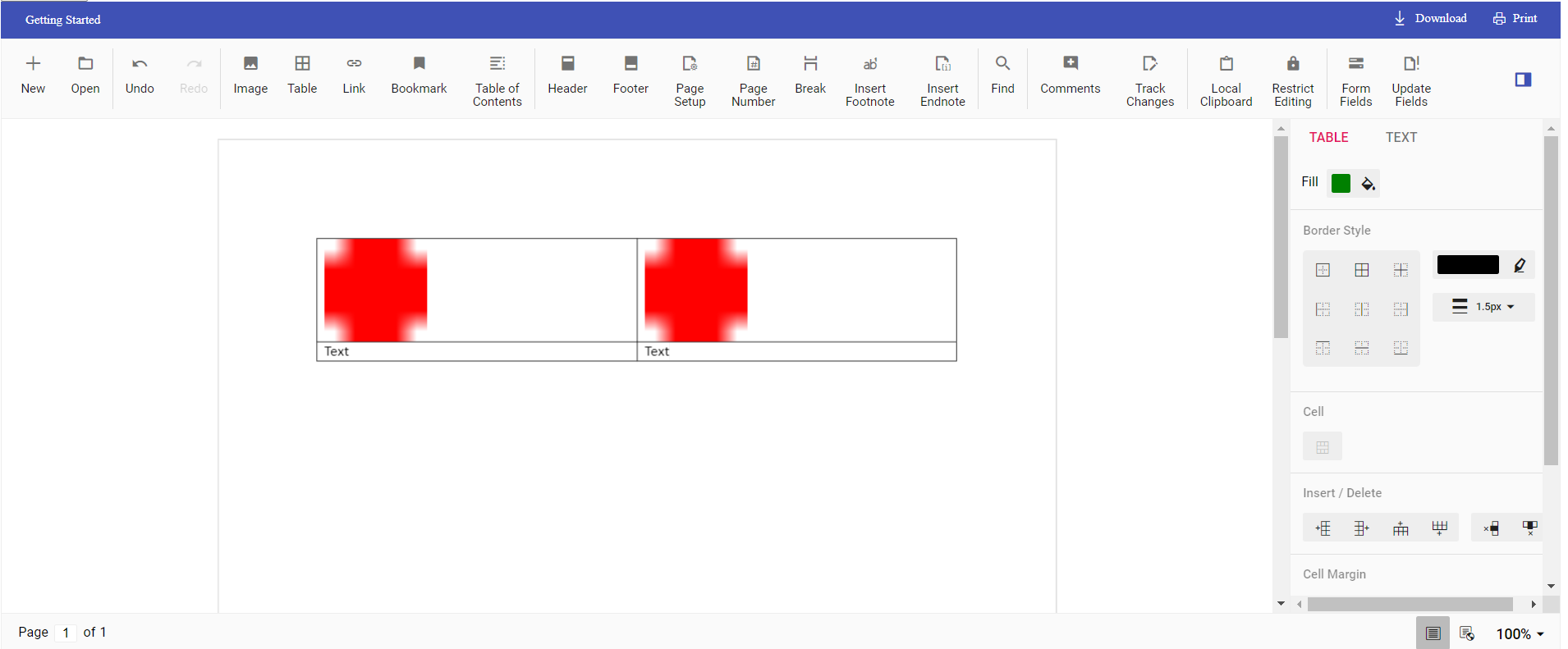
The following example illustrates how to create a 2*2 table and then add text and image programmatically.
@Html.EJS().DocumentEditorContainer("container").Created("onCreated").EnableToolbar(true).Render()

<script>
  var documenteditor;
  var container;
  function onCreated() {
    var documenteditorElement = document.getElementById("container");
    container = documenteditorElement.ej2_instances[0];
    // To insert the table in cursor position
    container.documentEditor.editor.insertTable(2, 2);
    // To insert the image at table first cell
    container.documentEditor.editor.insertImage("data:image/png;base64,iVBORw0KGgoAAAANSUhEUgAAAAUAAAAFCAYAAACNbyblAAAAHElEQVQI12P4    //8/w38GIAXDIBKE0DHxgljNBAAO9TXL0Y4OHwAAAABJRU5ErkJggg==");
    // To move the cursor to next cell
    moveCursorToNextCell();
    // To insert the image at table second cell
    container.documentEditor.editor.insertImage("data:image/png;base64,iVBORw0KGgoAAAANSUhEUgAAAAUAAAAFCAYAAACNbyblAAAAHElEQVQI12P4    //8/w38GIAXDIBKE0DHxgljNBAAO9TXL0Y4OHwAAAABJRU5ErkJggg==");
    // To move the cursor to next row
    moveCursorToNextRow();
    // To insert text in cursor position
    container.documentEditor.editor.insertText('Text');
    // To move the cursor to next cell
    moveCursorToNextCell();
    // To insert text in cursor position
    container.documentEditor.editor.insertText('Text');
  }
  function moveCursorToNextCell() {
  // To get current selection start offset
  var startOffset = container.documentEditor.selection.startOffset;
  // Increasing cell index to consider next cell
  var startOffsetArray = startOffset.split(';');
  startOffsetArray[3] = parseInt(startOffsetArray[3]) + 1;
  // Changing start offset
  startOffset = startOffsetArray.join(';');
  // Navigating selection using select method
  container.documentEditor.selection.select(startOffset, startOffset);
}

function moveCursorToNextRow() {
  // To get current selection start offset
  var startOffset = container.documentEditor.selection.startOffset;
  // Increasing row index to consider next row
  var startOffsetArray = startOffset.split(';');
  startOffsetArray[2] = parseInt(startOffsetArray[2]) + 1;
  // Going back to first cell
  startOffsetArray[3] = 0;
  // Changing start offset
  startOffset = startOffsetArray.join(';');
  // Navigating selection using select method
  container.documentEditor.selection.select(startOffset, startOffset);
}
</script>
The output will be as follows.