Comments in ASP.NET MVC DOCX Editor
24 Sep 202610 minutes to read
ASP.NET MVC DOCX Editor (Document Editor) lets you you to add comments to documents. You can add, navigate, and remove comments in code and from the UI.
Add a new comment
Comments can be inserted to the selected text.
documentEditor.editor.insertComment('Test comment');Add a New Comment with Date, Author, and Status
Comments can be inserted into the selected text with a specified date, author, and status using insertComment.
// In this example, a comment with the text "Hello world"
// is added by the author Nancy Davolio on July 23, 2024, at 2:30 PM.
// The isResolved status is set to false.

// Create a specific date: July 23, 2024, at 2:30:00 PM.
// Note: July is represented by 6 (0-based index).
var specificDate = new Date(2024, 6, 23, 14, 30, 0);


// Define the properties of the comment, including author, date, and resolution status.
var commentProperties = {
    author: 'Nancy Davolio',          // The author of the comment.
    dateTime: specificDate,           // The date and time when the comment is created.
    isResolved: false                 // The status of the comment; false indicates it is unresolved.
};

// Insert the comment with the specified properties into the document editor.
documentEditor.editor.insertComment('Hello world', commentProperties);
Add a Reply Comment with Date, Author, and Status
Reply comments can be inserted into the parent comment with a specified date and author using insertReplyComment.
// In this example, a comment with the text "Hello world"
// is added by the author Nancy Davolio on July 23, 2024, at 2:30 PM.
// The isResolved status is set to false.

// Create a specific date: July 23, 2024, at 2:30:00 PM.
// Note: July is represented by 6 (0-based index).
var specificDate = new Date(2024, 6, 23, 14, 30, 0);

// Define the properties of the comment, including author, date, and resolution status.
var commentProperties = {
    author: 'Nancy Davolio',          // The author of the comment.
    dateTime: specificDate,           // The date and time when the comment is created.
    isResolved: false                 // The status of the comment; false indicates it is unresolved.
};

// Insert the comment with the specified properties into the Document Editor.
var comment = documentEditor.editor.insertComment('Hello world', commentProperties);
// Insert a reply comment with the specified properties into the Document Editor.
documentEditor.editor.insertReplyComment(comment.id, 'Hello world', commentProperties);
Get Comments
The DOCX Editor allows you to get the comments along with their replies and comment properties using getComments.
//Get Comments in the document along with the properties author, date, status.
var commentinfo = container.documentEditor.getComments();
Comment navigation
The next and previous comments can be navigated using the below code snippet.
//Navigate to next comment
documentEditor.selection.navigateNextComment();

//Navigate to previous comment
documentEditor.selection.navigatePreviousComment();
Delete comment
The current comment can be deleted using deleteComment.
//Delete the current selected comment.
container.documentEditor.editor.deleteComment();

//Get Comments in the document along with the properties author, date, status.
let commentinfo = container.documentEditor.getComments();

//Delete the particular parent comments and all of its reply comments
container.documentEditor.editor.deleteComment(commentinfo[0].id);

//Delete the particular reply comment.
container.documentEditor.editor.deleteComment(commentinfo[0].replies[0].id);
Delete all comments
All the comments in the document can be deleted using the below code snippet.
documentEditor.editor.deleteAllComments();Protect the document in comments only mode
The DOCX Editor provides support for protecting the document with CommentsOnly protection. In this protection, the user is allowed to add or edit comments alone in the document.
The DOCX Editor provides an option to protect and unprotect the document using the enforceProtection and stopProtection APIs.
@Html.EJS().DocumentEditorContainer("container").Created("onCreated").EnableToolbar(true).Render()

<script>
    var documenteditor;
    var container;
    function onCreated() {
        var documenteditorElement = document.getElementById('container');
        container = documenteditorElement.ej2_instances[0];
        documenteditor = container.documentEditor;
        container.documentEditor.editor.enforceProtection('123', 'CommentsOnly');
        //stop the document protection
        container.documentEditor.editor.stopProtection('123');
    }
</script>
public ActionResult Default()
{
return View();
}Comment only protection can be enabled in UI by using the Restrict Editing pane.
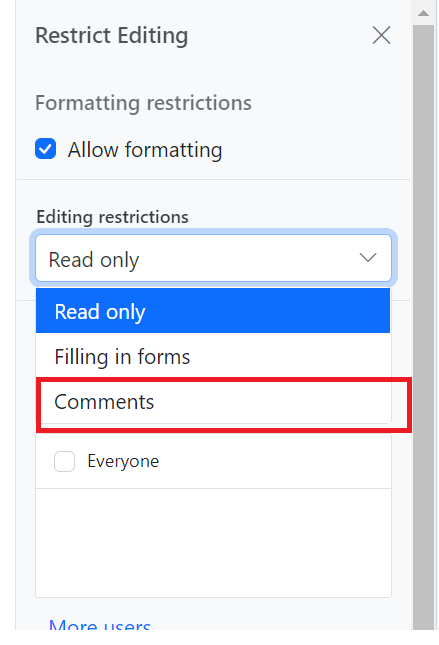
In the
enforceProtectionmethod, the first parameter denotes the password and the second parameter denotes the protection type. Possible values of the protection type areNoProtection | ReadOnly | FormFieldsOnly | CommentsOnly. In thestopProtectionmethod, the parameter denotes the password.
Mention Support in comments
Mention support displays a list of items that users can select or tag from the suggested list. To use this feature, type the @ character in the comment box and select or tag the user from the suggestion list.
The following example illustrates how to enable mention support in the DOCX Editor.
@Html.EJS().DocumentEditorContainer("container").Created("onCreated").EnableToolbar(true).Render()

<script>
    var documenteditor;
    var container;
    function onCreated() {
        var documenteditorElement = document.getElementById('container');
        container = documenteditorElement.ej2_instances[0];
        documenteditor = container.documentEditor;
        let mentionData = [
            { "Name": "Mary Kate", "EmailId": "[email protected]" },
            { "Name": "Andrew James", "EmailId": "[email protected]" },
            { "Name": "Andrew Fuller", "EmailId": "[email protected]"}
        ];
        container.documentEditorSettings.mentionSettings = { dataSource: mentionData, fields: { text: 'Name' }};
    }
</script>
public ActionResult Default()
{
return View();
}Highlight comments by author
When highlightCommentsByAuthor is enabled, each comment marker is displayed in the author’s avatar color. Selecting a comment highlights the corresponding text and comment pane border in that color. If multiple comments appear on the same line, the marker retains the first author’s avatar color.
The following example illustrates how to enable comment highlights in the DOCX Editor
@Html.EJS().DocumentEditorContainer("container").EnableTrackChanges(true).EnableToolbar(true).Height("590px").Render()

<script>
	document.addEventListener("DOMContentLoaded", function () {
		// Get the container instance
		var container = document.getElementById("container").ej2_instances[0];
		container.documentEditorSettings.commentSettings = { highlightCommentsByAuthor : true };
	});
</script>
public ActionResult Default()
{
return View();
}Events
The DOCX Editor provides the beforeCommentAction event, which is triggered on comment actions like Post, edit, reply, resolve, and reopen. This event provides an opportunity to perform custom logic on comment actions like Post, edit, reply, resolve, and reopen. The event handler receives the CommentActionEventArgs object as an argument, which allows access to information about the comment.
To demonstrate a specific use case, let’s consider an example where we want to restrict the delete functionality based on the author’s name. The following code snippet illustrates how to allow only the author of a comment to delete:
@Html.EJS().DocumentEditorContainer("container").EnableToolbar(true).Height("590px").BeforeCommentAction("beforeComment").Render()
<script>
    var documenteditor;
    var container;
    function onCreated() {
        var documenteditorElement = document.getElementById('container');
        container = documenteditorElement.ej2_instances[0];
        documenteditor = container.documentEditor;
        let mentionData = [
            { "Name": "Mary Kate", "EmailId": "[email protected]" },
            { "Name": "Andrew James", "EmailId": "[email protected]" },
            { "Name": "Andrew Fuller", "EmailId": "[email protected]" }
        ];
        container.documentEditorSettings.mentionSettings = { dataSource: mentionData, fields: { text: 'Name' } };
        container.currentUser = "Guest User";
    }
    function beforeComment(args) {
        if (args.type === "Delete" && container.currentUser !== args.author) {
            args.cancel = true;
        }
    }
</script>
public ActionResult Default()
{
return View();
}Online Demo
Explore how to add, view, and manage comments in Word documents using the ASP.NET MVC DOCX Editor in this live demo.