Track Changes in ASP.NET Core DOCX Editor
28 Sep 202612 minutes to read
Track Changes allows you to keep a record of changes or edits made to a document. You can then choose to accept or reject the modifications. It is a useful tool for managing changes made by several reviewers to the same document. If the track changes option is enabled, all editing operations are preserved as revisions in the DOCX Editor.
Starting from v35.1.xx, the default value of table row insertion and deletion colors are changed based on author. To retain the previous static colors, add the following code.
container.documentEditorSettings.revisionSettings = {
        insertRevisionColor: 'byAuthor',
        deleteRevisionColor: 'byAuthor',
        insertedRowColor: '#0078D4',
        deletedRowColor: '#E3008C'
      };
Enable track changes in DOCX Editor
The following example demonstrates how to enable track changes.
<ejs-documenteditorcontainer id="container" serviceUrl="/api/DocumentEditor/" enableToolbar=true enableTrackChanges=true created="onCreated" height="590px"></ejs-documenteditorcontainer>public ActionResult Default()
{
return View();
}Track changes are document-level settings. When opening a document, if the document does not have track changes enabled, then
enableTrackChangeswill be disabled even ifenableTrackChanges = trueis set in the initial rendering. To enable track changes for all documents, we recommend enabling track changes during the document change event. The following example demonstrates how to enable Track changes for all documents while opening.
<ejs-documenteditorcontainer id="container"  documentChange="onDocumentChange" enableToolbar=true serviceUrl="/api/DocumentEditor/" height="590px"></ejs-documenteditorcontainer>
<script>
    function onDocumentChange() {
        var container = document.getElementById("container").ej2_instances[0];
        if(container !== null){
           container.documentEditor.enableTrackChanges= true;
        }
    }
</script>
public ActionResult Default()
{
return View();
}Show or hide revisions pane
This feature lets users toggle the visibility of the revisions pane, providing flexibility in managing tracked changes within the document.
The following example code illustrates how to show or hide the revisions pane.
<ejs-documenteditorcontainer id="container" serviceUrl="/api/DocumentEditor/" enableToolbar=true    enableTrackChanges=true height="590px"></ejs-documenteditorcontainer>

<script>
    var documenteditor;
    var container;
    var documenteditorElement = document.getElementById("container");
    container = documenteditorElement.ej2_instances[0];
    container.documentEditor.showRevisions = true; // To show revisions pane
    container.documentEditor.showRevisions = false; // To hide revisions pane
</script>
public ActionResult Default()
{
return View();
}Get all tracked revisions
The following example demonstrates how to get all tracked revisions from the current document.
/**
 * Get revisions from the current document
 */
var revisions  = container.documentEditor.revisions;
Accept or Reject all changes programmatically
The following example demonstrates how to accept/reject all changes.
/**
 * Get revisions from the current document
 */
var revisions = container.documentEditor.revisions;

/**
 * Accept all tracked changes
 */
revisions.acceptAll();

/**
 * Reject all tracked changes
 */
revisions.rejectAll();
Accept or reject a specific revision
The following example demonstrates how to accept or reject a specific revision in the DOCX Editor.
/**
 * Get revisions from the current document
 */
var revisions  = container.documentEditor.revisions;
/**
 * Accept specific changes
 */
revisions.get(0).accept();
/**
 * Reject specific changes
 */
revisions.get(1).reject();
Navigate between the tracked changes
The following example demonstrates how to navigate tracked revisions programmatically.
/**
 * Navigate to next tracked change from the current selection.
 */
container.documentEditor.selection.navigateNextRevision();

/**
 * Navigate to previous tracked change from the current selection.
 */
container.documentEditor.selection.navigatePreviousRevision();
Custom Colors for Track Changes
You can set an array of colors to show track changes such as insertions and deletions in the DOCX editor. Each author is assigned a color in order: the first author gets the first color, the second author gets the next, and so on. If there are more authors than colors, the assignment starts again from the beginning of the array.
The following example illustrates how to set the color order for track changes in the DOCX Editor
<div>
    <ejs-documenteditorcontainer id="container"
                                 height="590px"
                                 enableTrackChanges="true"
                                 enableToolbar="true">
    </ejs-documenteditorcontainer>
</div>

@section Scripts {
    <script>
        document.addEventListener("DOMContentLoaded", function () {
            // Get the container instance by ID
            var container = document.getElementById("container").ej2_instances[0];

            // Apply revision colors dynamically
            container.documentEditorSettings.revisionSettings = {
                revisionColors: ['#0000ff', '#bb00ff', '#c14f16']
            };
        });
    </script>
}
public ActionResult Default()
{
return View();
}Set colors for revision types
By default, the DOCX Editor uses author-based colors for tracked changes. You can also customize colors for specific revision types, such as inserted content, deleted content, inserted table rows, and deleted table rows.
The following example shows how to customize revision type colors instead of using the default author-based colors.
<ejs-documenteditorcontainer id="container"
	 height="590px"
	 enableTrackChanges="true"
	 enableToolbar="true">
</ejs-documenteditorcontainer>

@section Scripts {
    <script>
        document.addEventListener("DOMContentLoaded", function () {
            // Get the container instance by ID
            var container = document.getElementById("container").ej2_instances[0];

            container.documentEditorSettings.revisionSettings = {
                insertRevisionColor: '#22C55E',
				deleteRevisionColor: '#EF4444',
				nsertedRowColor: '#f6fa06',
				deletedRowColor: '#3a02bb'
            };
        });
    </script>
}
public ActionResult Default()
{
return View();
}
- These settings only affect how revisions are displayed in the DOCX Editor and are not stored in the document.
- By default, all revision types use author-specific colors (‘byAuthor’).
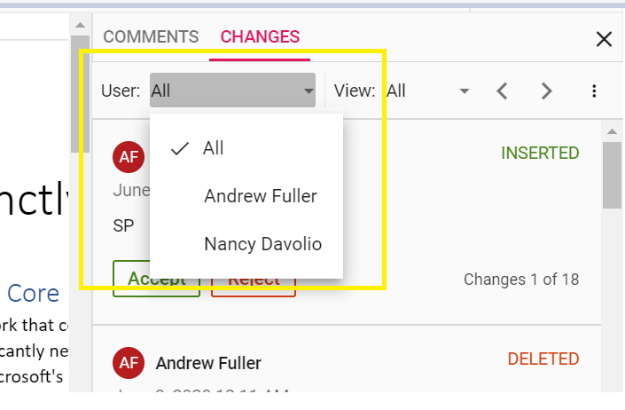
Filtering changes based on user
In DocumentEditor, we have built-in review panel in which we have provided support for filtering changes based on the user.
Custom metadata along with author
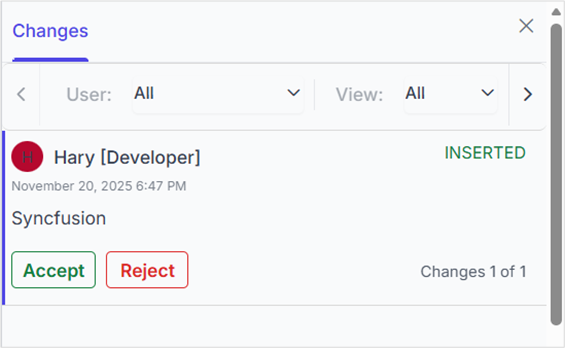
The DOCX Editor provides options to customize revisions using revisionSettings. The customData property allows you to attach additional metadata to tracked revisions in the Word Processor. This metadata can represent roles, tags, or any custom identifier for the revision. To display this metadata along with the author name in the Track Changes pane, you must enable the showCustomDataWithAuthor property.
The following example code illustrates how to enable and update custom metadata for track changes revisions.
<ejs-documenteditorcontainer id="container" documentEditorSettings="settings"  height="590px" enableTrackChanges=true></ejs-documenteditorcontainer>
<script>
    var settings = { revisionSettings: { customData: 'Developer', showCustomDataWithAuthor: true} };
</script>
public ActionResult Default()
{
return View();
}The Track Changes pane will display the author name along with the custom metadata, as shown in the screenshot below.
When you export the document as SFDT, the
customDatavalue is stored in the revision collection. When you reopen the SFDT, the custom data is automatically restored and displayed in the Track Changes pane. For other formats such as DOCX, thecustomDatais not preserved, as it is specific to the DOCX Editor component.
Protect the document in track changes only mode
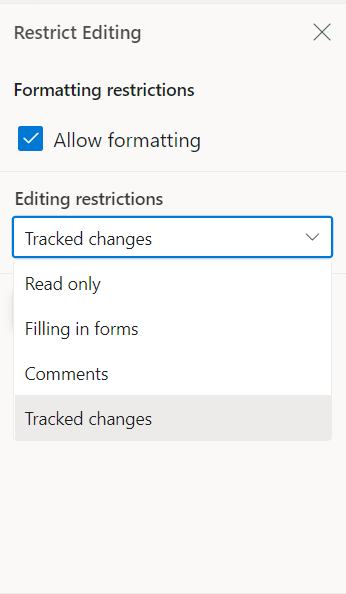
DOCX Editor provides support for protecting the document with RevisionsOnly protection. In this protection, all the users are allowed to view the document and do their corrections, but they cannot accept or reject any tracked changes in the document. Later, the author can view their corrections and accept or reject the changes.
The DOCX Editor provides an option to protect and unprotect the document using the enforceProtection and stopProtection APIs.
The following example code illustrates how to enforce and stop protection in the Document Editor container.
<ejs-documenteditorcontainer id="container" serviceUrl="/api/DocumentEditor/" enableToolbar=true enableTrackChanges=true created="onCreated" height="590px"></ejs-documenteditorcontainer>


<script>
    var documenteditor;
    var container;
    function onCreated() {
        var documenteditorElement = document.getElementById('container');
        container = documenteditorElement.ej2_instances[0];
        documenteditor = container.documentEditor;
        container.documentEditor.editor.enforceProtection('123', 'RevisionsOnly');
        //stop the document protection
        container.documentEditor.editor.stopProtection('123');
    }
</script>
public ActionResult Default()
{
return View();
}Tracked changes only protection can be enabled in UI by using Restrict Editing pane
In the
EnforceProtectionmethod, the first parameter is the password and the second parameter is the protection type. Possible values of protection type areNoProtection | ReadOnly | FormFieldsOnly | CommentsOnly | RevisionsOnly. In theStopProtectionmethod, the parameter is the password.
Online demo
Explore how to track and review changes in Word documents using the ASP.NET Core DOCX Editor in this live demo.