Images in ASP.NET Core DOCX Editor
27 Aug 20266 minutes to read
ASP.NET Core DOCX Editor (Document Editor) supports common raster format images like PNG, BMP, JPEG, SVG and GIF. You can insert an image file or online image in the document using the insertImage() method. Refer to the following sample code.
<input type="file" id="insertImageButton" style="position:fixed; left:-110em" accept=".jpg,.jpeg,.png,.bmp" />
<ejs-button id="insert_picture">Image</ejs-button>
<div id="documenteditor" style="width:100%;height:100%" >
    <ejs-documenteditor isReadOnly=false enableEditor=true enableSelection=true enableImageResizer=true enableEditorHistory=true id="container"></ejs-documenteditor>
</div>

<script>
    var documenteditor;
    document.addEventListener('DOMContentLoaded', function () {
        documenteditor = document.getElementById("container").ej2_instances[0];
        document.getElementById('insert-picture').addEventListener('click', function () {
            var pictureUpload = document.getElementById("insertImageButton");
            pictureUpload.value = '';
            pictureUpload.click();
        });
        document.getElementById('insertImageButton').addEventListener('change', onInsertImage);
        function onInsertImage(args) {
            if (navigator.userAgent.match('Chrome') || navigator.userAgent.match('Firefox') || navigator.userAgent.match('Edge') || navigator.userAgent.match('MSIE') || navigator.userAgent.match('.NET')) {
                if (args.target.files[0]) {
                    var path = args.target.files[0];
                    var reader = new FileReader();
                    reader.onload = function (frEvent) {
                        var base64String = frEvent.target.result;
                        var image = document.createElement('img');
                        image.addEventListener('load', function () {
                            documenteditor.editor.insertImage(base64String, this.width, this.height);
                        })
                        image.src = base64String;
                    };
                    reader.readAsDataURL(path);
                }
                //Safari does not Support FileReader Class
            } else {
                var image = document.createElement('img');
                image.addEventListener('load', function () {
                    documenteditor.editor.insertImage(args.target.value);
                })
                image.src = args.target.value;
            }
        }

    });
</script>
Image files will be internally converted to base64 string. Whereas, online images are preserved as URL.
Image resizing
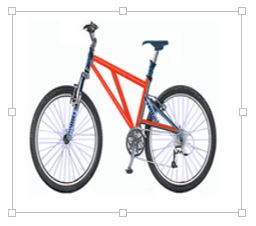
DOCX Editor provides a built-in image resizer that can be injected into your application based on the requirements. This allows you to resize the image by dragging the resizing points using mouse or touch interactions. This resizer appears as follows.
Changing size
DOCX Editor exposes an API to get or set the size of the selected image. Refer to the following sample code.
documenteditor.selection.imageFormat.width = 800;
documenteditor.selection.imageFormat.height = 800;
Images are stored and processed (read/write) as a base64 string in DOCX Editor. The online image URL is preserved as a URL in DOCX Editor upon saving.
Text wrapping style
Text wrapping refers to how images fit with surrounding text in a document. Please refer to this page for more information about text wrapping styles available in Word documents.
Positioning the image
DOCX Editor preserves the position properties of the image and displays the image based on those position properties. It does not support modifying the position properties. Whereas, the image will be automatically moved along with the text being edited if it is positioned relative to the line or paragraph.