Create Word document in AWS Elastic Beanstalk
13 Aug 202619 minutes to read
Syncfusion® Essential® DocIO is a .NET Core Word library used to create, read, edit, and convert Word documents programmatically without Microsoft Word or interop dependencies. Using this library, you can create a Word document in AWS Elastic Beanstalk.
Prerequisites
- An active AWS account with permissions to manage Elastic Beanstalk environments and EC2 instances.
- AWS Toolkit for Visual Studio installed and signed in with a configured AWS credentials profile. Refer to the AWS Toolkit for Visual Studio setup guide.
- Visual Studio 2022 (or later) with the ASP.NET and web development workload.
- .NET 8.0 (or later) SDK installed. Target the project against a .NET version that Elastic Beanstalk supports; see the AWS Elastic Beanstalk platform support matrix.
Steps to create a Word document in AWS Elastic Beanstalk
Step 1: Create a new ASP.NET Core Web application (Model-View-Controller) project targeting .NET 8.0 (or later). No authentication is required for this sample.
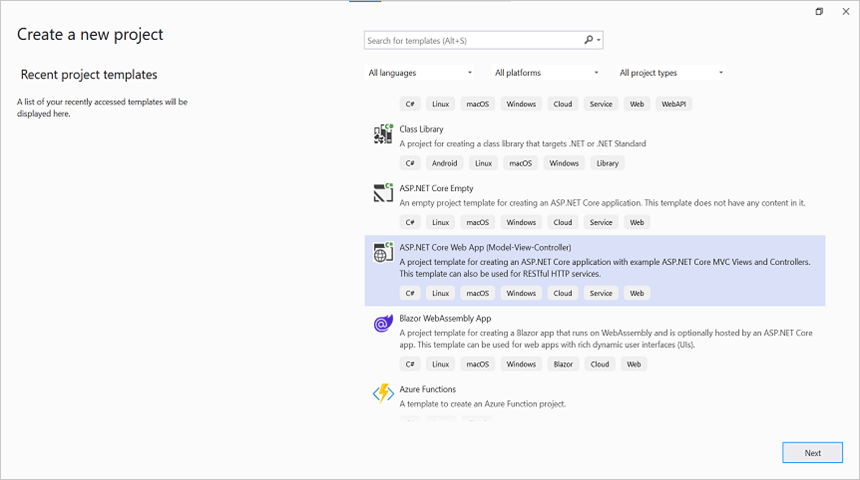
Step 2: Install the Syncfusion.DocIO.Net.Core NuGet package as a reference to your project from NuGet.org. It is recommended to use the latest version available on NuGet.
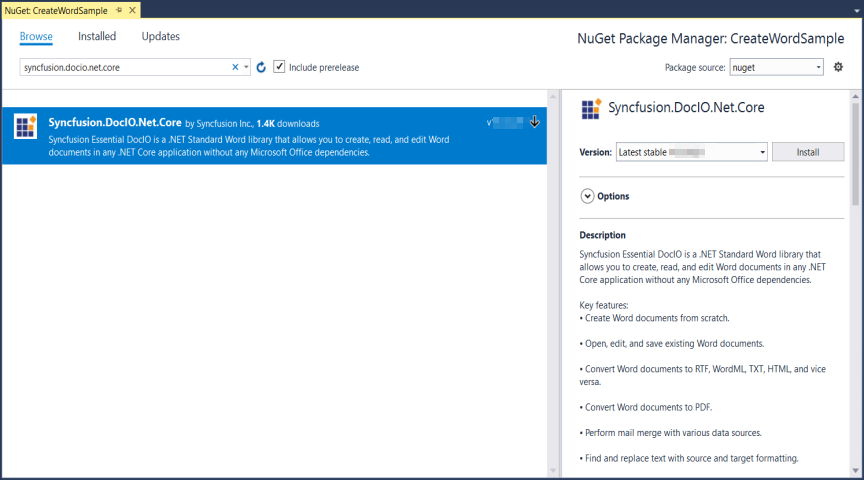
Starting with v16.2.0.x, if you reference Syncfusion® assemblies from the trial setup or from the NuGet feed, you must add a reference to the Syncfusion.Licensing assembly and include a valid license key in your application.
Install the Syncfusion.Licensing NuGet package and register the license key during application startup.
Syncfusion.Licensing.SyncfusionLicenseProvider.RegisterLicense("YOUR_LICENSE_KEY");For more information about generating and registering a license key, refer to the Syncfusion® licensing documentation.
Step 3: Include the following namespaces in the HomeController.cs file.
using Syncfusion.DocIO;
using Syncfusion.DocIO.DLS;
Step 4: A default action method named Index will be present in HomeController.cs. Right click on Index method and select Go To View where you will be directed to its associated view page Index.cshtml.
Step 5: Add a new button in the Index.cshtml as shown below. Because the action only downloads a file (no side effects), FormMethod.Get is used and the controller action is decorated as an HTTP GET endpoint.
@{
    Html.BeginForm("CreateWordDocument", "Home", FormMethod.Get);
    {
        <div>
           <input type="submit" value="Create Word document" style="width:200px;height:27px" />
        </div>
    }
    Html.EndForm();
}
Step 6: Add a new action method CreateWordDocument in HomeController.cs and include the below code snippet to create a Word document and download it.
//Creating a new document.
using (WordDocument document = new WordDocument())
{
    //Adding a new section to the document.
    WSection section = document.AddSection() as WSection;
    //Set Margin of the section.
    section.PageSetup.Margins.All = 72;
    //Set page size of the section.
    section.PageSetup.PageSize = new Syncfusion.Drawing.SizeF(612, 792);

    //Create Paragraph styles.
    WParagraphStyle style = document.AddParagraphStyle("Normal") as WParagraphStyle;
    style.CharacterFormat.FontName = "Calibri";
    style.CharacterFormat.FontSize = 11f;
    style.ParagraphFormat.BeforeSpacing = 0;
    style.ParagraphFormat.AfterSpacing = 8;
    style.ParagraphFormat.LineSpacing = 13.8f;

    style = document.AddParagraphStyle("Heading 1") as WParagraphStyle;
    style.ApplyBaseStyle("Normal");
    style.CharacterFormat.FontName = "Calibri Light";
    style.CharacterFormat.FontSize = 16f;
    style.CharacterFormat.TextColor = Syncfusion.Drawing.Color.FromArgb(46, 116, 181);
    style.ParagraphFormat.BeforeSpacing = 12;
    style.ParagraphFormat.AfterSpacing = 0;
    style.ParagraphFormat.Keep = true;
    style.ParagraphFormat.KeepFollow = true;
    style.ParagraphFormat.OutlineLevel = OutlineLevel.Level1;
    IWParagraph paragraph = section.HeadersFooters.Header.AddParagraph();

    // Gets the image stream.
    FileStream imageStream = new FileStream(Path.GetFullPath("wwwroot/Data/AdventureCycle.jpg"), FileMode.Open, FileAccess.Read);
    IWPicture picture = paragraph.AppendPicture(imageStream);
    picture.TextWrappingStyle = TextWrappingStyle.InFrontOfText;
    picture.VerticalOrigin = VerticalOrigin.Margin;
    picture.VerticalPosition = -45;
    picture.HorizontalOrigin = HorizontalOrigin.Column;
    picture.HorizontalPosition = 263.5f;
    picture.WidthScale = 20;
    picture.HeightScale = 15;

    paragraph.ApplyStyle("Normal");
    paragraph.ParagraphFormat.HorizontalAlignment = HorizontalAlignment.Left;
    WTextRange textRange = paragraph.AppendText("Adventure Works Cycles") as WTextRange;
    textRange.CharacterFormat.FontSize = 12f;
    textRange.CharacterFormat.FontName = "Calibri";
    textRange.CharacterFormat.TextColor = Syncfusion.Drawing.Color.Red;

    //Appends paragraph.
    paragraph = section.AddParagraph();
    paragraph.ApplyStyle("Heading 1");
    paragraph.ParagraphFormat.HorizontalAlignment = HorizontalAlignment.Center;
    textRange = paragraph.AppendText("Adventure Works Cycles") as WTextRange;
    textRange.CharacterFormat.FontSize = 18f;
    textRange.CharacterFormat.FontName = "Calibri";

    //Appends paragraph.
    paragraph = section.AddParagraph();
    paragraph.ParagraphFormat.FirstLineIndent = 36;
    paragraph.BreakCharacterFormat.FontSize = 12f;
    textRange = paragraph.AppendText("Adventure Works Cycles, the fictitious company on which the AdventureWorks sample databases are based, is a large, multinational manufacturing company. The company manufactures and sells metal and composite bicycles to North American, European and Asian commercial markets. While its base operation is in Bothell, Washington with 290 employees, several regional sales teams are located throughout their market base.") as WTextRange;
    textRange.CharacterFormat.FontSize = 12f;

    //Appends paragraph.
    paragraph = section.AddParagraph();
    paragraph.ParagraphFormat.FirstLineIndent = 36;
    paragraph.BreakCharacterFormat.FontSize = 12f;
    textRange = paragraph.AppendText("In 2000, AdventureWorks Cycles bought a small manufacturing plant, Importadores Neptuno, located in Mexico. Importadores Neptuno manufactures several critical subcomponents for the AdventureWorks Cycles product line. These subcomponents are shipped to the Bothell location for final product assembly. In 2001, Importadores Neptuno, became the sole manufacturer and distributor of the touring bicycle product group.") as WTextRange;
    textRange.CharacterFormat.FontSize = 12f;

    paragraph = section.AddParagraph();
    paragraph.ApplyStyle("Heading 1");
    paragraph.ParagraphFormat.HorizontalAlignment = HorizontalAlignment.Left;
    textRange = paragraph.AppendText("Product Overview") as WTextRange;
    textRange.CharacterFormat.FontSize = 16f;
    textRange.CharacterFormat.FontName = "Calibri";
    //Appends table.
    IWTable table = section.AddTable();
    table.ResetCells(3, 2);
    table.TableFormat.Borders.BorderType = BorderStyle.None;
    table.TableFormat.IsAutoResized = true;

    //Appends paragraph.
    paragraph = table[0, 0].AddParagraph();
    paragraph.ParagraphFormat.AfterSpacing = 0;
    paragraph.BreakCharacterFormat.FontSize = 12f;
    //Appends picture to the paragraph.
    FileStream image1 = new FileStream(Path.GetFullPath("wwwroot/Data/Mountain-200.jpg"), FileMode.Open, FileAccess.Read);
    picture = paragraph.AppendPicture(image1);
    picture.TextWrappingStyle = TextWrappingStyle.TopAndBottom;
    picture.VerticalOrigin = VerticalOrigin.Paragraph;
    picture.VerticalPosition = 4.5f;
    picture.HorizontalOrigin = HorizontalOrigin.Column;
    picture.HorizontalPosition = -2.15f;
    picture.WidthScale = 79;
    picture.HeightScale = 79;

    //Appends paragraph.
    paragraph = table[0, 1].AddParagraph();
    paragraph.ApplyStyle("Heading 1");
    paragraph.ParagraphFormat.AfterSpacing = 0;
    paragraph.ParagraphFormat.LineSpacing = 12f;
    paragraph.AppendText("Mountain-200");
    //Appends paragraph.
    paragraph = table[0, 1].AddParagraph();
    paragraph.ParagraphFormat.AfterSpacing = 0;
    paragraph.ParagraphFormat.LineSpacing = 12f;
    paragraph.BreakCharacterFormat.FontSize = 12f;
    paragraph.BreakCharacterFormat.FontName = "Times New Roman";

    textRange = paragraph.AppendText("Product No: BK-M68B-38\r") as WTextRange;
    textRange.CharacterFormat.FontSize = 12f;
    textRange.CharacterFormat.FontName = "Times New Roman";
    textRange = paragraph.AppendText("Size: 38\r") as WTextRange;
    textRange.CharacterFormat.FontSize = 12f;
    textRange.CharacterFormat.FontName = "Times New Roman";
    textRange = paragraph.AppendText("Weight: 25\r") as WTextRange;
    textRange.CharacterFormat.FontSize = 12f;
    textRange.CharacterFormat.FontName = "Times New Roman";
    textRange = paragraph.AppendText("Price: $2,294.99\r") as WTextRange;
    textRange.CharacterFormat.FontSize = 12f;
    textRange.CharacterFormat.FontName = "Times New Roman";
    //Appends paragraph.
    paragraph = table[0, 1].AddParagraph();
    paragraph.ParagraphFormat.AfterSpacing = 0;
    paragraph.ParagraphFormat.LineSpacing = 12f;
    paragraph.BreakCharacterFormat.FontSize = 12f;

    //Appends paragraph.
    paragraph = table[1, 0].AddParagraph();
    paragraph.ApplyStyle("Heading 1");
    paragraph.ParagraphFormat.AfterSpacing = 0;
    paragraph.ParagraphFormat.LineSpacing = 12f;
    paragraph.AppendText("Mountain-300 ");
    //Appends paragraph.
    paragraph = table[1, 0].AddParagraph();
    paragraph.ParagraphFormat.AfterSpacing = 0;
    paragraph.ParagraphFormat.LineSpacing = 12f;
    paragraph.BreakCharacterFormat.FontSize = 12f;
    paragraph.BreakCharacterFormat.FontName = "Times New Roman";
    textRange = paragraph.AppendText("Product No: BK-M47B-38\r") as WTextRange;
    textRange.CharacterFormat.FontSize = 12f;
    textRange.CharacterFormat.FontName = "Times New Roman";
    textRange = paragraph.AppendText("Size: 35\r") as WTextRange;
    textRange.CharacterFormat.FontSize = 12f;
    textRange.CharacterFormat.FontName = "Times New Roman";
    textRange = paragraph.AppendText("Weight: 22\r") as WTextRange;
    textRange.CharacterFormat.FontSize = 12f;
    textRange.CharacterFormat.FontName = "Times New Roman";
    textRange = paragraph.AppendText("Price: $1,079.99\r") as WTextRange;
    textRange.CharacterFormat.FontSize = 12f;
    textRange.CharacterFormat.FontName = "Times New Roman";
    //Appends paragraph.
    paragraph = table[1, 0].AddParagraph();
    paragraph.ParagraphFormat.AfterSpacing = 0;
    paragraph.ParagraphFormat.LineSpacing = 12f;
    paragraph.BreakCharacterFormat.FontSize = 12f;

    //Appends paragraph.
    paragraph = table[1, 1].AddParagraph();
    paragraph.ApplyStyle("Heading 1");
    paragraph.ParagraphFormat.LineSpacing = 12f;
    //Appends picture to the paragraph.
    FileStream image2 = new FileStream(Path.GetFullPath("wwwroot/Data/Mountain-300.jpg"), FileMode.Open, FileAccess.Read);
    picture = paragraph.AppendPicture(image2);
    picture.TextWrappingStyle = TextWrappingStyle.TopAndBottom;
    picture.VerticalOrigin = VerticalOrigin.Paragraph;
    picture.VerticalPosition = 8.2f;
    picture.HorizontalOrigin = HorizontalOrigin.Column;
    picture.HorizontalPosition = -14.95f;
    picture.WidthScale = 75;
    picture.HeightScale = 75;

    //Appends paragraph.
    paragraph = table[2, 0].AddParagraph();
    paragraph.ApplyStyle("Heading 1");
    paragraph.ParagraphFormat.LineSpacing = 12f;
    //Appends picture to the paragraph.
    FileStream image3 = new FileStream(Path.GetFullPath("wwwroot/Data/Road-550-W.jpg"), FileMode.Open, FileAccess.Read);
    picture = paragraph.AppendPicture(image3);
    picture.TextWrappingStyle = TextWrappingStyle.TopAndBottom;
    picture.VerticalOrigin = VerticalOrigin.Paragraph;
    picture.VerticalPosition = 3.75f;
    picture.HorizontalOrigin = HorizontalOrigin.Column;
    picture.HorizontalPosition = -5f;
    picture.WidthScale = 92;
    picture.HeightScale = 92;

    //Appends paragraph.
    paragraph = table[2, 1].AddParagraph();
    paragraph.ApplyStyle("Heading 1");
    paragraph.ParagraphFormat.AfterSpacing = 0;
    paragraph.ParagraphFormat.LineSpacing = 12f;
    paragraph.AppendText("Road-150 ");
    //Appends paragraph.
    paragraph = table[2, 1].AddParagraph();
    paragraph.ParagraphFormat.AfterSpacing = 0;
    paragraph.ParagraphFormat.LineSpacing = 12f;
    paragraph.BreakCharacterFormat.FontSize = 12f;
    paragraph.BreakCharacterFormat.FontName = "Times New Roman";
    textRange = paragraph.AppendText("Product No: BK-R93R-44\r") as WTextRange;
    textRange.CharacterFormat.FontSize = 12f;
    textRange.CharacterFormat.FontName = "Times New Roman";
    textRange = paragraph.AppendText("Size: 44\r") as WTextRange;
    textRange.CharacterFormat.FontSize = 12f;
    textRange.CharacterFormat.FontName = "Times New Roman";
    textRange = paragraph.AppendText("Weight: 14\r") as WTextRange;
    textRange.CharacterFormat.FontSize = 12f;
    textRange.CharacterFormat.FontName = "Times New Roman";
    textRange = paragraph.AppendText("Price: $3,578.27\r") as WTextRange;
    textRange.CharacterFormat.FontSize = 12f;
    textRange.CharacterFormat.FontName = "Times New Roman";
    //Appends paragraph.
    section.AddParagraph();

    //Saves the Word document to MemoryStream.
    MemoryStream stream = new MemoryStream();
    document.Save(stream, FormatType.Docx);

    //Download Word document in the browser.
    return File(stream, "application/msword", "Sample.docx");
}
Steps to publish as an AWS Elastic Beanstalk application
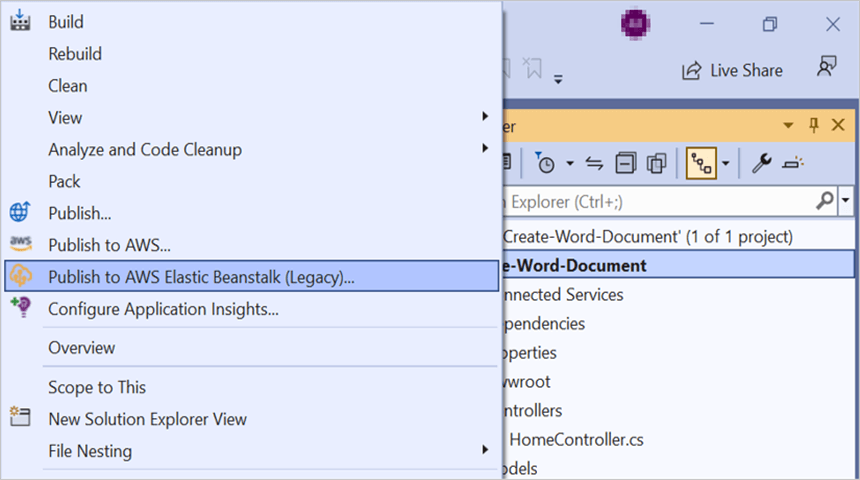
Step 1: Right-click the project and select Publish to AWS Elastic Beanstalk (Legacy) option. (This menu requires the AWS Toolkit for Visual Studio — see Prerequisites.)
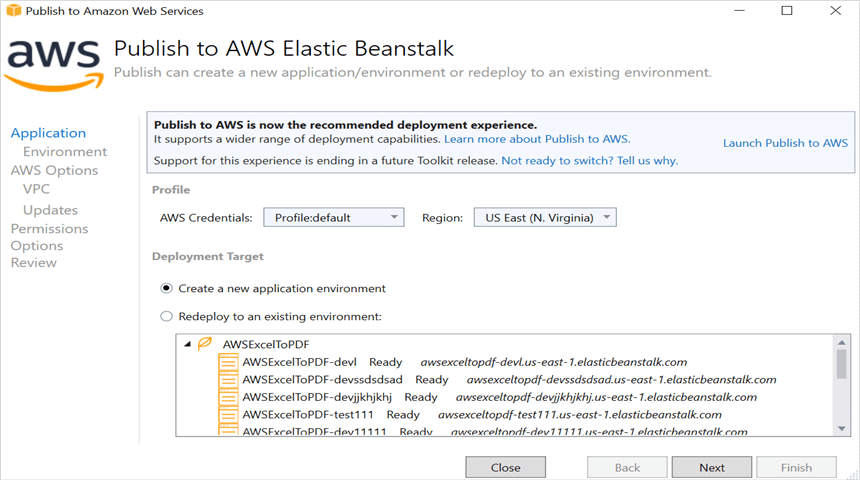
Step 2: Select the Deployment Target as Create a new application environment and click Next.
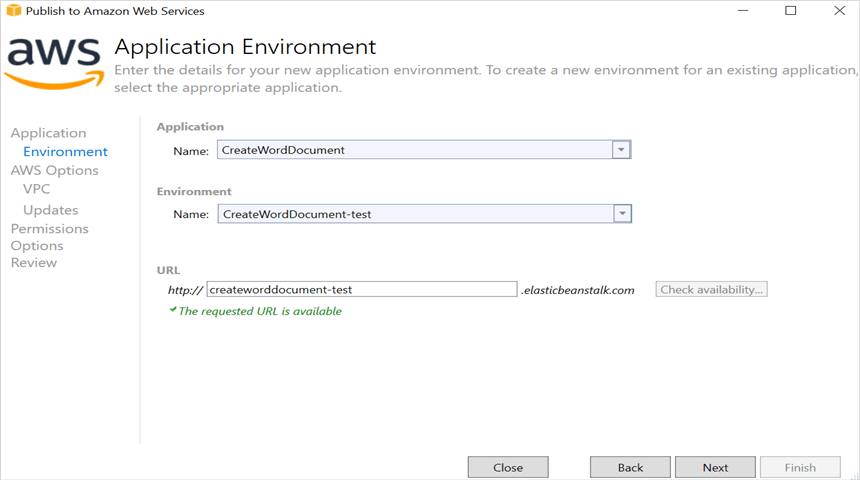
Step 3: Choose the Environment Name from the dropdown list. The URL will be assigned automatically; verify the URL is available. If available, click Next; otherwise, change the URL.
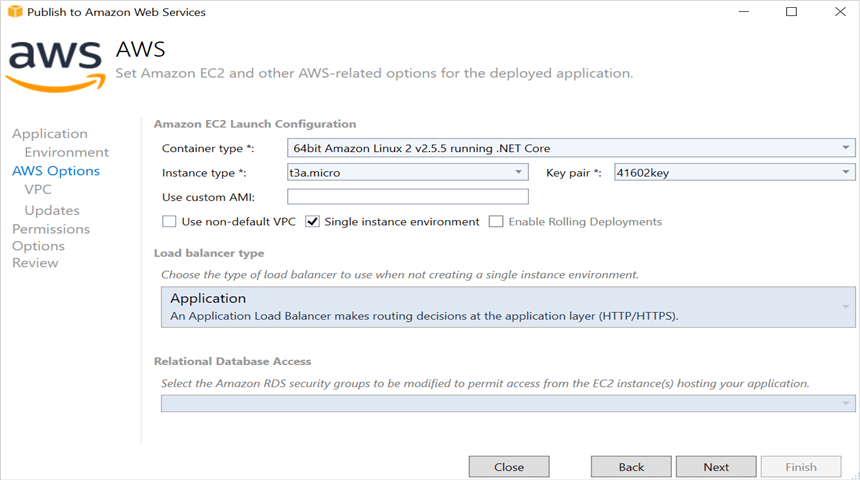
Step 4: Select the instance type as t3a.micro from the dropdown list (sufficient for this lightweight DocIO workload; choose a larger instance for heavier document generation). Configure the platform branch to one that matches your target .NET runtime, then click Next.
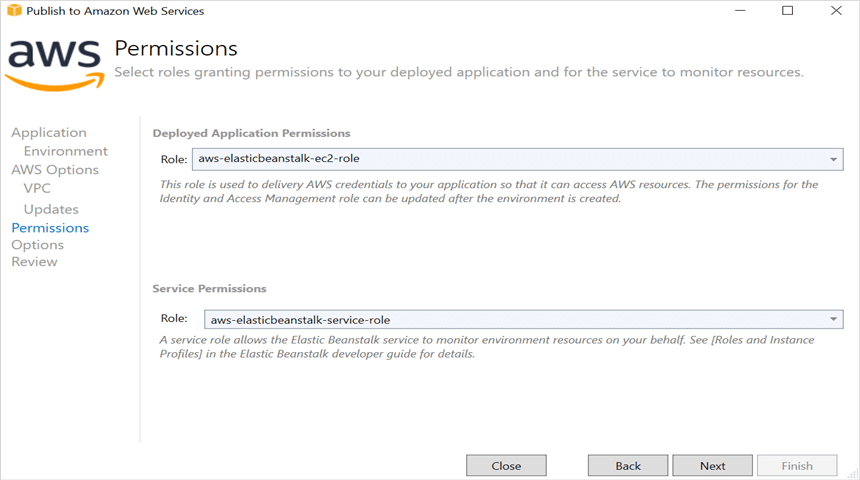
Step 5: Review the IAM permissions page. Ensure your AWS credentials/profile has the Elastic Beanstalk service and EC2 permissions required to publish. Click Next to proceed.
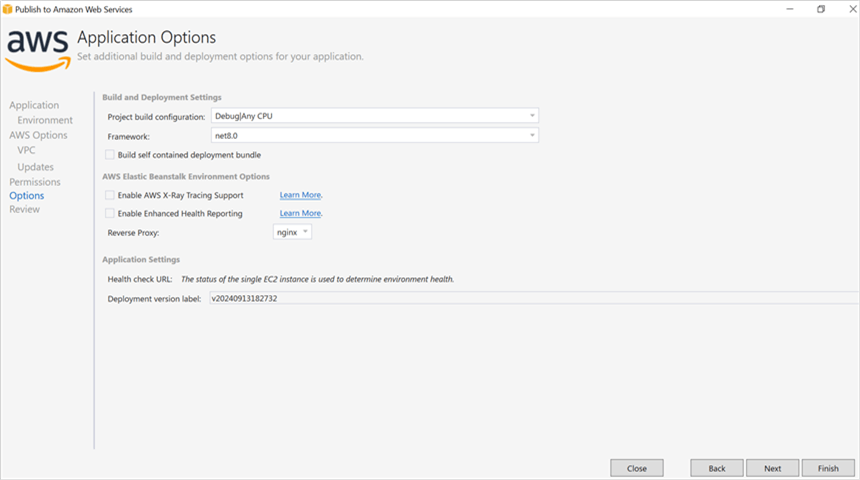
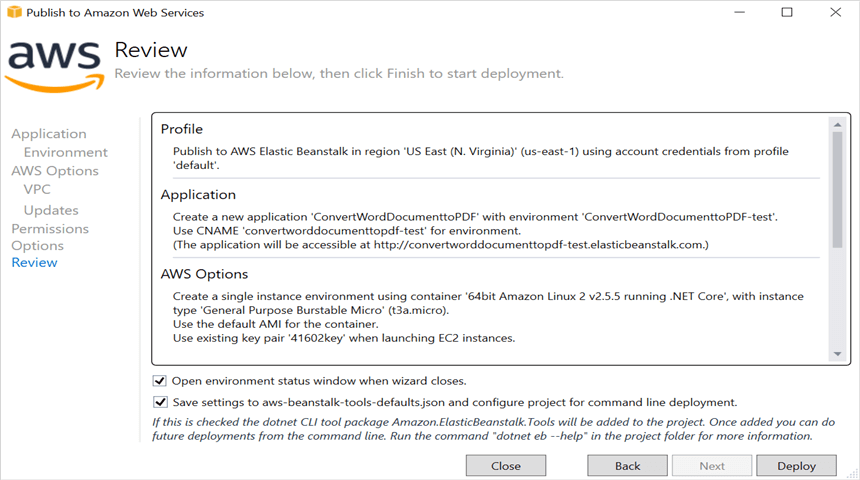
Step 6: Review the application options, then click Deploy to deploy the sample to AWS Elastic Beanstalk.
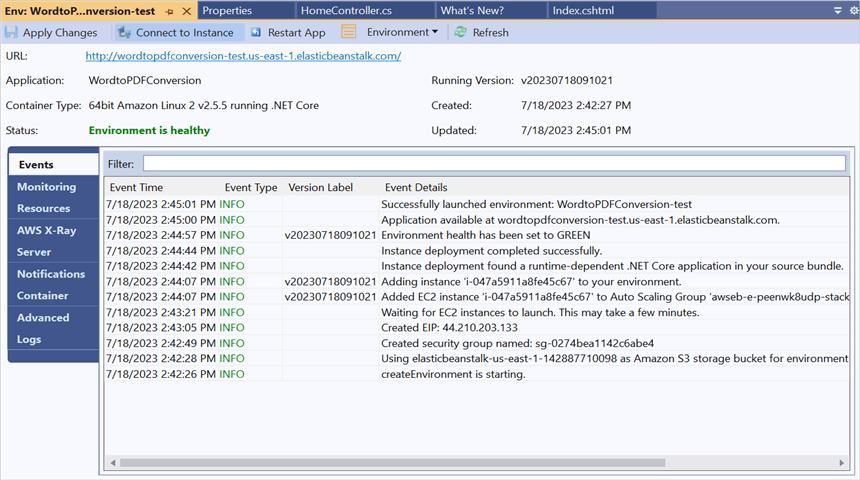
Step 7: After the status changes from Updating to Environment is healthy, click the URL.
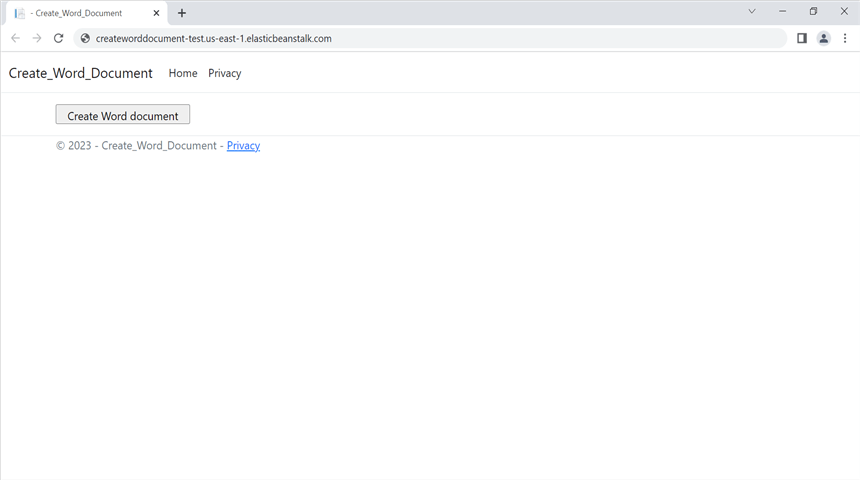
Step 8: After opening the provided URL, click the Create Word document button to download the Word document.
You can download a complete working sample from GitHub.
The code sample references image files (AdventureCycle.jpg, Mountain-200.jpg, Mountain-300.jpg, Road-550-W.jpg). Download these assets from the GitHub sample Data folder and place them in the application’s
wwwroot/Datafolder so the relative paths in the code resolve correctly at runtime.
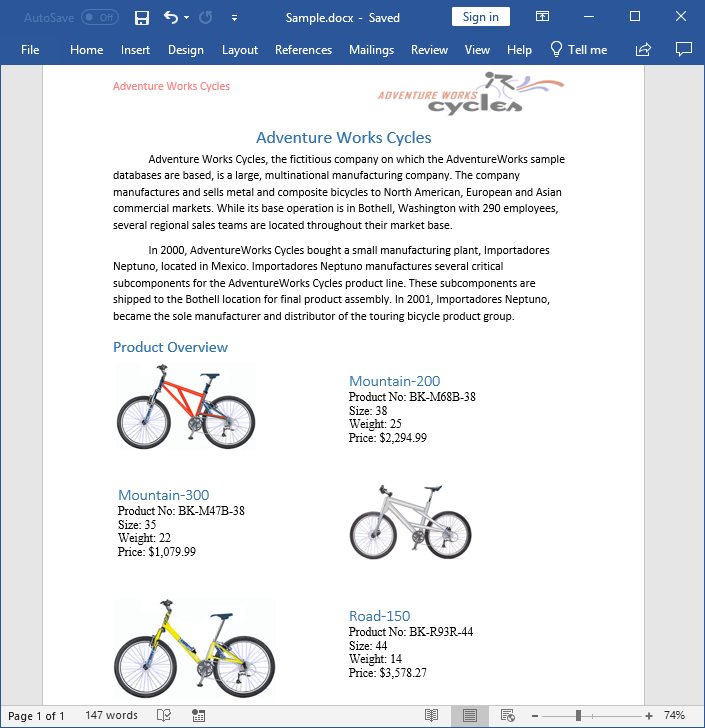
By executing the program, you will get the Word document as follows.
Looking for the full .NET Word Library overview, features, pricing, and documentation? Visit the .NET Word Library page.
An online sample link to create a Word document in ASP.NET Core.