Convert Word to PDF in Azure Functions
19 Aug 202613 minutes to read
Syncfusion® DocIO is a .NET Core Word library used to create, read, edit, and convert Word documents programmatically without Microsoft Word or interop dependencies. Using this library, you can convert a Word document to PDF in Azure Functions deployed on a Flex Consumption plan.
Prerequisites
- An active Azure subscription.
- Visual Studio 2022 (or later) with the Azure Development workload installed.
- Azure Functions Tools for Visual Studio.
- .NET 8 SDK or later (the Flex Consumption plan supports only the .NET 8 isolated worker model).
- A Syncfusion license key. Refer to this link to know about registering the Syncfusion® license key in your application.
Steps to convert a Word document to PDF in Azure Functions (Flex Consumption)
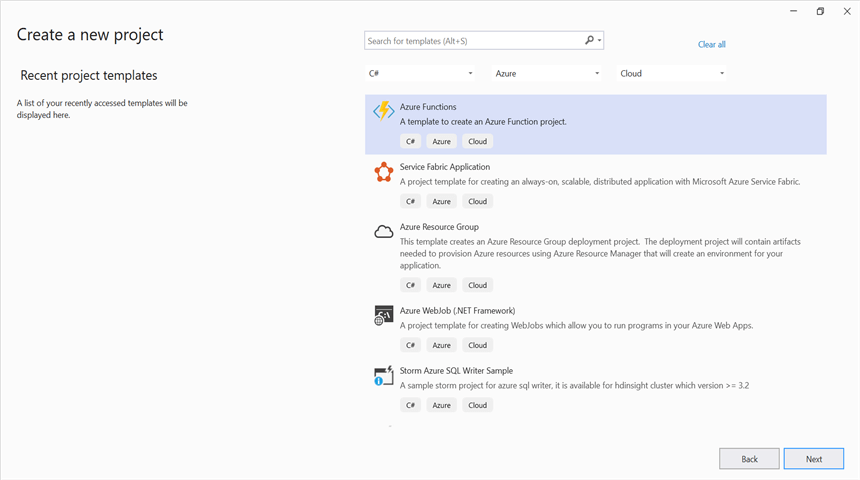
Step 1: Create a new Azure Functions project.
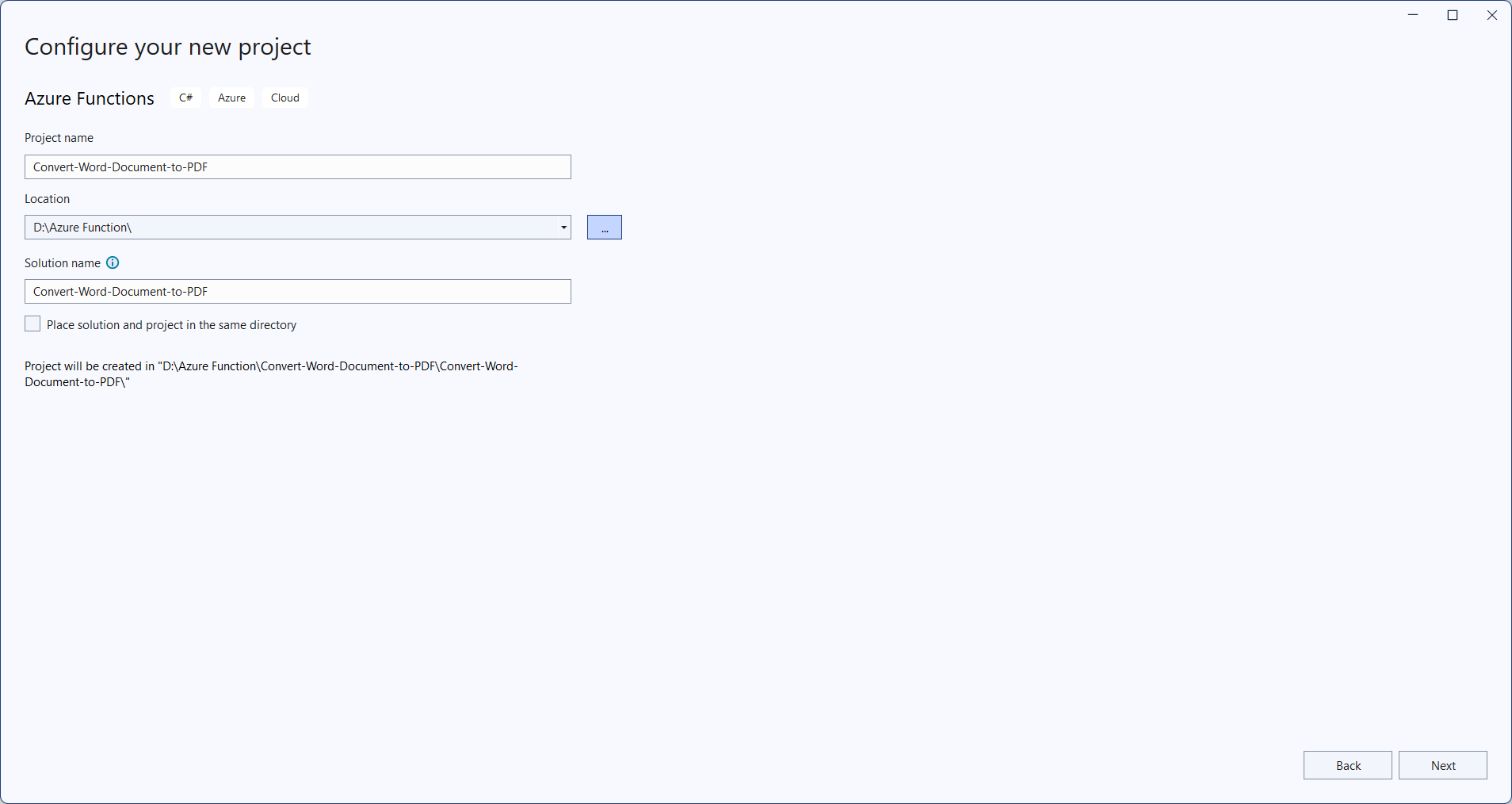
Step 2: Enter a project name and select the location.
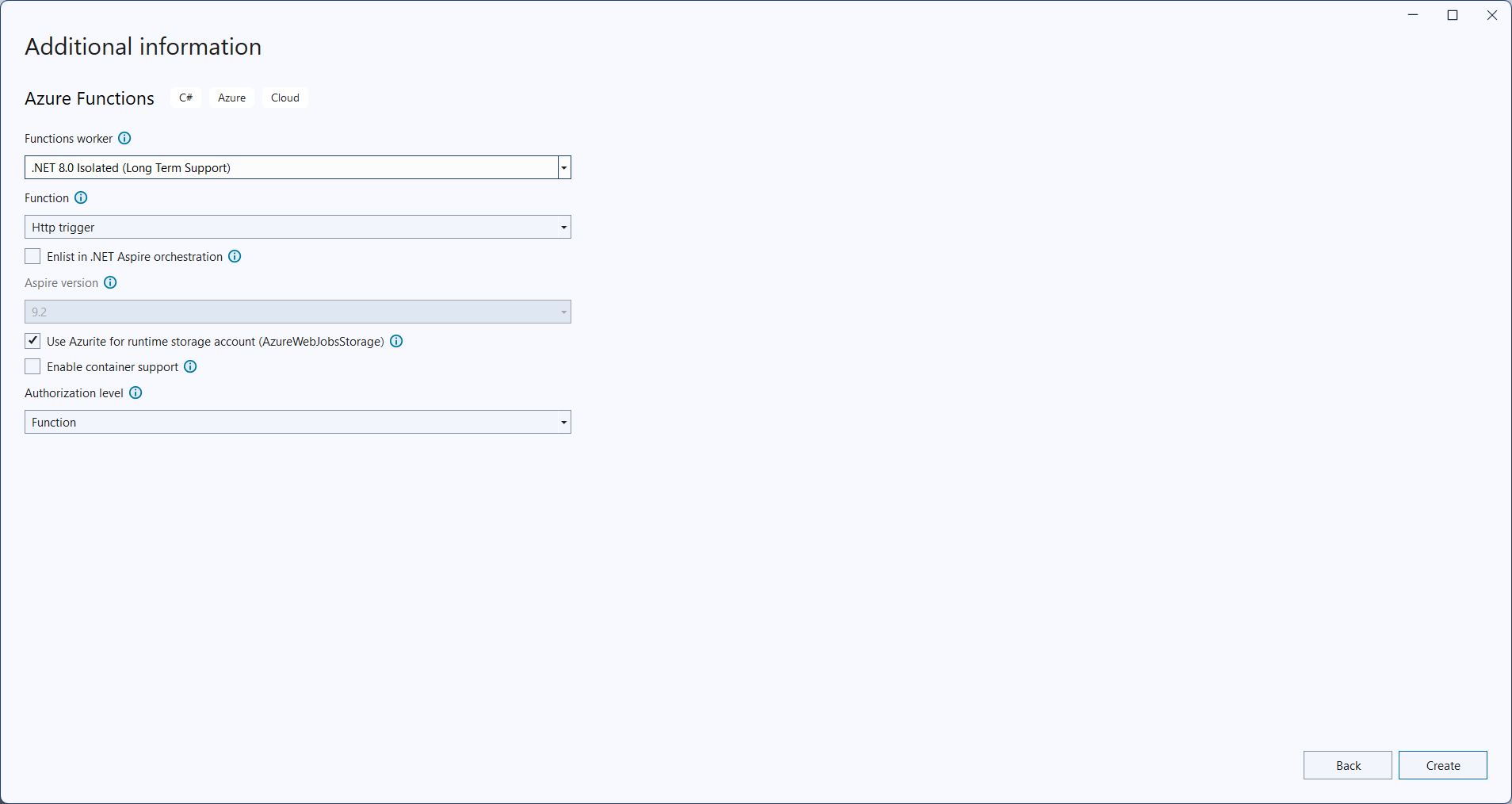
Step 3: In the Additional information dialog, select the function worker as .NET 8.0 (Long Term Support) (Isolated) and choose Flex Consumption as the hosting plan. Then click Create.
Step 4: Install the Syncfusion.DocIORenderer.Net.Core and SkiaSharp.NativeAssets.Linux.NoDependencies v4.150.1 NuGet packages as references to your project from NuGet.org.


Starting with v16.2.0.x, if you reference Syncfusion® assemblies from trial setup or from the NuGet feed, you also have to add “Syncfusion.Licensing” assembly reference and include a license key in your projects. Please refer to this link to know about registering Syncfusion® license key in your application to use our components.
Step 5: Include the following namespaces in the Function1.cs file.
using System;
using System.IO;
using System.Threading.Tasks;
using Microsoft.AspNetCore.Http;
using Microsoft.AspNetCore.Mvc;
using Microsoft.Azure.Functions.Worker;
using Microsoft.Extensions.Logging;
using Syncfusion.DocIO;
using Syncfusion.DocIO.DLS;
using Syncfusion.DocIORenderer;
using Syncfusion.Pdf;
Step 6: Add the following code snippet in the Run method of the Function1 class to perform Word document to PDF conversion in Azure Functions and return the resultant PDF to the client end. The font substitution handler and the ILogger field shown below are part of the same class.
public async Task<IActionResult> Run([HttpTrigger(AuthorizationLevel.Function, "post")] HttpRequest req)
    {
        try
        {
            // Create a memory stream to hold the incoming request body (Word document bytes)
            await using MemoryStream inputStream = new MemoryStream();
            // Copy the request body into the memory stream
            await req.Body.CopyToAsync(inputStream);
            // Check if the stream is empty (no file content received)
            if (inputStream.Length == 0)
                return new BadRequestObjectResult("No file content received in request body.");
            // Reset stream position to the beginning for reading
            inputStream.Position = 0;
            // Load the Word document from the stream (auto-detects format type)
            using WordDocument document = new WordDocument(inputStream, FormatType.Automatic);
            // Attach font substitution handler to manage missing fonts
            document.FontSettings.SubstituteFont += FontSettings_SubstituteFont;
            // Initialize DocIORenderer to convert Word document to PDF
            using DocIORenderer renderer = new DocIORenderer();
            // Convert the Word document to a PDF document
            using PdfDocument pdfDoc = renderer.ConvertToPDF(document);
            // Create a memory stream to hold the PDF output
            await using MemoryStream outputStream = new MemoryStream();
            // Save the PDF into the output stream
            pdfDoc.Save(outputStream);
            // Close the PDF document and release resources
            pdfDoc.Close(true);
            // Reset stream position to the beginning for reading
            outputStream.Position = 0;
            // Convert the PDF stream to a byte array
            var pdfBytes = outputStream.ToArray();

            // Create a file result to return the PDF as a downloadable file
            var fileResult = new FileContentResult(pdfBytes, "application/pdf")
            {
                FileDownloadName = "converted.pdf"
            };
            // Return the PDF file result to the client
            return fileResult;
        }
        catch (Exception ex)
        {
            // Log the error with details for troubleshooting
            _logger.LogError(ex, "Error converting DOCX to PDF.");
            // Prepare error message including exception details
            var msg = $"Exception: {ex.Message}\n\n{ex}";
            // Return a 500 Internal Server Error response with the message
            return new ContentResult { StatusCode = 500, Content = msg, ContentType = "text/plain; charset=utf-8" };
        }
    }
    /// <summary>
    /// Event handler for font substitution during PDF conversion
    /// </summary>
    /// <param name="sender"></param>
    /// <param name="args"></param>
    private void FontSettings_SubstituteFont(object sender, SubstituteFontEventArgs args)
    {
        // Define the path to the Fonts folder in the application base directory
        string fontsFolder = Path.Combine(AppContext.BaseDirectory, "Fonts");
        // If the original font is Calibri, substitute with calibri-regular.ttf
        if (args.OriginalFontName == "Calibri")
        {
            args.AlternateFontStream = File.OpenRead(Path.Combine(fontsFolder, "calibri-regular.ttf"));
        }
        // Otherwise, substitute with Times New Roman
        else
        {
            args.AlternateFontStream = File.OpenRead(Path.Combine(fontsFolder, "Times New Roman.ttf"));
        }
    }
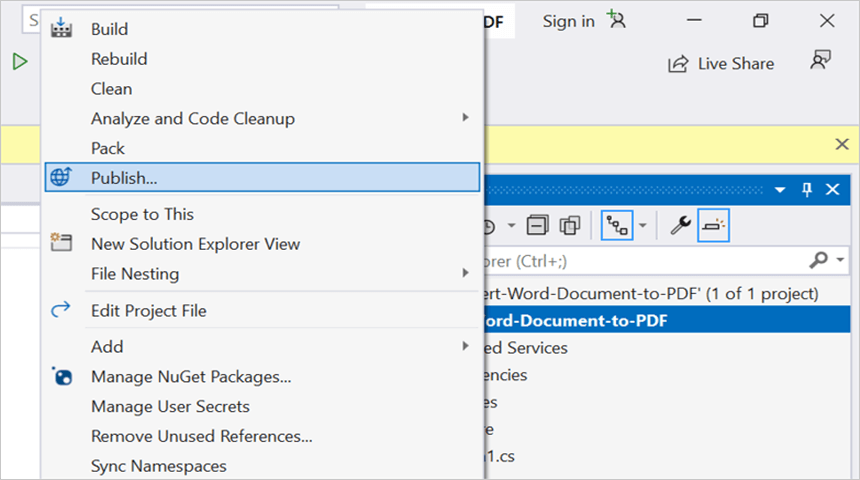
Step 7: Right click the project and select Publish. Then, create a new profile in the Publish Window.
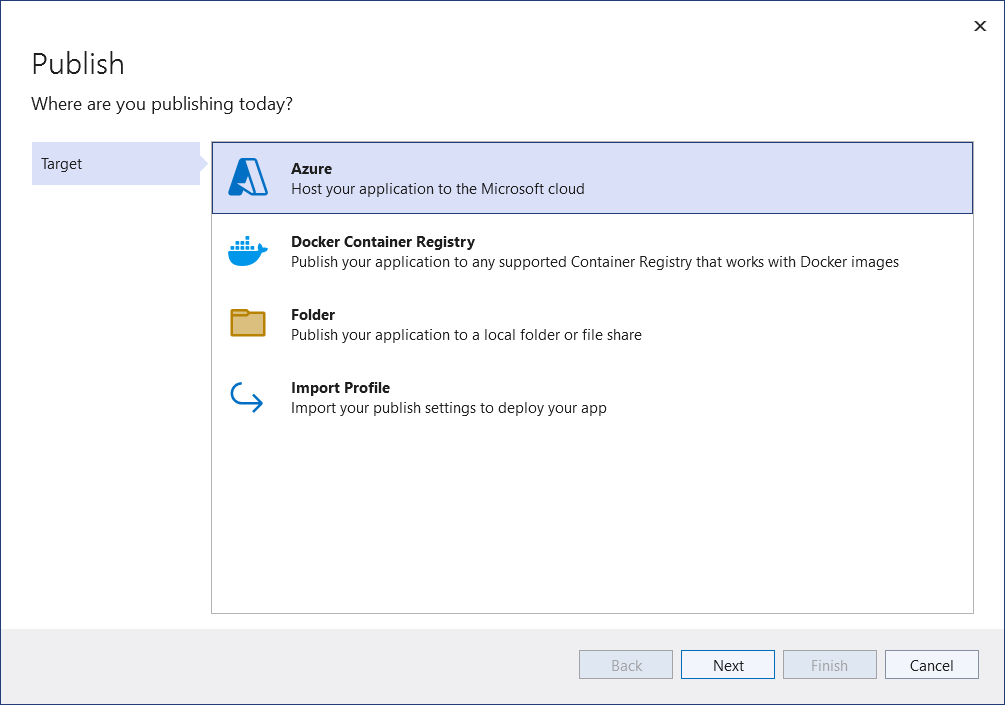
Step 8: Select the target as Azure and click Next button.
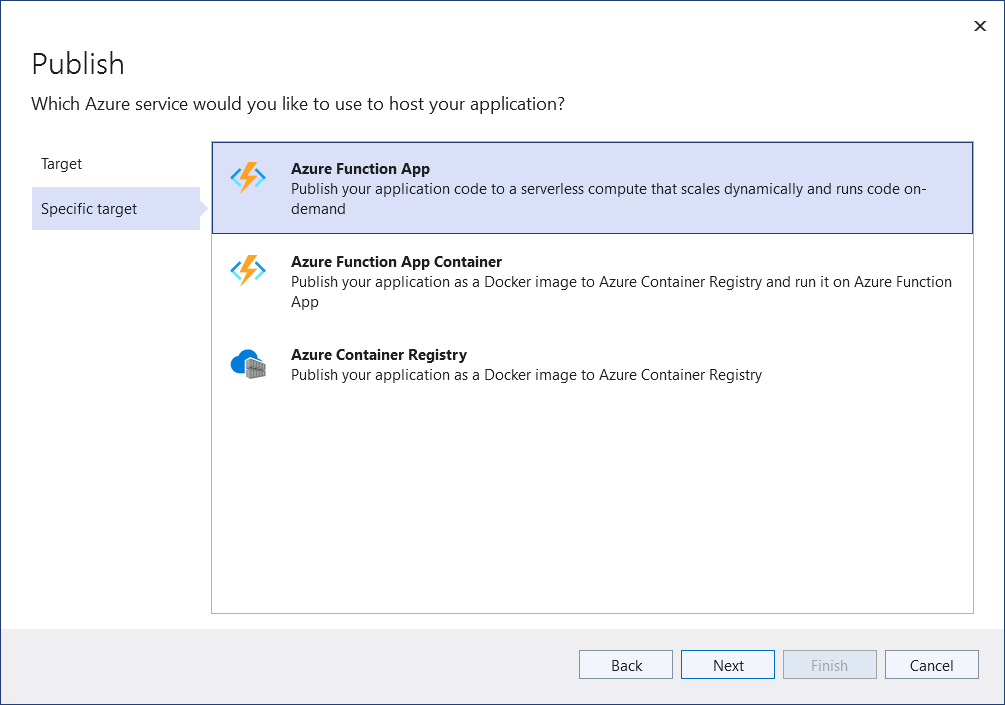
Step 9: Select the specific target as Azure Function App and click Next.
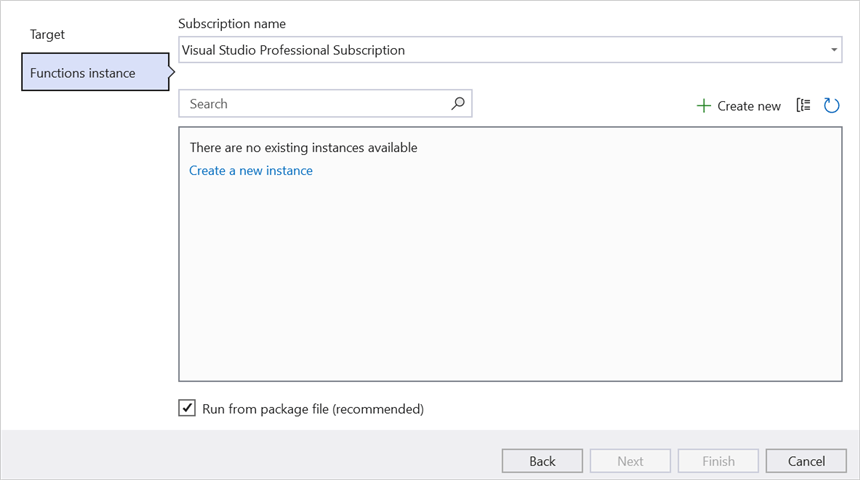
Step 10: Click Create new button to configure a new Azure Function App instance.
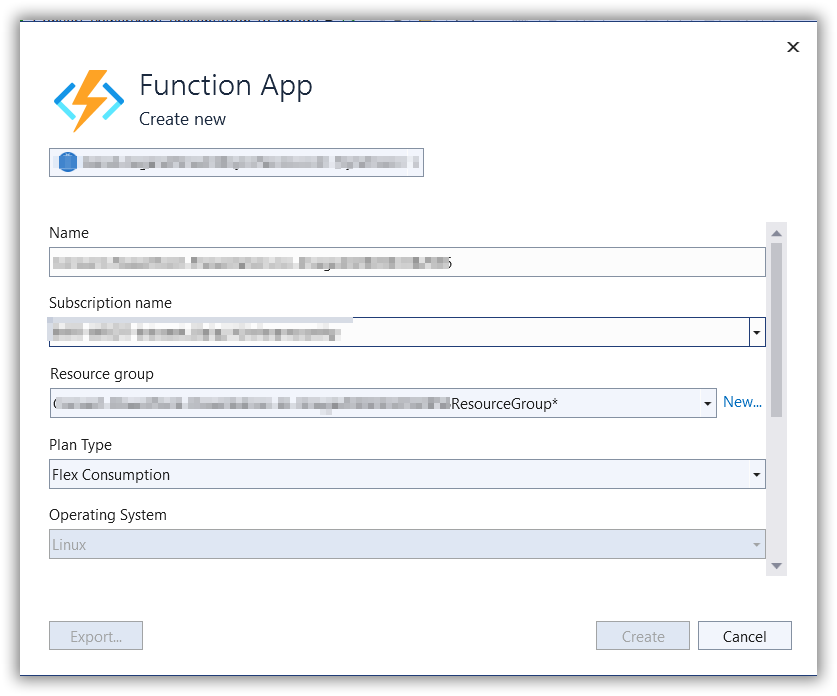
Step 11: In the hosting plan list, select Flex Consumption (required for the isolated worker model on .NET 8) and click Create.
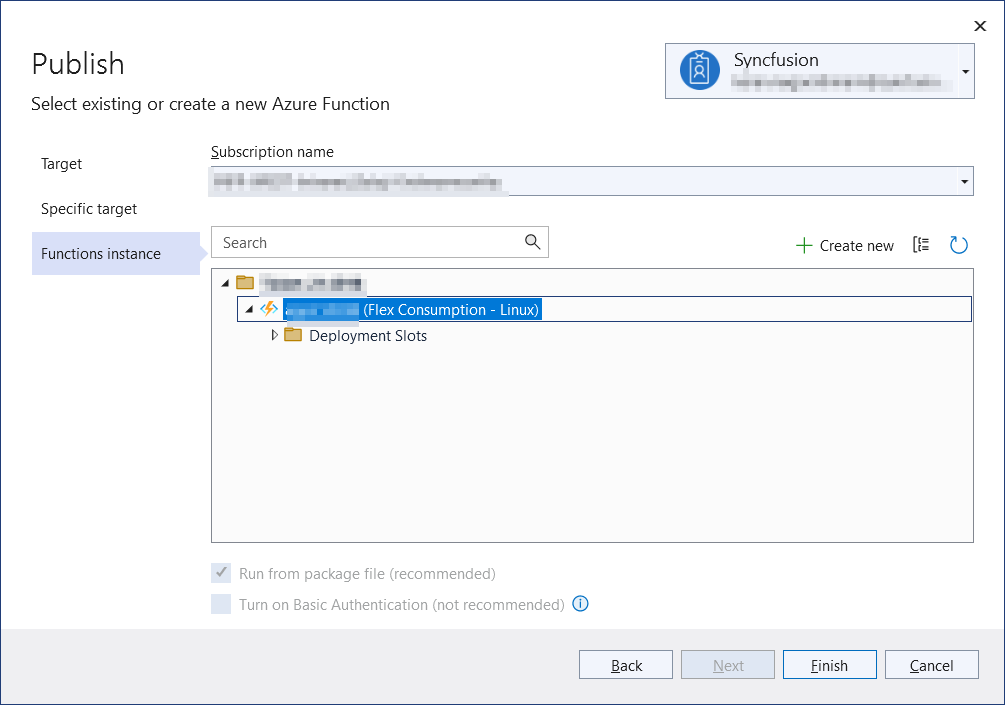
Step 12: After the Function App is created, click Finish.
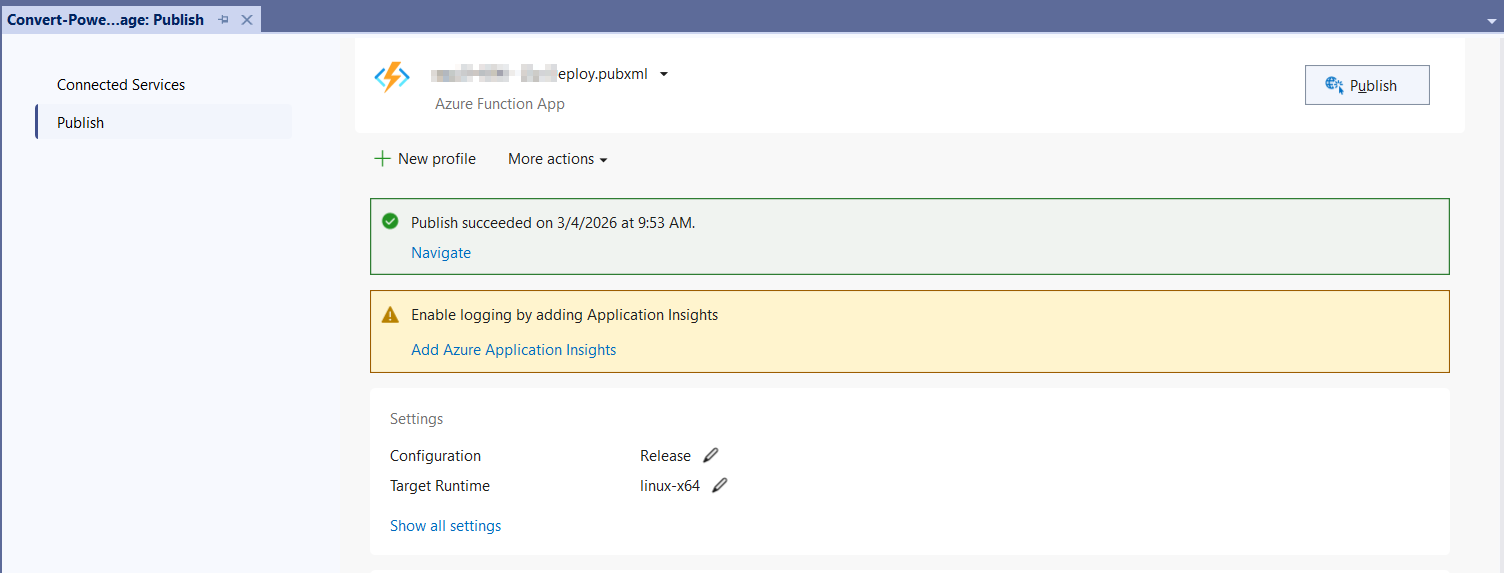
Step 13: Click Publish.

Step 14: Publishing succeeded.
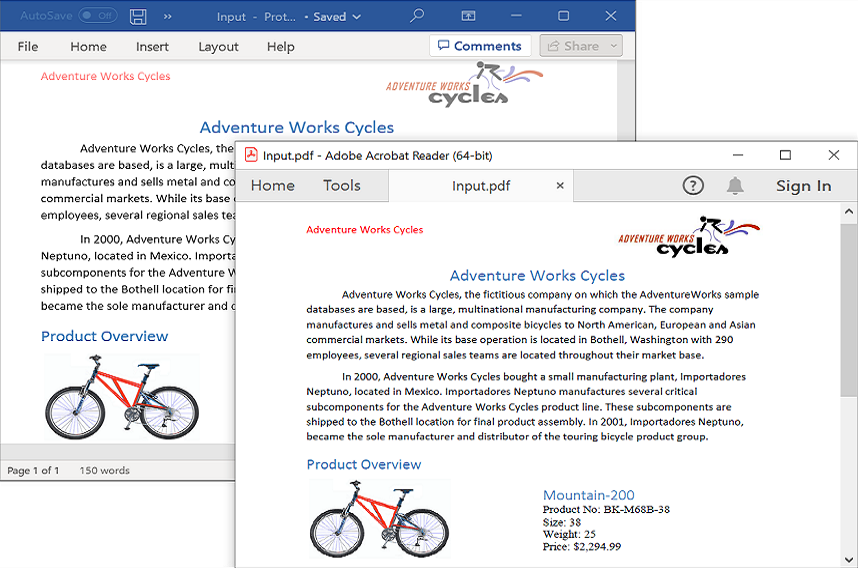
Step 15: Go to the Azure portal and select App Services → your Function App → Functions → Function1. Click Get Function URL and copy the URL (it includes the ?code=... function key). Paste this URL into the client console app below to send a Word document to the function and receive the converted PDF. The output PDF is shown below.
Steps to post the request to Azure Functions
Step 1: Create a .NET console application to request the Azure Functions API.
Step 2: Add the following code snippet into Main method to post the request to Azure Functions with template Word document and get the resultant PDF.
using System;
using System.IO;
using System.Net.Http;
using System.Threading.Tasks;
Step 3: Add the following code snippet to the Main method to post the Word document to the Azure Function and save the returned PDF (or the error response, if conversion fails).
static async Task Main()
    {
        Console.Write("Please enter your Azure Functions URL : ");
        // Read the URL entered by the user and trim whitespace
        string url = Console.ReadLine()?.Trim();
        // If no URL was entered, exit the program
        if (string.IsNullOrEmpty(url)) return;
        // Create a new HttpClient instance for sending requests
        using var http = new HttpClient();
        // Read all bytes from the input Word document file
        var bytes = await File.ReadAllBytesAsync(@"Data/Input.docx");
        // Create HTTP content from the document bytes
        using var content = new ByteArrayContent(bytes);
        // Set the content type header to application/octet-stream (binary data)
        content.Headers.ContentType = new System.Net.Http.Headers.MediaTypeHeaderValue("application/octet-stream");
        // Send a POST request to the Azure Function with the document content
        using var res = await http.PostAsync(url, content);
        // Read the response content as a byte array
        var resBytes = await res.Content.ReadAsByteArrayAsync();
        // Get the media type (e.g., application/pdf or text/plain) from the response headers
        string mediaType = res.Content.Headers.ContentType?.MediaType ?? string.Empty;
        string outFile = mediaType.Contains("pdf", StringComparison.OrdinalIgnoreCase)
            ? Path.GetFullPath(@"../../../Output/Output.pdf")
            : Path.GetFullPath(@"../../../Output/function-error.txt");
        // Write the response bytes to the chosen output file
        await File.WriteAllBytesAsync(outFile, resBytes);
        Console.WriteLine($"Saved: {outFile} ");
    }
Function key: Because the trigger is configured with
AuthorizationLevel.Function, the client must send the URL with the function key (the?code=...value) or supply thex-functions-keyheader. The Get Function URL link in the Azure portal already includes the key in the query string.
From GitHub, you can download the console application and Azure Functions Flex Consumption.
Looking for the full .NET Word Library overview, features, pricing, and documentation? Visit the .NET Word Library page.
An online sample link to convert Word document to PDF in ASP.NET Core.