Convert Word to Image in ASP.NET Core Web API
13 Aug 20266 minutes to read
Syncfusion® DocIO is a .NET Word library used to create, read, edit, and convert Word documents programmatically without Microsoft Word or interop dependencies. Using this library, you can convert a Word document to image in ASP.NET Core Web API.
Steps to convert a Word document to Image programmatically
The below steps illustrate convert a simple Word document to Image in ASP.NET Core Web API.
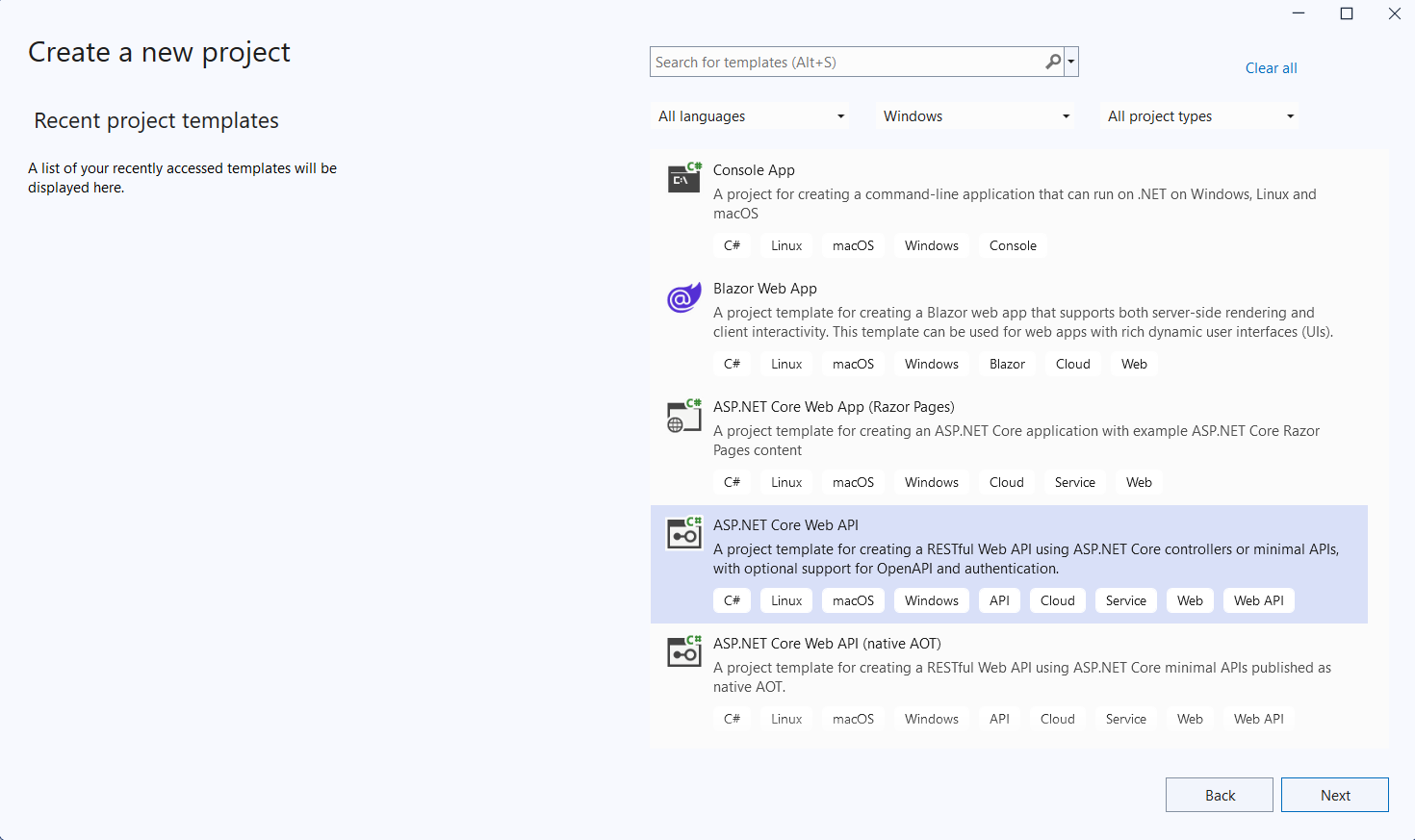
Step 1: Create a new C# ASP.NET Core Web API project.
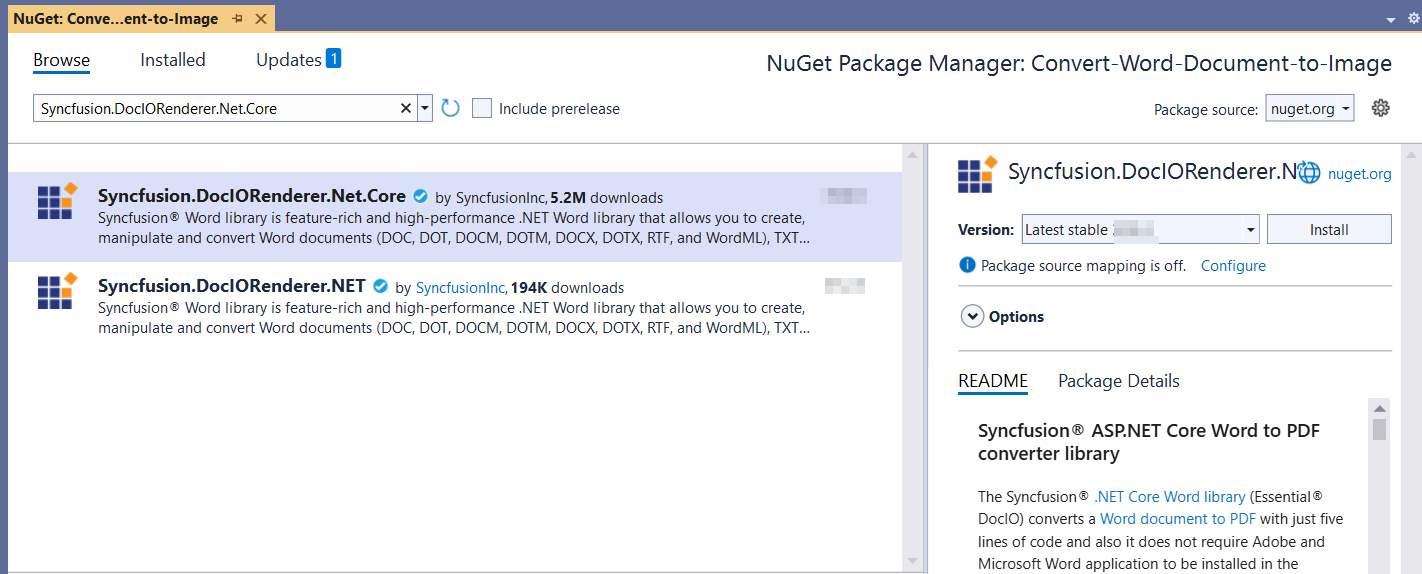
Step 2: Install the Syncfusion.DocIORenderer.Net.Core NuGet package as a reference to your project from NuGet.org.
Starting with v16.2.0.x, if you reference Syncfusion® assemblies from trial setup or from the NuGet feed, you also have to add “Syncfusion.Licensing” assembly reference and include a license key in your projects. Please refer to this link to know about registering Syncfusion® license key in your application to use our components.
Step 3: Add a new API controller empty file in the project.
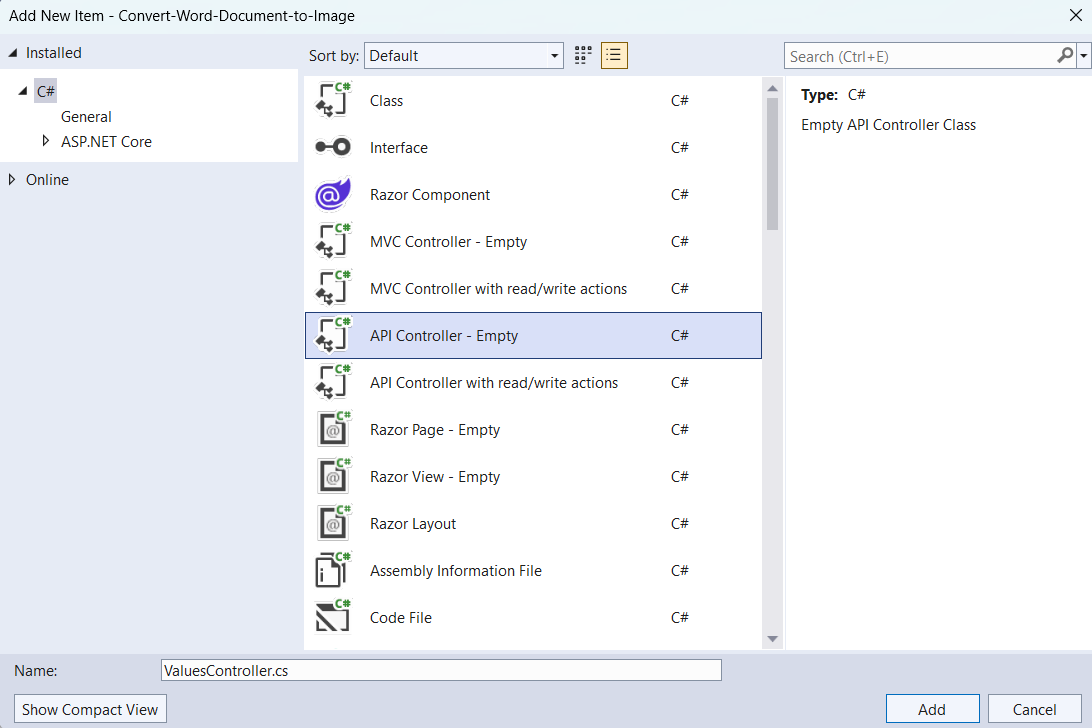
Step 4: Include the following namespaces in the ValuesController.cs file.
using Microsoft.AspNetCore.Mvc;
using Syncfusion.DocIO;
using Syncfusion.DocIO.DLS;
using Syncfusion.DocIORenderer;
Step 5: Add a new action method ConvertWordToImage in ValuesController.cs and include the below code snippet to Convert Word document to image and download it.
[HttpGet]
[Route("api/ConvertWordToImage")]
public IActionResult ConvertWordToImage()
{
    try
    {
        var fileDownloadName = "Output.jpeg";
        const string contentType = "image/jpeg";
        var stream = ConvertWordDocumentToImage();
        stream.Position = 0;
        return File(stream, contentType, fileDownloadName);
    }
    catch (Exception ex)
    {
        return BadRequest("Error occurred while converting Word to Image: " + ex.Message);
    }
}
Step 6: Implement the ConvertWordDocumentToImage method in ValuesController.cs.
public static Stream ConvertWordDocumentToImage()
{
    // Loads the input Word document
    WordDocument wordDocument = new WordDocument(Path.GetFullPath("Data/Input.docx"), FormatType.Docx);
    DocIORenderer render = new DocIORenderer();
    // Convert the first page of the Word document into an image.
    Stream imageStream = wordDocument.RenderAsImages(0, ExportImageFormat.Jpeg);
    // Close the Word document.
    wordDocument.Close();
    // Reset the stream position.
    imageStream.Position = 0;
    // Save the image file.
    return imageStream;
}
Step 7: Build the project.
Click on Build → Build Solution or press Ctrl+Shift+B to build the project.
Step 8: Run the project.
Click the Start button (green arrow) or press F5 to run the app.
A complete working sample is available on GitHub.
Steps for accessing the Web API using HTTP requests
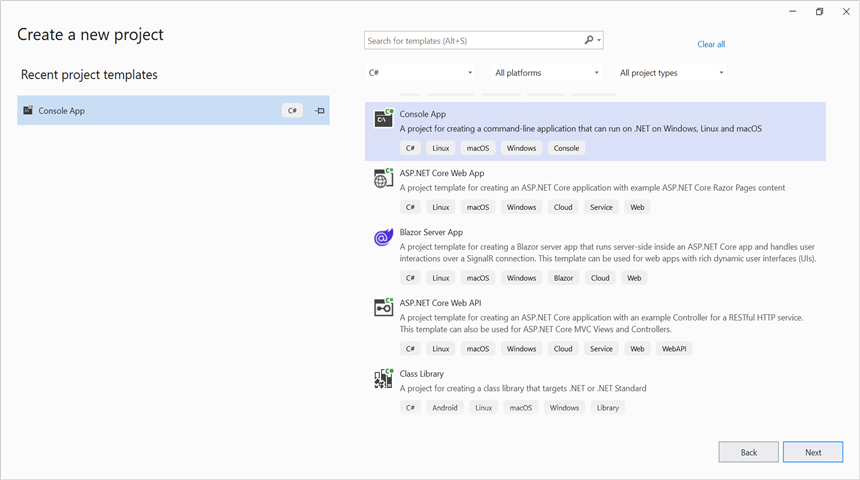
Step 1: Create a console application.
Ensure your ASP.NET Core Web API is running on the specified port before running this client. Adjust the port number if your Web API runs on a different port (check the ASP.NET Core app’s launch settings).
Step 2: Add the following code snippet in the Program.cs file to send a GET request to the Web API endpoint, retrieve the converted image, and save it to disk.
// Create an HttpClient instance
using (HttpClient client = new HttpClient())
{
    try
    {
        // Send a GET request to a URL
        HttpResponseMessage response = await client.GetAsync("https://localhost:7112/api/Values/api/ConvertWordToImage");

        // Check if the response is successful
        if (response.IsSuccessStatusCode)
        {
            // Read the content as a string
            Stream responseBody = await response.Content.ReadAsStreamAsync();
            FileStream fileStream = File.Create("../../../Output/Output.jpeg");
            responseBody.CopyTo(fileStream);
            fileStream.Close();
        }
        else
        {
            Console.WriteLine("HTTP error status code: " + response.StatusCode);
        }
    }
    catch (HttpRequestException e)
    {
        Console.WriteLine("Request exception: " + e.Message);
    }
}
Step 3: Build the project.
Click on Build → Build Solution or press Ctrl+Shift+B to build the project.
Step 4: Run the project.
Click the Start button (green arrow) or press F5 to run the app.
A complete working sample is available on GitHub.
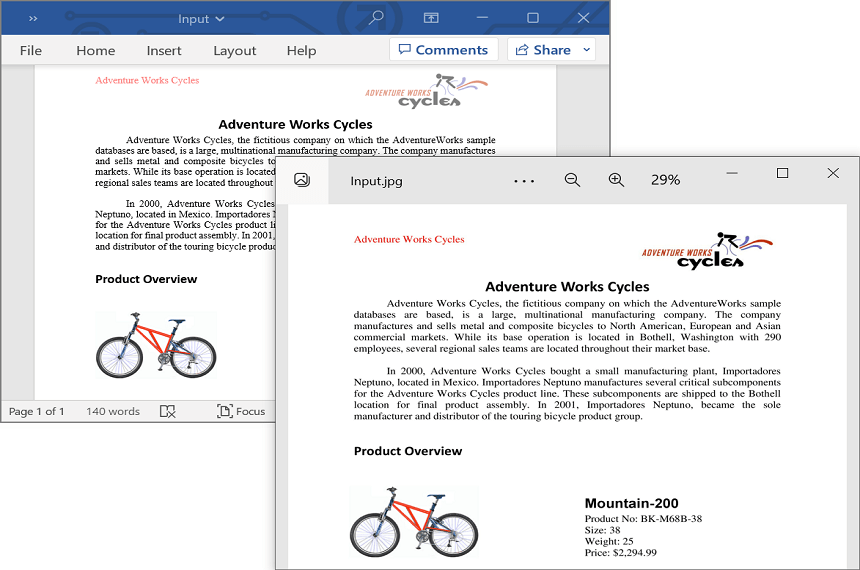
Upon executing the program, the image will be generated as follows.
Looking for the full .NET Word Library overview, features, pricing, and documentation? Visit the .NET Word Library page.
An online sample link to convert Word document to image in ASP.NET Core.