Open and save Presentation in WPF
3 Aug 20263 minutes to read
Syncfusion® PowerPoint is a .NET PowerPoint library used to create, read, edit, and convert PowerPoint documents programmatically without Microsoft PowerPoint or interop dependencies. Using this library, you can open and save a PowerPoint presentation in WPF.
Steps to open and save PowerPoint Presentation programmatically
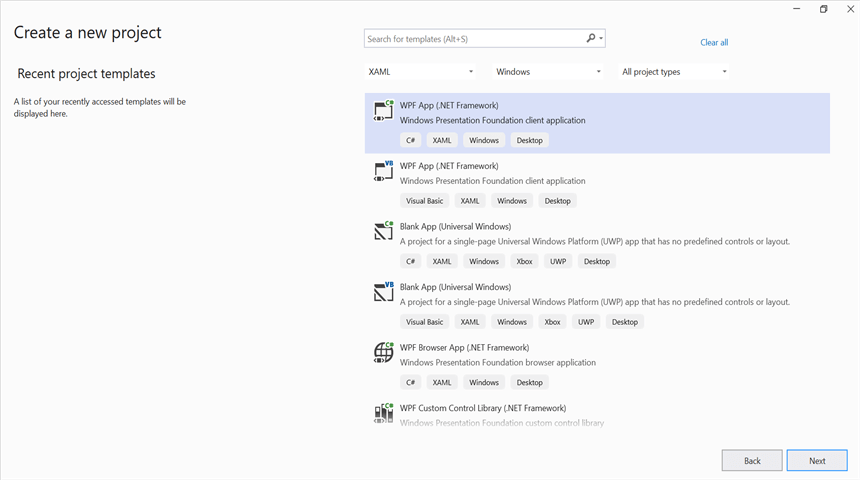
Step 1: Create a new C# WPF Application project in Visual Studio.
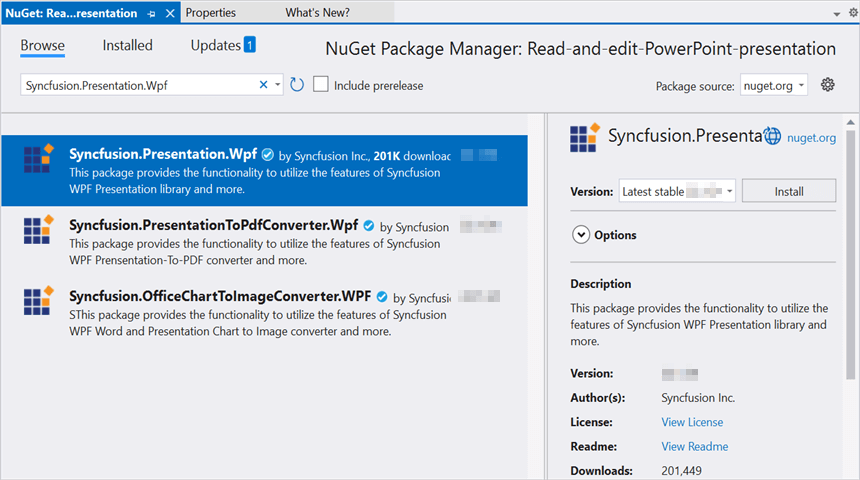
Step 2: Install the Syncfusion.Presentation.Wpf NuGet package as a reference to your application from NuGet.org.
Starting with v16.2.0.x, if you reference Syncfusion® assemblies from trial setup or from the NuGet feed, you also have to add “Syncfusion.Licensing” assembly reference and include a license key in your projects. Please refer to this link to know about registering Syncfusion® license key in your application to use our components.
Step 3: Add a new button in the MainWindow.xaml as shown below.
<Window x:Class="Open_and_save_PowerPoint_presentation.MainWindow"
        xmlns="http://schemas.microsoft.com/winfx/2006/xaml/presentation"
        xmlns:x="http://schemas.microsoft.com/winfx/2006/xaml"
        xmlns:d="http://schemas.microsoft.com/expression/blend/2008"
        xmlns:mc="http://schemas.openxmlformats.org/markup-compatibility/2006"
        xmlns:local="clr-namespace:Open_and_save_PowerPoint_presentation"
        mc:Ignorable="d"
        Title="MainWindow" Height="450" Width="800">
    <Grid>
        <Button x:Name="button" Content="Open and save presentation" Click="OpenAndSavePresentation" HorizontalAlignment="Center" VerticalAlignment="Center"/>
    </Grid>
</Window>
Step 4: Include the following namespaces in the MainWindow.xaml.cs file, and add the empty OpenAndSavePresentation click handler that the XAML references:
using Syncfusion.Presentation;
using System.IO;
Step 5: Add the empty OpenAndSavePresentation click handler that the XAML references in MainWindow.xaml.cs
public partial class MainWindow : System.Windows.Window
{
    public MainWindow()
    {
        InitializeComponent();
    }

    private void OpenAndSavePresentation(object sender, System.Windows.RoutedEventArgs e)
    {
        // The body is filled in the next step.
    }
}
Step 6: Add the following code inside OpenAndSavePresentation to open an existing PowerPoint presentation in WPF:
//Open an existing PowerPoint presentation.
using (IPresentation pptxDoc = Presentation.Open("Data/Template.pptx"))
{
    //Gets the first slide from the PowerPoint presentation
    ISlide slide = pptxDoc.Slides[0];
    //Gets the first shape of the slide
    IShape shape = slide.Shapes[0] as IShape;
    //Change the text of the shape
    if (shape.TextBody.Text == "Company History")
        shape.TextBody.Text = "Company Profile";

    //Save the PowerPoint presentation to the file system.
    pptxDoc.Save("Result.pptx");
}
You can download a complete working sample from GitHub.
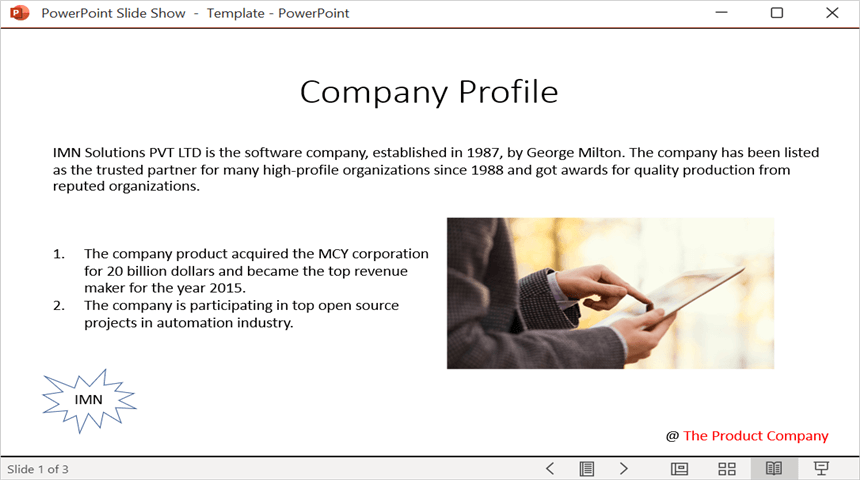
By executing the program, you will get the PowerPoint presentation as follows.
Looking for the full .NET PowerPoint Library component overview, features, pricing, and documentation? Visit the .NET PowerPoint Library page.