Open and save Presentation in .NET MAUI
3 Aug 20266 minutes to read
Syncfusion® PowerPoint is a .NET PowerPoint library used to create, read, edit, and convert PowerPoint documents programmatically without Microsoft PowerPoint or interop dependencies. Using this library, you can open and save a PowerPoint presentation in .NET MAUI.
Prerequisites
To create .NET Multi-platform App UI (.NET MAUI) apps, the following are required:
- Visual Studio 2022 or later.
-
.NET 8 (or later) with the .NET Multi-platform App UI development workload installed. Verify the workload is installed by running
dotnet workload list, or modify the Visual Studio installation and select the workload. - The .NET MAUI App template (no longer labeled “Preview”) must be available in Visual Studio.
For more details, refer here.
Steps to open and save PowerPoint presentation programmatically
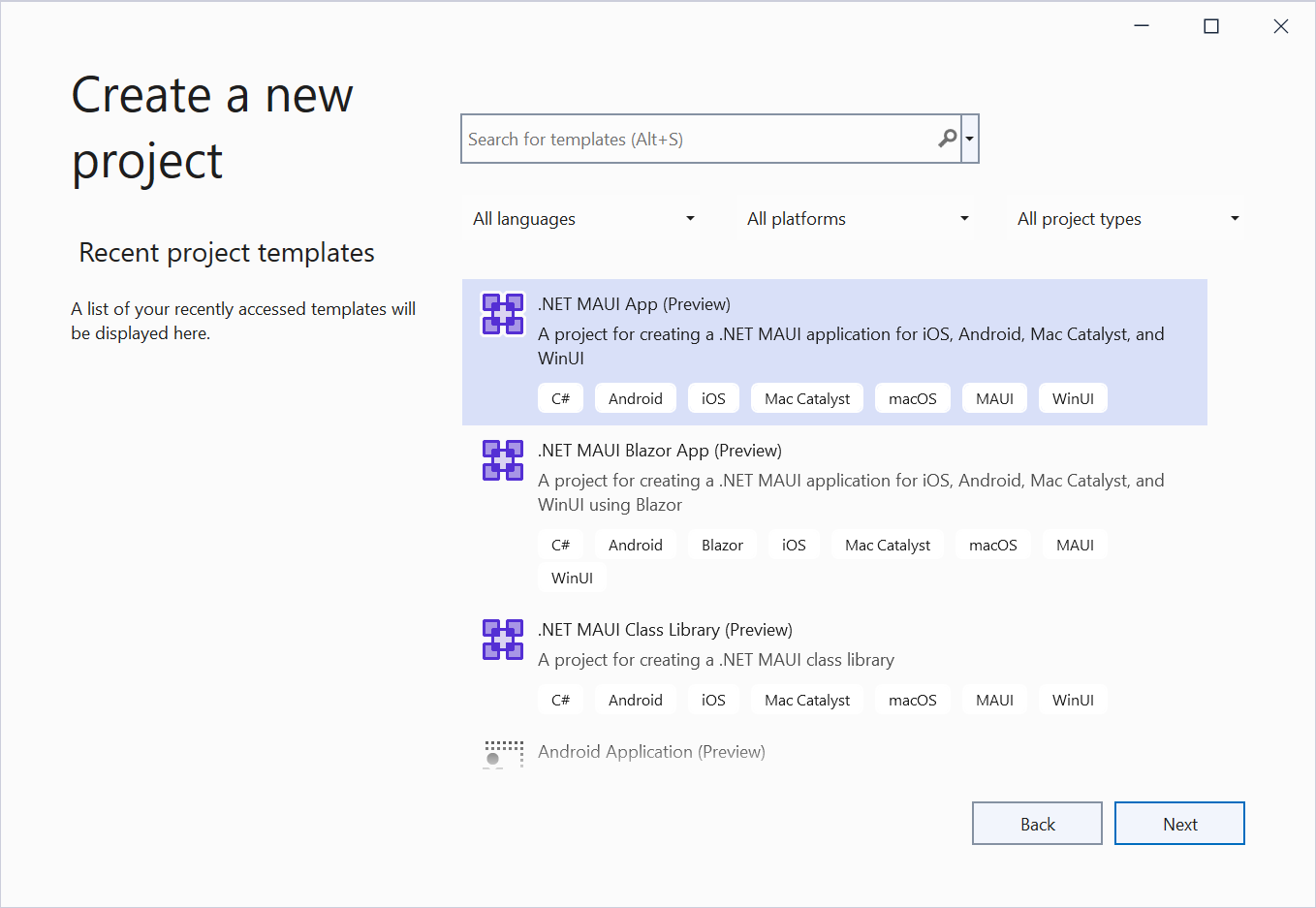
Step 1: Create a new C# .NET MAUI app. Select .NET MAUI App from the template list and click the Next button.
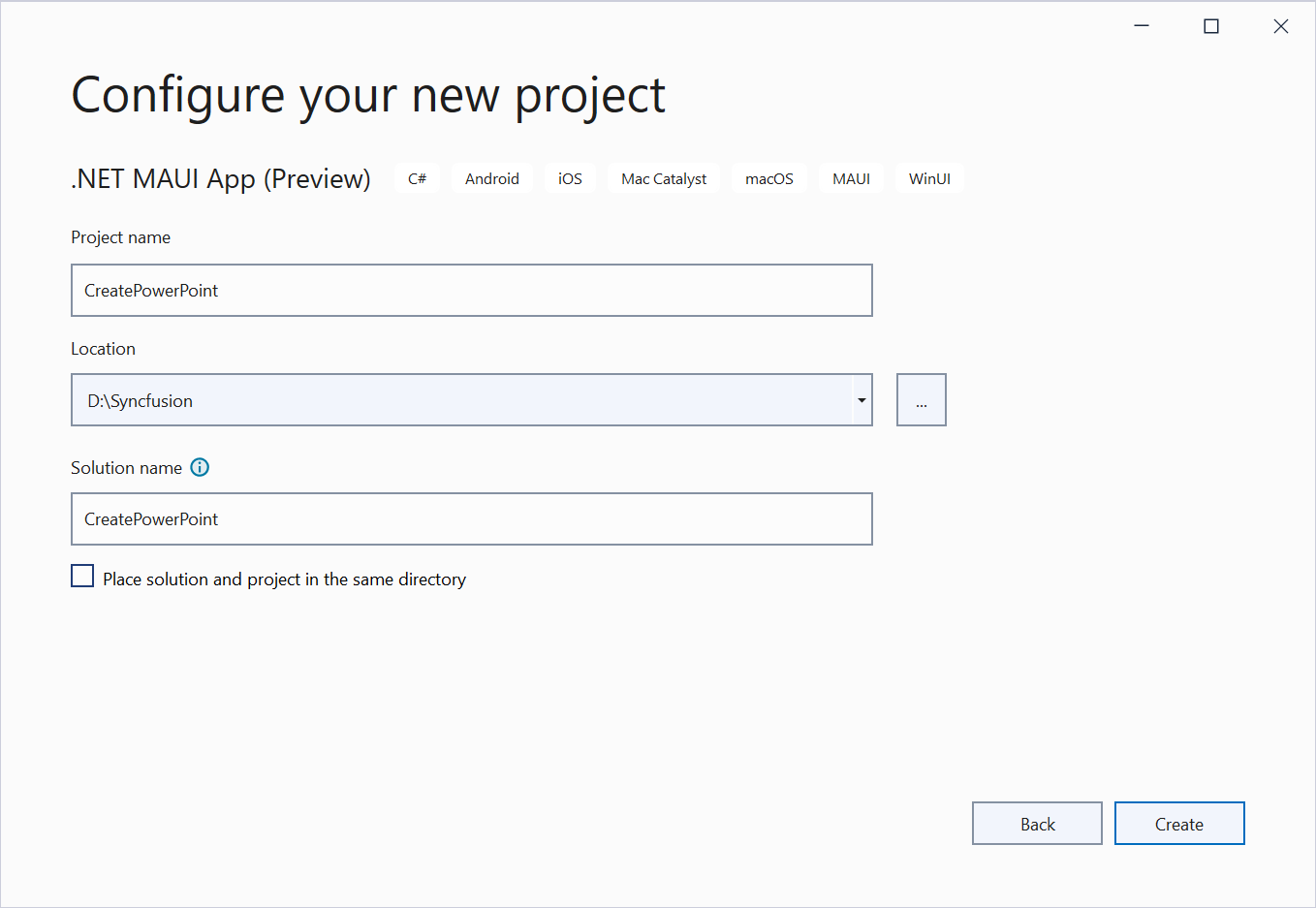
Step 2: Enter the project name and click Create.
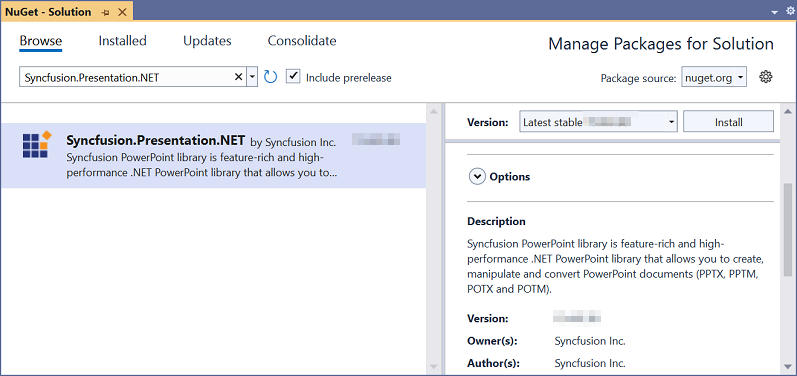
Step 3: Install the Syncfusion.Presentation.NET NuGet package as a reference to your project from NuGet.org.
Starting with v16.2.0.x, if you reference Syncfusion® assemblies from the trial setup or from the NuGet feed, you must also add a reference to the
Syncfusion.Licensingassembly and include a license key in your project. Please refer to this link to know about registering a Syncfusion® license key in your application to use our components. Register the license key once at application startup, for example inApp.xaml.csorMauiProgram.cs:
Step 4: Add a new button to the MainPage.xaml as shown below.
<ContentPage xmlns="http://schemas.microsoft.com/dotnet/2021/maui"
             xmlns:x="http://schemas.microsoft.com/winfx/2009/xaml"
             x:Class="ReadPowerPoint.MainPage"
             BackgroundColor="{DynamicResource SecondaryColor}">
    <ScrollView>
        <Grid RowSpacing="25" RowDefinitions="Auto,Auto,Auto,Auto,*"
              Padding="{OnPlatform iOS='30,60,30,30', Default='30'}">
            <Button
                Text="Open and Save Presentation"
                FontAttributes="Bold"
                Grid.Row="0"
                SemanticProperties.Hint="Open and Save Presentation"
                Clicked="OpenAndSavePresentation"
                HorizontalOptions="Center" />
        </Grid>
    </ScrollView>
</ContentPage>
Step 5: Add the corresponding event handler stub to MainPage.xaml.cs. The Clicked attribute in the XAML references this method.
// Empty handler wired up by the XAML Clicked attribute.
private void OpenAndSavePresentation(object sender, EventArgs e)
{
}
Step 6: Include the following namespaces in the MainPage.xaml.cs file.
using System.IO;
using System.Reflection;
using Syncfusion.Presentation;
Step 8: Add the following code snippet inside the OpenAndSavePresentation method in MainPage.xaml.cs to open an existing PowerPoint presentation in .NET MAUI.
//Resolves the assembly that contains the embedded Sample.pptx resource.
Assembly assembly = typeof(MainPage).Assembly;
//Opens an existing PowerPoint presentation from an embedded resource.
using IPresentation pptxDoc = Presentation.Open(assembly.GetManifestResourceStream("ReadAndEditPowerPoint.Resources.Sample.pptx"));
The manifest resource name must match the project’s default namespace followed by the folder and file name (for example,
ReadAndEditPowerPoint.Resources.Sample.pptx). To verify the exact name, callassembly.GetManifestResourceNames().
Step 9: Add the following code snippet to access a shape on the first slide and change the text within it.
//Gets the first slide from the PowerPoint presentation.
ISlide slide = pptxDoc.Slides[0];
//Gets the first shape of the slide.
IShape shape = slide.Shapes[0] as IShape;
//Modifies the text of the shape when a text body exists.
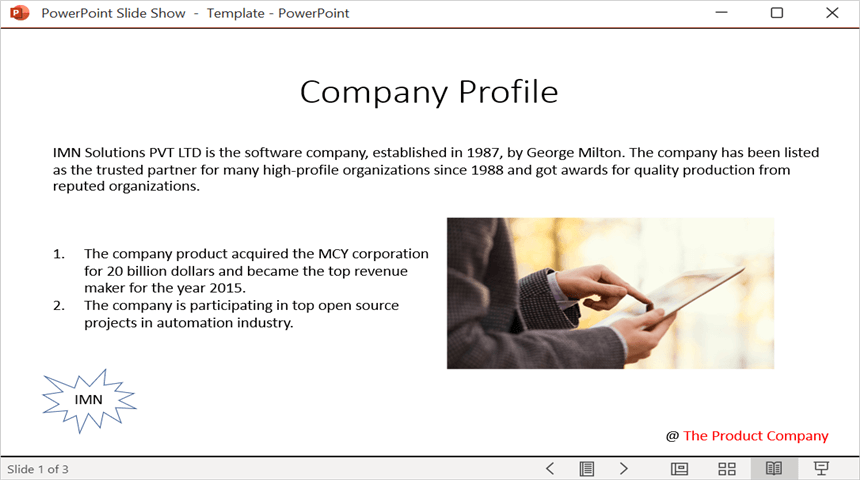
if (shape != null && shape.TextBody != null && shape.TextBody.Text == "Company History")
{
    shape.TextBody.Text = "Company Profile";
}
Step 10: Add the following code example to save the PowerPoint presentation in .NET MAUI. The presentation is written to a memory stream, then handed to the SaveService helper which saves the file to the device and opens it with the platform’s default viewer.
//Saves the presentation to a memory stream.
MemoryStream stream = new MemoryStream();
pptxDoc.Save(stream);
pptxDoc.Close();
stream.Position = 0;
//Saves the memory stream as a file and opens it with the platform default viewer.
SaveService saveService = new SaveService();
saveService.SaveAndView("Output.pptx", "application/vnd.openxmlformats-officedocument.presentationml.presentation", stream);
You can download a complete working sample from GitHub.
By executing the program, the resulting PowerPoint presentation is saved to the device and opened with the platform’s default viewer, as shown below.
Helper files for .NET MAUI
Refer to the following helper files and add them to the mentioned project. These helper files allow you to save the stream as a physical file and open the file for viewing on the corresponding platform.
| Folder Name | File Name | Summary |
| Represents the base class for the save operation. | ||
| Save implementation for Windows. | ||
| Save implementation for Android. | ||
| Save implementation for Mac Catalyst. | ||
| Save implementation for iOS. | ||
|
|
Helper classes for viewing the PowerPoint presentation on iOS. |
See Also
- Create a PowerPoint presentation from scratch
- Edit comments and shapes in an existing PowerPoint presentation
Looking for the full .NET PowerPoint Library component overview, features, pricing, and documentation? Visit the .NET PowerPoint Library page.