Open and Save Presentation in Google Drive Cloud Storage
3 Aug 202612 minutes to read
Prerequisites
- Google Drive Cloud Storage is required.
- .NET 8.0 or later.
- Visual Studio 2022 or later with the .NET desktop development workload installed.
- A Google Cloud project with the Google Drive API enabled. For more information, see the official Enable the Google Drive API guide.
- An OAuth 2.0 client secret file (
credentials.json) downloaded from the Google Cloud Console. The file must be placed in the application’s working directory (typicallybin\Debug\net8.0after building). - The file you intend to open must be shared with the Google account that signs in during the OAuth flow, or the user must have access to it through the configured scope.
Open Presentation from Google Drive
Follow these steps to open a Presentation from Google Drive Cloud Storage:
Step 1: Set up Google Drive API.
You must set up a project in the Google Developers Console and enable the Google Drive API. Obtain the necessary credentials to access the API. For more information, view the official link.
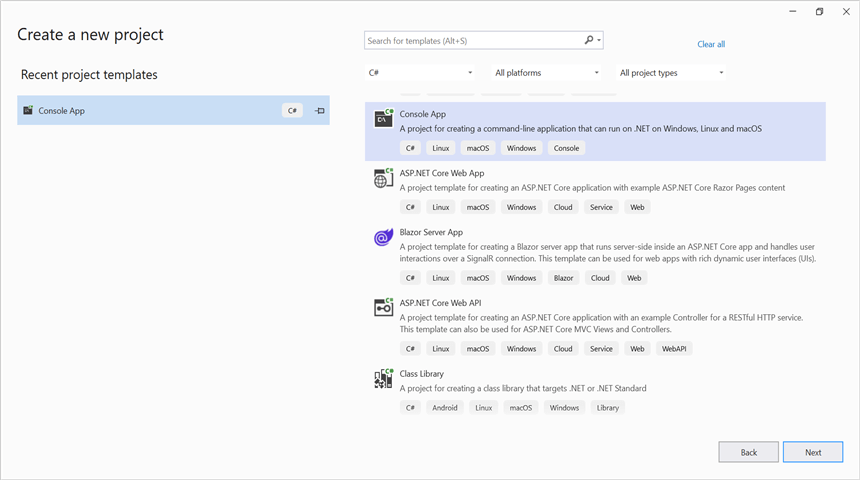
Step 2: Create a new .NET Core console application project.
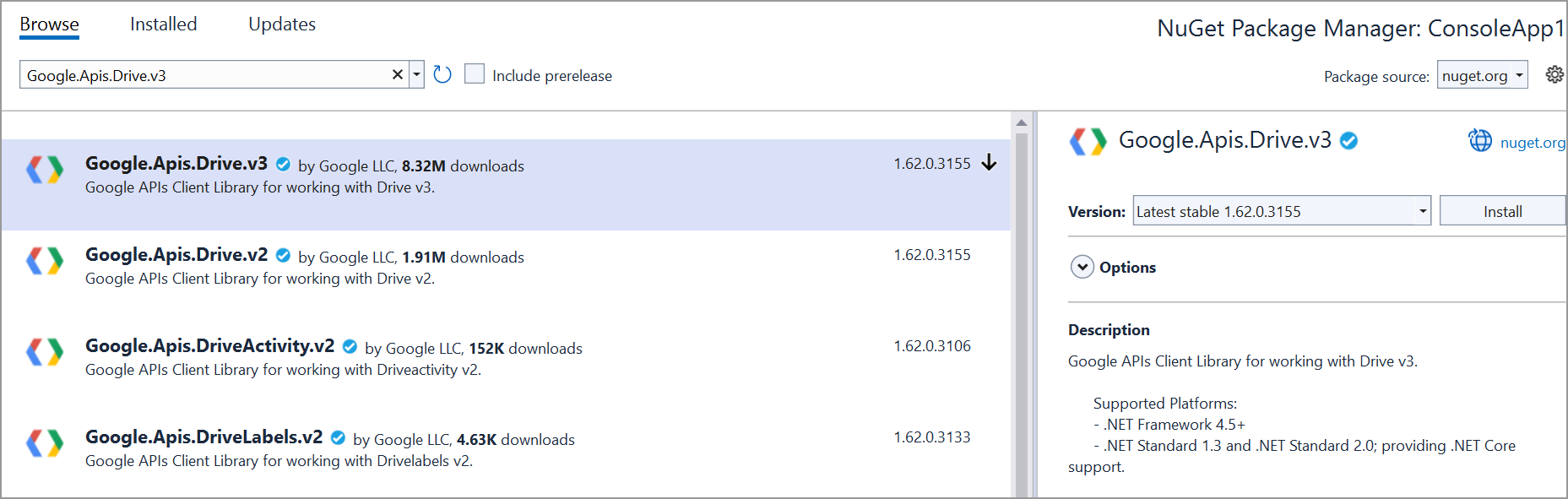
Step 3: Install the Google.Apis.Drive.v3 NuGet package as a reference to your project from the NuGet.org.
Step 4: Include the following namespaces in the Program.cs file.
using System;
using System.IO;
using System.Threading;
using Google.Apis.Auth.OAuth2;
using Google.Apis.Drive.v3;
using Google.Apis.Services;
using Google.Apis.Util.Store;
using Syncfusion.Presentation;
Step 5: Add the below code example to open a Presentation from Google Drive.
UserCredential credential;
string[] Scopes = { DriveService.Scope.DriveReadonly };
string ApplicationName = "YourAppName";

// Step 1: Authenticate with Google Drive using the credentials.json file.
using (var credentialStream = new FileStream("credentials.json", FileMode.Open, FileAccess.Read))
{
    string credPath = "token.json";
    credential = GoogleWebAuthorizationBroker.AuthorizeAsync(
        GoogleClientSecrets.Load(credentialStream).Secrets,
        Scopes,
        "user",
        CancellationToken.None,
        new FileDataStore(credPath, true)).Result;
}

// Step 2: Create the Drive API service.
var service = new DriveService(new BaseClientService.Initializer()
{
    HttpClientInitializer = credential,
    ApplicationName = ApplicationName,
});

// Step 3: Specify the file ID of the PowerPoint presentation you want to open.
string fileId = "YOUR_FILE_ID"; // Replace with the actual file ID of the .pptx in Google Drive.

// Step 4: Download the PowerPoint presentation from Google Drive into a memory stream.
var stream = new MemoryStream();
service.Files.Get(fileId).Download(stream);
stream.Position = 0; // Reset the stream position before writing/reading the bytes.

// Step 5: Save the PowerPoint presentation locally.
using (FileStream fileStream = new FileStream("Output.pptx", FileMode.Create, FileAccess.Write))
{
    stream.WriteTo(fileStream);
}

// Step 6: Open the downloaded PowerPoint file using the Syncfusion PowerPoint library.
using (IPresentation pptxDocument = Presentation.Open("Output.pptx"))
{
    // Access slides and shapes here. The following example retrieves the first slide.
    ISlide slide = pptxDocument.Slides[0];
    Console.WriteLine("Slide count: " + pptxDocument.Slides.Count);
}

// Step 7: Dispose the memory stream.
stream.Dispose();
You can download a complete working sample from GitHub.
Save Presentation to Google Drive
The prerequisites (Google Drive API, console application, and NuGet packages) are the same as described in the Prerequisites and Open Presentation from Google Drive sections above.
Step 1: Set up Google Drive API.
You must set up a project in the Google Developers Console and enable the Google Drive API. Obtain the necessary credentials to access the API. For more information, view the official link.
Step 2: Create a new .NET Core console application project.
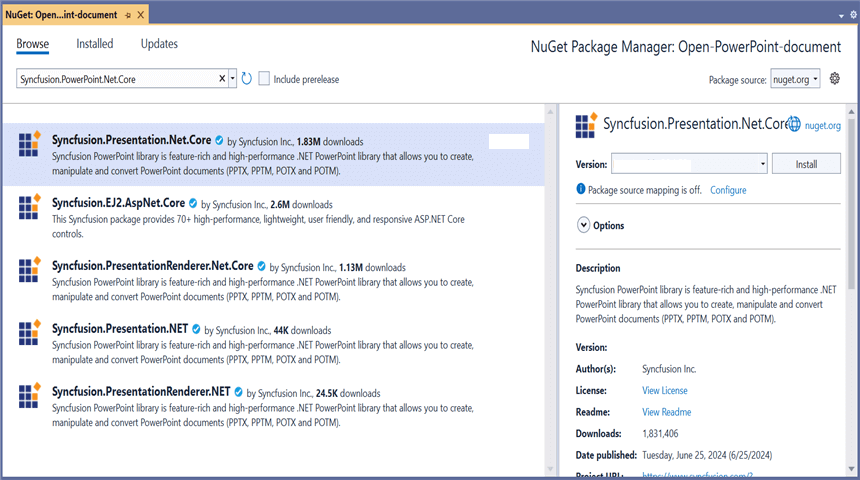
Step 3: Install the following Nuget packages in your application from NuGet.org.
Step 4: Include the following namespaces in the Program.cs file.
using System;
using System.IO;
using System.Threading;
using Syncfusion.Presentation;
using Syncfusion.Drawing;
using Google.Apis.Auth.OAuth2;
using Google.Apis.Drive.v3;
using Google.Apis.Services;
using Google.Apis.Util.Store;
using File = Google.Apis.Drive.v3.Data.File;
Step 5: Add the below code example to create a simple Presentation and save in Google Drive.
//Create a new instance of PowerPoint Presentation file.
using (IPresentation pptxDocument = Presentation.Create())
{

    //Add a new slide to file and apply background color.
    ISlide slide = pptxDocument.Slides.Add(SlideLayoutType.TitleOnly);

    //Specify the fill type and fill color for the slide background.
    slide.Background.Fill.FillType = FillType.Solid;
    slide.Background.Fill.SolidFill.Color = ColorObject.FromArgb(232, 241, 229);

    //Add title content to the slide by accessing the title placeholder of the TitleOnly layout-slide.
    IShape titleShape = slide.Shapes[0] as IShape;
    titleShape.TextBody.AddParagraph("Company History").HorizontalAlignment = HorizontalAlignmentType.Center;

    //Add description content to the slide by adding a new TextBox.
    IShape descriptionShape = slide.AddTextBox(53.22, 141.73, 874.19, 77.70);
    descriptionShape.TextBody.Text = "IMN Solutions PVT LTD is the software company, established in 1987, by George Milton. The company has been listed as the trusted partner for many high-profile organizations since 1988 and got awards for quality products from reputed organizations.";

    //Add bullet points to the slide.
    IShape bulletPointsShape = slide.AddTextBox(53.22, 270, 437.90, 116.32);

    //Add a paragraph for a bullet point.
    IParagraph firstPara = bulletPointsShape.TextBody.AddParagraph("The company acquired the MCY corporation for 20 billion dollars and became the top revenue maker for the year 2015.");

    //Format how the bullets should be displayed.
    firstPara.ListFormat.Type = ListType.Bulleted;
    firstPara.LeftIndent = 35;
    firstPara.FirstLineIndent = -35;

    //Add another paragraph for the next bullet point.
    IParagraph secondPara = bulletPointsShape.TextBody.AddParagraph("The company is participating in top open source projects in automation industry.");

    //Format how the bullets should be displayed.
    secondPara.ListFormat.Type = ListType.Bulleted;
    secondPara.LeftIndent = 35;
    secondPara.FirstLineIndent = -35;

    //Get a picture as a stream.
    FileStream pictureStream = new FileStream(Path.GetFullPath("Data/Image.jpg"), FileMode.Open);

    //Add the picture to a slide by specifying its size and position.
    slide.Shapes.AddPicture(pictureStream, 499.79, 238.59, 364.54, 192.16);


    //Add an auto-shape to the slide.
    IShape stampShape = slide.Shapes.AddShape(AutoShapeType.Explosion1, 48.93, 430.71, 104.13, 80.54);

    //Format the auto-shape color by setting the fill type and text.
    stampShape.Fill.FillType = FillType.None;
    stampShape.TextBody.AddParagraph("IMN").HorizontalAlignment = HorizontalAlignmentType.Center;

    //Save the PowerPoint to a memory stream.
    using (MemoryStream stream = new MemoryStream())
    {
        pptxDocument.Save(stream);
        stream.Position = 0; // Reset the stream position before uploading.

        // Authenticate with Google Drive using the credentials.json file.
        UserCredential credential;
        string[] Scopes = { DriveService.Scope.Drive };
        string ApplicationName = "YourAppName";

        using (var credentialStream = new FileStream("credentials.json", FileMode.Open, FileAccess.Read))
        {
            string credPath = "token.json";
            credential = GoogleWebAuthorizationBroker.AuthorizeAsync(
                GoogleClientSecrets.Load(credentialStream).Secrets,
                Scopes,
                "user",
                CancellationToken.None,
                new FileDataStore(credPath, true)).Result;
        }

        // Create a new instance of Google Drive service.
        var service = new DriveService(new BaseClientService.Initializer()
        {
            HttpClientInitializer = credential,
            ApplicationName = ApplicationName,
        });

        // Create metadata for the file to be uploaded.
        var fileMetadata = new File()
        {
            Name = "Output.pptx", // Name of the file in Google Drive
            MimeType = "application/powerpoint",
            // Optional: set the destination folder by providing a parent ID.
            // Parents = new List<string> { "FOLDER_ID" }
        };

        // Create an upload request for Google Drive and upload the file.
        var request = service.Files.Create(fileMetadata, stream, "application/powerpoint");
        var uploadResult = request.Upload();

        if (uploadResult.Status == Google.Apis.Upload.UploadStatus.Failed)
        {
            Console.WriteLine("Upload failed: " + uploadResult.Exception?.Message);
        }
    }
}
You can download a complete working sample from GitHub.
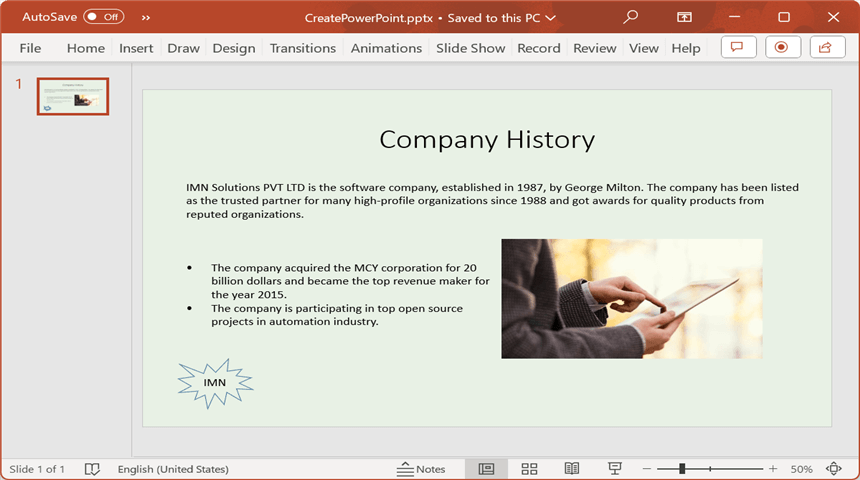
By executing the program, you will get the PowerPoint presentation as follows.