Open and Save Presentation in Azure Blob Cloud Storage
3 Aug 202613 minutes to read
Prerequisites
-
Microsoft Azure subscription is required.
-
Azure Cloud Storage is required.
-
The connection string, container name, and blob name for your Azure Storage account. To get the connection string, see View account access keys.
-
The example uses the Azure.Storage.Blobs SDK (v12 or later). For more information, see the Azure Blob Storage client library for .NET.
Open Presentation from Azure Blob
Steps to open a Presentation from Azure Blob Cloud Storage.
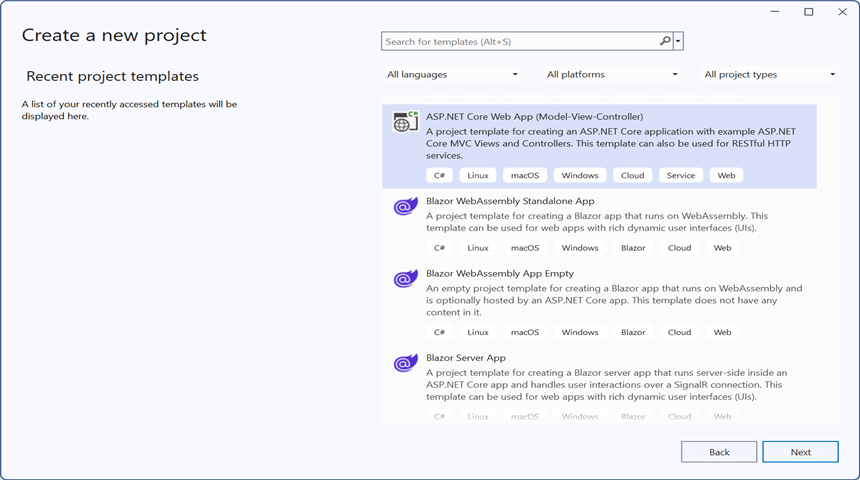
Step 1: Create a new ASP.NET Core Web Application (Model-View-Controller).
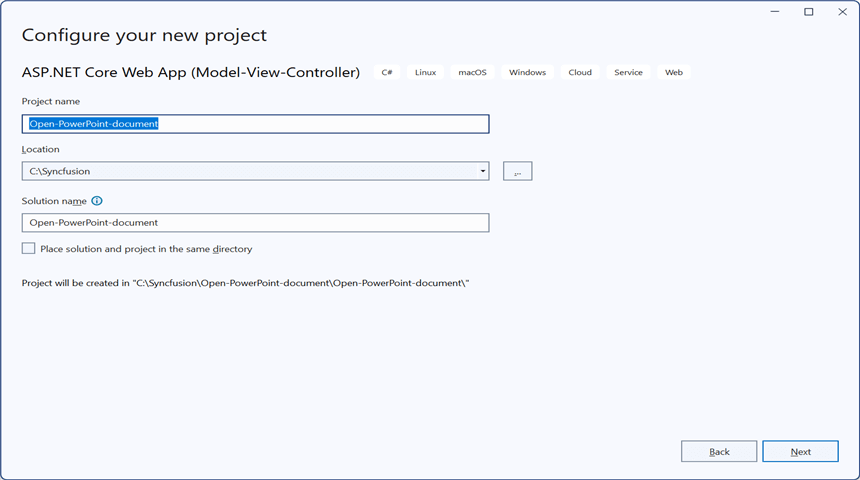
Step 2: Name the project.
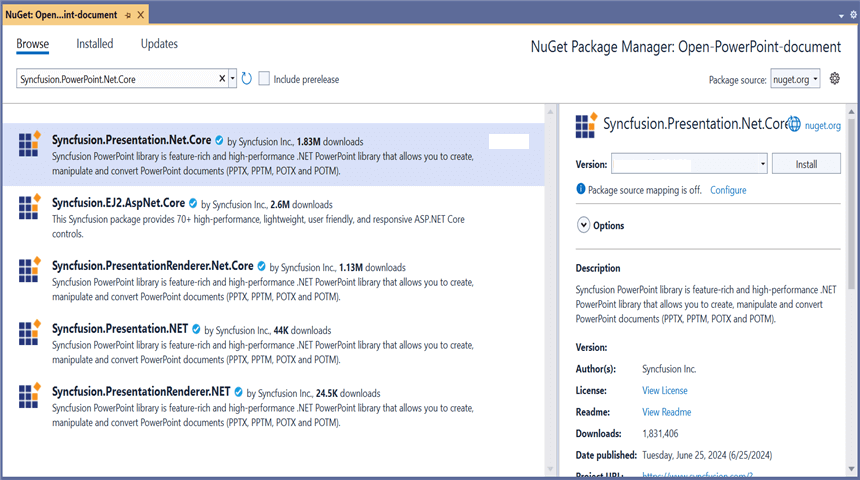
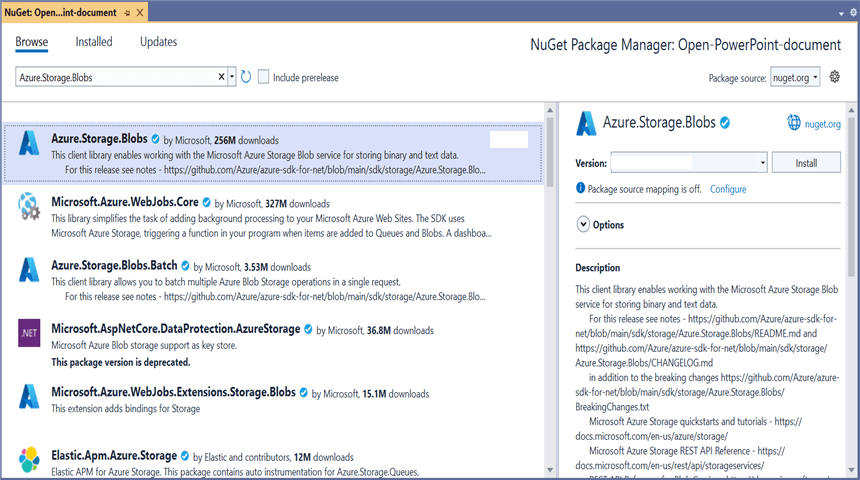
Step 3: Install the following NuGet packages in your application from NuGet.org.
Step 4: Add a new button in the Index.cshtml as shown below.
@{Html.BeginForm("EditDocument", "Home", FormMethod.Get);
    {
        <div>
            <input type="submit" value="Edit Document" style="width:150px;height:27px" />
        </div>
    }
    Html.EndForm();
}
Step 5: Include the following namespaces in HomeController.cs.
using Azure.Storage.Blobs.Models;
using Azure.Storage.Blobs;
using Syncfusion.Presentation;
Step 6: Include the below code snippet in HomeController.cs to open a Presentation from Azure Blob Cloud Storage.
public async Task<IActionResult> EditDocument()
{
    try
    {
        //Retrieve the document from Azure
        MemoryStream stream = await GetDocumentFromAzure();

        //Set the position to the beginning of the MemoryStream
        stream.Position = 0;

        //Create an instance of PowerPoint Presentation file
        using (IPresentation pptxDocument = Presentation.Open(stream))
        {
            //Get the first slide from the PowerPoint presentation
            ISlide slide = pptxDocument.Slides[0];

            //Get the first shape of the slide
            IShape shape = slide.Shapes[0] as IShape;

            //Change the text of the shape
            if (shape.TextBody.Text == "Company History")
                shape.TextBody.Text = "Company Profile";

            //Save the PowerPoint file to a MemoryStream
            using (MemoryStream outputStream = new MemoryStream())
            {
                pptxDocument.Save(outputStream);
                outputStream.Position = 0;

                //Download the PowerPoint file in the browser
                FileStreamResult fileStreamResult = new FileStreamResult(outputStream, "application/powerpoint");
                fileStreamResult.FileDownloadName = "EditPowerPoint.pptx";
                return fileStreamResult;
            }
        }
    }
    catch (Exception ex)
    {
        Console.WriteLine($"Error: {ex.Message}");
        return Content("Error occurred while processing the file.");
    }
}
Download file from Azure Blob Cloud Storage
This is the helper method to download a Presentation from Azure Blob Cloud Storage.
/// <summary>
/// Download file from Azure Blob cloud storage
/// </summary>
/// <returns></returns>
public async Task<MemoryStream> GetDocumentFromAzure()
{
    try
    {
        //Your Azure Storage Account connection string
        string connectionString = "Your_connection_string";

        //Name of the Azure Blob Storage container
        string containerName = "Your_container_name";

        //Name of the PowerPoint file you want to download
        string blobName = "PowerPointTemplate.pptx";

        //Download the PowerPoint from Azure Blob Storage
        BlobServiceClient blobServiceClient = new BlobServiceClient(connectionString);
        BlobContainerClient containerClient = blobServiceClient.GetBlobContainerClient(containerName);
        BlobClient blobClient = containerClient.GetBlobClient(blobName);
        BlobDownloadInfo download = await blobClient.DownloadAsync();

        //Create a MemoryStream to copy the file content
        MemoryStream stream = new MemoryStream();
        await download.Content.CopyToAsync(stream);
        //Reset the position to the beginning so callers can read from the start
        stream.Position = 0;

        return stream;
    }
    catch (Exception ex)
    {
        Console.WriteLine($"Error retrieving document from Azure Blob Storage: {ex.Message}");
        throw; // or handle the exception as needed
    }
}
You can download a complete working sample from GitHub.
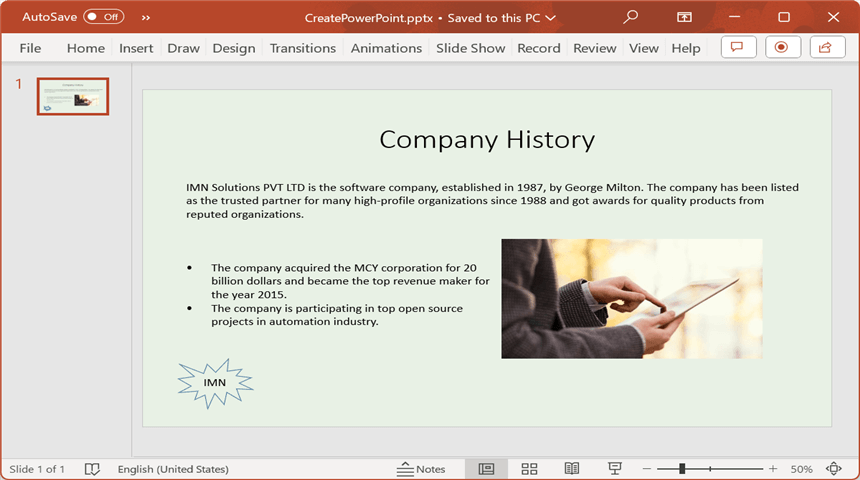
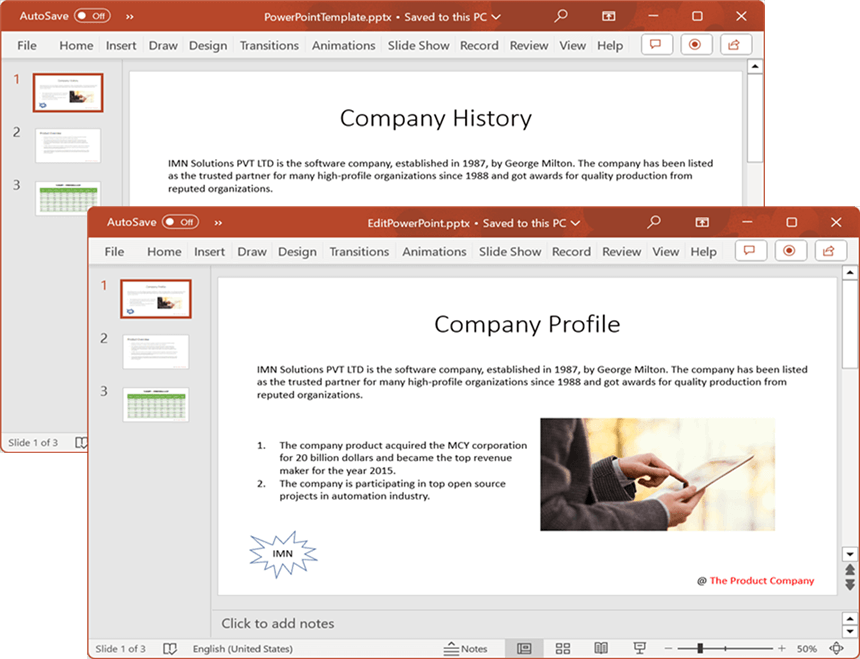
By executing the program, you will get the Presentation as follows.
Save Presentation to Azure Blob
Steps to save a Presentation to Azure Blob Cloud Storage.
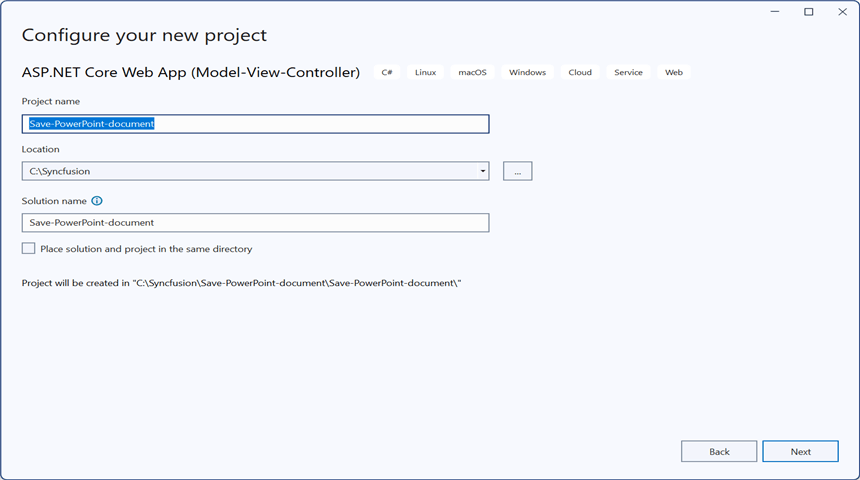
Step 1: Create a new ASP.NET Core Web Application (Model-View-Controller).
Step 2: Name the project.
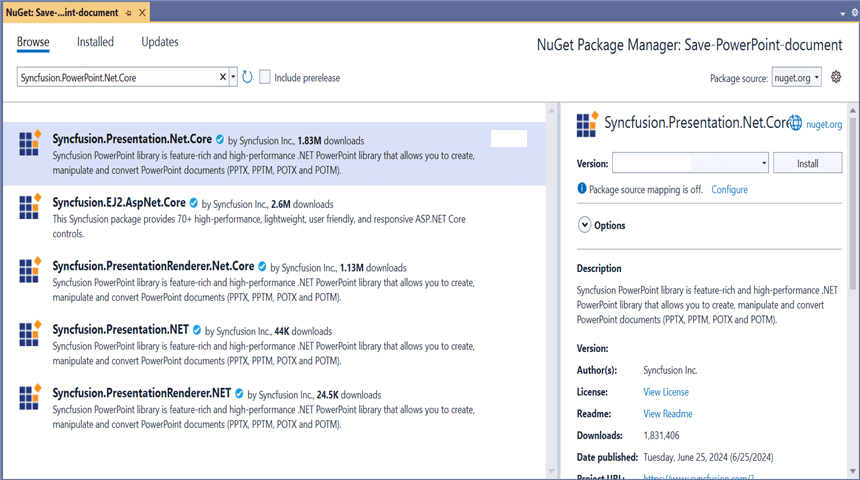
Step 3: Install the following NuGet packages in your application from NuGet.org.
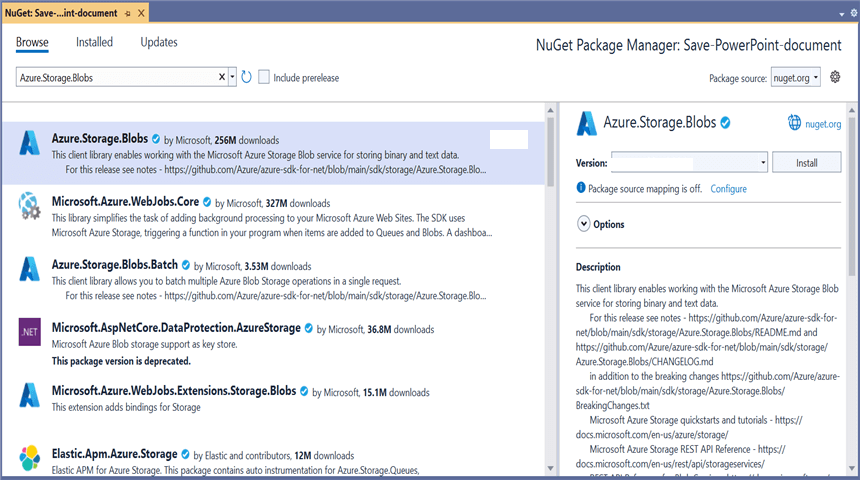
Step 4: Add a new button in the Index.cshtml as shown below.
@{Html.BeginForm("UploadDocument", "Home", FormMethod.Get);
    {
        <div>
            <input type="submit" value="Upload Document" style="width:150px;height:27px" />
        </div>
    }
    Html.EndForm();
}
Step 5: Include the following namespaces in HomeController.cs.
using Azure.Storage.Blobs.Models;
using Azure.Storage.Blobs;
using Syncfusion.Presentation;
Step 6: Include the below code snippet in HomeController.cs to save a Presentation to Azure Blob Cloud Storage.
public async Task<IActionResult> UploadDocument()
{
    //Create a new instance of PowerPoint Presentation file
    IPresentation pptxDocument = Presentation.Create();

    //Add a new slide to file and apply background color
    ISlide slide = pptxDocument.Slides.Add(SlideLayoutType.TitleOnly);

    //Specify the fill type and fill color for the slide background
    slide.Background.Fill.FillType = FillType.Solid;
    slide.Background.Fill.SolidFill.Color = ColorObject.FromArgb(232, 241, 229);

    //Add title content to the slide by accessing the title placeholder of the TitleOnly layout-slide
    IShape titleShape = slide.Shapes[0] as IShape;
    titleShape.TextBody.AddParagraph("Company History").HorizontalAlignment = HorizontalAlignmentType.Center;

    //Add description content to the slide by adding a new TextBox
    IShape descriptionShape = slide.AddTextBox(53.22, 141.73, 874.19, 77.70);
    descriptionShape.TextBody.Text = "IMN Solutions PVT LTD is the software company, established in 1987, by George Milton. The company has been listed as the trusted partner for many high-profile organizations since 1988 and got awards for quality products from reputed organizations.";

    //Add bullet points to the slide
    IShape bulletPointsShape = slide.AddTextBox(53.22, 270, 437.90, 116.32);

    //Add a paragraph for a bullet point
    IParagraph firstPara = bulletPointsShape.TextBody.AddParagraph("The company acquired the MCY corporation for 20 billion dollars and became the top revenue maker for the year 2015.");

    //Format how the bullets should be displayed
    firstPara.ListFormat.Type = ListType.Bulleted;
    firstPara.LeftIndent = 35;
    firstPara.FirstLineIndent = -35;

    //Add another paragraph for the next bullet point
    IParagraph secondPara = bulletPointsShape.TextBody.AddParagraph("The company is participating in top open source projects in automation industry.");

    //Format how the bullets should be displayed
    secondPara.ListFormat.Type = ListType.Bulleted;
    secondPara.LeftIndent = 35;
    secondPara.FirstLineIndent = -35;

    //Gets a picture as stream
    FileStream pictureStream = new FileStream("Image.jpg", FileMode.Open);

    //Adds the picture to a slide by specifying its size and position.
    slide.Shapes.AddPicture(pictureStream, 499.79, 238.59, 364.54, 192.16);

    //Add an auto-shape to the slide
    IShape stampShape = slide.Shapes.AddShape(AutoShapeType.Explosion1, 48.93, 430.71, 104.13, 80.54);

    //Format the auto-shape color by setting the fill type and text
    stampShape.Fill.FillType = FillType.None;
    stampShape.TextBody.AddParagraph("IMN").HorizontalAlignment = HorizontalAlignmentType.Center;

    //Save the PowerPoint document to MemoryStream
    using (MemoryStream stream = new MemoryStream())
    {
        pptxDocument.Save(stream);
        stream.Position = 0;

        //Upload the document to Azure
        await UploadDocumentToAzure(stream);
    }

    return Ok("PowerPoint uploaded to Azure Blob Storage.");
}
Upload file to Azure Blob Cloud Storage
This is the helper method to upload a Presentation to Azure Blob Cloud Storage.
/// <summary>
/// Upload file to Azure Blob Cloud Storage
/// </summary>
/// <param name="stream">MemoryStream containing the PowerPoint file to upload.</param>
public async Task UploadDocumentToAzure(MemoryStream stream)
{
    try
    {
        //Your Azure Storage Account connection string
        string connectionString = "Your_connection_string";

        //Name of the Azure Blob Storage container
        string containerName = "Your_container_name";

        //Name of the PowerPoint file you want to upload
        string blobName = "CreatePowerPoint.pptx";

        //Upload the PowerPoint to Azure Blob Storage.
        //Passing 'true' for overwrite allows the existing blob (if any) to be replaced.
        BlobServiceClient blobServiceClient = new BlobServiceClient(connectionString);
        BlobContainerClient containerClient = blobServiceClient.GetBlobContainerClient(containerName);
        BlobClient blobClient = containerClient.GetBlobClient(blobName);
        blobClient.Upload(stream, true);

        Console.WriteLine("Upload completed successfully");
    }
    catch (Exception e)
    {
        Console.WriteLine("Unknown error encountered on server. Message:'{0}' when writing an object", e.Message);
    }
}
You can download a complete working sample from GitHub.
By executing the program, you will get the Presentation as follows.