Open and save PowerPoint in Azure App Service on Linux
3 Aug 20264 minutes to read
Syncfusion® PowerPoint is a .NET Core PowerPoint library used to create, read, edit and convert PowerPoint documents programmatically without Microsoft PowerPoint or interop dependencies. Using this library, you can open and save a PowerPoint in Azure App Service on Linux.
Steps to Open and save PowerPoint in Azure App Service on Linux
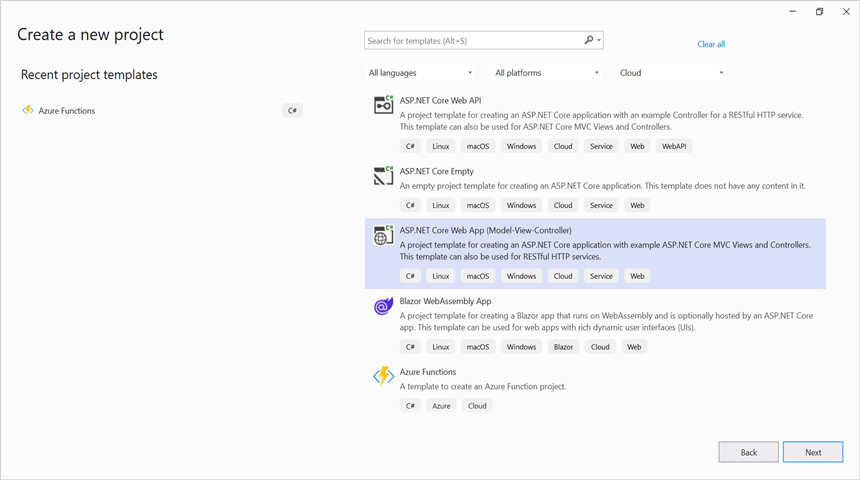
Step 1: Create a new ASP.NET Core Web App (Model-View-Controller)
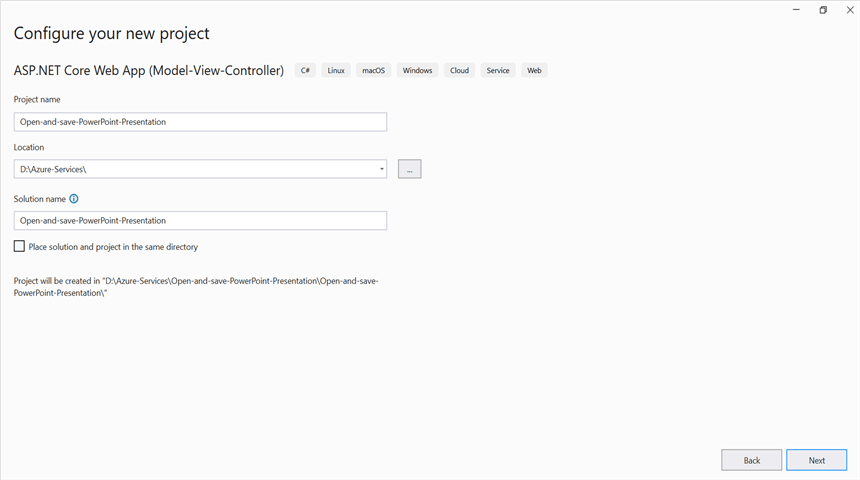
Step 2: Create a project name and select the location.
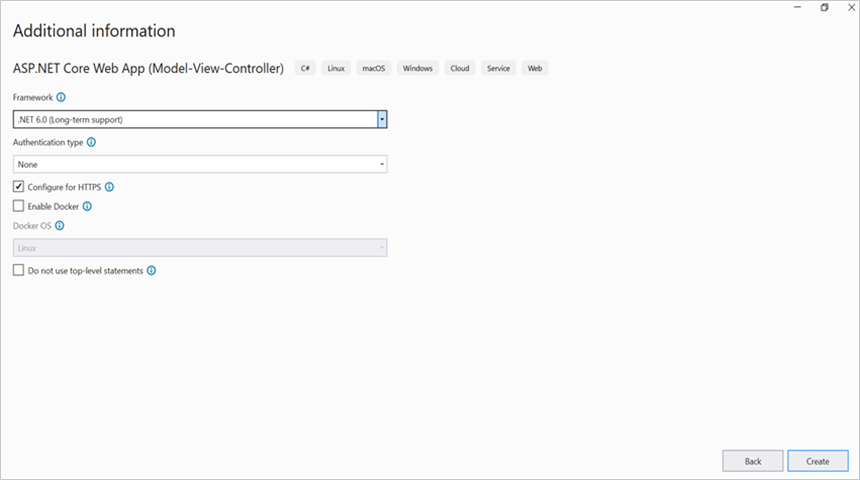
Step 3: Click Create button.
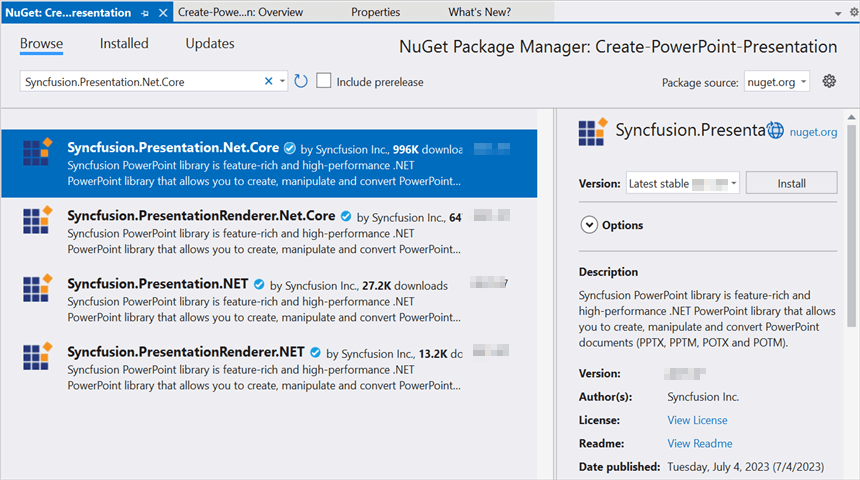
Step 4: Install the Syncfusion.Presentation.Net.Core NuGet package as a reference to your project from NuGet.org.
Starting with v16.2.0.x, if you reference Syncfusion® assemblies from trial setup or from the NuGet feed, you also have to add “Syncfusion.Licensing” assembly reference and include a license key in your projects. Please refer to this link to know about registering Syncfusion® license key in your application to use our components.
Step 5: Add a new button to Index.cshtml as shown below.
@{
    Html.BeginForm("OpenAndSavePowerPoint", "Home", FormMethod.Get);
    {
        <div>
            <input type="submit" value="Open and Save PowerPoint" style="width:220px;height:27px" />
        </div>
    }
    Html.EndForm();
}
Step 6: Include the following namespaces in HomeController.cs.
using Syncfusion.Presentation;
using System.IO;
using Microsoft.AspNetCore.Hosting;
Step 7: Inject IWebHostEnvironment into the HomeController constructor and add a new action method OpenAndSavePowerPoint with the following code to open the existing presentation, modify a shape’s text, and stream the result back to the browser.
private readonly IWebHostEnvironment _hostingEnvironment;

public HomeController(IWebHostEnvironment hostingEnvironment)
{
    _hostingEnvironment = hostingEnvironment;
}

public IActionResult OpenAndSavePowerPoint()
{
    //Open an existing PowerPoint presentation using the file path overload.
    string pptxPath = Path.Combine(_hostingEnvironment.WebRootPath, "Data/Template.pptx");
    using IPresentation pptxDoc = Presentation.Open(pptxPath);

    //Get the first slide from the PowerPoint presentation.
    ISlide slide = pptxDoc.Slides[0];
    //Get the first shape of the slide.
    IShape shape = slide.Shapes[0] as IShape;
    //Change the text of the shape.
    if (shape != null && shape.TextBody.Text == "Company History")
        shape.TextBody.Text = "Company Profile";

    //Save the PowerPoint presentation to a memory stream.
    MemoryStream pptxStream = new();
    pptxDoc.Save(pptxStream);
    pptxStream.Position = 0;
    //Download the PowerPoint document in the browser.
    return File(pptxStream, "application/vnd.openxmlformats-officedocument.presentationml.presentation", "Result.pptx");
}
Steps to publish as Azure App Service on Linux
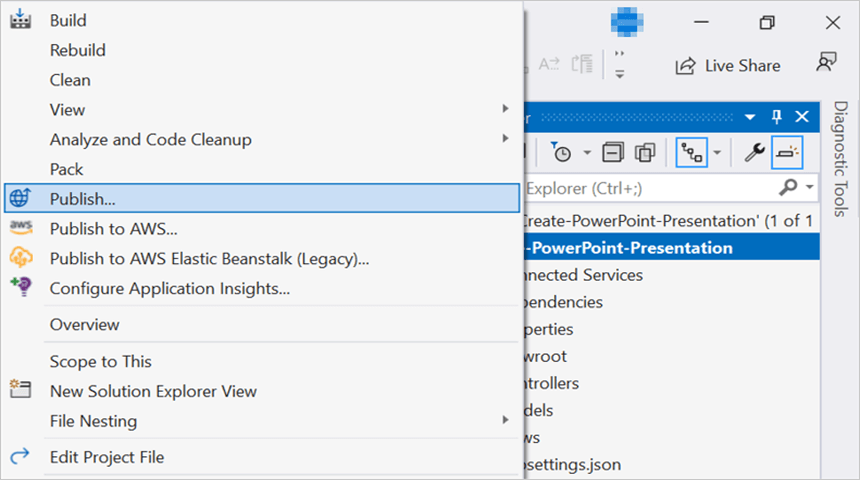
Step 1: Right-click the project and select the Publish option.
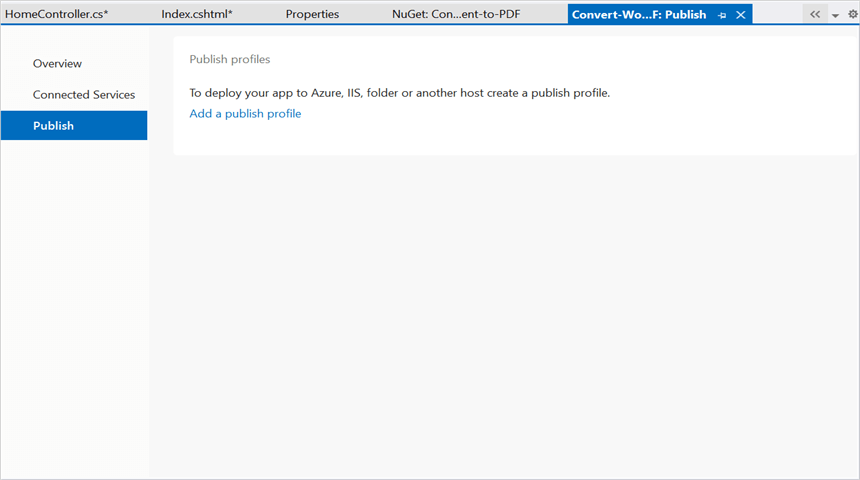
Step 2: Click the Add a Publish Profile button.
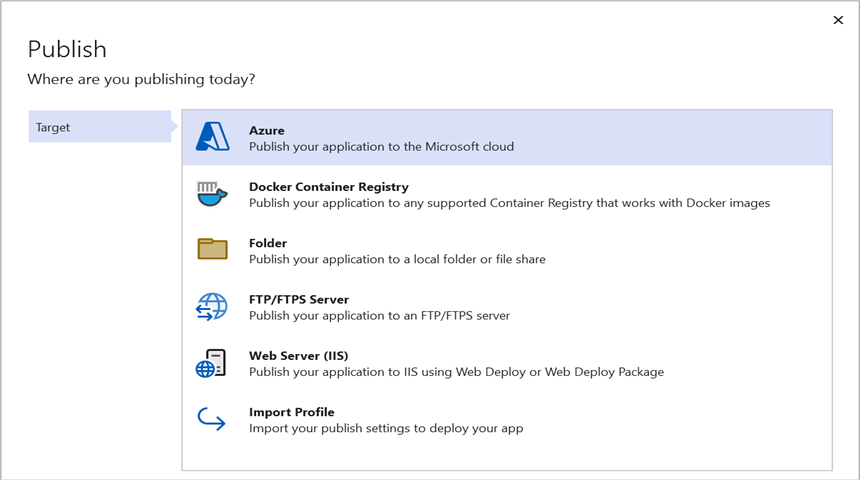
Step 3: Select the publish target as Azure.
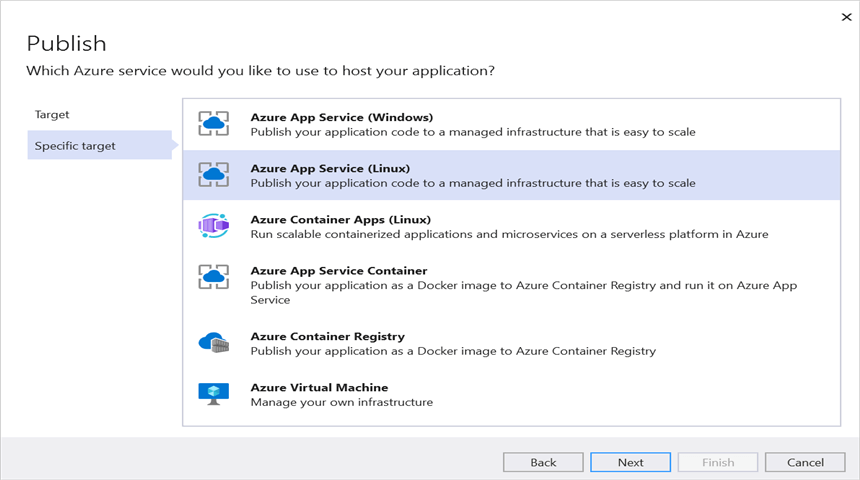
Step 4: Select the Specific target as Azure App Service (Linux).
Step 5: To create a new app service, click the Create new option.
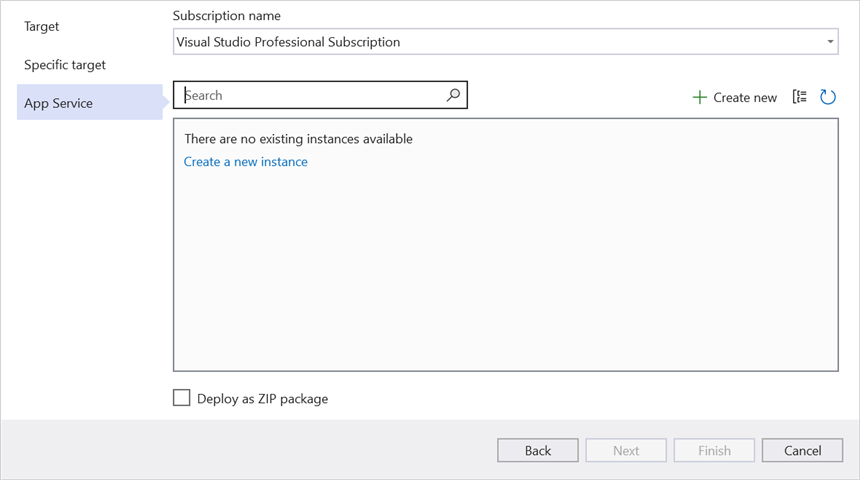
Step 6: Click the Create button to proceed with App Service creation.
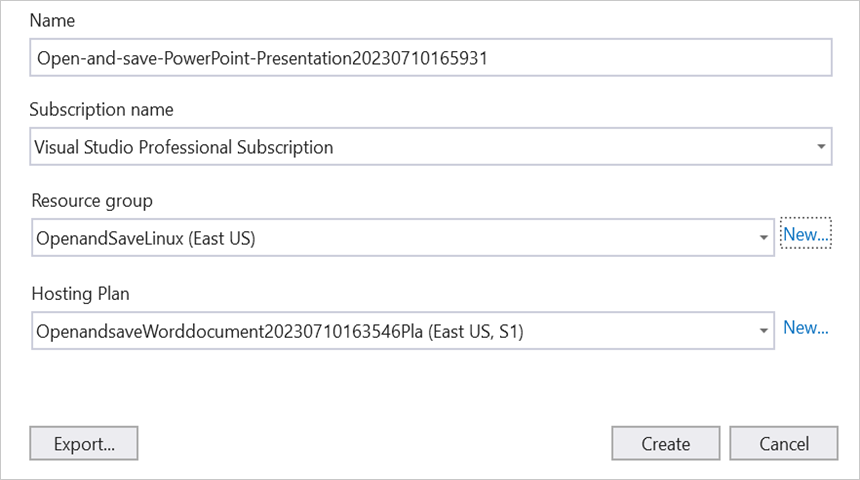
Step 7: Click the Finish button to finalize the App Service creation.

Step 8: Click the Close button.

Step 9: Click the Publish button.

Step 10: Now, Publish has been succeeded.
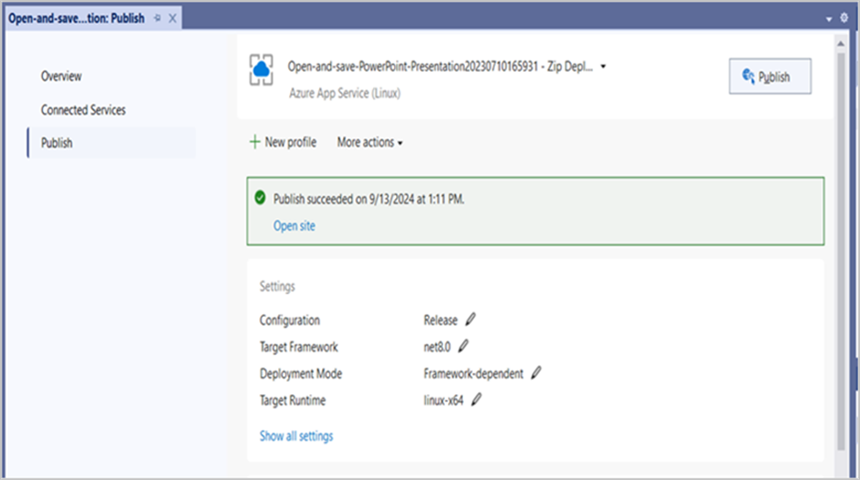
Step 11: The published webpage opens in the browser at /Home/OpenAndSavePowerPoint.
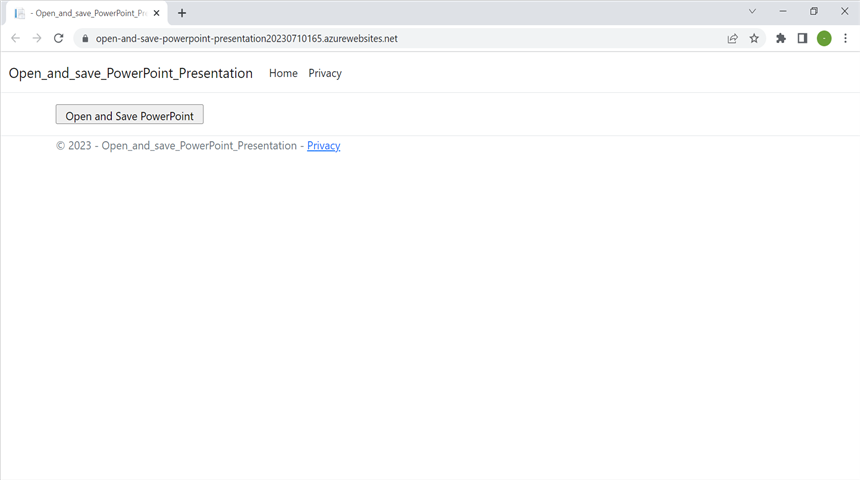
Step 12: Click the Open and Save PowerPoint button. You will get the output PowerPoint document as follows.
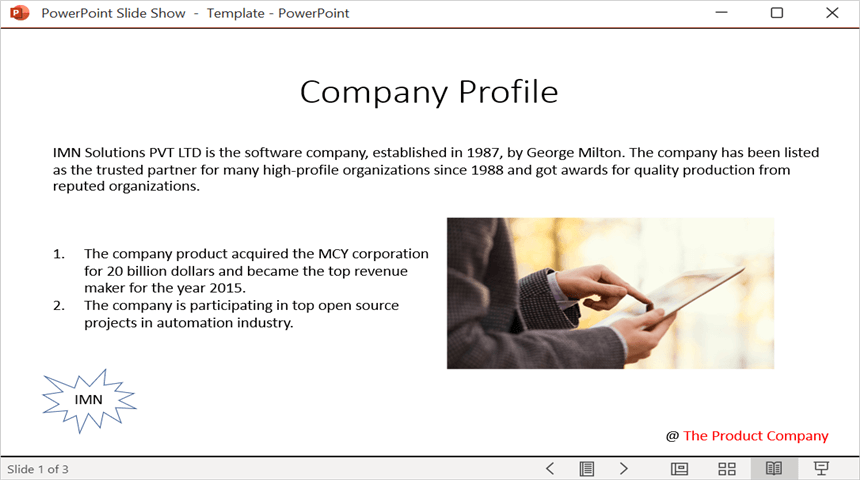
You can download a complete working sample from GitHub.
Looking for the full .NET PowerPoint Library component overview, features, pricing, and documentation? Visit the .NET PowerPoint Library page.