Open and save Presentation in ASP.NET MVC
3 Aug 20263 minutes to read
Syncfusion® PowerPoint is a .NET PowerPoint library used to create, read, edit and convert PowerPoint documents programmatically without Microsoft PowerPoint or interop dependencies. Using this library, you can open and save a Presentation in ASP.NET MVC.
Steps to open and save PowerPoint Presentation programmatically
Step 1: Create a new C# ASP.NET MVC application project.
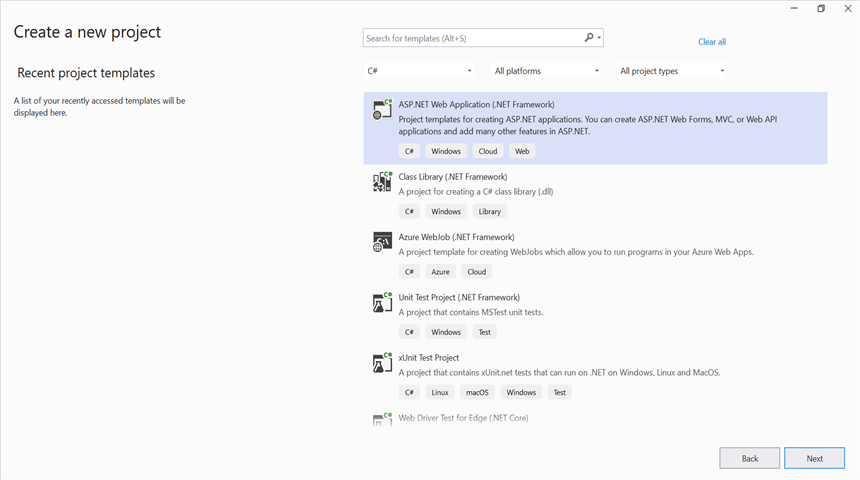
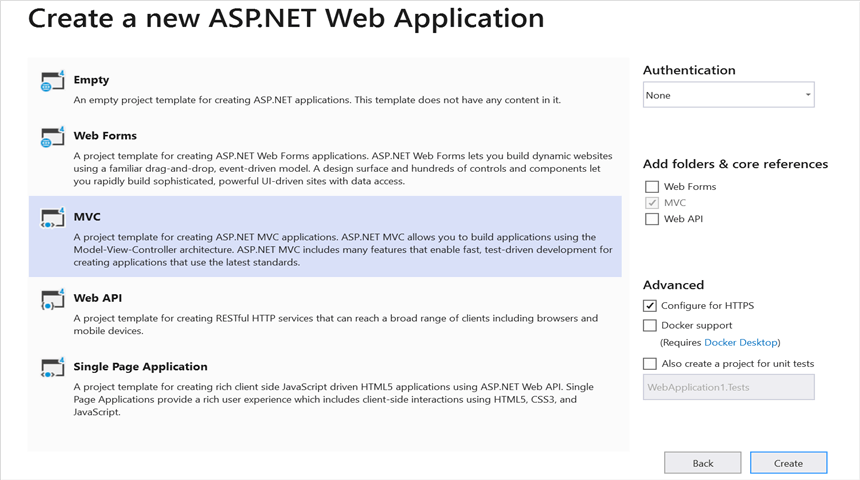
Step 2: Select the MVC template to create the project.
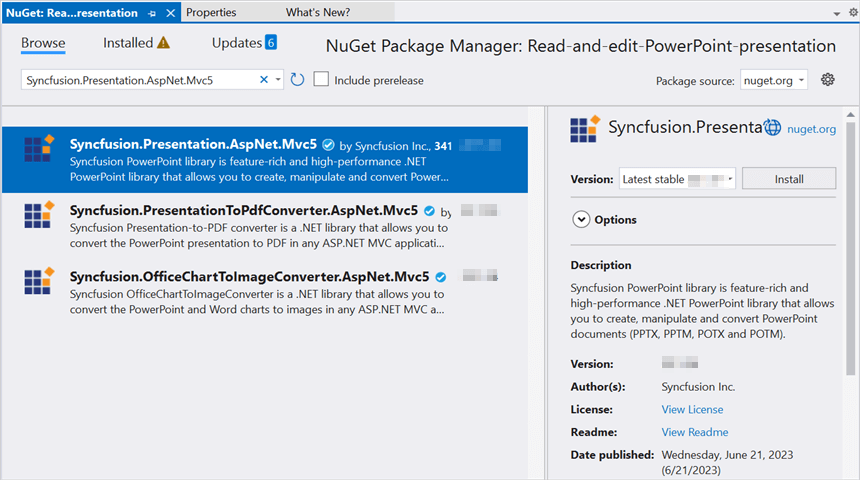
Step 3: Install the Syncfusion.Presentation.AspNet.Mvc5 NuGet package as reference to your .NET Standard applications from NuGet.org.
Starting with v16.2.0.x, if you reference Syncfusion® assemblies from trial setup or from the NuGet feed, you also have to add “Syncfusion.Licensing” assembly reference and include a license key in your projects. Please refer to this link to know about registering Syncfusion® license key in your application to use our components.
Step 4: Include the following namespaces in the HomeController.cs file.
using Syncfusion.Presentation;
using System.IO;
using System.Web;
using System.Web.Mvc;
Step 5: A default action method named Index will be present in HomeController.cs. Right-click the Index action method and select Go To View; this opens the associated Index.cshtml view page.
Step 6: Add a new button in the Index.cshtml as shown below.
@{
    Html.BeginForm("OpenAndSavePresentation", "Home", FormMethod.Get);
    {
    <div>
        <br />
        <input type="submit" value="Open and Save Presentation" style="width:150px;height:27px" />
    </div>
    }
    Html.EndForm();
}
Step 7: Add a new action method OpenAndSavePresentation in HomeController.cs and include the following code snippet to open an existing Presentation in ASP.NET MVC. Ensure a sample Template.pptx file exists at ~/App_Start/Template.pptx.
//Open an existing PowerPoint presentation.
IPresentation pptxDoc = Presentation.Open(Server.MapPath("~/App_Start/Template.pptx"));
Step 8: Add the following code snippet to access a shape on a slide and change its text.
//Gets the first slide from the PowerPoint presentation
ISlide slide = pptxDoc.Slides[0];
//Gets the first shape of the slide
IShape shape = slide.Shapes[0] as IShape;
//Change the text of the shape
if (shape.TextBody.Text == "Company History")
    shape.TextBody.Text = "Company Profile";
Step 9: Add the following code example to save the PowerPoint Presentation in ASP.NET MVC.
//Save the PowerPoint Presentation as stream
MemoryStream pptxStream = new MemoryStream();
pptxDoc.Save(pptxStream);
pptxStream.Position = 0;
//Download Powerpoint document in the browser.
return File(pptxStream, "application/powerpoint", "Result.pptx");
//Dispose the stream
pptxStream.Dispose();
You can download a complete working sample from GitHub
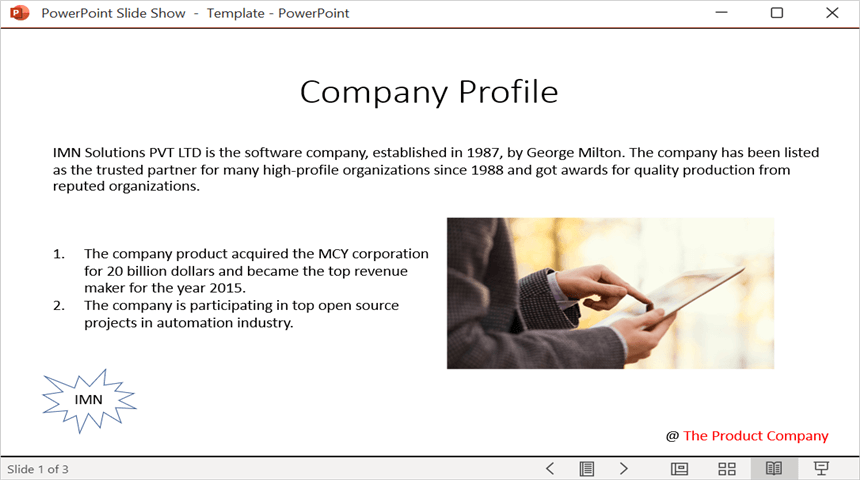
When you run the program, the PowerPoint document is generated as shown below.
Looking for the full .NET PowerPoint Library component overview, features, pricing, and documentation? Visit the .NET PowerPoint Library page.