How to Download Syncfusion PowerPoint Offline Installer
14 Aug 20263 minutes to read
The Presentation controls are included in the Syncfusion® PowerPoint installer. You can either download the licensed installer or try our trial installer depending on your license.
Download the Trial Version
Our 30-day trial can be downloaded in two ways.
- Download Free Trial Setup
- Start Trials if using components through NuGet.org
Download Free Trial Setup
- You can evaluate our 30-day free trial by visiting the Download Free Trial page and select the PowerPoint platform.
-
After completing the required form or logging in with your registered Syncfusion® account, you can download the PowerPoint trial installer from the confirmation page (as shown in the screenshot below).
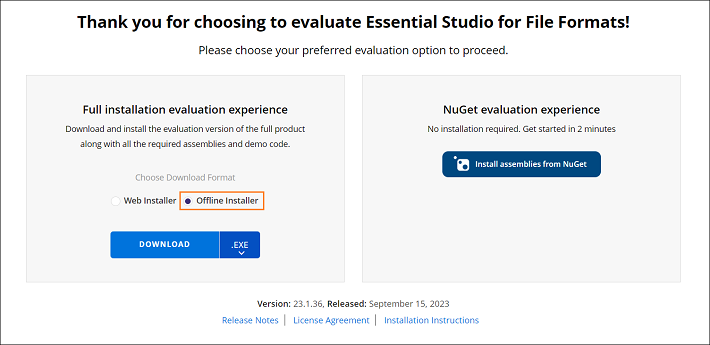
- With a trial license, only the latest version’s trial installer can be downloaded.
- After downloading, the Syncfusion® PowerPoint trial installer can be unlocked using either the trial unlock key or the Syncfusion® registered login credential. More information on generating an unlock key can be found in this article.
-
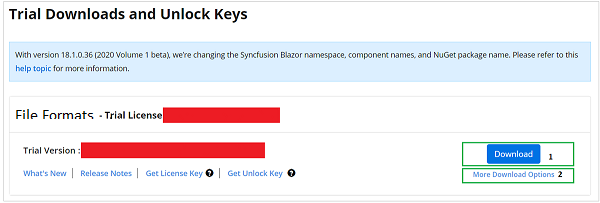
Before the trial expires, you can download the trial installer at any time from your registered account’s Trials & Downloads page (as shown in the screenshot below).
-
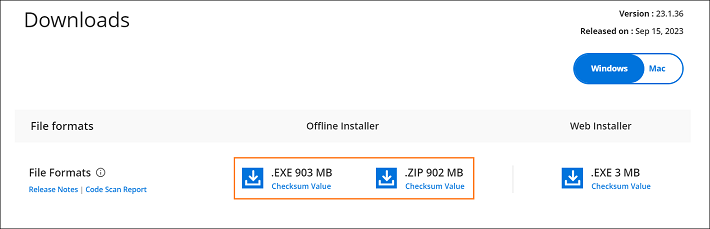
Click the More Download Options (element 2 in the above screenshot) button to get the Essential Studio® PowerPoint Offline trial installer, which is available in EXE and ZIP formats.
Start Trials if using components through NuGet.org
You should initiate an evaluation if you have already obtained our components through NuGet.org
-
You can start your 30-day free trial for PowerPoint from the Start Trial page from your account.
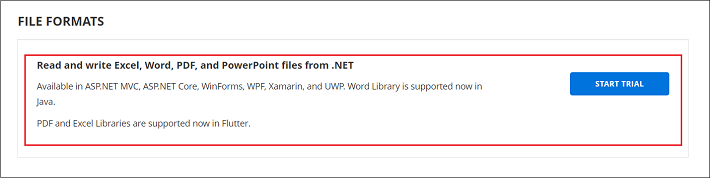
- To access this page, you must sign up / log in with your Syncfusion® account.
-
Begin your trial by selecting the PowerPoint product.
If you’ve already used the trial products and they haven’t expired, you won’t be able to start the trial for the same product again.
-
After you’ve started the trial, go to the Trials & Downloads page to get the latest version trial installer. You can generate the unlock key and license key here at any time before the trial period expires (as shown in the screenshot below). Use the trial unlock key to unlock the trial installer and the license key to register the product in your application code.
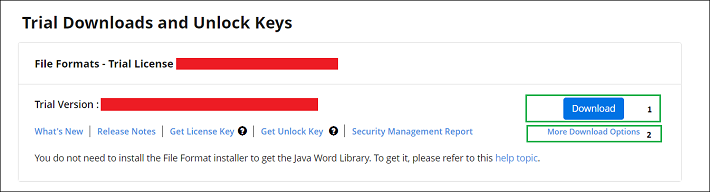
- You can find your current active trial products on the Trials & Downloads page.
Download the License Version
- Syncfusion® licensed products will be available in the License & Downloads page under your registered Syncfusion® account.
- You can view all licenses (active and expired) associated with your account.
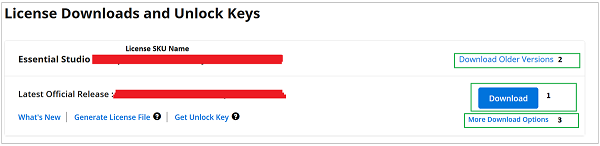
- Click the Download (element 1 in the screenshot below) button to download the installer for the selected product.
- The most recent version of the installer will be downloaded from this page.
- To download older version installers, go to Downloads Older Versions (element 2 in the screenshot below).
-
You can download other platform\add-on installers by going to More Downloads Options (element 3 in the screenshot below).
-
For Windows OS, EXE and ZIP formats are available for download. Both are offline installers.
You can also refer to the Offline installer link for step-by-step installation guidelines.
Next Steps
After downloading the installer, proceed with the following:
- Install the offline installer: How to install the Syncfusion® PowerPoint offline installer
- Generate and apply the license key: How to generate the license key
- Troubleshoot download or activation issues: Syncfusion® Support