Open and save Presentation in Console application
3 Aug 20265 minutes to read
Syncfusion® PowerPoint is a .NET PowerPoint library used to create, read, and edit PowerPoint presentations programmatically without Microsoft PowerPoint or interop dependencies. Using this library, you can open and save a Presentation in a Console application.
Open and save Presentation in .NET Core / .NET (Latest)
The following steps illustrate how to open and save a PowerPoint presentation in a .NET Core (or .NET 6.0+/Latest) console application.
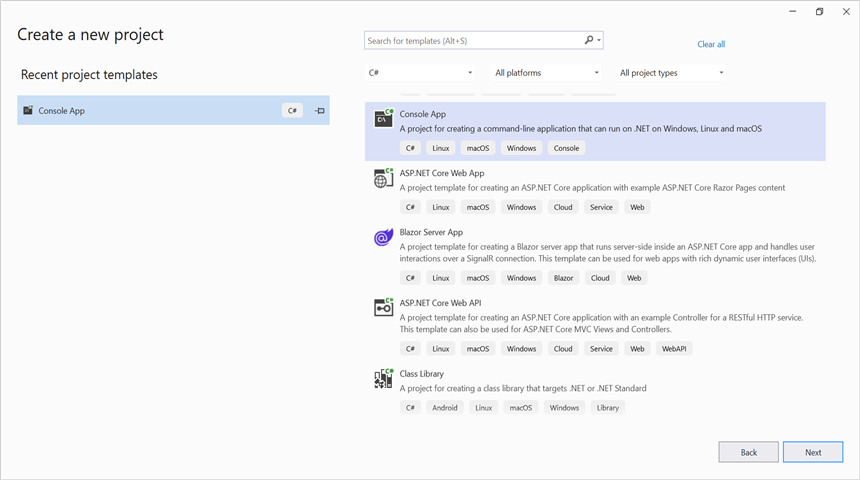
Step 1: Create a new .NET Core console application project. Select a supported target framework .NET 8.0, or later.
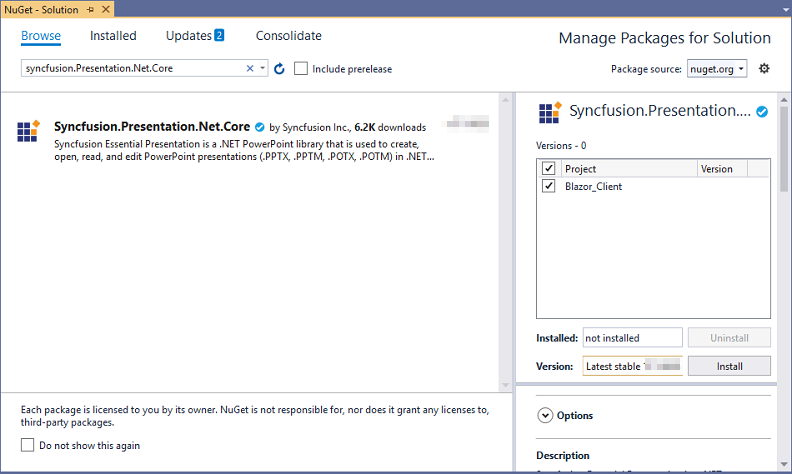
Step 2: Install the Syncfusion.Presentation.Net.Core NuGet package as a reference to your project from NuGet.org.
Starting with v16.2.0.x, if you reference Syncfusion® assemblies from the trial setup or from the NuGet feed, you also have to add the “Syncfusion.Licensing” assembly reference and include a license key in your project. Please refer to this link to learn about registering the Syncfusion® license key in your application to use our components.
Step 3: Include the following namespaces in Program.cs file.
using Syncfusion.Presentation;Step 4: Add the following code snippet in Program.cs to open an existing presentation in a .NET Core console application.
//Open an existing PowerPoint presentation.
using (IPresentation pptxDoc = Presentation.Open("Sample.pptx"))
{
    //Get the first slide from the PowerPoint presentation.
    ISlide slide = pptxDoc.Slides[0];
    //Get the first shape of the slide.
    IShape shape = slide.Shapes[0] as IShape;
    //Change the text of the shape.
    if (shape.TextBody.Text == "Company History")
    {
        shape.TextBody.Text = "Company Profile";
    }

    //Save the PowerPoint presentation to the specified path.
    pptxDoc.Save("Output.pptx");
}
The
Sample.pptxfile used in this example is included in the GitHub sample linked below. Adjust the text check (“Company History”) to match the content in your own presentation.
You can download a complete working sample from GitHub.
Step 7: Build and run the project. In Visual Studio, press F5 (with debugger) or Ctrl + F5 (without debugger). From the command line, run dotnet run in the project folder.
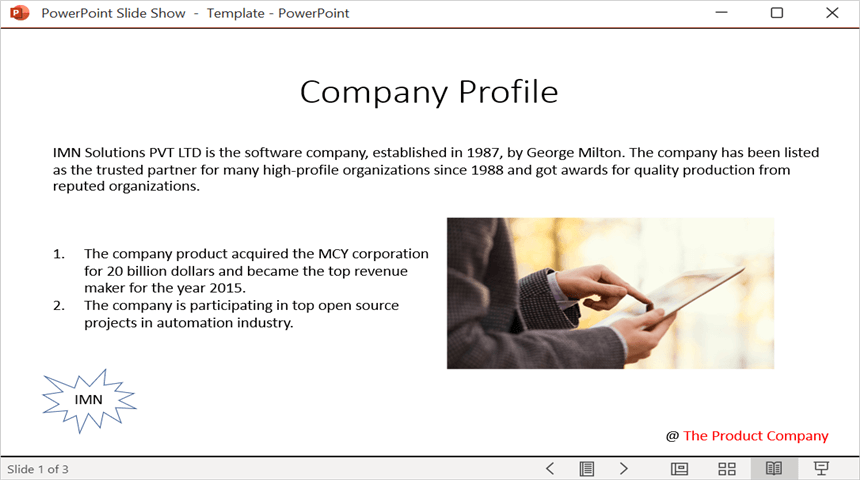
By executing the program, you will get the PowerPoint as follows.
Open and save PowerPoint Presentation in .NET Framework
The following steps illustrate how to open and save a PowerPoint presentation in a .NET Framework console application.
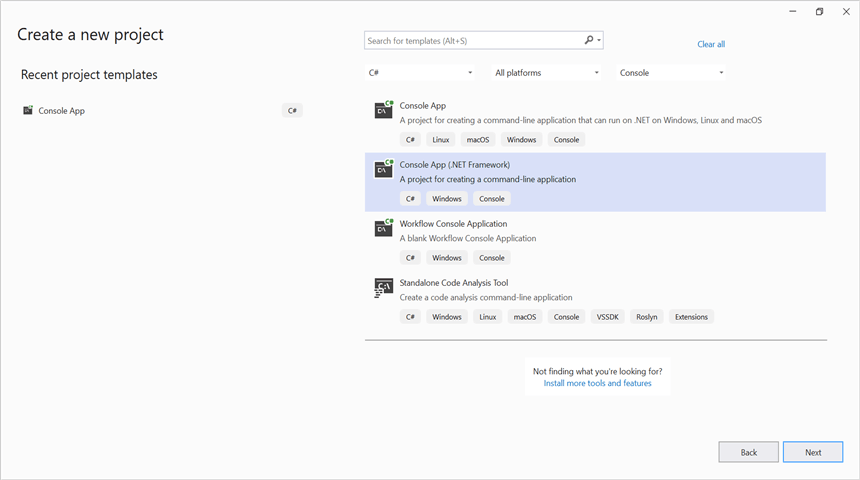
Step 1: Create a new .NET Framework console application project targeting .NET Framework 4.6.1 or later.
Step 2: Install the Syncfusion.Presentation.WinForms NuGet package as a reference to your .NET Framework console application from NuGet.org.
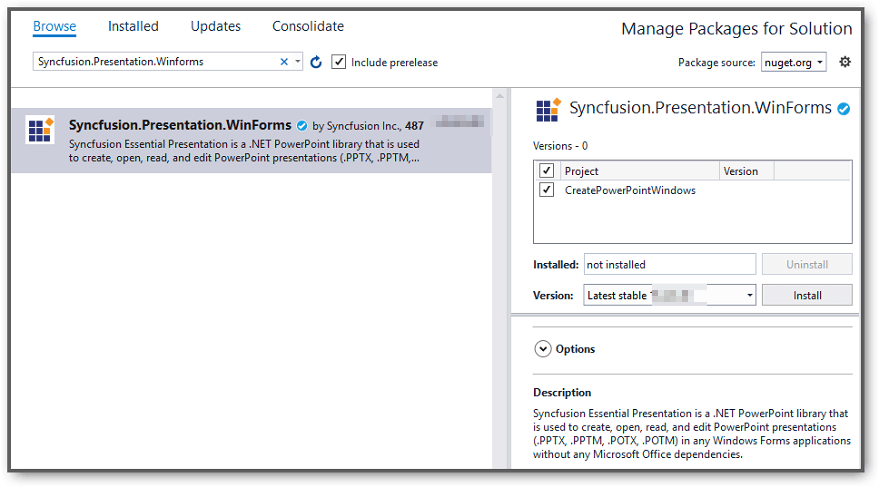
- The Syncfusion.Presentation.WinForms is a dependency for Syncfusion® Windows Forms GUI controls and is named with the suffix “WinForms”. It contains platform-independent .NET Framework assemblies (compatible with versions 4.0, 4.5, 4.5.1, 4.6, and 4.6.1) for the PowerPoint library and does not include any Windows Forms-related references or code. Therefore, we recommend using this package for .NET Framework console applications.
- Starting with v16.2.0.x, if you reference Syncfusion® assemblies from the trial setup or from the NuGet feed, you also have to add the “Syncfusion.Licensing” assembly reference and include a license key in your project. Please refer to this link to learn about registering the Syncfusion® license key in your application to use our components.
Step 3: Include the following namespaces in Program.cs file.
using Syncfusion.Presentation;Step 4: Add the following code snippet in Program.cs to open an existing presentation in a .NET Framework console application. Place Template.pptx in the project output directory (typically bin\Debug) or provide a full path.
//Load or open a PowerPoint presentation.
using (IPresentation pptxDoc = Presentation.Open("Template.pptx"))
{
    //Get the first slide from the PowerPoint presentation.
    ISlide slide = pptxDoc.Slides[0];
    //Get the first shape of the slide.
    IShape shape = slide.Shapes[0] as IShape;
    //Change the text of the shape.
    if (shape.TextBody.Text == "Company History")
    {
        shape.TextBody.Text = "Company Profile";
    }

    //Save the PowerPoint presentation to the specified path.
    pptxDoc.Save("Result.pptx");
}
The
Template.pptxfile used in this example is included in the GitHub sample linked below. Adjust the text check (“Company History”) to match the content in your own presentation.
You can download a complete working sample from GitHub.
Step 5: Build and run the project. In Visual Studio, press F5 (with debugger) or Ctrl + F5 (without debugger). The output Result.pptx will be generated in the project output directory.
By executing the program, you will get the PowerPoint as follows.