Open and save Presentation in Azure Functions v4
3 Aug 20269 minutes to read
Syncfusion® PowerPoint is a .NET Core PowerPoint library used to create, read, edit, and convert PowerPoint documents programmatically without Microsoft PowerPoint or interop dependencies. Using this library, you can open and save a PowerPoint Presentation in Azure Functions v4.
Prerequisites: An active Azure subscription and Visual Studio 2022 (or later) with the Azure development workload installed. This article targets the Azure Functions v4 runtime with the .NET 8.0 (Long Term Support) isolated worker model.
Steps to open and save Presentation in Azure Functions v4
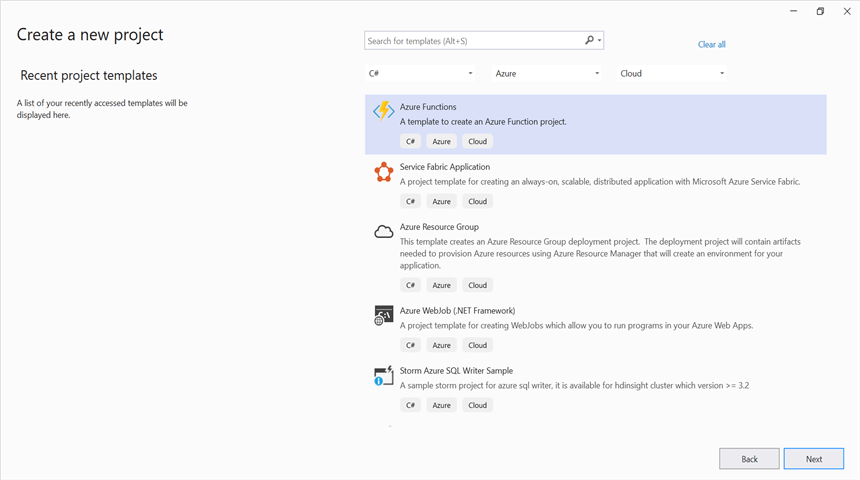
Step 1: Create a new Azure Functions project. Select the Azure Functions template and choose the HTTP trigger function type.
Step 2: Configure the project name and select the location.

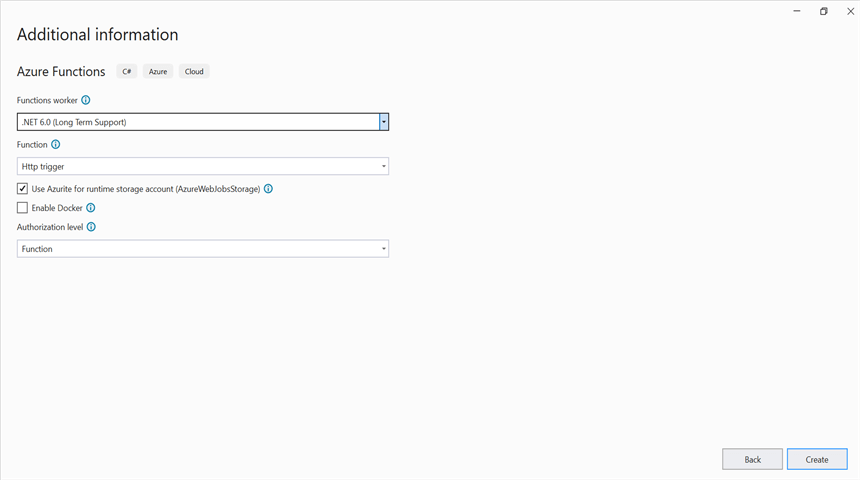
Step 3: Select the function worker as .NET 8.0 (Long Term Support).
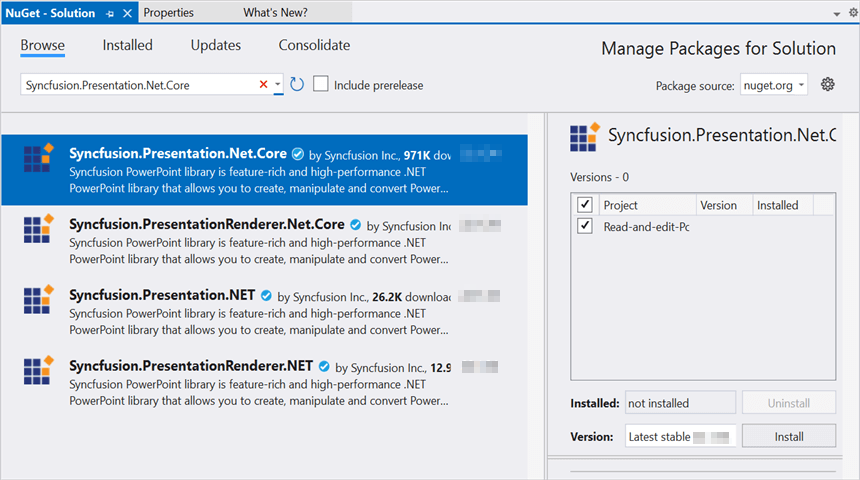
Step 4: Install the Syncfusion.Presentation.Net.Core NuGet package as a reference to your project from NuGet.org.
Starting with v16.2.0.x, if you reference Syncfusion® assemblies from the trial setup or from the NuGet feed, you also have to add the Syncfusion.Licensing assembly reference and include a license key in your project. Please refer to this link to know about registering the Syncfusion® license key in your application to use our components.
Step 5: Include the following namespaces in the Function1.cs file.
using System.IO;
using System.Net;
using System.Net.Http;
using System.Net.Http.Headers;
using System.Threading.Tasks;
using Microsoft.Azure.WebJobs;
using Microsoft.Azure.WebJobs.Extensions.Http;
using Microsoft.AspNetCore.Http;
using Syncfusion.Presentation;
Step 6: Add the following complete Run method to the Function1 class to open the existing PowerPoint Presentation, modify a shape on the first slide, and return the modified Presentation in the HTTP response.
public static async Task<HttpResponseData> Run(
    [HttpTrigger(AuthorizationLevel.Function, "post", Route = null)] HttpRequest req,
    ILogger log)
{
    //Register the Syncfusion license key (only required once per app domain).
    Syncfusion.Licensing.SyncfusionLicenseProvider.RegisterLicense("YOUR_LICENSE_KEY");

    //Get the input PowerPoint document as a stream from the request.
    Stream stream = req.Body;

    //Open the existing PowerPoint Presentation.
    using (IPresentation pptxDoc = Presentation.Open(stream))
    {
        //Access the first slide and modify a shape.
        ISlide slide = pptxDoc.Slides[0];
        IShape shape = slide.Shapes[0] as IShape;
        if (shape != null && shape.TextBody != null && shape.TextBody.Text == "Company History")
        {
            shape.TextBody.Text = "Company Profile";
        }

        //Save the modified PowerPoint Presentation to a memory stream.
        using (MemoryStream memoryStream = new MemoryStream())
        {
            pptxDoc.Save(memoryStream);
            memoryStream.Position = 0;

            //Build the HTTP response with the modified Presentation as an attachment.
            HttpResponseData response = req.CreateResponse(HttpStatusCode.OK);
            response.Headers.Add("Content-Disposition", new[] { "attachment; filename=Sample.pptx" });
            response.Headers.Add("Content-Type", new[] { "application/vnd.openxmlformats-officedocument.presentationml.presentation" });
            response.Body = memoryStream;
            return response;
        }
    }
}
Step 7: Right-click the project and select Publish. Then, create a new profile in the Publish window.

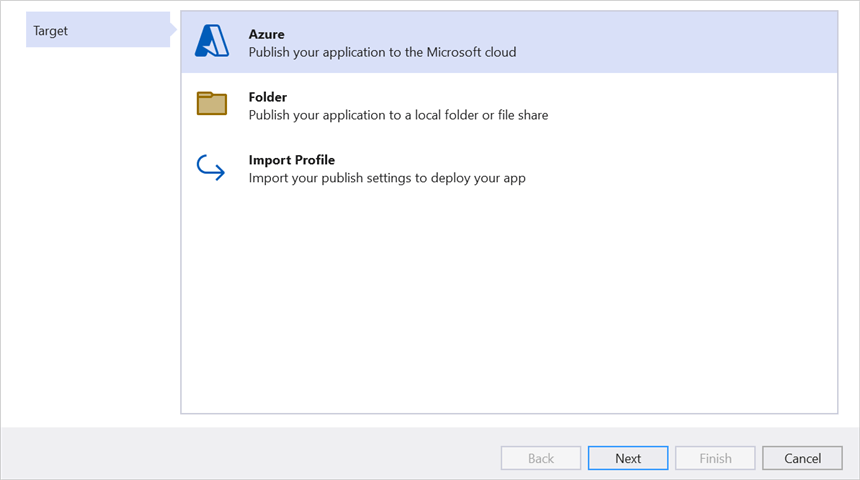
Step 8: Select the target as Azure and click the Next button.
Step 9: Click the Create new button.
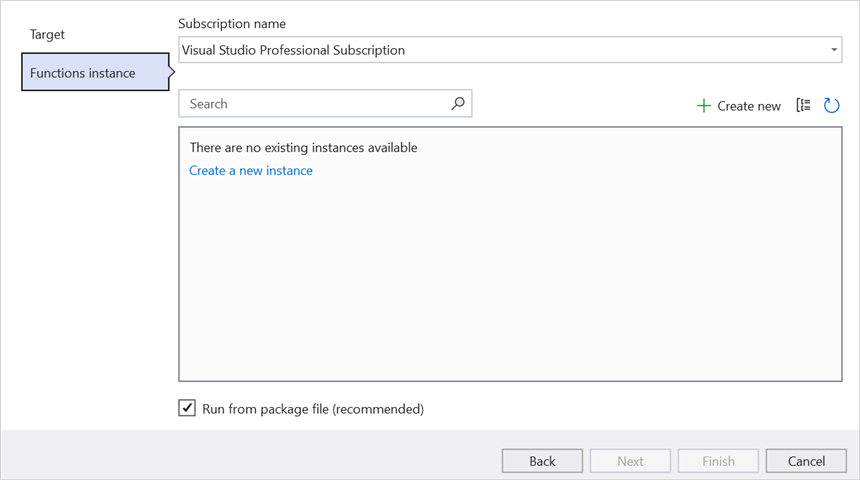
Step 10: Click the Create button.

Step 11: After the Function App is created, click the Finish button.

Step 12: Click the Publish button.
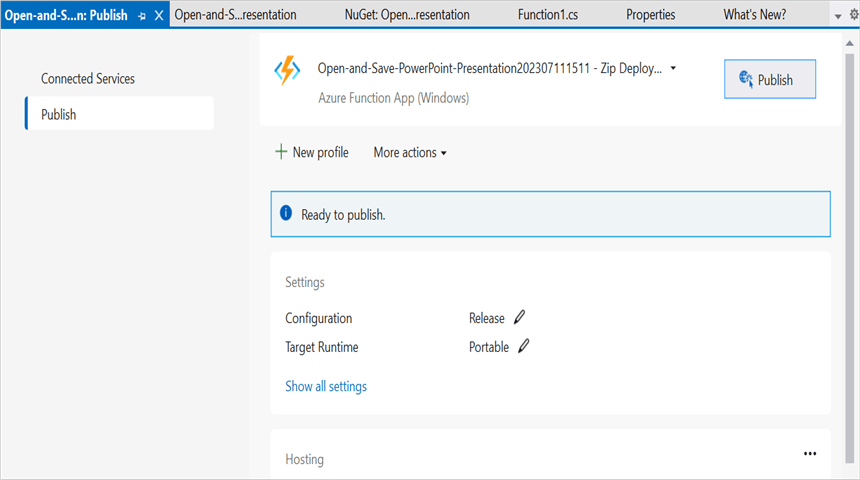
Step 13: Publishing has succeeded.

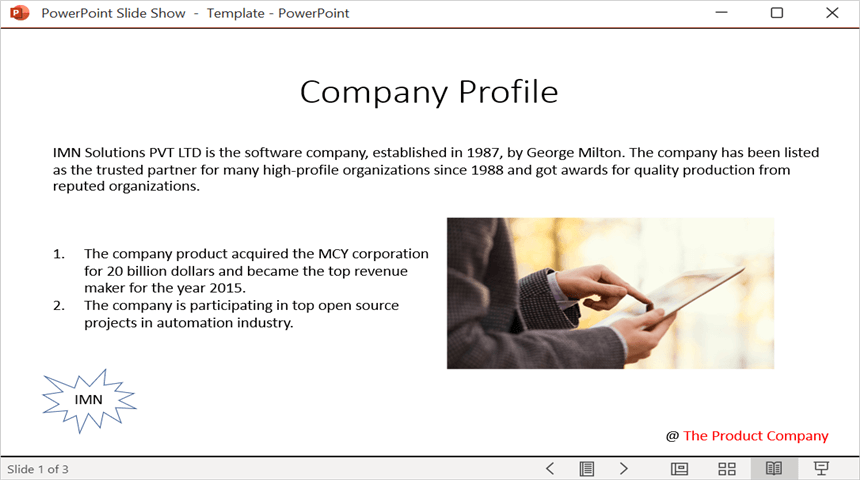
Step 14: Go to the Azure portal and select Function App. After the function is running, click Get Function URL and copy it. Then, paste the URL into the client sample in the next section (which will request the Azure Function to open and save a PowerPoint Presentation using the template PowerPoint document). The output PowerPoint Presentation is shown below.
Steps to post the request to Azure Functions
This console application posts a sample Template.pptx (any existing PowerPoint Presentation) to the Azure Function and saves the modified Presentation returned by the function as Sample.pptx.
Step 1: Create a .NET 8.0 console application to request the Azure Functions API. Add a folder named Data to the project and place a sample PowerPoint file named Template.pptx inside it.
Step 2: Add the following code snippet into the Main method to post the request to Azure Functions with the template PowerPoint document and save the returned PowerPoint Presentation to disk.
try
{
    //Read the template PowerPoint file.
    using (FileStream fs = new FileStream(@"../../Data/Template.pptx", FileMode.Open, FileAccess.Read, FileShare.Read))
    using (MemoryStream inputStream = new MemoryStream())
    {
        fs.CopyTo(inputStream);
        inputStream.Position = 0;

        Console.WriteLine("Please enter your Azure Functions URL:");
        string functionURL = Console.ReadLine();

        //Create an HttpClient to post the request.
        using (HttpClient client = new HttpClient())
        {
            //Set the content type and convert the PowerPoint stream to a byte array.
            byte[] byteArray = inputStream.ToArray();
            using (HttpContent content = new ByteArrayContent(byteArray))
            {
                content.Headers.ContentType = new MediaTypeHeaderValue("application/vnd.openxmlformats-officedocument.presentationml.presentation");

                //Post the request to the Azure Functions URL and get the response.
                using (HttpResponseMessage res = await client.PostAsync(functionURL, content))
                {
                    //Ensure the response is successful.
                    res.EnsureSuccessStatusCode();

                    //Save the returned PowerPoint file stream to disk.
                    using (Stream responseStream = await res.Content.ReadAsStreamAsync())
                    using (FileStream fileStream = File.Create("Sample.pptx"))
                    {
                        responseStream.CopyTo(fileStream);
                    }
                }
            }
        }
    }
}
catch (Exception ex)
{
    Console.WriteLine("Error posting request to Azure Functions: " + ex.Message);
    throw;
}
From GitHub, you can download the console application (.NET 8.0 client that posts the template PowerPoint to the Azure Function) and the Azure Functions v4 project (.NET 8.0 HTTP trigger that opens, edits, and returns the PowerPoint Presentation).
Looking for the full .NET PowerPoint Library component overview, features, pricing, and documentation? Visit the .NET PowerPoint Library page.