Markdown to PowerPoint Conversion in .NET PowerPoint
18 Aug 202617 minutes to read
Markdown is a lightweight markup language that adds formatting elements to plain text documents. The .NET PowerPoint Library supports the conversion of Markdown to PowerPoint Presentation document (.PPTX, .PPTM, .POTX, .POTM) and vice versa, which mostly follows the CommonMark specification and GitHub-flavored syntax.
Assemblies and NuGet packages required
Refer to the following links for assemblies and NuGet packages required based on platforms to convert a Markdown file to a PowerPoint Presentation document using the .NET PowerPoint Library.
Convert Markdown to PowerPoint
Convert an existing markdown file to a PowerPoint Presentation document using the .NET PowerPoint Library.
The following code example shows how to convert Markdown to PowerPoint Presentation document.
Refer to the appropriate tabs in the code snippets section: C# [Cross-platform] for ASP.NET Core, Blazor, Xamarin, UWP, .NET MAUI, and WinUI; C# [Windows-specific] for WinForms and WPF; VB.NET [Windows-specific] for VB.NET applications.
// Open an existing Markdown file.
 using (IPresentation presentation = Presentation.Open("Input.md"))
 {
     //Save as a PowerPoint document.
     presentation.Save("MarkdownToPPTX.pptx");
 }
//Open an existing Markdown file.
using (IPresentation presentation = Presentation.Open("Input.md"))
{
//Save as a Presentation document.
presentation.Save("MarkdownToPPTX.pptx");
}'Open an existing Markdown file.
Using presentation As IPresentation = Presentation.Open("Input.md")
' Save as a Presentation document
presentation.Save("MarkdownToPPTX.pptx")
End UsingYou can download a complete working sample from GitHub.
- Hook the event handler before opening a PowerPoint presentation as per the below code example.
- In Markdown to PowerPoint Presentation conversion, invalid images are replaced with a red “X” image instead of the original image.
Load Options
When opening an existing Markdown document, the .NET PowerPoint Library provides custom import settings through the LoadOptions class. This allows you to customize how the Markdown content is parsed and imported into a PowerPoint Presentation.
Customize image data
The .NET PowerPoint Library provides an ImageNodeVisited event, which customizes image data while importing a Markdown file. Implement the logic to customize the image data by using this ImageNodeVisited event.
The following code example shows how to load image data based on the image source path when importing the Markdown files.
// Create load options.
LoadOptions loadOptions = new LoadOptions();
// Specify the format type as Markdown.
loadOptions.FormatType = FormatType.Markdown;
// Initialize Markdown import settings for the LoadOptions instance.
loadOptions.MdImportSettings = new Syncfusion.Office.Markdown.MdImportSettings();
// Hook the event to customize the image while importing Markdown document.
loadOptions.MdImportSettings.ImageNodeVisited += MdImportSettings_ImageNodeVisited;
// Open the Markdown file with load options.
using (IPresentation presentation = Presentation.Open(Path.GetFullPath("Data/Input.md"), loadOptions))
{
    // Save as a PowerPoint document.
    presentation.Save(Path.GetFullPath("Output/Output.pptx"));
}
// Create load options.
LoadOptions loadOptions = new LoadOptions();
// Specify the format type as Markdown.
loadOptions.FormatType = FormatType.Markdown;
// Initialize Markdown import settings for the LoadOptions instance.
loadOptions.MdImportSettings = new Syncfusion.Office.Markdown.MdImportSettings();
// Hook the event to customize the image while importing Markdown document.
loadOptions.MdImportSettings.ImageNodeVisited += MdImportSettings_ImageNodeVisited;
// Open the Markdown file with load options.
using (IPresentation presentation = Presentation.Open("Input.md", loadOptions))
{
// Save as a PowerPoint document.
presentation.Save("MarkdownToPPTX.pptx");
}' Create load options.
Dim loadOptions As New LoadOptions()
' Specify the format type as Markdown.
loadOptions.FormatType = FormatType.Markdown
' Initialize Markdown import settings for the LoadOptions instance.
loadOptions.MdImportSettings = New Syncfusion.Office.Markdown.MdImportSettings()
' Hook the event to customize the image while importing Markdown document.
AddHandler loadOptions.MdImportSettings.ImageNodeVisited, AddressOf MdImportSettings_ImageNodeVisited
'Open the Markdown file with load options.
Using presentation As IPresentation = Presentation.Open("Input.md", loadOptions)
'Save as a PowerPoint document.
presentation.Save("MarkdownToPPTX.pptx")
End UsingThe following code examples show the event handler to customize the image based on the source path.
private static void MdImportSettings_ImageNodeVisited(object sender, Syncfusion.Office.Markdown.MdImageNodeVisitedEventArgs args)
{
    //Set the image stream based on the image name from the input Markdown.
    if (args.Uri == "Image_1.png")
        args.ImageStream = new FileStream("Image_1.png", FileMode.Open);
    else if (args.Uri == "Image_2.png")
        args.ImageStream = new FileStream("Image_2.png", FileMode.Open);
    //Retrieve the image from the website and use it.
    else if (args.Uri.StartsWith("https://"))
    {
        WebClient client = new WebClient();
        //Download the image as a stream.
        byte[] image = client.DownloadData(args.Uri);
        Stream stream = new MemoryStream(image);
        //Set the retrieved image from the input Markdown.
        args.ImageStream = stream;
    }
}
private static void MdImportSettings_ImageNodeVisited(object sender, Syncfusion.Office.Markdown.MdImageNodeVisitedEventArgs args)
{
//Set the image stream based on the image name from the input Markdown.
if (args.Uri == "Image_1.png")
args.ImageStream = new FileStream("Image_1.png", FileMode.Open);
else if (args.Uri == "Image_2.png")
args.ImageStream = new FileStream("Image_2.png", FileMode.Open);
//Retrieve the image from the website and use it.
else if (args.Uri.StartsWith("https://"))
{
WebClient client = new WebClient();
//Download the image as a stream.
byte[] image = client.DownloadData(args.Uri);
Stream stream = new MemoryStream(image);
//Set the retrieved image from the input Markdown.
args.ImageStream = stream;
}
}Private Shared Sub MdImportSettings_ImageNodeVisited(ByVal sender As Object, ByVal args As Syncfusion.Office.Markdown.MdImageNodeVisitedEventArgs)
'Set the image stream based on the image name from the input Markdown.
If args.Uri Is "Image_1.png" Then
args.ImageStream = New FileStream("Image_1.png", FileMode.Open)
ElseIf args.Uri Is "Image_2.png" Then
args.ImageStream = New FileStream("Image_2.png", FileMode.Open)
'Retrieve the image from the website and use it.
ElseIf args.Uri.StartsWith("https://") Then
Dim client As WebClient = New WebClient()
'Download the image as a stream.
Dim image As Byte() = client.DownloadData(args.Uri)
Dim stream As Stream = New MemoryStream(image)
'Set the retrieved image from the input Markdown.
args.ImageStream = stream
End If
End SubYou can download a complete working sample from GitHub.
Hook the event handler before opening a PowerPoint Presentation as per the above code example.
Encoding
The .NET PowerPoint Library provides an Encoding property to specify the character encoding to use when opening a Markdown file. This property is useful when you need to open Markdown files that are saved with specific character encodings such as UTF-8, UTF-16, ASCII, or other encodings.
The following code example shows how to open a Markdown file with a specific encoding.
// Create load options.
LoadOptions loadOptions = new LoadOptions();
// Specify the format type as Markdown.
loadOptions.FormatType = FormatType.Markdown;
// Initialize Markdown import settings for the LoadOptions instance.
loadOptions.MdImportSettings = new Syncfusion.Office.Markdown.MdImportSettings();
//Set the encoding for the Markdown file.
loadOptions.MdImportSettings.Encoding = Encoding.UTF8;
// Open the Markdown file with load options.
using (IPresentation presentation = Presentation.Open("Input.md", loadOptions))
{
    //Save as a PowerPoint document.
    presentation.Save("MarkdownToPPTX.pptx");
}
// Create load options.
LoadOptions loadOptions = new LoadOptions();
// Specify the format type as Markdown.
loadOptions.FormatType = FormatType.Markdown;
// Initialize Markdown import settings for the LoadOptions instance.
loadOptions.MdImportSettings = new Syncfusion.Office.Markdown.MdImportSettings();
// Set the encoding for the Markdown file.
loadOptions.MdImportSettings.Encoding = Encoding.UTF8;
// Open the Markdown file with load options.
using (IPresentation presentation = Presentation.Open("Input.md", loadOptions))
{
//Save as a PowerPoint document.
presentation.Save("MarkdownToPPTX.pptx");
}'Create load options.
Dim loadOptions As New LoadOptions()
'Specify the format type as Markdown.
loadOptions.FormatType = FormatType.Markdown
' Initialize Markdown import settings for the LoadOptions instance.
loadOptions.MdImportSettings = New Syncfusion.Office.Markdown.MdImportSettings()
'Set the encoding for the Markdown file.
loadOptions.MdImportSettings.Encoding = Encoding.UTF8
' Open the Markdown file with load options.
Using presentation As IPresentation = Presentation.Open("Input.md", loadOptions)
'Save as a PowerPoint document.
presentation.Save("MarkdownToPPTX.pptx")
End UsingYou can download a complete working sample from GitHub.
Provide the encoding values before opening a PowerPoint Presentation as per the above code example.
Use Thematic Break As ContentBreak
The .NET PowerPoint Library provides a UseThematicBreakAsContentBreak property to control how thematic breaks (horizontal lines) in Markdown are handled during conversion. When set to true, each thematic break is treated as a content boundary that splits the Markdown content into separate slides in the PowerPoint Presentation.
The following code example shows how to use thematic breaks to split content into multiple slides.
// Create load options.
LoadOptions loadOptions = new LoadOptions();
// Specify the format type as Markdown.
loadOptions.FormatType = FormatType.Markdown;
// Initialize Markdown import settings for the LoadOptions instance.
loadOptions.MdImportSettings = new Syncfusion.Office.Markdown.MdImportSettings();
// Set UseThematicBreakAsContentBreak to split slides based on thematic breaks.
loadOptions.MdImportSettings.UseThematicBreakAsContentBreak = true;
// Open the Markdown file with load options.
using (IPresentation presentation = Presentation.Open(Path.GetFullPath("Data/Input.md"), loadOptions))
{
    // Save as a PowerPoint document.
    presentation.Save(Path.GetFullPath("Output/MarkdownToPPTX.pptx"));
}
// Create load options.
LoadOptions loadOptions = new LoadOptions();
// Specify the format type as Markdown.
loadOptions.FormatType = FormatType.Markdown;
// Initialize Markdown import settings for the LoadOptions instance.
loadOptions.MdImportSettings = new Syncfusion.Office.Markdown.MdImportSettings();
// Set UseThematicBreakAsContentBreak to split slides based on thematic breaks.
loadOptions.MdImportSettings.UseThematicBreakAsContentBreak = true;
// Open the Markdown file with load options.
using (IPresentation presentation = Presentation.Open("Input.md", loadOptions))
{
// Save as a PowerPoint document.
presentation.Save("MarkdownToPPTX.pptx");
}' Create load options.
Dim loadOptions As New LoadOptions()
'Specify the format type as Markdown.
loadOptions.FormatType = FormatType.Markdown
' Initialize Markdown import settings for the LoadOptions instance.
loadOptions.MdImportSettings = New Syncfusion.Office.Markdown.MdImportSettings()
' Set UseThematicBreakAsContentBreak to split slides based on thematic breaks.
loadOptions.MdImportSettings.UseThematicBreakAsContentBreak = True
' Open the Markdown file with load options.
Using presentation As IPresentation = Presentation.Open("Input.md", loadOptions)
' Save as a PowerPoint document.
presentation.Save("MarkdownToPPTX.pptx")
End UsingYou can download a complete working sample from GitHub.
Supported Markdown Syntax
|
Element |
Syntax |
Description |
|
Bold |
Sample content for **bold text**. |
For bold, add ** to front and back of the text. |
|
Italic |
Sample content for *Italic text*. |
For Italic, add * to front and back of the text. |
|
Bold and Italics |
Sample content for ***bold and Italic text***. |
For bold and Italics, add *** to the front and back of the text. |
|
Strikethrough |
Sample content for ~~strike through text~~. |
For strike through, add ~~ to front and back of the text. |
|
Subscript |
<sub>Subscript text</sub> |
For subscript, add <sub> to the front and </sub> to the back of the text. |
|
Superscript |
<sup>Superscript text</sup> |
For superscript, add <sup> to the front and </sup> to the back of the text. |
|
Heading 1 |
#Heading 1 content |
For heading 1, add # to start of the line. |
|
Heading 2 |
##Heading 2 content |
For heading 2, add ## to start of the line. |
|
Heading 3 |
###Heading 3 content |
For heading 3, add ### to start of the line. |
|
Heading 4 |
####Heading 4 content |
For heading 4, add #### to start of the line. |
|
Heading 5 |
#####Heading 5 content |
For heading 5, add ##### to start of the line. |
|
Heading 6 |
######Heading 6 content |
For heading 6, add ###### to start of the line. |
|
Block quotes |
>Block quotes text |
For block quotes, add>to start of the line. |
|
Code span |
`Code span text` |
For code span, add ` to front and back of the text. |
|
Indented code block |
4 spaces |
For indented code block, add 4 spaces at the beginning of line. |
|
Fenced code block |
``` |
For fenced code block, add ``` in the new line before and after the content. |
|
Ordered List |
1. First |
For ordered list, preceding the text with 1. (number with dot and one space) |
|
Unordered List |
- First |
For unordered list, preceding the text with – (hyphen and space). |
|
Links |
Link text without title text : |
For hyperlink, enclose the link text within the brackets [ ], and then enclose the URL as first parameter and title as second parameter within the parentheses(). |
|
Table |
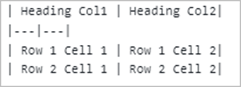 |
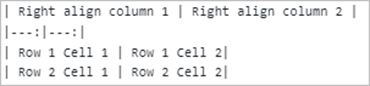
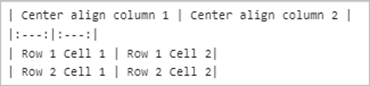
Create a table using the pipes and underscores as given in the syntax to create 2 x 2 table. You can also set column alignments using the syntax below, default it is left aligned. Right alignment: |
|
Horizontal Line |
--- (three hyphen characters) |
For horizontal line, add --- (three hyphens) in a new line. |
|
Image |
![Alternate text] (URL path) |
For image, enclose an alternative text within the brackets [], and then link of the image source within parentheses (). If URL path is base64string, then it will be preserved properly in PowerPoint Presentation document. |
|
Escape Character |
\(any syntax) |
Escape any markdown syntax by adding \ as prefix to the syntax. |