Smart Redaction in .NET MAUI Smart PDF Viewer
16 Sep 20267 minutes to read
The Smart PDF Viewer enables intelligent redaction of sensitive information in PDF documents with AI-assisted capabilities. The Smart Redaction feature detects and enables redaction of personally identifiable information (PII), financial data, and other confidential content.
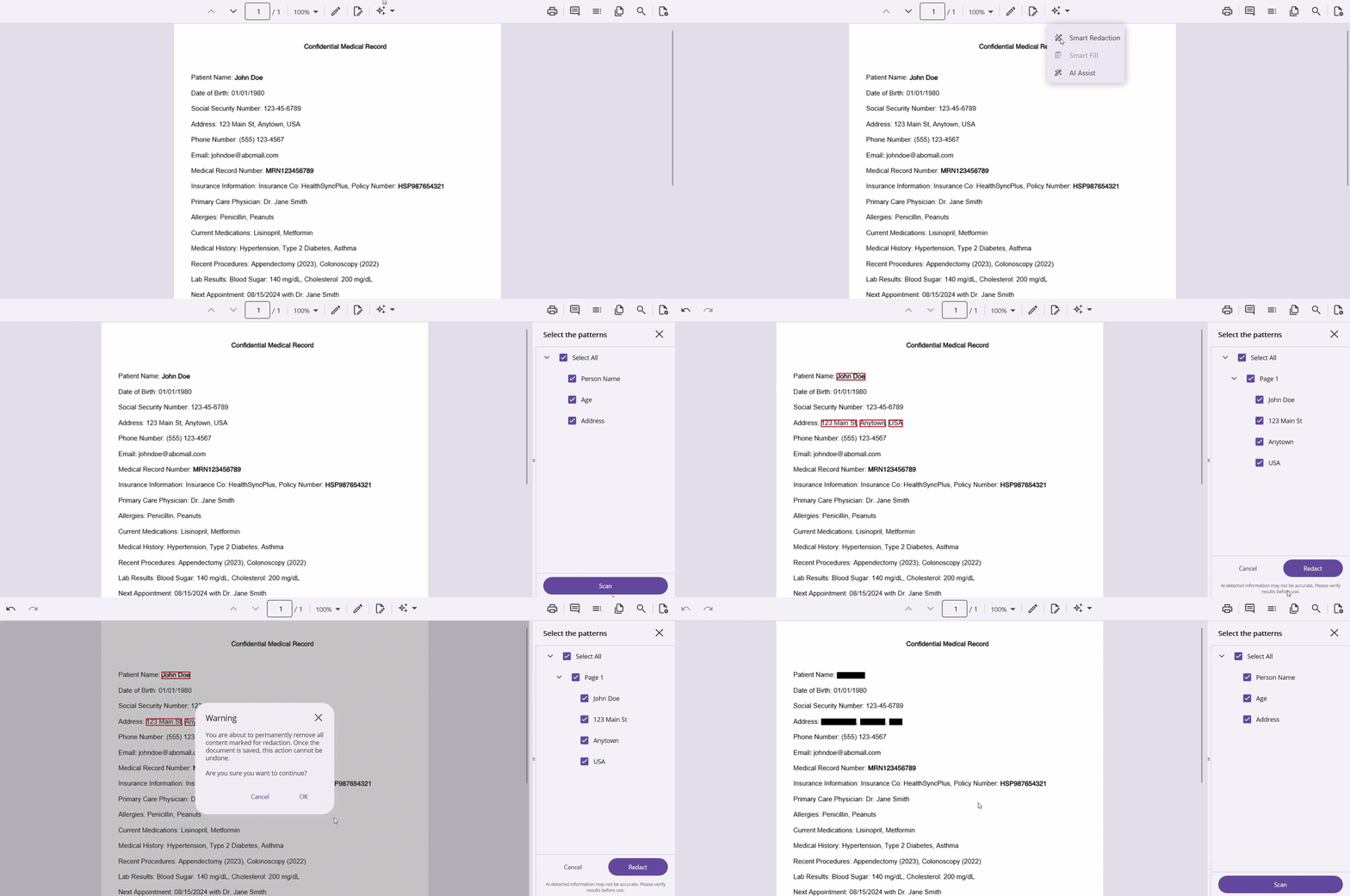
Smart Redaction allows selecting detection patterns (emails, names, phone numbers, and more) and automatically identifies matching content throughout the document. Users can activate the Smart Redaction feature by selecting the Smart Redaction button from the AI Tools menu in the viewer toolbar, choose the patterns to detect, run a Scan, review the detected items in the Redaction panel, and apply redaction selectively.
The AI service must be configured before using the Smart Redaction feature. Refer to Getting Started to learn how to register a chat client in
MauiProgram.cs.
Component usage
Add the following code to the MainPage.xaml file to enable and evaluate Smart Redaction in the Smart PDF Viewer. Ensure the SfSmartPdfViewer control is referenced on the page.
<ContentPage
    . . .
    xmlns:syncfusion="clr-namespace:Syncfusion.Maui.SmartPdfViewer;assembly=Syncfusion.Maui.SmartPdfViewer">

    <syncfusion:SfSmartPdfViewer x:Name="pdfViewer"
                                 DocumentSource="{Binding PdfDocumentStream}"
                                 IsSmartRedactViewVisible="True">
        <syncfusion:SfSmartPdfViewer.SmartRedactSettings>
            <syncfusion:SmartRedactSettings />
        </syncfusion:SfSmartPdfViewer.SmartRedactSettings>
    </syncfusion:SfSmartPdfViewer>
</ContentPage>
using Syncfusion.Maui.SmartPdfViewer;
. . .
SfSmartPdfViewer pdfViewer = new SfSmartPdfViewer
{
IsSmartRedactViewVisible = true,
SmartRedactSettings = new SmartRedactSettings()
};
pdfViewer.SetBinding(SfSmartPdfViewer.DocumentSourceProperty, "PdfDocumentStream");
this.Content = pdfViewer;SfSmartPdfViewer properties
IsSmartRedactViewVisible
The IsSmartRedactViewVisible property (type: bool, default: false) gets or sets a value indicating whether the Smart Redaction panel is visible in the Smart PDF Viewer. When set to true, the Smart Redaction panel is displayed and users can access AI-assisted redaction tools directly from the viewer interface. When set to false, the Smart Redaction panel is hidden from the user interface. The Smart Redaction functionality remains available and can be displayed again by setting this property to true. This property controls only the visibility of the panel and does not affect the Smart Redaction feature availability or configuration.
<syncfusion:SfSmartPdfViewer x:Name="pdfViewer" IsSmartRedactViewVisible="True" />// Toggle the Smart Redaction panel visibility at runtime.
pdfViewer.IsSmartRedactViewVisible = !pdfViewer.IsSmartRedactViewVisible;SmartRedactSettings properties
IsEnabled
The IsEnabled property (type: bool, default: true) gets or sets a value indicating whether Smart Redaction is available in the PDF Viewer. When disabled, users cannot access AI-assisted redaction features — the Smart Redaction entry is hidden from the AI Tools menu, and setting it to false also hides the Smart Redaction panel if it is open. Use this setting to restrict access based on context, role, or compliance requirements.
<syncfusion:SfSmartPdfViewer x:Name="pdfViewer">
    <syncfusion:SfSmartPdfViewer.SmartRedactSettings>
        <syncfusion:SmartRedactSettings IsEnabled="False" />
    </syncfusion:SfSmartPdfViewer.SmartRedactSettings>
</syncfusion:SfSmartPdfViewer>
SfSmartPdfViewer pdfViewer = new SfSmartPdfViewer
{
SmartRedactSettings = new SmartRedactSettings
{
IsEnabled = false
}
};RedactPatterns
The RedactPatterns property (type: string[]) gets or sets a collection of patterns used to identify sensitive information in PDF documents. Custom patterns can be added to detect organization-specific confidential content. Examples include names, phone numbers, email addresses, identification numbers, and financial information. By supplying redaction patterns, you can tailor the redaction process to match specific business, regulatory, or organizational needs.
The default patterns include:
- Person names
- Organization names
- Email addresses
- Phone numbers
- Addresses
- Dates
- Account numbers
- Credit card numbers
using Syncfusion.Maui.SmartPdfViewer;
. . .

SfSmartPdfViewer pdfViewer = new SfSmartPdfViewer
{
    IsSmartRedactViewVisible = true,
    SmartRedactSettings = new SmartRedactSettings
    {
        IsEnabled = true,
        RedactPatterns = new string[]
        {
            "Company Name",
            "Amount",
            "Languages"
        }
    }
};
<syncfusion:SfSmartPdfViewer x:Name="pdfViewer" IsSmartRedactViewVisible="True">
<syncfusion:SfSmartPdfViewer.SmartRedactSettings>
<syncfusion:SmartRedactSettings>
<x:Array Type="{x:Type x:String}">
<x:String>Company Name</x:String>
<x:String>Amount</x:String>
<x:String>Languages</x:String>
</x:Array>
</syncfusion:SmartRedactSettings>
</syncfusion:SfSmartPdfViewer.SmartRedactSettings>
</syncfusion:SfSmartPdfViewer>Since
RedactPatternsis astring[], it is easier to set it from code-behind, as shown in the C# tab, rather than in XAML.
How Smart Redaction works
- Select patterns – Choose the sensitive-information patterns to detect in the document. The detected patterns are listed with checkboxes in the Redaction panel.
- Scan – Run a scan to let the AI identify matching content throughout the document. The detected items are shown in the panel.
- Review – Verify the list of detected items. The AI-detected information may not be fully accurate, so each item should be reviewed before applying redaction.
- Apply redaction – Apply redaction to the selected items. A confirmation dialog appears before applying redaction to confirm that the process is permanent and irreversible.
If no sensitive information is found, a No Data Found message is displayed.
Important redaction behaviors and limitations
Smart Redaction is irreversible. After applying redaction, the original content cannot be recovered. Undo and redo are not supported for redaction, and the underlying text, images, and metadata are permanently removed. Review all detected content before applying redaction.
For details about redaction in the .NET MAUI PDF Viewer, refer to the Redaction documentation.
Security and compliance considerations
Smart Redaction ensures complete removal of sensitive content from the PDF document, and redacted content cannot be recovered through text selection, search, or other methods. Maintain backup copies of original documents when required by policy, and test redaction patterns on sample documents before using them in production environments.
AI detection accuracy and manual review requirements
Smart Redaction uses AI to detect sensitive information, and detection may not be 100% accurate. Verify all detected items before applying permanent redaction, and test custom redaction patterns thoroughly before use.