Localization in WPF Pdf Viewer
14 Aug 20261 minute to read
Localization is the process of configuring the application to a specific language. PdfViewerControl provides support to localize all the static text used for tooltip and context menu contents. Localization can be done by adding a resource file (.resx) in the application.
We use the en-US culture-based resource file as the default in PDF Viewer. This can be downloaded from this GitHub location.
Adding Resource file
- Create a folder named
Resourcesin your application. - Add the default English (“en-US”) Resx (resource) file of
PdfViewerControlin theResourcesfolder named asSyncfusion.PdfViewer.WPF.resx. - Create a Resx (resource) file and name it as
Syncfusion.PdfViewer.WPF.[Culture name].resx. For example,Syncfusion.PdfViewer.WPF.fr.resxfor French culture. - Add the resource key such as
OpenDocumentand its corresponding localized value inSyncfusion.PdfViewer.WPF.fr.resxfile. Refer the below screenshot for the same. - Execute the application in French culture to see the changes.

The following screenshot shows the PdfViewerControl in French language
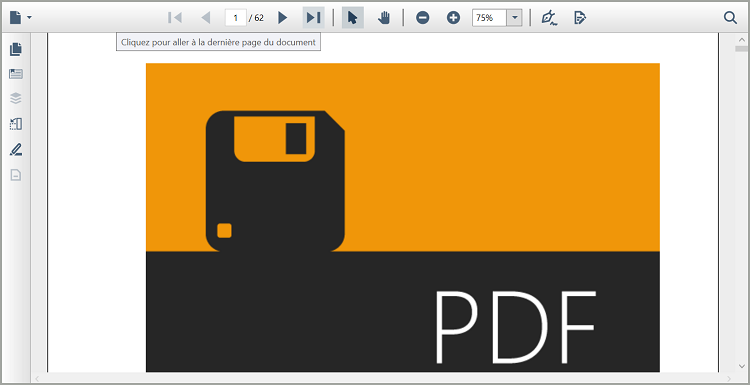
Localize Resource File with Different Assembly or Namespace
In general, PdfViewerControl tries to read the resource file from the executing assembly, and its default namespace can be obtained using the Assembly.GetExecutingAssembly method. When the resource file is located at different assembly or namespace, it can be set to the PdfViewerControl by using LocalizationManager.SetResources method.
using System.Threading;

public MainWindow()
{
    Thread.CurrentThread.CurrentUICulture = new System.Globalization.CultureInfo("fr-FR");

    // Set the Custom assembly and namespace for the localization.
    LocalizationManager.SetResources(typeof(Custom_Class).Assembly, "ClassLibrary");
    InitializeComponent();
}
You can refer to our WPF PDF Viewer feature tour page for its groundbreaking feature representations. You can also explore our WPF PDF Viewer example to know how to render and configure the pdfviewer.