Text Search in React PDF Viewer
14 Aug 20269 minutes to read
The text search feature in the React PDF Viewer locates and highlights matching content within a document. Toggle the feature using the enableTextSearch property (default: true) and inject the TextSearch service, as shown in the snippet below.
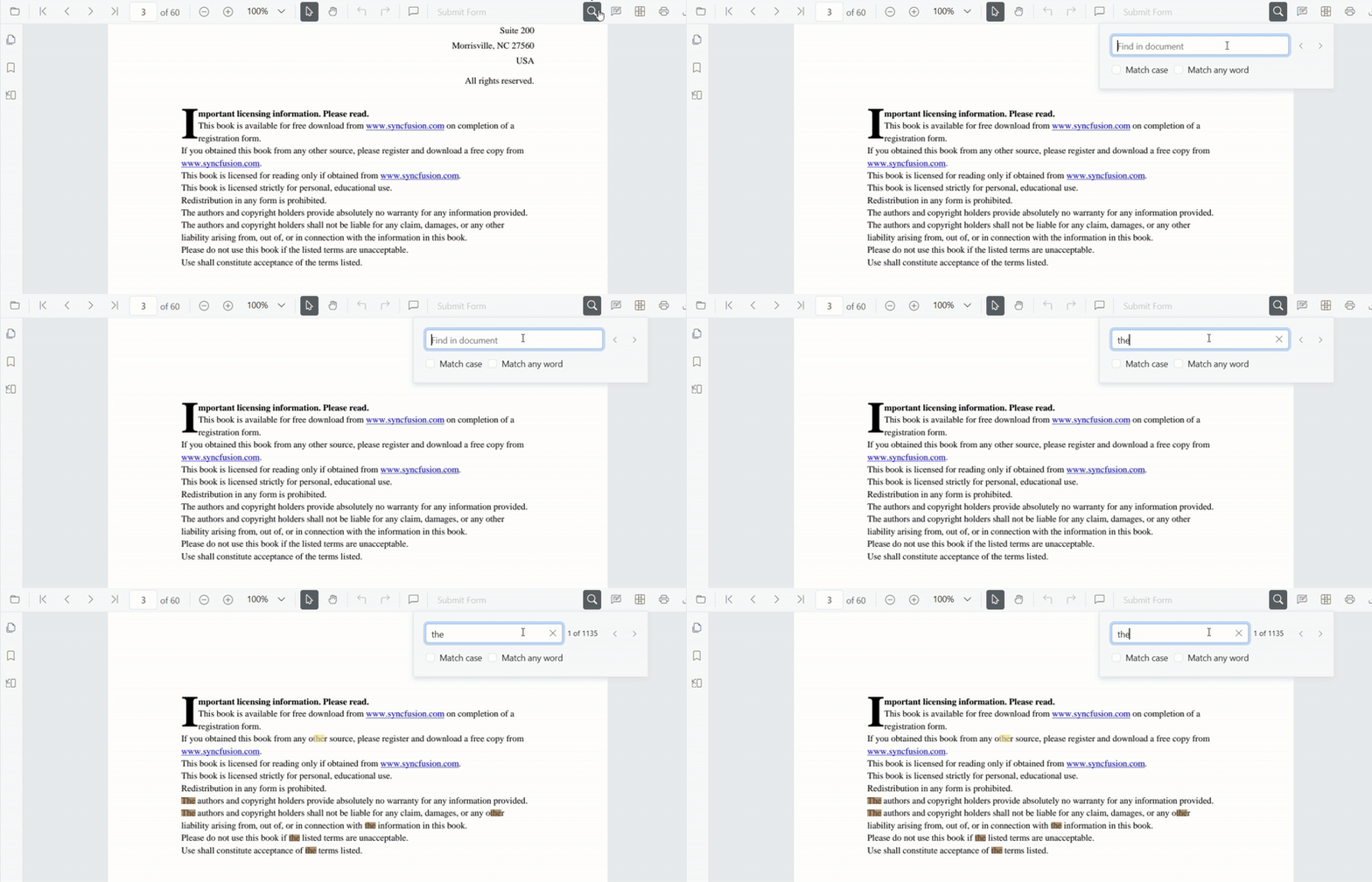
The text search functionality requires importing TextSearch and adding it to PdfViewer.
<Inject services={[..., TextSearch]} />. Otherwise, the search UI and APIs will not be accessible.
Text search features in UI
Real-time search suggestions while typing
Typing in the search box immediately surfaces suggestions that match the entered text. The list refreshes on every keystroke so users can quickly jump to likely results without completing the entire term.
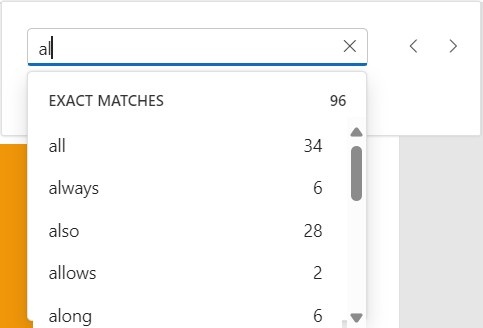
Select search suggestions from the popup
After typing in the search box, the popup lists relevant matches. Selecting an item jumps directly to the corresponding occurrence in the PDF.
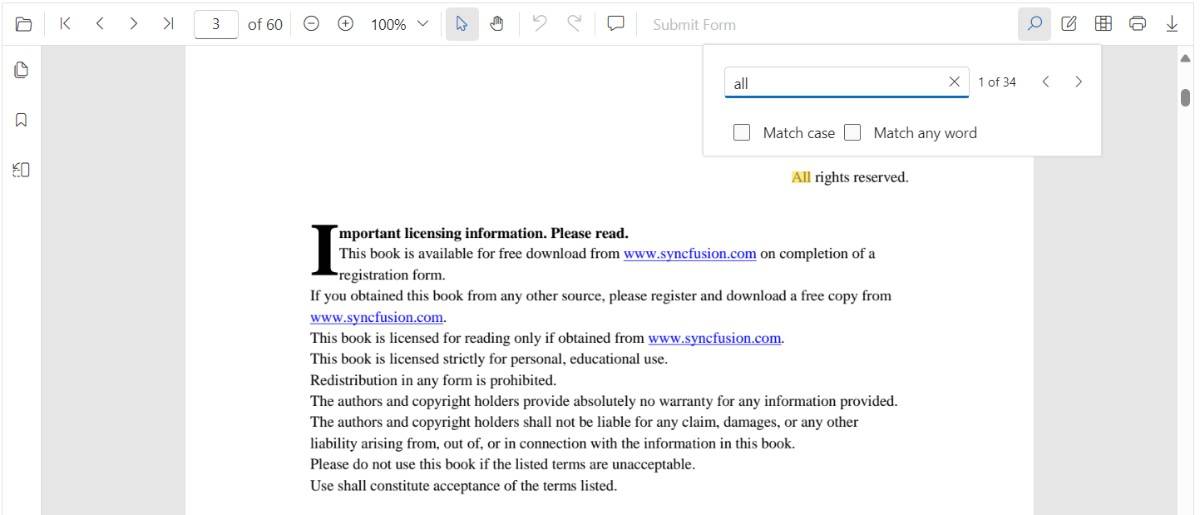
Dynamic Text Search for Large PDF Documents
Dynamic text search is enabled during the initial loading of the document when the document text collection has not yet been fully loaded in the background.
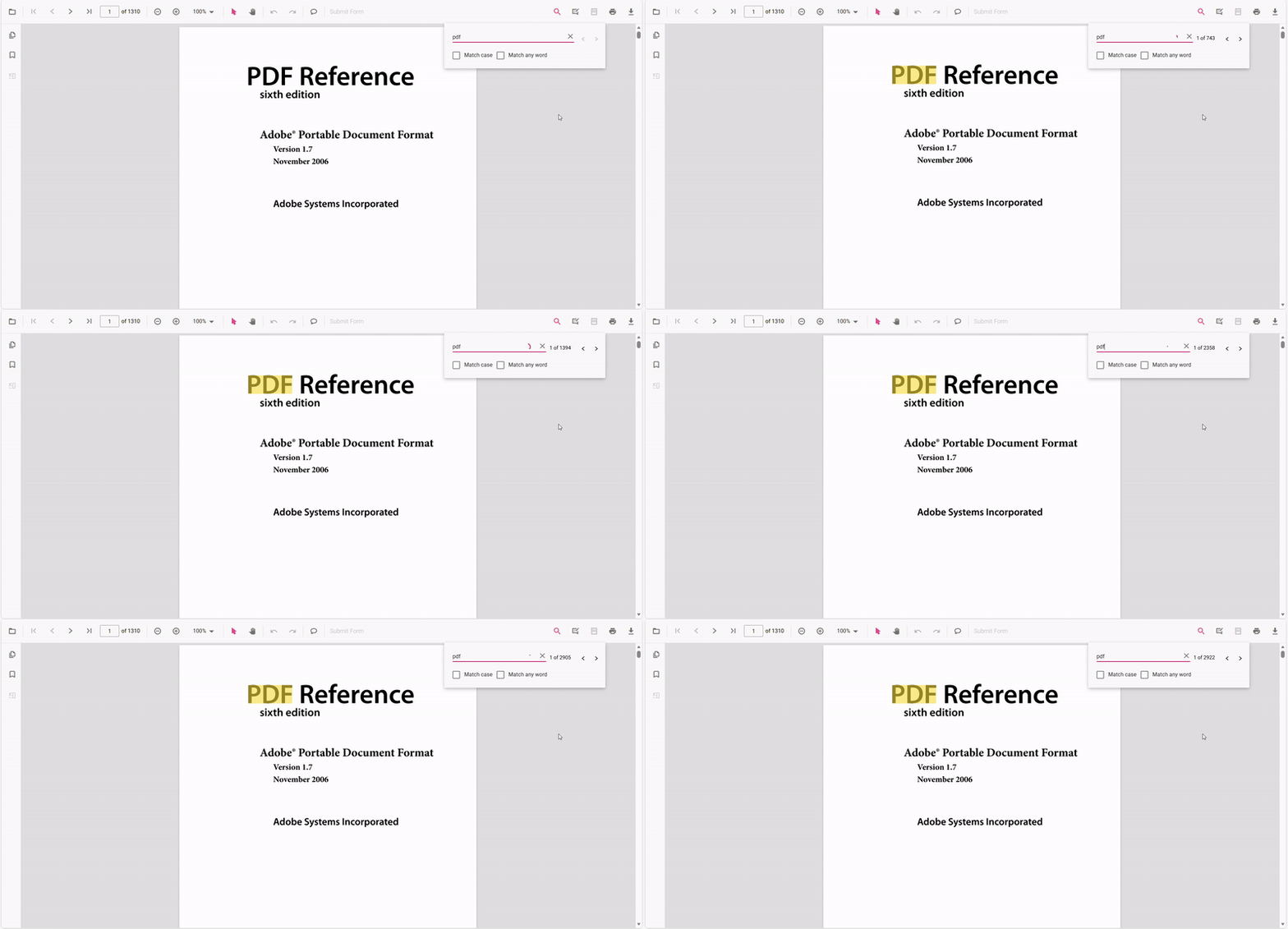
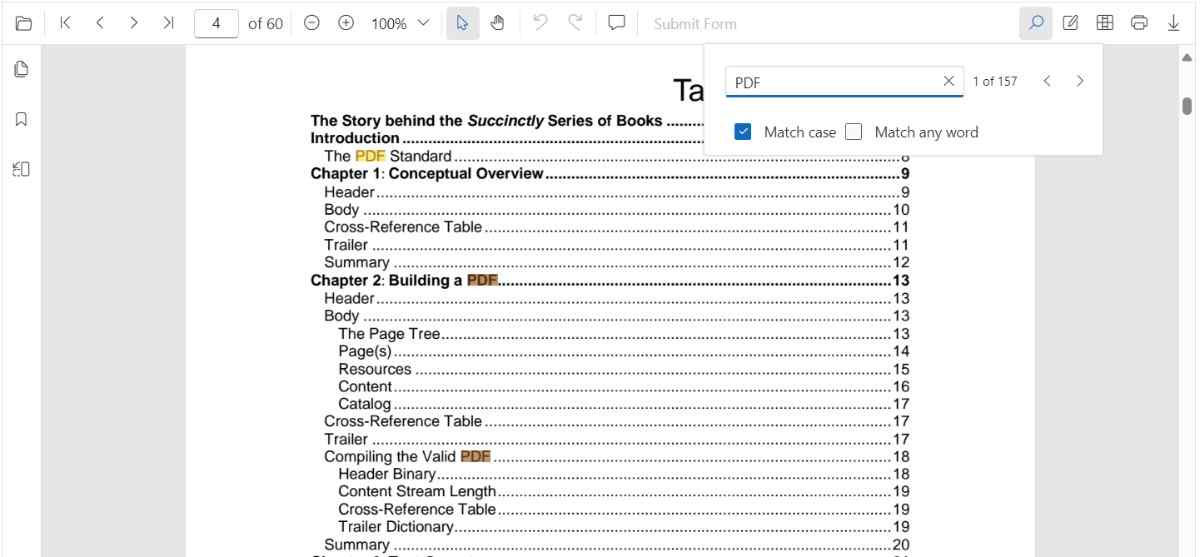
Search text with the Match Case option
Enable the Match Case checkbox to limit results to case-sensitive matches. Navigation commands then step through each exact match in sequence.
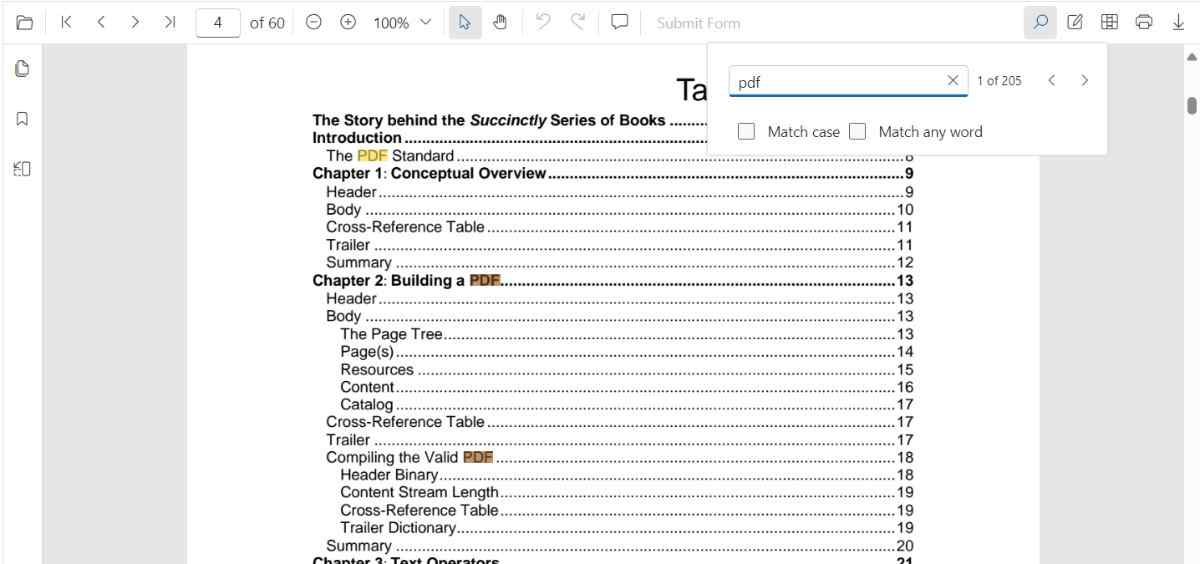
Search text without Match Case
Leave the Match Case option cleared to highlight every occurrence of the query, regardless of capitalization, and navigate through each result.
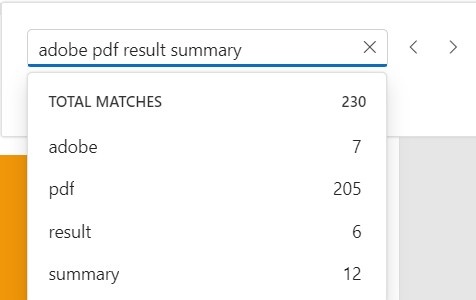
Search a list of words with Match Any Word
Enable Match Any Word to split the query into separate words. The popup proposes matches for each word and highlights them throughout the document.
Programmatic text Search
The React PDF Viewer provides options to toggle text search feature and APIs to customize the text search behavior programmatically.
Enable or Disable Text Search
Use the following snippet to enable or disable text search features
import {
    PdfViewerComponent, Toolbar, Magnification, Navigation, Annotation, FormDesigner,
    FormFields, PageOrganizer, TextSelection, TextSearch, Print, Inject
} from '@syncfusion/ej2-react-pdfviewer';
import { useRef } from 'react';

export default function App() {
    const viewerRef: React.RefObject<PdfViewerComponent | null> = useRef<PdfViewerComponent>(null);
    return (
        <div style={{ height: '100vh' }}>
            <PdfViewerComponent
                id="PdfViewer"
                ref={viewerRef}
                enableTextSearch={true}
                documentPath="https://cdn.syncfusion.com/content/pdf/pdf-succinctly.pdf"
                resourceUrl="https://cdn.syncfusion.com/ej2/32.2.3/dist/ej2-pdfviewer-lib"
                style={{ height: '100%' }}
            >
                <Inject
                    services={[
                        TextSelection, TextSearch, Print, Navigation, Toolbar, Magnification,
                        Annotation, FormDesigner, FormFields, PageOrganizer
                    ]}
                />
            </PdfViewerComponent>
        </div>
    );
}
Programmatic text search
While the PDF Viewer toolbar offers an interactive search experience, you can also trigger and customize searches programmatically by calling the following APIs in textSearch module.
searchText
Use the searchText method to start a search. The method highlights every match in the document and brings the first match into view.
// searchText(text: string, isMatchCase?: boolean)
pdfviewer.textSearch.searchText('search text', false);
Parameters
-
text(string) — The text to search for in the document. -
isMatchCase(boolean, optional) — Whentrue, performs a case-sensitive search that mirrors the Match Case option in the search panel. Defaults tofalse.
// This will only find instances of "PDF" in uppercase.
pdfviewer.textSearch.searchText('PDF', true);
searchNext
The searchNext method searches for the next occurrence of the current query from the active match.
pdfviewer.textSearch.searchNext();searchPrevious
The searchPrevious API searches for the previous occurrence of the current query from the active match.
pdfviewer.textSearch.searchPrevious();cancelTextSearch
The cancelTextSearch method cancels the current text search and removes the highlighted occurrences from the PDF Viewer.
pdfviewer.textSearch.cancelTextSearch();Complete Example
Use the following code snippet to implement text search using SearchText API
import {
    PdfViewerComponent, Toolbar, Magnification, Navigation, Annotation, FormDesigner,
    FormFields, PageOrganizer, TextSelection, TextSearch, Print, Inject
} from '@syncfusion/ej2-react-pdfviewer';
import { useRef } from 'react';

export default function App() {
    const viewerRef: React.RefObject<PdfViewerComponent | null> = useRef<PdfViewerComponent>(null);
    const searchText = () => {
        (viewerRef.current as PdfViewerComponent).textSearch.searchText('pdf', false);
    }
    const previousSearch = () => {
        (viewerRef.current as PdfViewerComponent).textSearch.searchPrevious();
    }
    const nextSearch = () => {
        (viewerRef.current as PdfViewerComponent).textSearch.searchNext();
    }
    const cancelSearch = () => {
        (viewerRef.current as PdfViewerComponent).textSearch.cancelTextSearch();
    }
    return (
        <div style={{ height: '100vh' }}>
            <button onClick={searchText}>Search Text</button>
            <button onClick={previousSearch}>Previous Search</button>
            <button onClick={nextSearch}>Next Search</button>
            <button onClick={cancelSearch}>Cancel Search</button>
            <PdfViewerComponent
                id="PdfViewer"
                ref={viewerRef}
                documentPath="https://cdn.syncfusion.com/content/pdf/pdf-succinctly.pdf"
                resourceUrl="https://cdn.syncfusion.com/ej2/32.2.3/dist/ej2-pdfviewer-lib"
                style={{ height: '100%' }}
            >
                <Inject
                    services={[
                        TextSelection, TextSearch, Print, Navigation, Toolbar, Magnification,
                        Annotation, FormDesigner, FormFields, PageOrganizer
                    ]}
                />
            </PdfViewerComponent>
        </div>
    );
}
Expected result: the viewer highlights occurrences of pdf (case-insensitive, because the second argument is false) and navigation commands jump between matches.