Rotate Pages in React PDF Viewer
14 Aug 20262 minutes to read
Overview
This guide explains how to rotate individual or multiple pages using the Organize Pages UI in the EJ2 React PDF Viewer. Supported rotations: 90°, 180°, 270° clockwise and counter-clockwise.
Outcome: Pages are rotated in the viewer and persisted when saved or exported.
Prerequisites
- EJ2 React PDF Viewer installed
- PDF Viewer configured with
resourceUrl(standalone) orserviceUrl(server-backed)
Steps
-
Open the Organize Pages view
- Click the Organize Pages button in the viewer toolbar to open the Organize Pages dialog.
-
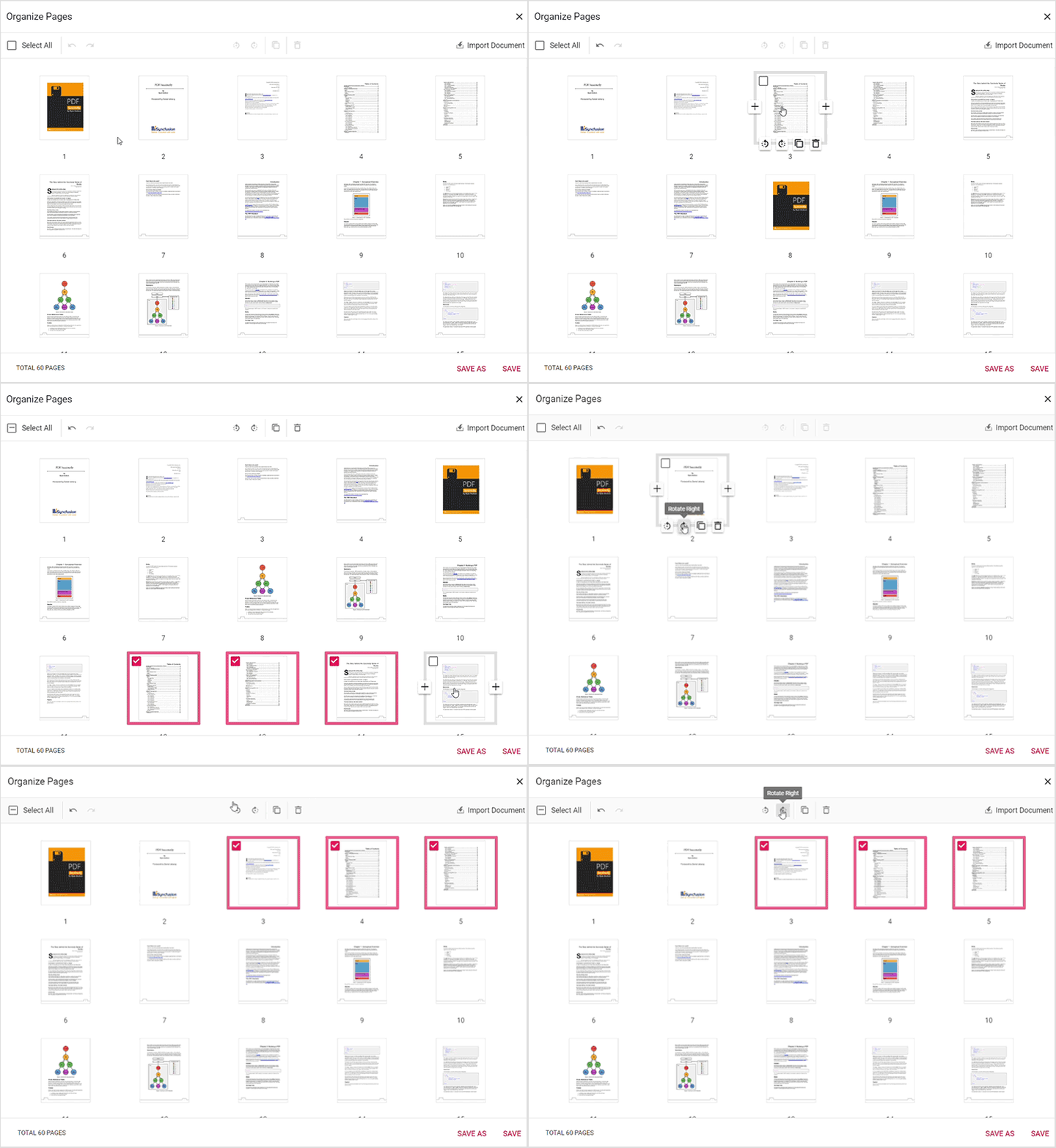
Select pages to rotate
- Click a single thumbnail or use Shift+click/Ctrl+click to select multiple pages.
-
Rotate pages using toolbar buttons
- Use Rotate Right to rotate 90° clockwise.
- Use Rotate Left to rotate 90° counter-clockwise.
- Repeat the action to achieve 180° or 270° rotations.
-
Rotate multiple pages at once
- When multiple thumbnails are selected, the Rotate action applies to every selected page.
-
Undo or reset rotation
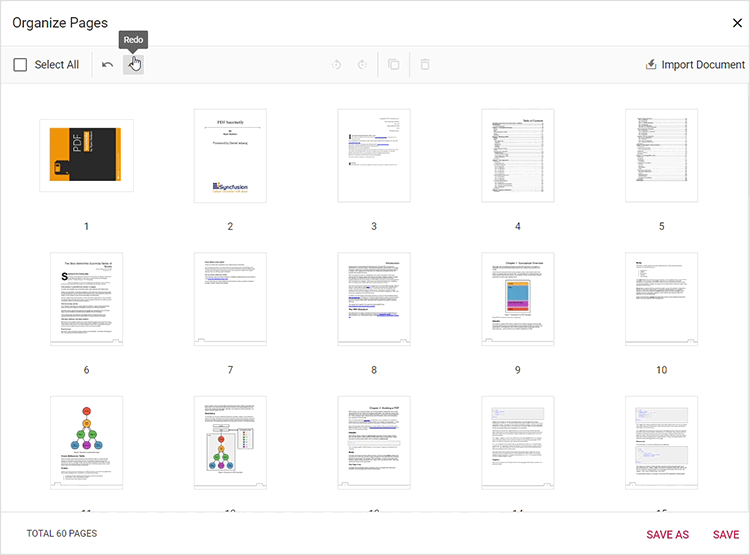
- Use Undo (Ctrl+Z) to revert the last rotation.
- Use the reverse rotation button (Rotate Left/Rotate Right) until the page returns to 0°.
-
Persist rotations
- Click Save or Save As to persist rotations in the saved/downloaded PDF. Exporting pages also preserves the new orientation.
Expected result
- Pages rotate in-place in the Organize Pages dialog when using the rotate controls.
- Saving or exporting the document preserves the new orientation.
Enable or disable Rotate Pages button
To enable or disable the Rotate Pages button in the Organize Pages toolbar, update the pageOrganizerSettings. See Organize pages toolbar customization for the guidelines.
Troubleshooting
-
Rotate controls disabled: Ensure
pageOrganizerSettings.canRotateis not set tofalse. -
Rotation not persisted: Click Save after rotating. For server-backed setups ensure
serviceUrlis set so server-side save can persist changes.