Reorder Pages in React PDF Viewer
14 Aug 20261 minute to read
Overview
This guide describes how to rearrange pages in a PDF using the Organize Pages UI.
Outcome: Single or multiple pages can be reordered and the new sequence is preserved when the document is saved or exported.
Prerequisites
- EJ2 React PDF Viewer installed
-
ToolbarandPageOrganizerservices injected into the viewer
Steps
-
Open the Organize Pages view
- Click the Organize Pages button in the navigation toolbar to open the page thumbnails panel.
-
Reorder a single page
- Drag a thumbnail to the desired position. The thumbnails update instantly to show the new order.
-
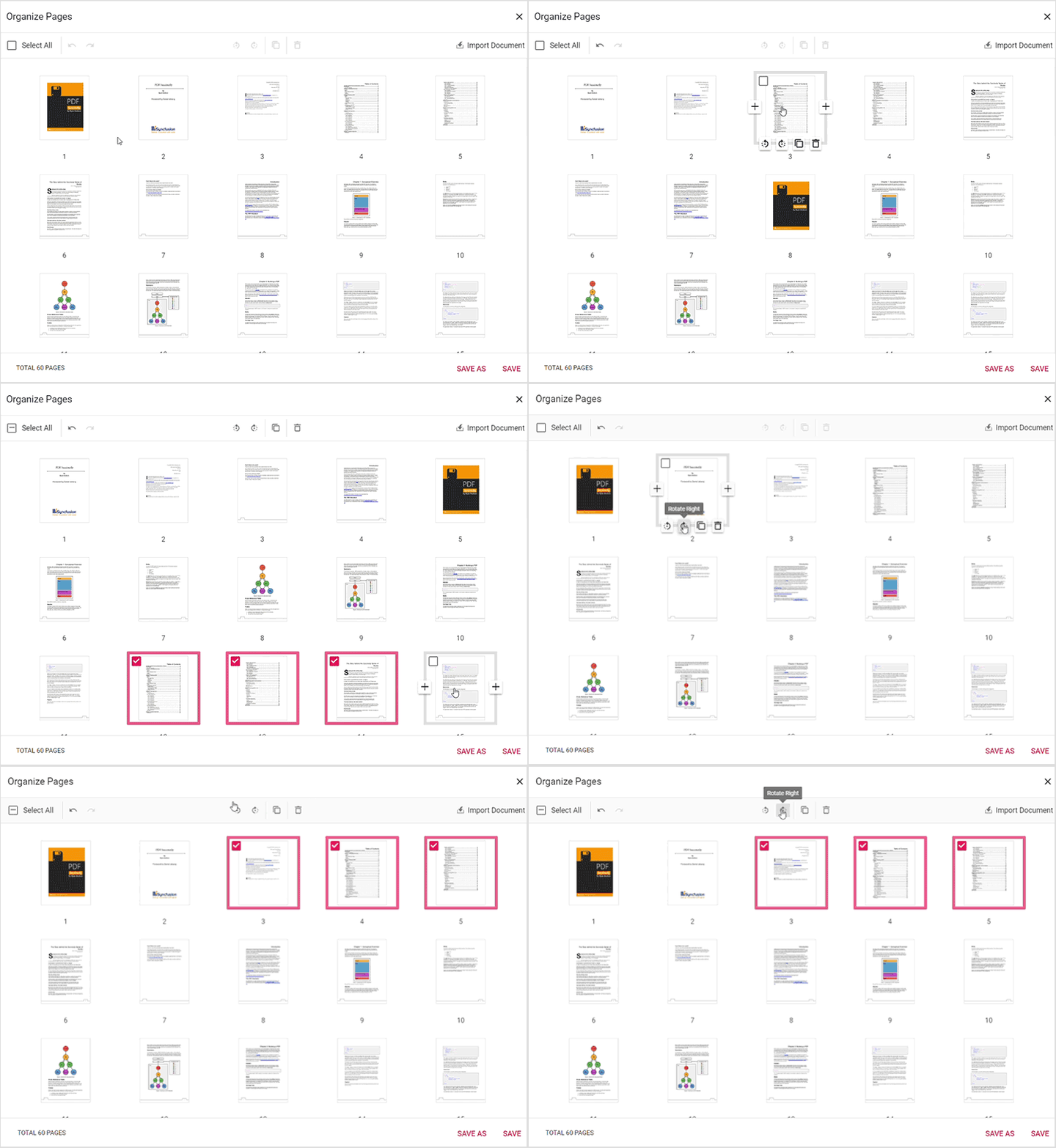
Reorder multiple pages
- Select multiple thumbnails using Ctrl or Shift, then drag the selected group to the new location.
-
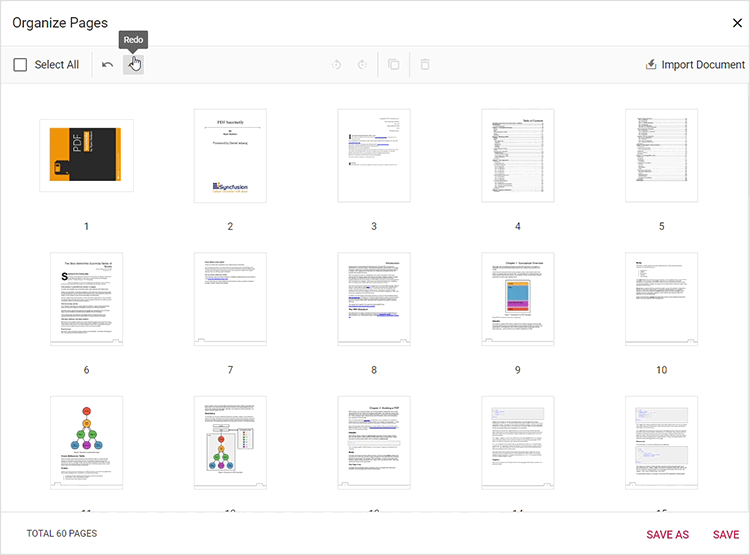
Verify and undo
- Use Undo / Redo options to revert accidental changes.
-
Persist the updated order
- Click Save or download the document using Save As to persist the new page sequence.
Expected result
- Thumbnails reflect the new page order immediately and saved / downloaded PDFs preserve the reordered sequence.
Enable or disable reorder option
To enable or disable the Reorder pages option in the Organize Pages, update the [pageOrganizerSettings] (https://ej2.syncfusion.com/react/documentation/api/pdfviewer/pageorganizersettings). See Organize pages toolbar customization for the guidelines.
Troubleshooting
-
Thumbnails won’t move: Confirm [
pageOrganizerSettings.canRearrange] (https://ej2.syncfusion.com/react/documentation/api/pdfviewer/pageorganizersettingsmodel#canrearrange) is not set tofalse. -
Changes not saved: Verify
serviceUrl(server) orresourceUrl(standalone) is configured correctly.