Organize Pages in Mobile View in React PDF Viewer
14 Aug 20261 minute to read
The PDF Viewer provides a mobile-responsive layout for the Organize Pages feature, optimized for touch interactions on small screens. The toolbar and navigation adapt to the device viewport so page-management controls remain accessible on phones and tablets.
Mobile-friendly toolbar
In mobile view the Organize Pages toolbar appears at the bottom of the screen for easier one-handed access. The toolbar exposes the same tools as the desktop layout (insert, delete, rotate, etc.) in a touch-optimized arrangement.
Context Menu for Page Operations
To perform actions on a page thumbnail, tap and hold (long-press) the thumbnail to open a context menu. This menu contains the available page operations:
- Rotate Clockwise: Rotate the selected page 90 degrees clockwise.
- Rotate Counter-Clockwise: Rotate the selected page 90 degrees counter-clockwise.
- Insert Page: Insert a new page.
- Copy Page: Duplicate the selected page.
- Delete Page: Remove the selected page.
- Select All: Select all pages in the document.
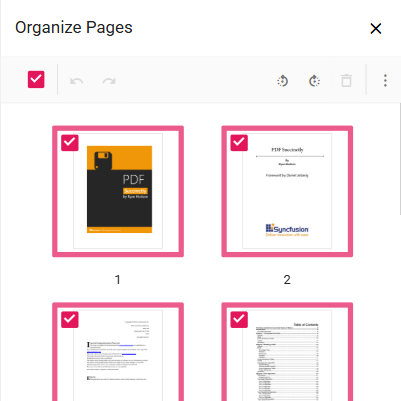
Rearranging Pages on Mobile
To rearrange pages, tap and hold a thumbnail to select it, then drag it to the desired position; a blue line indicates the drop location. Supported gestures include tap, long-press (open context menu), and drag (reorder). The layout adapts to portrait and landscape orientations to preserve usability on different devices.
The mobile interface enables efficient page management on phones and tablets without sacrificing the functionality available in the desktop viewer.