Copy Pages in React PDF Viewer
14 Aug 20261 minute to read
Overview
This guide explains how to duplicate pages within the current PDF using the Organize Pages UI.
Outcome: Copied pages are inserted adjacent to the selection and included in exported PDFs.
Prerequisites
- EJ2 React PDF Viewer installed
- PDF Viewer with the
PageOrganizermodule injected
Steps
-
Open the Organize Pages view
- Click the Organize Pages button in the viewer toolbar to open the Organize Pages dialog.
-
Select pages to duplicate
- Click a single thumbnail or use Shift+click/Ctrl+click to select multiple pages.
-
Duplicate selected pages
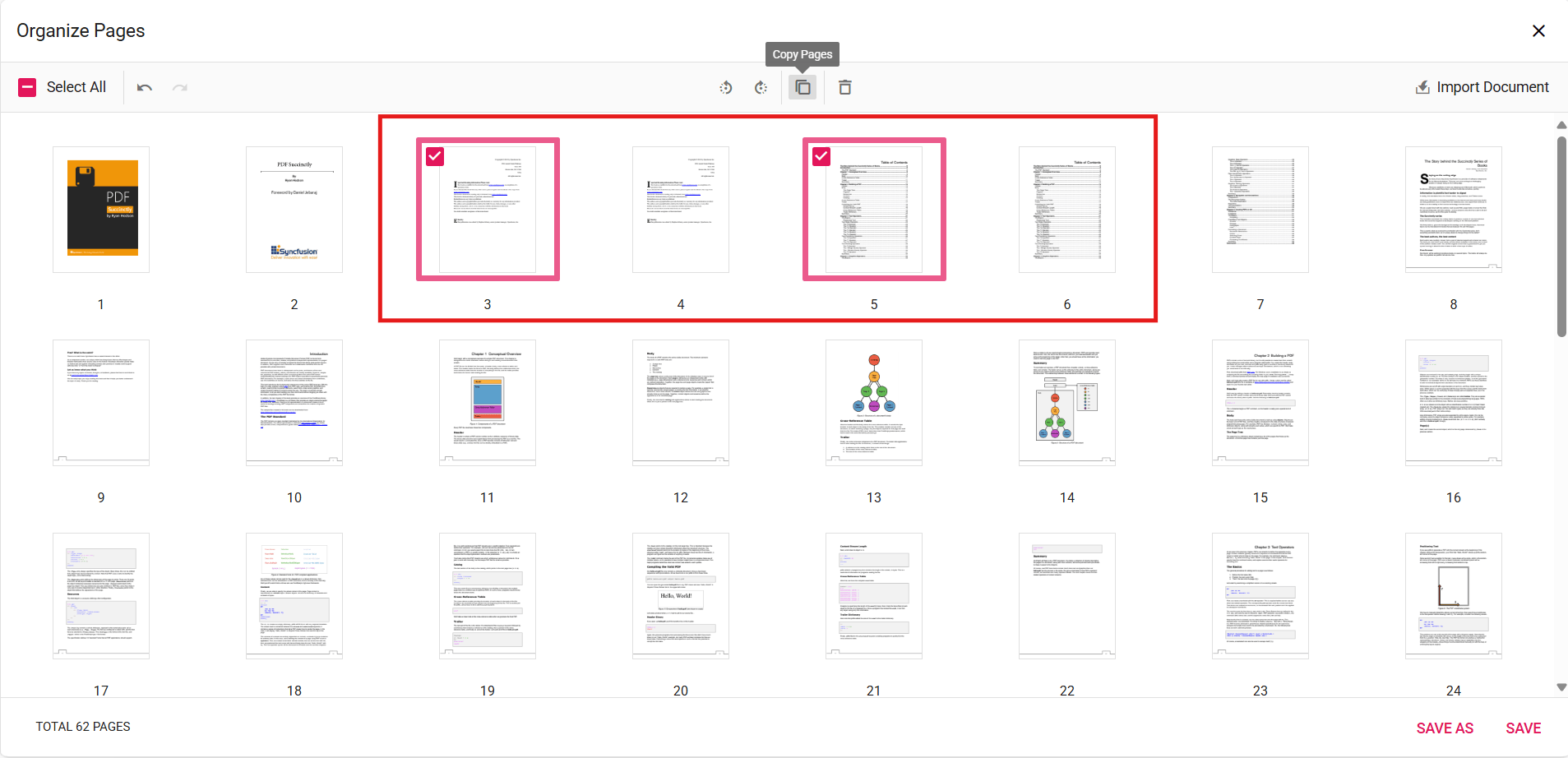
- Click the Copy Pages button in the Organize Pages toolbar; duplicated pages are inserted to the right of the selected thumbnails.
-
Duplicate multiple pages at once
- When multiple thumbnails are selected, the Copy action duplicates every selected page in order.
-
Undo or redo changes
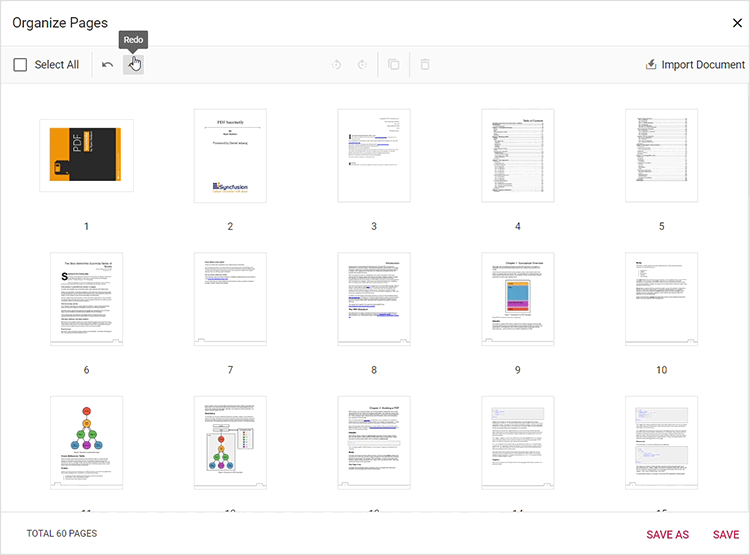
- Use Undo (Ctrl+Z) or Redo to revert or reapply recent changes.
-
Persist duplicated pages
- Click Save or Save As to include duplicated pages in the saved/downloaded PDF.
Expected result
- Selected pages are duplicated and included in the saved PDF.
Enable or disable Copy Pages button
To enable or disable the Copy Pages button in the Organize Pages toolbar, update the pageOrganizerSettings. See Organize pages toolbar customization for the guidelines.
Troubleshooting
- If duplicates are not created: verify that the changes are persisted using Save.