Page Thumbnail Navigation in React PDF Viewer
14 Aug 20267 minutes to read
Overview
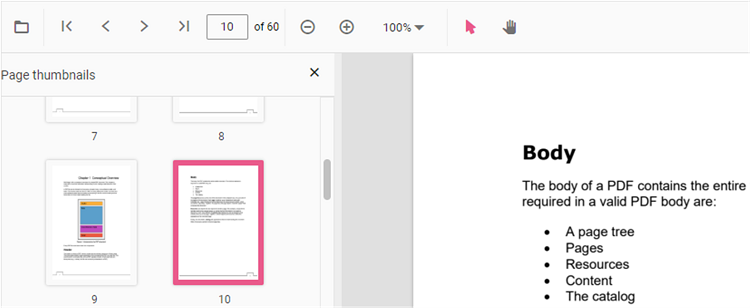
Page thumbnails are miniature previews of PDF pages displayed in a side panel. They allow users to quickly navigate to specific pages without scrolling through the entire document.
This guide explains how to enable the thumbnail navigation feature and to toggle the thumbnail view programmatically in the React PDF Viewer component. When enabled, a thumbnails panel appears in the viewer, displaying small previews of each page. You can also open or close the panel on demand using the openThumbnailPane and closeThumbnailPane methods.
Steps
1. Enable thumbnail view
Enable or disable the thumbnail view by using the enableThumbnail property. The default value of enableThumbnail is true, so thumbnails are available out of the box once the ThumbnailView module is injected.
import {
    PdfViewerComponent, Toolbar, Magnification, Navigation, LinkAnnotation, BookmarkView,
    ThumbnailView, Print, TextSelection, Annotation, TextSearch, FormFields, FormDesigner,
    PageOrganizer, Inject
} from '@syncfusion/ej2-react-pdfviewer';
import { useRef, RefObject } from 'react';

export default function App() {
    const viewerRef: RefObject<PdfViewerComponent | null> = useRef<PdfViewerComponent>(null);
    return (
        <div style={{ height: '100vh' }}>
            <PdfViewerComponent
                id="PdfViewer"
                ref={viewerRef}
                documentPath="https://cdn.syncfusion.com/content/pdf/pdf-succinctly.pdf"
                resourceUrl="https://cdn.syncfusion.com/ej2/32.2.3/dist/ej2-pdfviewer-lib"
                style={{ height: '100%' }}
                enableThumbnail={true}
            >
                <Inject
                    services={[
                        Toolbar, Magnification, Navigation, Annotation, LinkAnnotation, BookmarkView,
                        ThumbnailView, Print, TextSelection, TextSearch, FormFields, FormDesigner, PageOrganizer
                    ]}
                />
            </PdfViewerComponent>
        </div>
    );
}
Expected output
When enableThumbnail is set to true, a thumbnail panel can be opened through the navigation toolbar on the left side of the PDF Viewer, which displays miniature previews of each page. Clicking on any thumbnail navigates directly to that page. To disable thumbnail navigation, set enableThumbnail={false} or simply remove the property.
2. Open or close thumbnail view programmatically
The thumbnail view in the React PDF Viewer can be opened by using the openThumbnailPane method and closed by using the closeThumbnailPane method. Both methods return void and can be called on the thumbnailView instance of the viewer reference.
The
thumbnailViewproperty is only available on the viewer instance when theThumbnailViewmodule is included in theInjectservices array. If the module is not injected,viewerRef.current?.thumbnailViewwill beundefined.
import {
    PdfViewerComponent, Toolbar, Magnification, Navigation, LinkAnnotation, BookmarkView,
    ThumbnailView, Print, TextSelection, Annotation, TextSearch, FormFields, FormDesigner,
    PageOrganizer, Inject
} from '@syncfusion/ej2-react-pdfviewer';
import { useRef, RefObject } from 'react';

export default function App() {
    const viewerRef: RefObject<PdfViewerComponent | null> = useRef<PdfViewerComponent>(null);
    const openThumbnail = () => viewerRef.current?.thumbnailView.openThumbnailPane();
    const closeThumbnail = () => viewerRef.current?.thumbnailView.closeThumbnailPane();
    return (
        <div style={{ height: '100vh' }}>
            <button onClick={openThumbnail}>Open Thumbnail</button>
            <button onClick={closeThumbnail}>Close Thumbnail</button>
            <PdfViewerComponent
                id="PdfViewer"
                ref={viewerRef}
                documentPath="https://cdn.syncfusion.com/content/pdf/pdf-succinctly.pdf"
                resourceUrl="https://cdn.syncfusion.com/ej2/32.2.3/dist/ej2-pdfviewer-lib"
                style={{ height: '100%' }}
            >
                <Inject
                    services={[
                        Toolbar, Magnification, Navigation, Annotation, LinkAnnotation, BookmarkView,
                        ThumbnailView, Print, TextSelection, TextSearch, FormFields, FormDesigner, PageOrganizer
                    ]}
                />
            </PdfViewerComponent>
        </div>
    );
}
Expected output
Clicking Open Thumbnail invokes openThumbnailPane(), which expands the thumbnail panel on the left side of the PDF Viewer. Clicking Close Thumbnail invokes closeThumbnailPane(), which collapses the panel. The buttons are standard HTML elements placed above the viewer inside the same div container.
Troubleshooting
-
Thumbnail panel not appearing: Ensure
ThumbnailViewis included in theInjectservices array. -
WASM or service endpoint errors: Verify that
resourceUrl(for standalone) orserviceUrl(for server-backed) is correctly configured and accessible.