How to Integrate the PDF Viewer Into Existing Layouts in React PDF
14 Aug 202624 minutes to read
Overview
The React PDF Viewer can be embedded into dashboards, admin panels, split‑screen views, tabs, dialogs, collapsible/accordion sections, sidebars, and multi‑column layouts. This guide provides concise patterns and minimal code examples so the viewer renders, sizes, and refreshes correctly inside common layout hosts.
How‑To
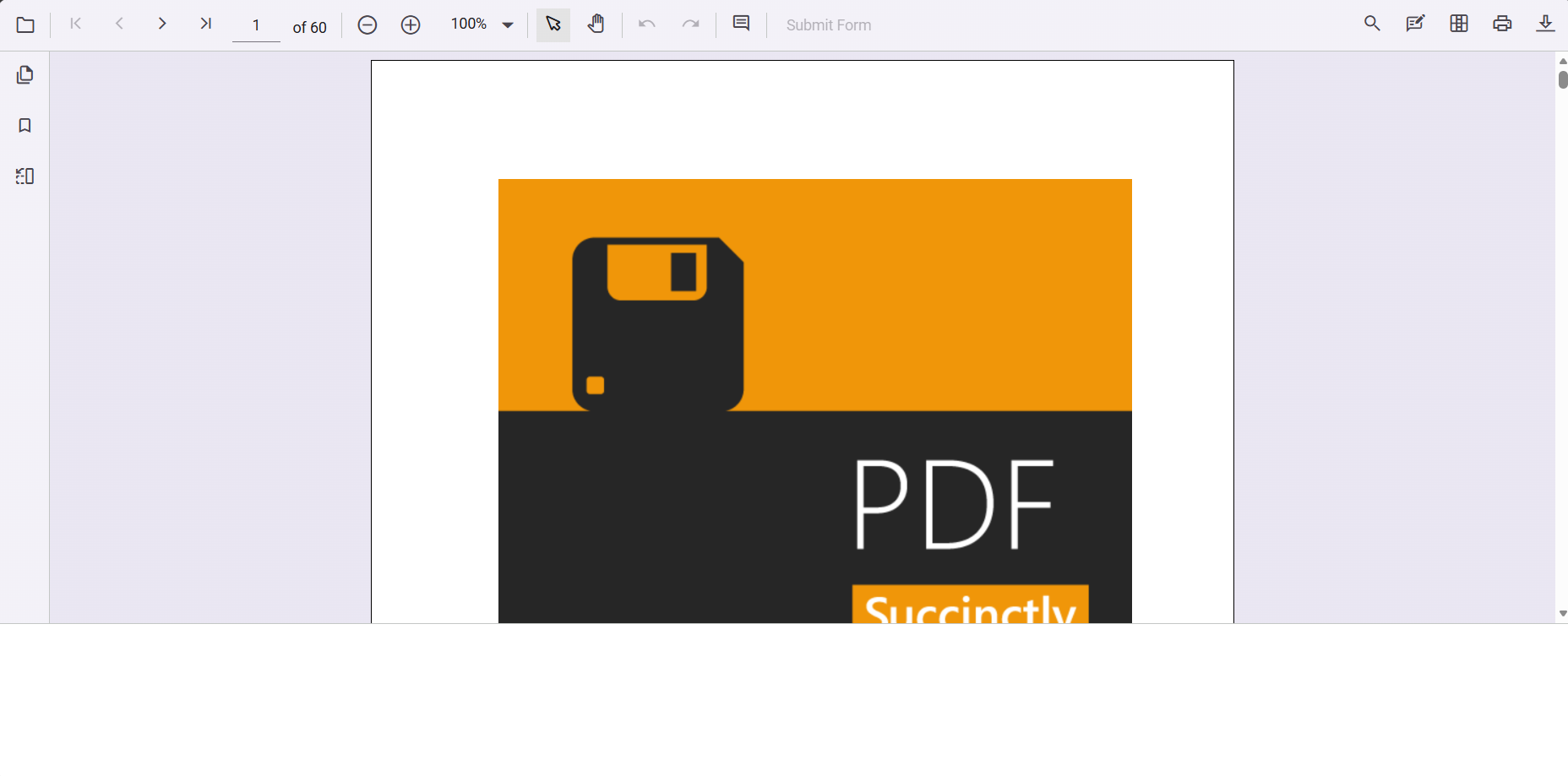
Place the viewer inside basic divs
Insert the PDF Viewer inside a div with a defined height. The viewer will automatically expand to fill the available space in that div.
import React from 'react';
import { PdfViewerComponent, Toolbar, Magnification, Navigation, LinkAnnotation, BookmarkView, ThumbnailView, Print, TextSelection, Annotation, TextSearch, FormFields, FormDesigner, PageOrganizer, Inject } from '@syncfusion/ej2-react-pdfviewer';

export function App() {
    return (
        <div style={{ height: '80vh' }}>
            <PdfViewerComponent
                id="pdfViewer"
                documentPath="https://cdn.syncfusion.com/content/pdf/pdf-succinctly.pdf"
                resourceUrl="https://cdn.syncfusion.com/ej2/32.2.5/dist/ej2-pdfviewer-lib"
                style={{ height: '100%', width: '100%' }}
            >
                <Inject services={[Toolbar, Magnification, Navigation, LinkAnnotation, BookmarkView, ThumbnailView, Print, TextSelection, TextSearch, Annotation, FormFields, FormDesigner, PageOrganizer]} />
            </PdfViewerComponent>
        </div>
    );
}
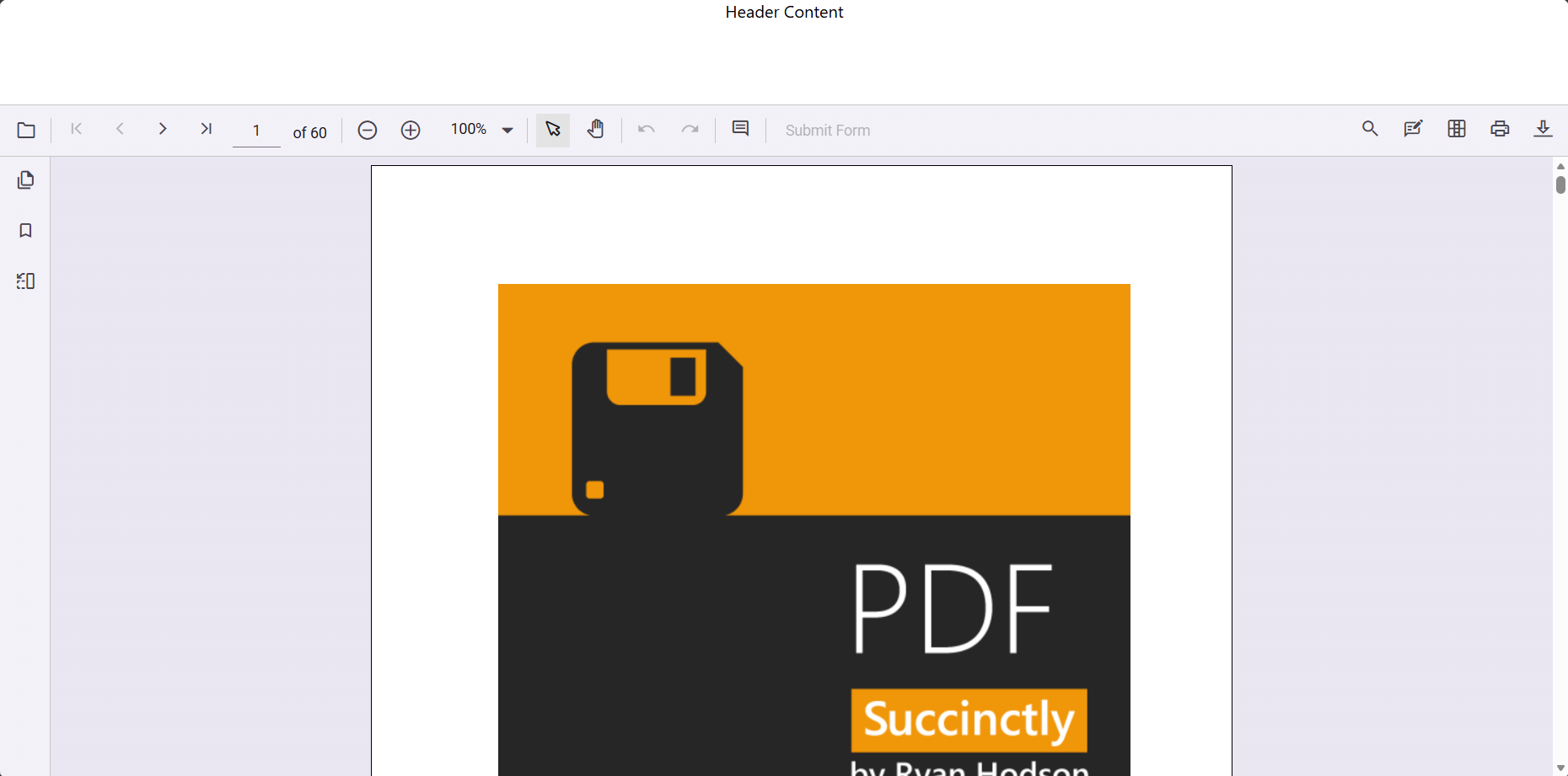
Place the viewer inside a flex box
Use min-height: 0 on the flex item containing the PDF Viewer so it can shrink and grow properly. The flex container must have a defined height for the PDF Viewer to fill it.
import React from 'react';
import { PdfViewerComponent, Toolbar, Magnification, Navigation, LinkAnnotation, BookmarkView, ThumbnailView, Print, TextSelection, Annotation, TextSearch, FormFields, FormDesigner, PageOrganizer, Inject } from '@syncfusion/ej2-react-pdfviewer';

export function App() {
    return (
        <div style={{ display: 'flex', flexDirection: 'column', height: '100vh' }}>
            <header style={{ height: '100px', textAlign: 'center' }}>Header Content</header>
            <main style={{ flex: 1, minHeight: 0 }}>
                <div style={{ height: '100%' }}>
                    <PdfViewerComponent
                        id="pdfViewer"
                        documentPath="https://cdn.syncfusion.com/content/pdf/pdf-succinctly.pdf"
                        resourceUrl="https://cdn.syncfusion.com/ej2/32.2.5/dist/ej2-pdfviewer-lib"
                        style={{ height: '100%', width: '100%' }}
                    >
                        <Inject services={[Toolbar, Magnification, Navigation, LinkAnnotation, BookmarkView, ThumbnailView, Print, TextSelection, TextSearch, Annotation, FormFields, FormDesigner, PageOrganizer]} />
                    </PdfViewerComponent>
                </div>
            </main>
        </div>
    );
}
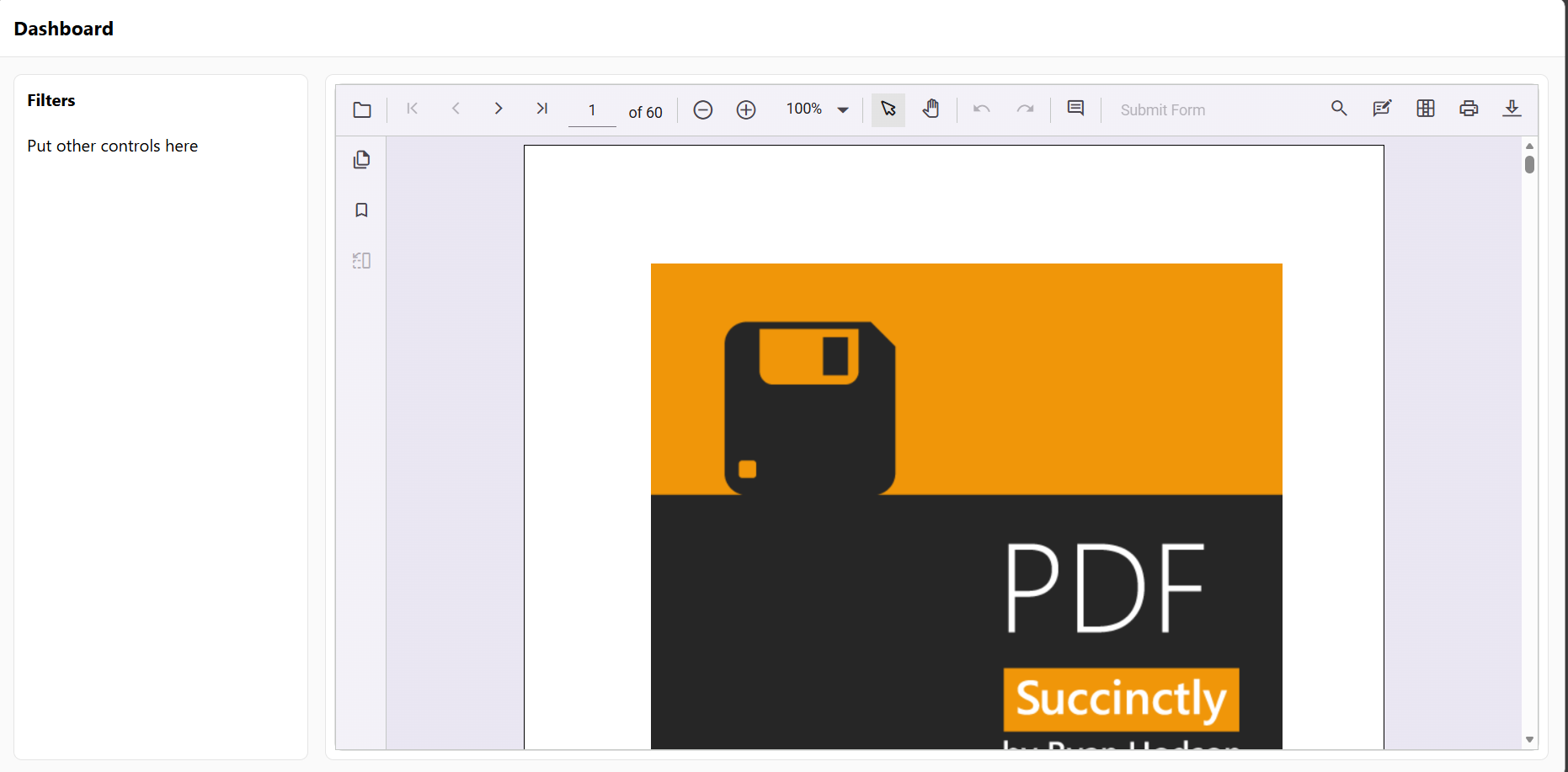
Place the viewer inside a CSS grid
Define explicit row or column track sizes in grid-template-rows or grid-template-columns so the grid track has a real height. The PDF Viewer will then expand to fill its grid cell.
import React from 'react';
import { PdfViewerComponent, Toolbar, Magnification, Navigation, LinkAnnotation, BookmarkView, ThumbnailView, Print, TextSelection, TextSearch, Annotation, FormDesigner, FormFields, Inject } from '@syncfusion/ej2-react-pdfviewer';

export const App: React.FC = () => {
    return (
        <div style={styles.page}>
            <header style={styles.header}>
                <h3 style={{ margin: 0 }}>Dashboard</h3>
            </header>

            <main style={styles.grid}>
                <aside style={styles.sidebar}>
                    <div style={{ padding: 12 }}>
                        <h4 style={{ marginTop: 0 }}>Filters</h4>
                        <p>Put other controls here</p>
                    </div>
                </aside>

                <section style={styles.viewerArea}>
                    <PdfViewerComponent
                        id="pdfViewer"
                        documentPath="https://cdn.syncfusion.com/content/pdf/pdf-succinctly.pdf"
                        height="100%"
                        width="100%"
                        style={{ border: '1px solid #e0e0e0', borderRadius: 8 }}
                    >
                        <Inject
                            services={[
                                Toolbar, Magnification, Navigation, LinkAnnotation, BookmarkView, ThumbnailView, Print, TextSelection, TextSearch, Annotation, FormDesigner, FormFields
                            ]}
                        />
                    </PdfViewerComponent>
                </section>
            </main>
        </div>
    );
};

const styles: Record<string, React.CSSProperties> = {
    page: {
        height: '100vh',
        display: 'grid',
        gridTemplateRows: '56px 1fr',
        background: '#fafafa'
    },
    header: {
        display: 'flex',
        alignItems: 'center',
        padding: '0 16px',
        background: '#fff',
        borderBottom: '1px solid #e5e5e5'
    },
    grid: {
        display: 'grid',
        gridTemplateColumns: '280px 1fr',
        gap: 16,
        padding: 16,
        minHeight: 0 // lets children use available height
    },
    sidebar: {
        background: '#fff',
        border: '1px solid #e5e5e5',
        borderRadius: 8,
        overflow: 'auto'
    },
    viewerArea: {
        background: '#fff',
        border: '1px solid #e5e5e5',
        borderRadius: 8,
        padding: 8,
        display: 'grid',
        gridTemplateRows: '1fr',
        minHeight: 0 // critical so the viewer can grow/shrink
    }
};
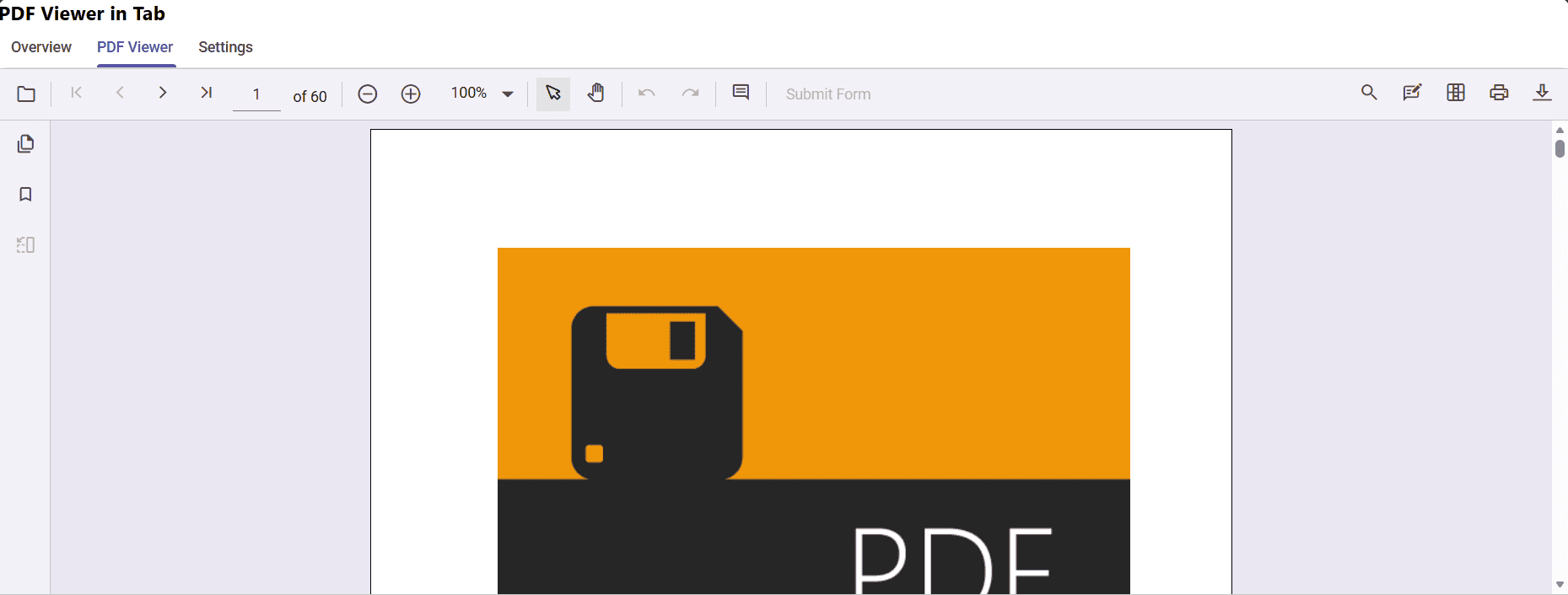
Use the viewer inside Tab components
The React PDF Viewer is also supported inside Syncfusion Tab components.
import React, { useRef } from 'react';
import { TabComponent, TabItemsDirective, TabItemDirective } from '@syncfusion/ej2-react-navigations';
import { PdfViewerComponent, Toolbar, Magnification, Navigation, LinkAnnotation, BookmarkView, ThumbnailView, Print, TextSelection, TextSearch, Annotation, FormDesigner, FormFields, Inject } from '@syncfusion/ej2-react-pdfviewer';

const ViewerTabContent: React.FC = () => {
    const viewerRef = useRef<PdfViewerComponent | null>(null);
    return (
        <div className="viewer-pane">
            <PdfViewerComponent
                ref={(instance) => (viewerRef.current = instance)}
                id="pdfViewerInTab"
                documentPath="https://cdn.syncfusion.com/content/pdf/pdf-succinctly.pdf"
                enableToolbar={true}
                height="100%"
                width="100%"
                style={{ border: '1px solid #e0e0e0', borderRadius: 8 }}
            >
                <Inject
                    services={[ Toolbar,
                        Magnification, Navigation, LinkAnnotation, BookmarkView, ThumbnailView, Print, TextSelection, TextSearch, Annotation, FormDesigner, FormFields
                    ]}
                />
            </PdfViewerComponent>
        </div>
    );
};

export const App: React.FC = () => {
    return (
        <div className="page">
            <header className="header">
                <h3 style={{ margin: 0 }}>PDF Viewer in tab</h3>
            </header>

            <div className="tab-host">
                <TabComponent height="100%">
                    <TabItemsDirective>
                        <TabItemDirective
                            header={{ text: 'Overview' }}
                            content={() => (
                                <div className="panel">
                                    <h4>Overview</h4>
                                    <p>Put general dashboard content here.</p>
                                </div>
                            )}
                        />
                        <TabItemDirective
                            header={{ text: 'PDF Viewer' }}
                            content={ViewerTabContent}
                        />
                        <TabItemDirective
                            header={{ text: 'Settings' }}
                            content={() => (
                                <div className="panel">
                                    <h4>Settings</h4>
                                    <p>Any settings or forms can go here.</p>
                                </div>
                            )}
                        />
                    </TabItemsDirective>
                </TabComponent>
            </div>
        </div>
    );
};
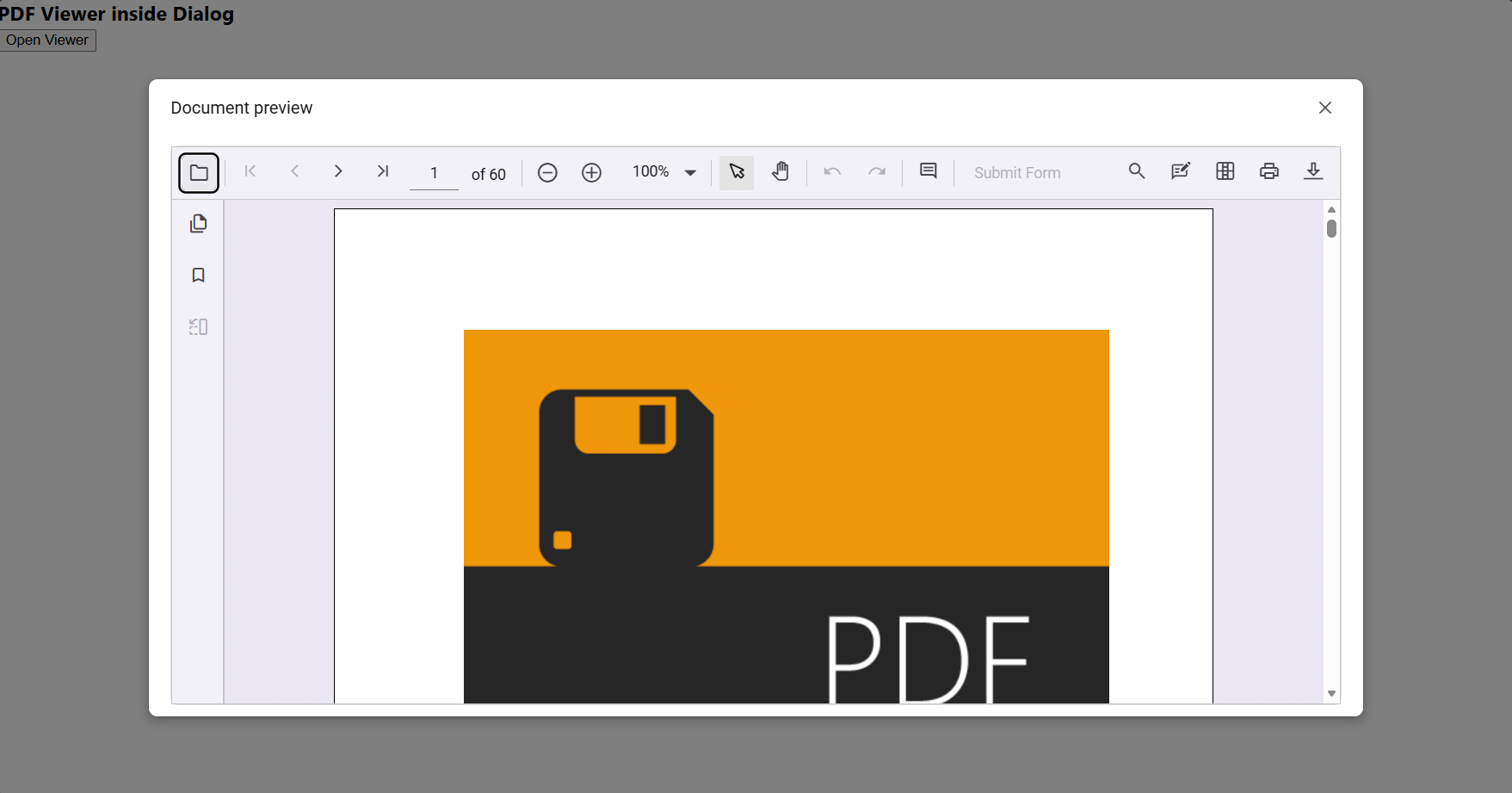
Use the viewer inside a Dialog
If the viewer sits inside a dialog, for example Syncfusion Dialog, render or initialize the viewer after the dialog open events. The DOM must be visible for the viewer to measure layout.
import React, { useRef, useCallback } from 'react';
import { DialogComponent } from '@syncfusion/ej2-react-popups';
import {
    PdfViewerComponent, Toolbar, Magnification, Navigation, LinkAnnotation, BookmarkView, ThumbnailView, Print, TextSelection, TextSearch, Annotation, FormDesigner, FormFields, Inject
} from '@syncfusion/ej2-react-pdfviewer';

export const App: React.FC = () => {
    const viewerRef = useRef<PdfViewerComponent | null>(null);
    const dialogRef = useRef<DialogComponent | null>(null);
    const openDialog = () => {
        dialogRef.current.show();
    };
    const closeDialog = () => {
        dialogRef.current.hide();
    };
    const onDialogOpen = useCallback(() => {
        setTimeout(() => {
            window.dispatchEvent(new Event('resize'));
        }, 0);
    }, []);

    return (
        <div className="page">
            <header className="header">
                <h3 style={{ margin: 0 }}>PDF Viewer inside Dialog</h3>
                <div style={{ marginLeft: 'auto' }}>
                    <button onClick={openDialog}>Open Viewer</button>
                </div>
            </header>
            <DialogComponent
                ref={(dlg: any) => (dialogRef.current = dlg)}
                isModal={true}
                visible={false}
                header="Document preview"
                showCloseIcon={true}
                minHeight="80vh"
                width="80vw"
                height="80vh"
                allowDragging={true}
                closeOnEscape={true}
                target={document.body as any}
                overlayClick={closeDialog}
                open={onDialogOpen}
            >
                <PdfViewerComponent
                    ref={(instance: any) => (viewerRef.current = instance)}
                    id="pdfViewerInDialog"
                    documentPath="https://cdn.syncfusion.com/content/pdf/pdf-succinctly.pdf"
                    enableToolbar={true}
                    height="100%"
                    width="100%"
                    style={{ border: '1px solid #e0e0e0', borderRadius: 8 }}
                >
                    <Inject
                        services={[
                            Toolbar, Magnification, Navigation, LinkAnnotation, BookmarkView, ThumbnailView, Print, TextSelection, TextSearch, Annotation, FormDesigner, FormFields
                        ]}
                    />
                </PdfViewerComponent>
            </DialogComponent>
        </div>
    );
};
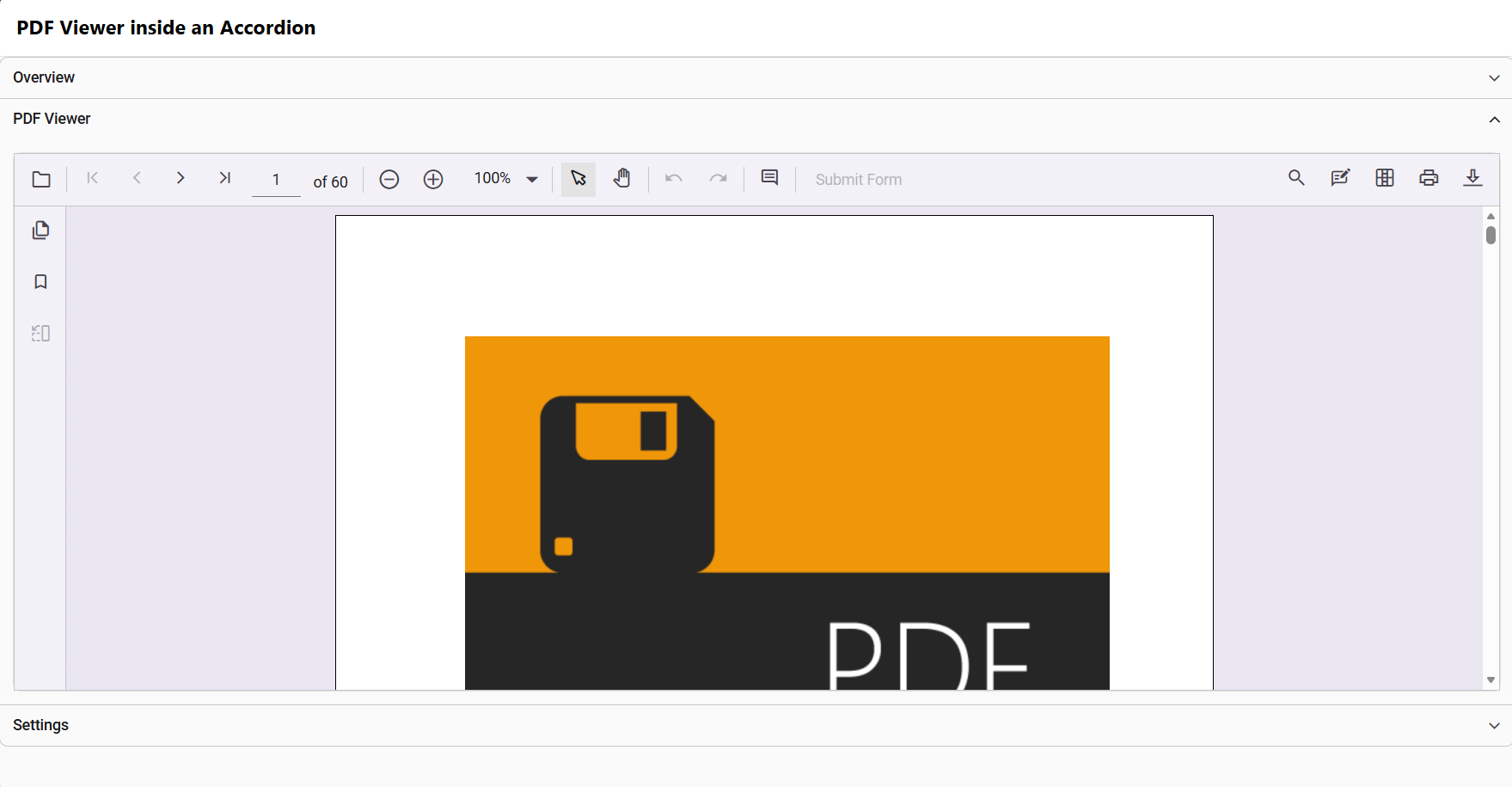
Use the viewer inside Collapsible sections
Place the viewer inside an Accordion or other collapsible container. Either render the viewer lazily when the section expands, or dispatch the resize event after expansion so the viewer can recompute its layout.
import React, { useCallback, useRef } from 'react';
import {
    AccordionComponent, AccordionItemsDirective, AccordionItemDirective, ExpandEventArgs
} from '@syncfusion/ej2-react-navigations';

import {
    PdfViewerComponent, Toolbar, Magnification, Navigation, LinkAnnotation, BookmarkView, ThumbnailView, Print, TextSelection, TextSearch, Annotation, FormDesigner, FormFields, Inject
} from '@syncfusion/ej2-react-pdfviewer';

export const App: React.FC = () => {
    const viewerRef = useRef<PdfViewerComponent | null>(null);
    const onExpanded = useCallback((args: ExpandEventArgs) => {
        setTimeout(() => {
            window.dispatchEvent(new Event('resize'));
        }, 0);
    }, []);

    // PDF viewer panel content
    const pdfContent = () => (
        <div className="pdf-pane">
            <PdfViewerComponent
                ref={(inst) => (viewerRef.current = inst)}
                id="pdfViewerInAccordion"
                documentPath="https://cdn.syncfusion.com/content/pdf/pdf-succinctly.pdf"
                enableToolbar={true}
                height="100%"
                width="100%"
                style={{ border: '1px solid #e0e0e0', borderRadius: 8 }}
            >
                <Inject
                    services={[
                        Toolbar, Magnification, Navigation, LinkAnnotation, BookmarkView, ThumbnailView, Print, TextSelection, TextSearch, Annotation, FormDesigner, FormFields
                    ]}
                />
            </PdfViewerComponent>
        </div>
    );

    return (
        <div className="page">
            <header className="header">
                <h3 style={{ margin: 0 }}>PDF Viewer inside an Accordion</h3>
            </header>
            <main className="content">
                <AccordionComponent
                    expandMode="Single"
                    expanding={onExpanded}
                    expanded={onExpanded}
                >
                    <AccordionItemsDirective>
                        <AccordionItemDirective
                            header="Overview"
                            expanded={true}
                            content={() => (
                                <div className="panel">
                                    <h4>Overview</h4>
                                    <p>Place any introductory content here.</p>
                                </div>
                            )}
                        />
                        <AccordionItemDirective
                            header="PDF Viewer"
                            content={pdfContent}
                        />
                        <AccordionItemDirective
                            header="Settings"
                            content={() => (
                                <div className="panel">
                                    <h4>Settings</h4>
                                    <p>Your forms and other controls here.</p>
                                </div>
                            )}
                        />
                    </AccordionItemsDirective>
                </AccordionComponent>
            </main>
        </div>
    );
};.page {
height: 100vh;
display: grid;
grid-template-rows: 56px 1fr;
background: #fafafa;
}
.header {
display: flex;
align-items: center;
padding: 0 16px;
background: #fff;
border-bottom: 1px solid #e5e5e5;
}
Why visibility and height matter
-
The PDF Viewer measures its container to lay out pages. If the host element has no height (collapsed,
display: none, or not yet mounted) measurements will be zero and rendering will fail or be clipped. -
Initialize or refresh the viewer when the host becomes visible (tab active, modal opened, accordion expanded) so internal layout code can compute sizes.
Resize and visibility tips
- Dispatch a global resize right after the container becomes visible:
setTimeout(() => window.dispatchEvent(new Event('resize')), 0);- Use a
ResizeObserverwhen the host size may change frequently:
const observer = new ResizeObserver(() => {
  window.dispatchEvent(new Event('resize'));
});
observer.observe(document.querySelector('#pdfViewer')!);- Lazy-render inside tabs/dialogs/accordions: only mount the PDF Viewer when the pane is visible.
When to use these patterns
- Use Dialogs for temporary previews or when you want an isolated view.
- Use Tabs/Accordion patterns when documents are part of multi-pane UIs — ensure refresh on show.
- Avoid placing the viewer in invisible containers without a resize/refresh strategy.