Add Digital Signature in React PDF Viewer
14 Aug 20263 minutes to read
Learn how to add signature fields with the Syncfusion React PDF Viewer and how to apply digital (PKI) signatures with the JavaScript PDF Library.
As instructed by team leads — use the React PDF Viewer only to add & place signature fields. Use the JavaScript PDF Library to apply the actual cryptographic digital signature.
Overview
A digital signature provides:
- Authenticity – confirms the signer’s identity.
- Integrity – detects modification after signing.
- Non‑repudiation – signer cannot deny signing.
Syncfusion supports a hybrid workflow:
- Viewer → Design signature fields, capture Draw/Type/Upload electronic signature.
- PDF Library → Apply PKCS#7/CMS digital signature using a certificate (PFX/P12).
Add a Signature Field (How-to)
Using the UI
- Open Form Designer.
- Select Signature Field.
- Click on the document to place the field.
- Configure Name, Tooltip, and Required as needed.
Using the API
viewerRef.current?.formDesignerModule.addFormField('SignatureField', {
  name: 'ApproverSignature',
  pageNumber: 1,
  bounds: { X: 72, Y: 640, Width: 220, Height: 48 },
  isRequired: true,
  tooltip: 'Sign here'
});
Capture Electronic Signature (Draw / Type / Upload)
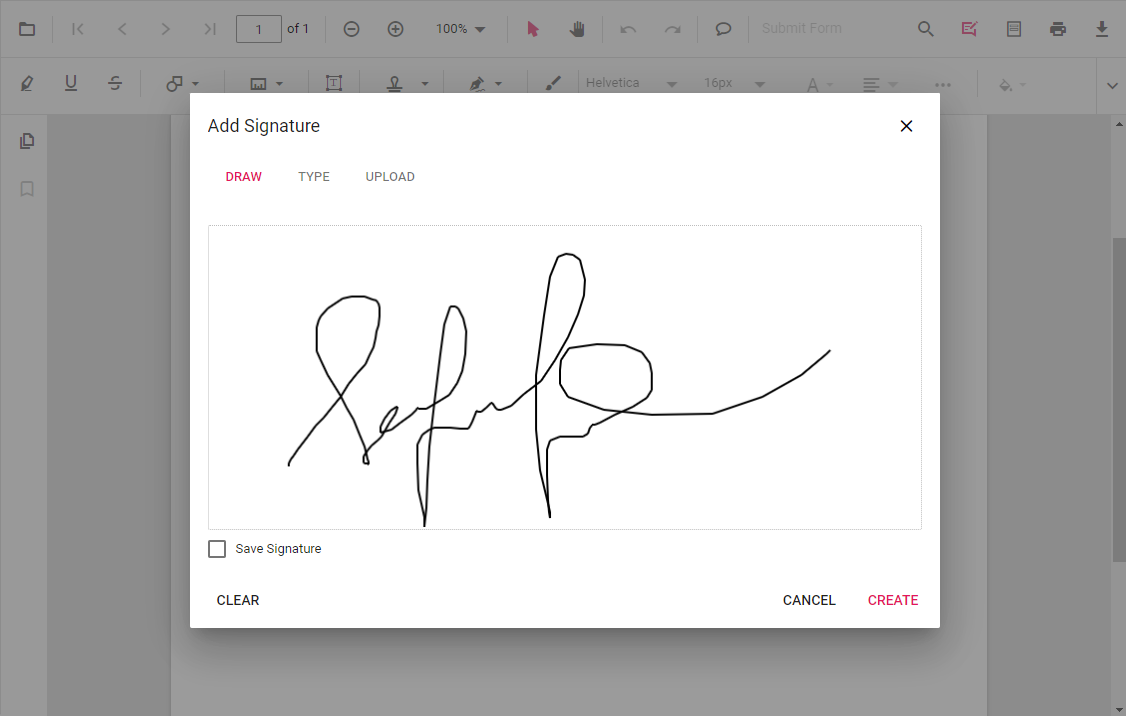
When the user clicks the field, a dialog appears where they can Draw, Type, or Upload a handwritten signature. The result is a visual signature only — it is not cryptographically secure. For a cryptographically secure signature.
Apply PKI Digital Signature (JavaScript PDF Library)
Digital signature must be applied using @syncfusion/ej2-pdf.
import { PdfDocument, PdfSignature, PdfSignatureField, CryptographicStandard, DigestAlgorithm } from '@syncfusion/ej2-pdf';

const document = new PdfDocument(pdfBytes);
const page = document.getPage(0);

let field = new PdfSignatureField(page, 'ApproverSignature', {
  x: 72,
  y: 640,
  width: 220,
  height: 48
});
document.form.add(field);

const signature = PdfSignature.create(
  {
    cryptographicStandard: CryptographicStandard.cms,
    digestAlgorithm: DigestAlgorithm.sha256
  },
  pfxBytes,
  password
);

field.setSignature(signature);
const signedBytes = await document.save();
document.destroy();
See the PDF Library Digital signature to know more about Digital Signature in PDF Documents.
Important Notes
- Complete all form edits before signing. Any PDF modification after signing invalidates the signature.
- A self‑signed PFX certificate displays as Unknown / Untrusted until it is added to the consumer’s Trusted Certificates.
Best Practices
- Place signature fields with the Viewer for accurate layout.
- Apply the PKI signature with the PDF Library only.
- Use CMS with SHA‑256 for broad compatibility.
- Avoid flattening the form after signing.
See Also
- Validate Digital Signatures — verify an existing digital signature and inspect signer details.
- Custom fonts for Signature fields — configure custom fonts for the signature field appearance.
- Signature workflows — end-to-end signing and approval workflows.