Digital Signature in .NET MAUI PDF Viewer
22 Sep 202617 minutes to read
The digital signature feature in the .NET MAUI PDF Viewer allows users to validate, inspect, and digitally sign PDF documents directly within the viewer. It supports certificate-based signing, signature validation, signature navigation, certificate inspection, and custom signing workflows.
Features
The PDF Viewer supports the following digital signature capabilities:
- Digital signature validation
- Signature field detection
- Signed and unsigned signature identification
- Certificate inspection
- Programmatic signing
- UI-based signing
- Multi-signature support
- Signature navigation
- Custom signing provider integration
Enable Digital Signature Support
Use the DigitalSignatureSettings property to configure digital signature functionality in the PDF Viewer. The DigitalSignatureSettings class provides settings that control validation, signing, signature panel behavior, and custom signing providers. The EnableValidation API Enables automatic signature validation during document load and after signing operations. The EnableSigning allows users to digitally sign unsigned signature fields.
pdfViewer.DigitalSignatureSettings.EnableValidation = true;
pdfViewer.DigitalSignatureSettings.EnableSigning = true;
Show Signature Panel
The IsSignaturePanelVisible API is used to control the visibility of the signature panel, which displays both signed and unsigned signature fields.
- When set to
true, the signature panel is displayed. - When set to
false, the signature panel is hidden.
By default, the IsSignaturePanelVisible property is set to false.
pdfViewer.DigitalSignatureSettings.IsSignaturePanelVisible = true;Show Validation Banner
Displays the overall document signature status.
pdfViewer.DigitalSignatureSettings.IsValidationBannerVisible = true;Configure Signature Field Tap Action
The SignatureFieldTapAction property determines the action performed when a user taps an unsigned signature field.
When EnableSigning is set to true, tapping an unsigned signature field opens the digital signing dialog, allowing the user to digitally sign the document using a certificate.
If SignatureFieldTapAction is set to SignatureFieldTapAction.ESignature, tapping an unsigned signature field initiates the electronic signature workflow, allowing the user to add an e-signature instead of opening the digital signing dialog.
By default, the SignatureFieldTapAction property is set to SignatureFieldTapAction.Auto.
pdfViewer.DigitalSignatureSettings.SignatureFieldTapAction = SignatureFieldTapAction.ESignature;Available values:
| Value | Description |
|---|---|
| Auto | Opens the digital signing dialog when EnableSigning is enabled. Otherwise, uses the default signature field interaction. |
| ESignature | Initiates the electronic signature workflow when an unsigned signature field is tapped. |
Configure Custom Signing Provider
Use a custom signing provider to integrate cloud signing services, HSM devices, smart cards, or enterprise PKI systems.
pdfViewer.DigitalSignatureSettings.SigningProvider = new CustomSignatureProvider();Validate Digital Signatures
Use the ValidateSignaturesAsync method to validate all digital signatures present in the loaded PDF document. This method validates each signed signature field and returns the validation result for every signature in the document.
Validation results include:
- Signature validity
- Trust status
- Certificate information
IReadOnlyList<PdfSignatureValidationResult> results = await pdfViewer.ValidateSignaturesAsync();Signature Validation Workflow
When digital signature validation is enabled using the EnableValidation property, the PDF Viewer automatically validates all signed signature fields in the loaded document and updates the associated validation UI elements.
The validation workflow consists of the following steps:
- The PDF document is loaded.
- Signature fields are detected.
- Signed signature fields are validated.
- Validation status is computed.
- The signature panel is populated.
- The validation banner is updated.
The overall document status is determined as follows:- Invalid if any signature is invalid.
- Unknown if any signature cannot be trusted.
- Valid if all signatures are valid.
Digital Signature Panel
The Signature Panel displays all digital signatures in the document.
Configure Signature Panel
Use the SignaturePanelSettings property to customize the information and actions displayed in the digital signature panel.
The following APIs are available:
ShowSignedSignatures controls whether signed signature fields are displayed in the signature panel. When set to false, signed signature fields are hidden.
ShowUnsignedSignatures controls whether unsigned signature fields are displayed in the signature panel. When set to false, unsigned signature fields are hidden.
EnableNavigation controls whether users can navigate to signature fields from the signature panel. When set to false, navigation through signature panel interactions is disabled.
ShowCertificateDetailsAction controls whether the certificate details button is displayed for signed signature fields in the signature panel.
pdfViewer.DigitalSignatureSettings.SignaturePanelSettings
          .ShowSignedSignatures = true;

pdfViewer.DigitalSignatureSettings.SignaturePanelSettings
          .ShowUnsignedSignatures = true;

pdfViewer.DigitalSignatureSettings.SignaturePanelSettings
          .EnableNavigation = true;

pdfViewer.DigitalSignatureSettings.SignaturePanelSettings
          .ShowCertificateDetailsAction = true;
Signature Panel Contents
Signed signatures include:
- Signer name
- Signed date
- Validation status
- Certificate details action
Unsigned signatures include:
- Signature field name
- Navigation support
Digitally Sign a Document
Digital signatures can be applied through the built-in signing dialog or programmatically.
Sign using built-in signing dialog
You can digitally sign a PDF document using the built-in signing dialog available in the PDF Viewer. When a user taps an unsigned signature field, the signing dialog opens and allows the user to review the signing information before applying the digital signature. To enable the signing workflow, provide the necessary certificate details before the dialog is shown.
Configure Signing Information
Handle the DigitalSignatureModalViewAppearing event and provide the required certificate and signer information using the SigningOptions object.
pdfViewer.DigitalSignatureModalViewAppearing += OnDigitalSignatureModalViewAppearing;

private async void OnDigitalSignatureModalViewAppearing(object? sender,DigitalSignatureModalViewAppearingEventArgs e)
{
    Stream? certificateStream = typeof(App).GetTypeInfo().Assembly.GetManifestResourceStream("DigitalSignature.Assets.certificate.pfx");
    e.Options.CertificateStream =certificateStream;
    e.Options.CertificatePassword = "password";
    e.Options.SignerName = "John Doe";
    e.Options.Reason = "Approved";
    e.Options.LocationInfo = "New York";
    e.Options.ContactInfo = "[email protected]";
}
To display the built-in digital signing dialog, both CertificateStream and CertificatePassword must be provided in the DigitalSignatureModalViewAppearing event.
The built-in signing workflow requires a certificate stream in PKCS#12 format (.pfx or .p12) along with the corresponding certificate password.
Formats such as .cer, .crt, and .pem cannot be used for signing because they do not contain the private key required to create a digital signature.
Use .pfx or .p12 files that contain both the certificate and its associated private key.
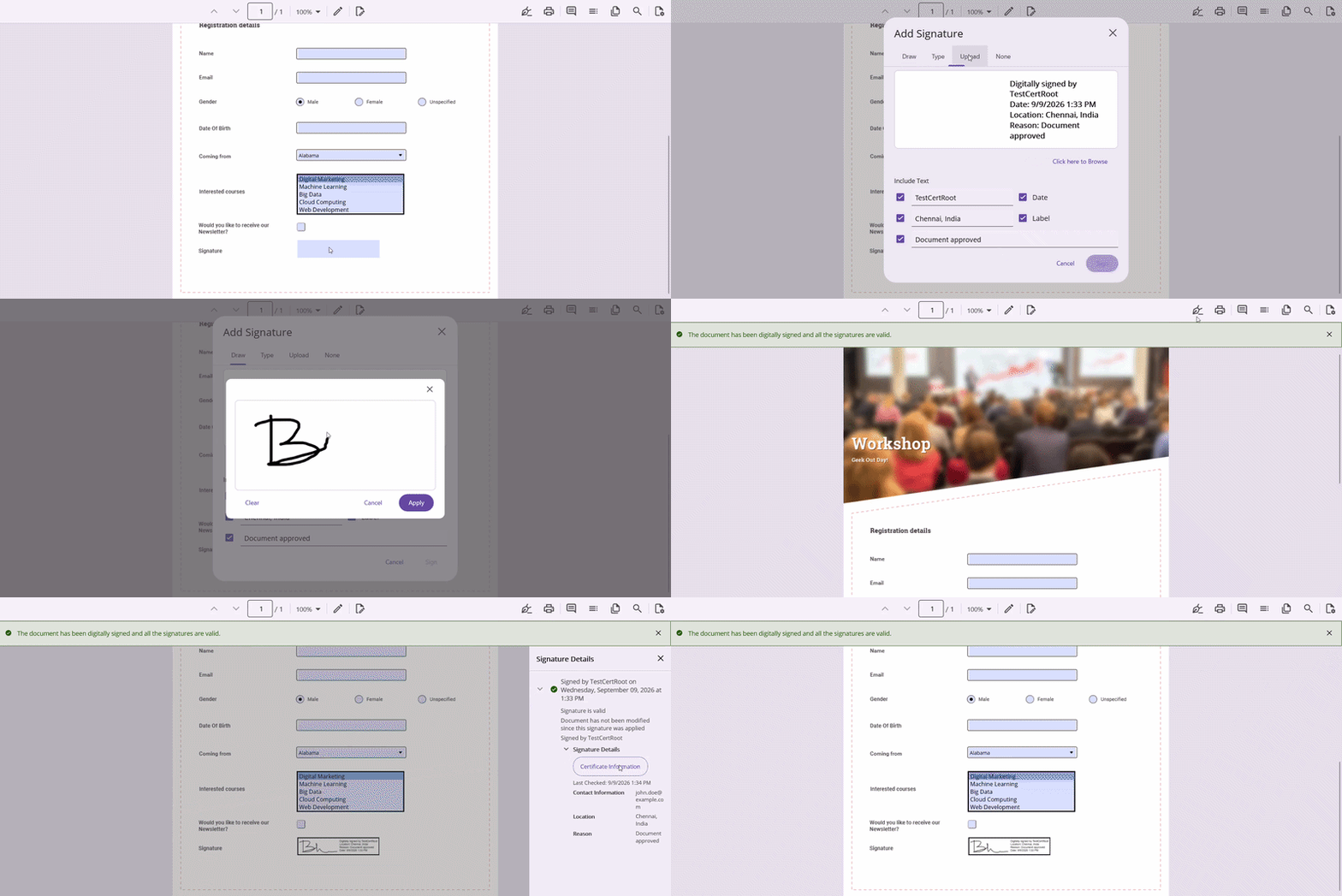
The following image represents how to sign digital signature using the built-in dialog on the desktop.
Sign programmatically
To sign a document programmatically, create a SigningOptions instance and pass it to the SignAsync method.
Sign Using Certificate
Provide a certificate through the CertificateStream property of the SigningOptions class to digitally sign the document. You can also specify additional signature information such as the signer name, reason, location, and contact information.
SigningOptions options = new SigningOptions()
{
    SignatureField = signatureField,
    SignerName = "John Doe",
    Reason = "Document Approval",
    LocationInfo = "New York",
    ContactInfo = "[email protected]",
    CertificateStream = certificateStream,
    CertificatePassword = "password"
};

await pdfViewer.SignAsync(options);
Signature Appearance
Use the SignatureAppearanceSettings class to customize the visual appearance of a digital signature applied to a PDF document.
options.Appearance = new SignatureAppearanceSettings()
{
    Mode = SignatureAppearanceMode.Text,
    ShowSignerName = true,
    ShowDate = true,
    ShowReason = true,
    ShowLocation = true,
    ShowLabels = true
};
Signature Appearance Modes
The Mode property determines how the digital signature is displayed in the signed document.
Text Appearance
Displays signer information as text without any graphical signature content.
appearance.Mode = SignatureAppearanceMode.Text;Draw Appearance
Displays handwritten signature strokes captured from user input.
appearance.Mode = SignatureAppearanceMode.Draw;
appearance.SignaturePoints = signaturePoints;
Image Appearance
Displays a signature image as the visual representation of the digital signature.
appearance.Mode = SignatureAppearanceMode.Image;
appearance.ImageBytes = imageBytes;
None
Displays only digital signing information without any graphical signature content.
appearance.Mode = SignatureAppearanceMode.None;Certificate Inspection
Users can inspect the signer certificate information through the built-in certificate details dialog. This dialog provides details about the certificate used to digitally sign the document, allowing users to verify the signer’s identity and certificate validity.
Certificate details include:
- Subject Name
- Issuer Name
- Serial Number
- Thumbprint
- Signature Algorithm
- Digest Algorithm
- Valid From
- Valid To
Signature Validation Event
The SignatureValidated event occurs after a digital signature has been validated. This event provides access to the validated signature field and its corresponding validation result, allowing you to inspect the validation status and perform custom logic based on the result.
pdfViewer.SignatureValidated += PdfViewer_SignatureValidated;

private void PdfViewer_SignatureValidated(
    object? sender,
    SignatureValidatedEventArgs e)
{
    var signature = e.SignatureField;
    var result = e.Result;
}
Document Signed Event
The DocumentSigned event occurs after a document has been successfully signed. This event provides access to the signature field that was signed, allowing you to perform post-signing operations such as updating the UI, saving the document, or displaying a confirmation message.
pdfViewer.DocumentSigned += PdfViewer_DocumentSigned;

private void PdfViewer_DocumentSigned(
    object? sender,
    DocumentSignedEventArgs e)
{
    SignatureFormField signedField =
        e.SignatureField;
}
Signing Failed Event
The SigningFailed event occurs when a digital signing operation fails. This event provides information about the failure, including the error type and error message, allowing you to handle signing errors and provide appropriate feedback to users.
pdfViewer.SigningFailed += PdfViewer_SigningFailed;

private void PdfViewer_SigningFailed(
    object? sender,
    SigningFailedEventArgs e)
{
    var errorType = e.ErrorType;
    var message = e.ErrorMessage;
}
Common Signing Errors
The following table lists the common errors that can occur during a digital signing operation and their descriptions.
| Error | Description |
|---|---|
| InvalidTarget | The specified signature field is invalid or cannot be signed. |
| FieldAlreadySigned | The signature field already contains a digital signature. |
| InvalidCertificate | The certificate could not be loaded or is invalid. |
| MissingCertificateOrProvider | No certificate or custom signing provider was supplied for the signing operation. |
| ProviderSigningFailed | The custom signing provider failed to complete the signing operation. |
| InvalidAppearance | The specified signature appearance settings are invalid. |
| Cancelled | The signing operation was cancelled by the user. |
Digital Signature Dialog Events
The .NET MAUI PDF Viewer provides events that allow you to customize the behavior of the digital signature dialog before it is displayed and before it is closed.
DigitalSignatureModalViewAppearing
The DigitalSignatureModalViewAppearing event occurs before the digital signature dialog is displayed. Use this event to customize signing options or prevent the dialog from being shown.
pdfViewer.DigitalSignatureModalViewAppearing += PdfViewer_DigitalSignatureModalViewAppearing;

private void PdfViewer_DigitalSignatureModalViewAppearing(
    object? sender,
    DigitalSignatureModalViewAppearingEventArgs e)
{
    // Customize signing options.
     Stream? certificateStream = typeof(App).GetTypeInfo().Assembly.GetManifestResourceStream("DigitalSignature.Assets.certificate.pfx");
    e.Options.CertificateStream =certificateStream;
    e.Options.CertificatePassword = "password";
    e.Options.SignerName = "David";
    e.Options.Reason = "Approved";
    e.Options.LocationInfo = "India";
    e.Options.ContactInfo = "[email protected]";
}
Cancel Dialog Display
Set the Cancel property to true in the DigitalSignatureModalViewAppearing event to prevent the digital signature dialog from being displayed.
private void PdfViewer_DigitalSignatureModalViewAppearing(
    object? sender,
    DigitalSignatureModalViewAppearingEventArgs e)
{
    e.Cancel = true;
}
DigitalSignatureModalViewDisappearing
The DigitalSignatureModalViewDisappearing event occurs before the digital signature dialog closes. Use this event to perform any required cleanup or post-processing tasks before the dialog is dismissed.
pdfViewer.DigitalSignatureModalViewDisappearing +=
    PdfViewer_DigitalSignatureModalViewDisappearing;

private void PdfViewer_DigitalSignatureModalViewDisappearing(
    object? sender,
    EventArgs e)
{
}
Custom Signing Provider
Implement the ISignatureProvider interface to integrate custom signing solutions such as cloud-based signing services, Hardware Security Modules (HSMs), smart cards, or enterprise Public Key Infrastructure (PKI) systems. A custom signing provider enables signing operations to be performed using certificates and keys that are managed outside the local device.
Stream? certificateStream = typeof(App).GetTypeInfo().Assembly.GetManifestResourceStream("DigitalSignature.Assets.certificate.pfx");

pdfViewer.DigitalSignatureSettings.SigningProvider =new CustomSignatureProvider(
        certificateStream,
        "password123");

public class CustomSignatureProvider : ISignatureProvider
{
    private readonly X509Certificate2 signingCertificate;

    public CustomSignatureProvider(Stream? signingPfxStream,string signingPassword)
    {
        MemoryStream signingMs = new();
        signingPfxStream?.CopyTo(signingMs);
        signingCertificate = X509CertificateLoader.LoadPkcs12(signingMs.ToArray(),signingPassword,X509KeyStorageFlags.Exportable);
    }

    public IReadOnlyList<X509Certificate2> Certificates => new[]{signingCertificate};

    public Task<byte[]> SignHashAsync(byte[] data,CancellationToken cancellationToken)
    {
        cancellationToken.ThrowIfCancellationRequested();

        if (signingCertificate.GetRSAPrivateKey() is RSA rsa)
        {
            return Task.FromResult(
                rsa.SignData(
                    data,
                    HashAlgorithmName.SHA256,
                    RSASignaturePadding.Pkcs1));
        }

        throw new InvalidOperationException("Certificate does not contain an RSA private key.");
    }
}
Multi-Signature Support
The .NET MAUI PDF Viewer supports PDF documents that contain multiple digital signatures. Each signature is managed independently, allowing users to validate, inspect, and navigate between signatures without affecting existing signed content.
The following multi-signature capabilities are supported:
- Independent validation of each digital signature.
- Navigation between signature fields through the signature panel.
- Incremental document updates when additional signatures are applied.
- Preservation of existing signatures during subsequent signing operations.
- Synchronization of signature validation status across the document and signature panel.