From Azure Active Directory in JavaScript (ES6) PDF Viewer
17 Aug 202612 minutes to read
Overview
The TypeScript PDF Viewer component supports loading and saving PDF files with Azure Active Directory (AAD). The following steps explain how to securely load and store PDFs using AAD.
Steps to open a PDF from Azure Active Directory
Step 1: Register an application in Azure Active Directory (AAD)
-
Go to the Azure Portal:
- Navigate to Azure Portal.
-
Register your Application:
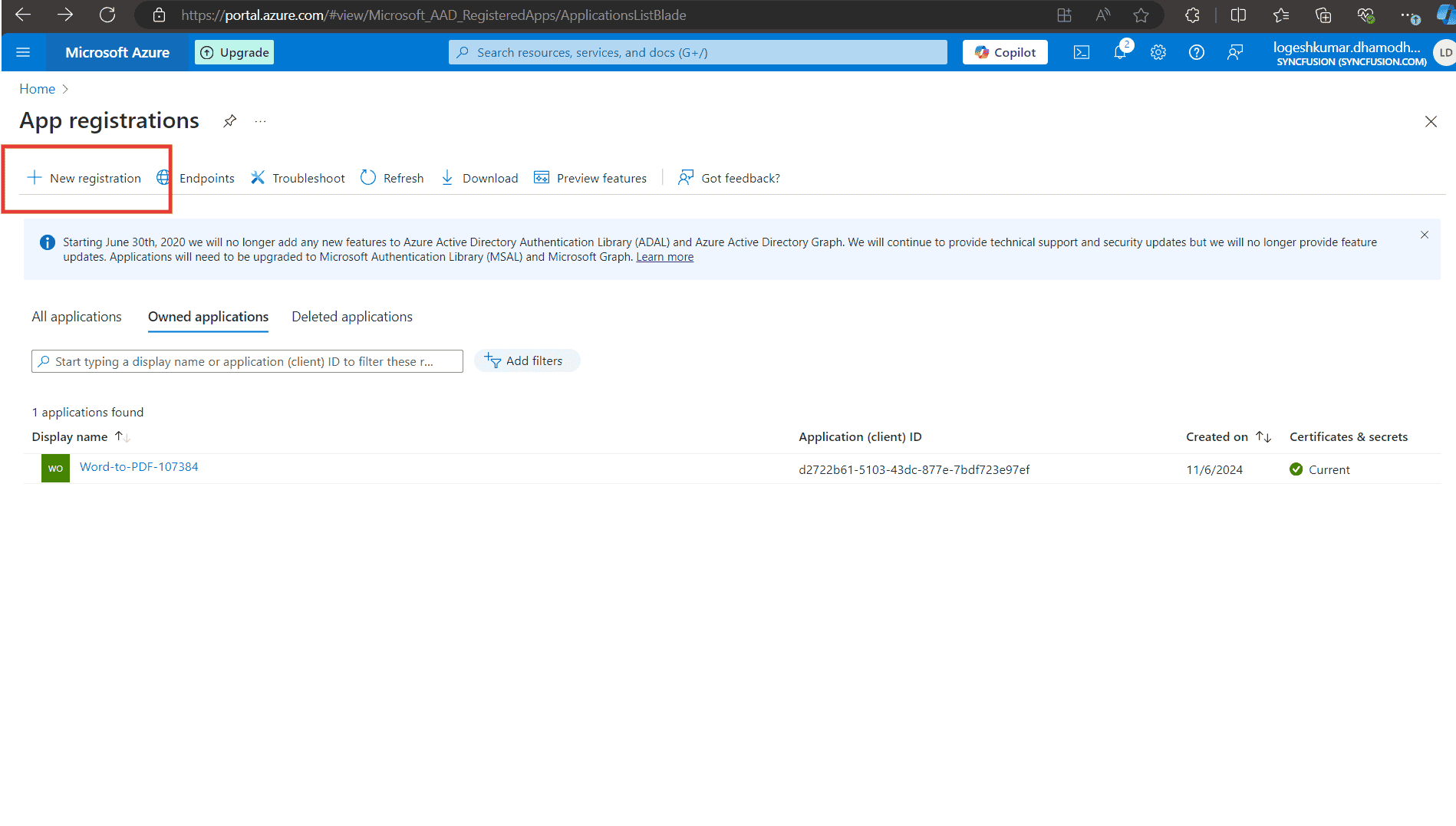
- In the Azure portal, go to Azure Active Directory > App registrations > New registration.
- Register your application and note down the Application (client) ID and Directory (tenant) ID.
-
Create a Client Secret:
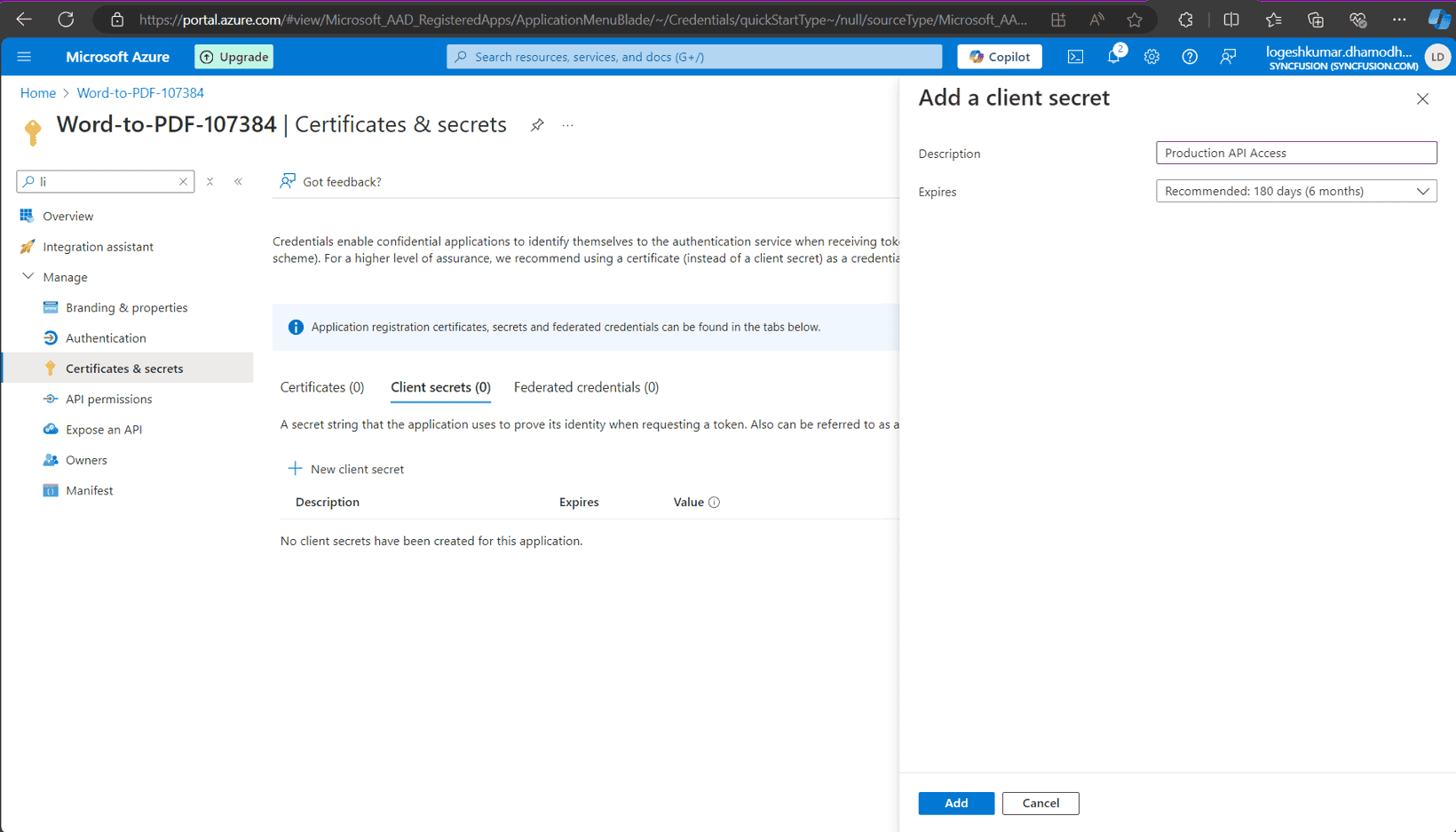
- In the registered application, go to Certificates & secrets.
- Click New client secret.
- Provide a description and set an expiration period.
- Click Add.
- Copy the client secret value immediately, as it will be hidden later. Store it securely.
Avoid embedding client secrets directly in source control or client-side code. For production deployments prefer managed identities or use
DefaultAzureCredentialon the server to obtain tokens securely. Rotate and protect secrets via a secure secrets store.
Step 2: Create the Azure Storage account
-
Create a Storage Account:
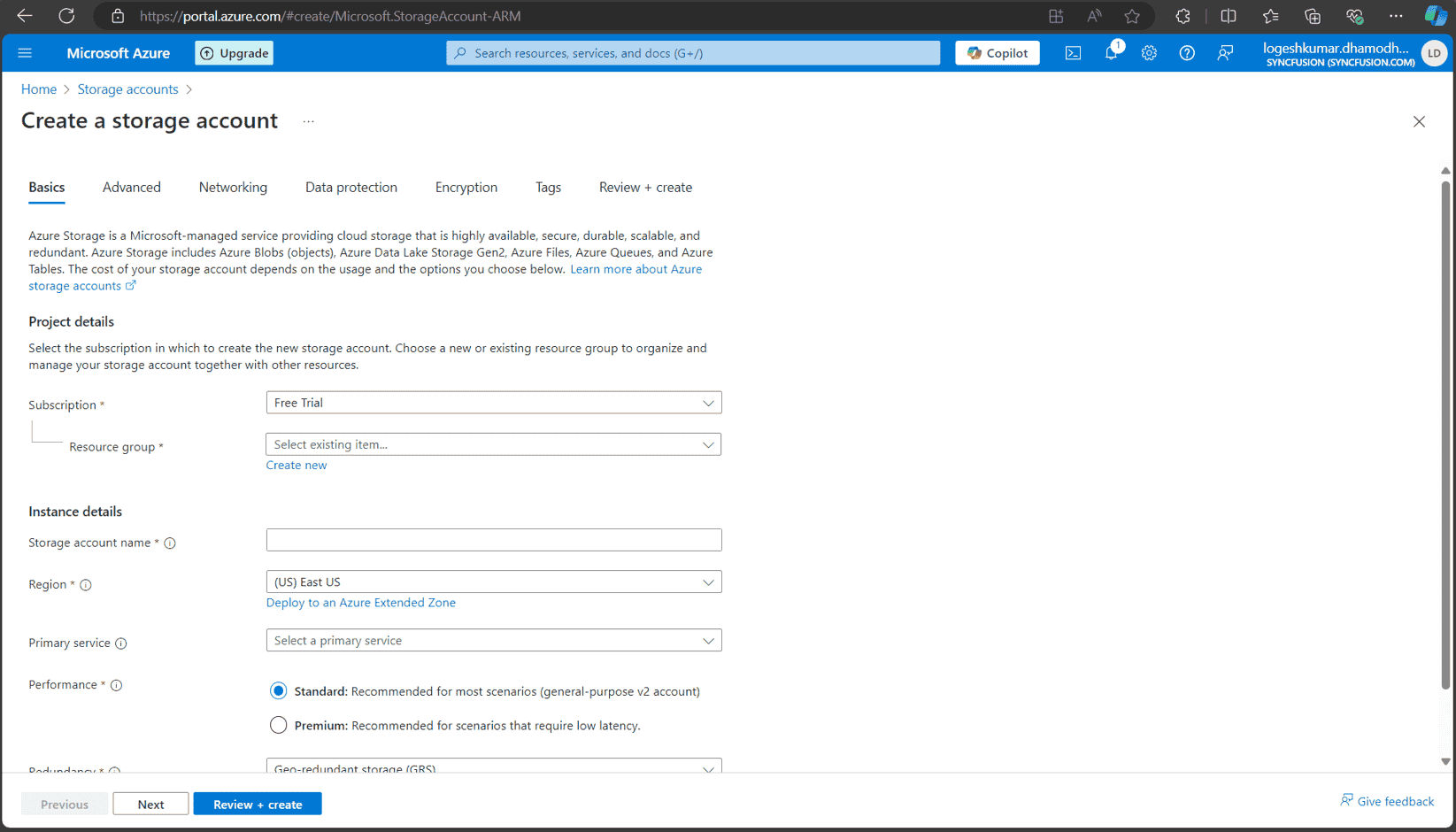
- In the Azure portal, use the search bar to search for Storage accounts.
- Create a new storage account by filling in the required details (e.g., name, location, resource group, etc.).
Step 3: Assign a role to the application
-
Go to your Storage Account:
- Navigate to Access control (IAM) > Add role assignment in your Azure Storage Account.
-
Assign Role:
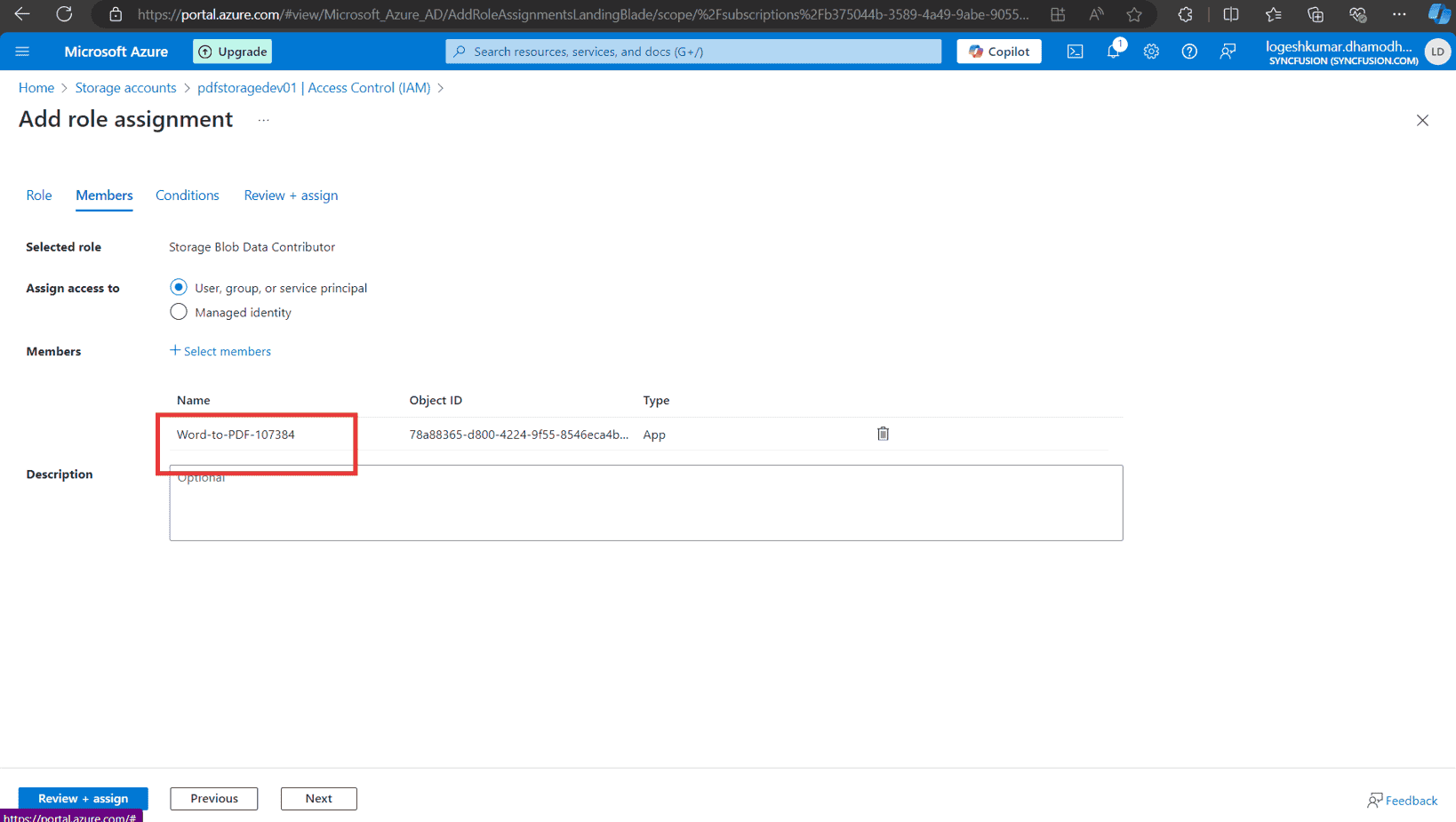
- Assign the Storage Blob Data Contributor role to your registered application.
- In the Assign access to dropdown, select User, group, or service principal.
- Click Select members and search for your registered application by name or client ID.
- Select your application and click Select.
- Click Review + assign to finalize the role assignment.
Step 4: Upload the PDF to Azure Storage
-
Navigate to Data Storage:
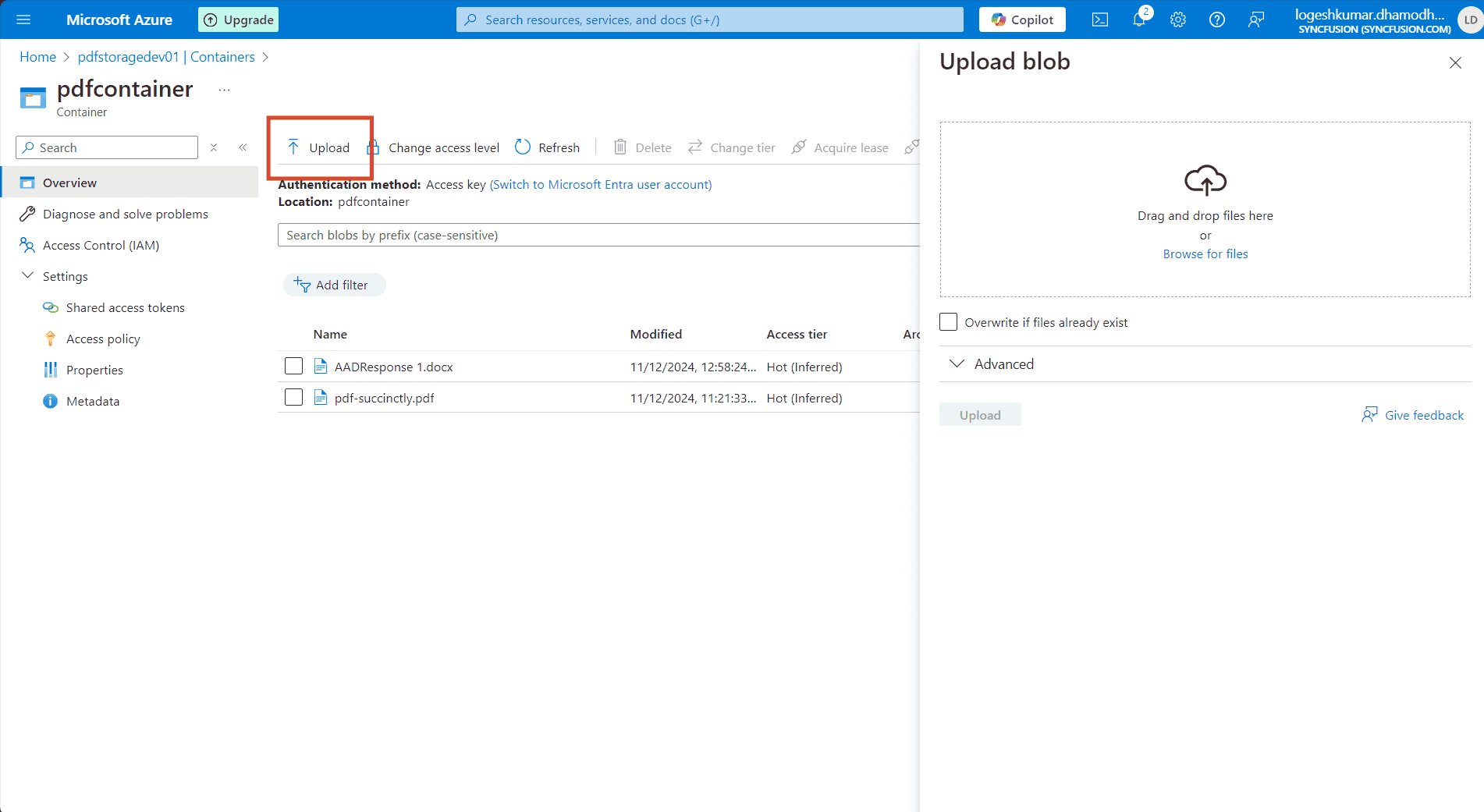
- In the Azure portal, go to Data storage > Containers.
-
Upload the PDF File:
- Create a new container and upload the PDF document you want to access in the PDF Viewer.
Step 5: Server-side configuration
-
Configure Server-Side Code:
- Open the server-side application (e.g., ASP.NET Core) and configure the following details in the
PdfViewerControllerfile:-
tenantId(your Azure AD tenant ID), -
clientId(your registered application client ID), -
clientSecret(your registered application client secret), -
blobServiceEndpoint(your storage account blob service URL), -
containerName(your container name in Azure Blob Storage).
-
- Open the server-side application (e.g., ASP.NET Core) and configure the following details in the
Prefer
DefaultAzureCredentialor a managed identity for server authentication instead of storing client secrets. Store any required secrets in a secure configuration store (Key Vault, environment variables) and avoid committing them to source control.
-
Run the Web Service:
- After configuring the necessary details, run the web service to make it accessible.
Step 6: Client-side configuration
-
Run the TypeScript Sample:
- Start the TypeScript sample that includes the Syncfusion PDF Viewer.
-
Load PDF from AAD:
- When the user clicks the Load from AAD button, the JS client makes an HTTP request to the server-side API to fetch the PDF from Azure Blob Storage.
- The server retrieves the PDF from Azure, converts it to a Base64 string, and returns it to the client.
For security, the client should not access Azure Blob Storage directly with application-level credentials. Use the server as a proxy or provide limited-time pre-signed URLs for direct client access.
-
Display PDF in the PDF Viewer:
- Once the base64 string is received, the PDF Viewer will load the PDF using the
viewer.load()method.
- Once the base64 string is received, the PDF Viewer will load the PDF using the
Step 7: Save the PDF to Azure
-
Save PDF to AAD:
- The user can click the Save to AAD button to upload any modifications to the PDF back to Azure Blob Storage.
- This action sends the modified PDF to the server, where it is converted into a byte array and saved to the specified Azure Blob container.
Server-side code
string tenantId = "Provide the tenant id here";
string clientId = "Provide the clientid here";
string clientSecret = "Provide the client secret here";
string blobServiceEndpoint = "https://your-storage-account.blob.core.windows.net";
string containerName = "Provide the container name here";


[HttpPost("LoadFromAAD")]
[Route("[controller]/LoadFromAAD")]
public async Task<IActionResult> LoadFromAAD(string fileName)
{
    var clientSecretCredential = new ClientSecretCredential(tenantId, clientId, clientSecret);
    var blobServiceClient = new BlobServiceClient(new Uri(blobServiceEndpoint), clientSecretCredential);
    var containerClient = blobServiceClient.GetBlobContainerClient(containerName);
    var blobClient = containerClient.GetBlobClient(fileName);

    // Download the PDF file to a local stream
    using MemoryStream pdfStream = new MemoryStream();
    await blobClient.DownloadToAsync(pdfStream);
    var base64 = Convert.ToBase64String(pdfStream.ToArray());
    return Content("data:application/pdf;base64," + base64);
}

[AcceptVerbs("SaveToAAD")]
[HttpPost("SaveToAAD")]
[Route("[controller]/SaveToAAD")]
public async Task<IActionResult> SaveToAAD([FromBody] Dictionary<string, string> jsonObject)
{
    PdfRenderer pdfviewer = new PdfRenderer(_cache);
    var fileName = jsonObject.ContainsKey("documentId") ? jsonObject["documentId"] : "Test.pdf";
    string documentBase = pdfviewer.GetDocumentAsBase64(jsonObject);
    string convertedBase = documentBase.Substring(documentBase.LastIndexOf(',') + 1);
    // Decode the Base64 string to a byte array
    byte[] byteArray = Convert.FromBase64String(convertedBase);
    // Create a MemoryStream from the byte array
    MemoryStream stream = new MemoryStream(byteArray);
    // Create a new BlobServiceClient using the DefaultAzureCredential
    var clientSecretCredential = new ClientSecretCredential(tenantId, clientId, clientSecret);
    var blobServiceClient = new BlobServiceClient(new Uri(blobServiceEndpoint), clientSecretCredential);
    // Get a reference to the container
    var containerClient = blobServiceClient.GetBlobContainerClient(containerName);
    // Get a reference to the blob
    var blobClient = containerClient.GetBlobClient(fileName);
    //FileStream uploadFileStream = new FileStream();
    await blobClient.UploadAsync(stream, true);
    stream.Close();
    return Content(string.Empty);
}
Client-side code
import { PdfViewer, Toolbar, TextSelection, TextSearch, Print, Navigation, Magnification, Annotation, FormDesigner, FormFields, CustomToolbarItemModel } from '@syncfusion/ej2-pdfviewer';
import { ComboBox } from "@syncfusion/ej2-dropdowns";

// Inject required modules for PDF Viewer functionality
PdfViewer.Inject(
    TextSelection,
    TextSearch,
    Print,
    Navigation,
    Toolbar,
    Magnification,
    Annotation,
    FormDesigner,
    FormFields
);

// Define custom toolbar items
let toolItem1: CustomToolbarItemModel = {
    id: 'loadFromAAD',
    text: 'Load From AAD',
    tooltipText: 'Custom toolbar item',
    align: 'left'
};

let toolItem2: CustomToolbarItemModel = {
    id: 'saveToAAD',
    text: 'Save To AAD',
    tooltipText: 'Custom toolbar item',
    align: 'left'
};

// Initialize the PDF Viewer with custom toolbar items
let pdfviewer: PdfViewer = new PdfViewer({
    serviceUrl: 'https://localhost:44308/pdfviewer',
    toolbarSettings: {
        toolbarItems: [
            toolItem1,
            toolItem2,
            'OpenOption',
            'PageNavigationTool',
            'MagnificationTool',
            'PanTool',
            'SelectionTool',
            'SearchOption',
            'PrintOption',
            'DownloadOption',
            'UndoRedoTool',
            'AnnotationEditTool',
            'FormDesignerEditTool',
            'CommentTool',
            'SubmitForm',
        ]
    }
});

// Render the PDF Viewer in the DOM
pdfviewer.appendTo('#PdfViewer');

// Handle toolbar clicks
pdfviewer.toolbarClick = (args: { item?: { id: string } }) => {
    if (args.item) {
        if (args.item.id === 'loadFromAAD') {
            // Handle 'Load From AAD' logic
            const xhr = new XMLHttpRequest();
            xhr.open('POST', `https://localhost:44308/pdfviewer/LoadFromAAD?fileName=pdf-succinctly.pdf`, true);
            xhr.onreadystatechange = () => {
                if (xhr.readyState === 4 && xhr.status === 200) {
                    const data = xhr.responseText;
                    console.log(data); // Handle the response
                    pdfviewer.load(data,''); // Load the document
                }
            };
            xhr.send();
        } else if (args.item.id === 'saveToAAD') {
            // Handle 'Save To AAD' logic
            pdfviewer.serverActionSettings.download = "SaveToAAD";
            pdfviewer.download(); // Trigger download
        }
    }
};