Organize Pages in Mobile View in JavaScript (ES5) PDF Viewer
14 Aug 20261 minute to read
The PDF Viewer offers a mobile-responsive layout for the Organize Pages feature, ensuring a seamless experience on smaller devices. On mobile devices, the toolbar and navigation elements adapt to screen size to provide easy access to page management tools.
Mobile-Friendly Toolbar
In the mobile view, the Organize Pages toolbar is displayed at the bottom of the screen for easy one-handed access. The toolbar includes the same set of tools as the desktop version, such as insert, delete, and rotate, but with a mobile-optimized layout.
Context Menu for Page Operations
To perform actions on a page thumbnail, tap and hold the thumbnail to open a context menu. This menu contains the available page operations:
- Rotate Clockwise: Rotate the selected page 90 degrees clockwise.
- Rotate Counter-Clockwise: Rotate the selected page 90 degrees counter-clockwise.
- Insert Page: Insert a new page.
- Copy Page: Duplicate the selected page.
- Delete Page: Remove the selected page.
- Select All: Select all pages in the document.
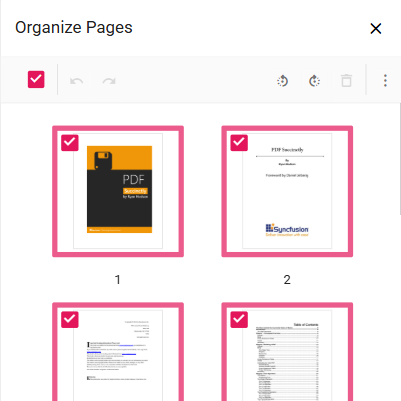
Rearranging Pages on Mobile
To rearrange pages, tap and hold a page thumbnail to select it, then drag it to the desired position. A blue line will indicate the drop location.
The mobile interface enables efficient PDF page management on handheld devices.